The Tech Edvocate

Top Menu

  • Advertisement
  • Apps
  • Home Page
  • Home Page Five (No Sidebar)
  • Home Page Four
  • Home Page Three
  • Home Page Two
  • Home Tech2
  • Icons [No Sidebar]
  • Left Sidbear Page
  • Lynch Educational Consulting
  • My Account
  • My Speaking Page
  • Newsletter Sign Up Confirmation
  • Newsletter Unsubscription
  • Our Brands
  • Page Example
  • Privacy Policy
  • Protected Content
  • Register
  • Request a Product Review
  • Shop
  • Shortcodes Examples
  • Signup
  • Start Here
    • Governance
    • Careers
    • Contact Us
  • Terms and Conditions
  • The Edvocate
  • The Tech Edvocate Product Guide
  • Topics
  • Write For Us
  • Advertise

Main Menu

  • Start Here
    • Our Brands
    • Governance
      • Lynch Educational Consulting, LLC.
      • Dr. Lynch’s Personal Website
      • Careers
    • Write For Us
    • The Tech Edvocate Product Guide
    • Contact Us
    • Books
    • Edupedia
    • Post a Job
    • The Edvocate Podcast
    • Terms and Conditions
    • Privacy Policy
  • Topics
    • Assistive Technology
    • Child Development Tech
    • Early Childhood & K-12 EdTech
    • EdTech Futures
    • EdTech News
    • EdTech Policy & Reform
    • EdTech Startups & Businesses
    • Higher Education EdTech
    • Online Learning & eLearning
    • Parent & Family Tech
    • Personalized Learning
    • Product Reviews
  • Advertise
  • Tech Edvocate Awards
  • The Edvocate
  • Pedagogue
  • School Ratings

logo

The Tech Edvocate

  • Start Here
    • Our Brands
    • Governance
      • Lynch Educational Consulting, LLC.
      • Dr. Lynch’s Personal Website
        • My Speaking Page
      • Careers
    • Write For Us
    • The Tech Edvocate Product Guide
    • Contact Us
    • Books
    • Edupedia
    • Post a Job
    • The Edvocate Podcast
    • Terms and Conditions
    • Privacy Policy
  • Topics
    • Assistive Technology
    • Child Development Tech
    • Early Childhood & K-12 EdTech
    • EdTech Futures
    • EdTech News
    • EdTech Policy & Reform
    • EdTech Startups & Businesses
    • Higher Education EdTech
    • Online Learning & eLearning
    • Parent & Family Tech
    • Personalized Learning
    • Product Reviews
  • Advertise
  • Tech Edvocate Awards
  • The Edvocate
  • Pedagogue
  • School Ratings
  • 100 Best Customer Service Apps

  • 100 Best Sales Apps

  • 100 Best Video Marketing Apps

  • 100 Best Affiliate Marketing Apps

  • 100 Best Influencer Marketing Apps

  • 100 Best Content Marketing Apps

  • 100 Best SEO Apps

  • 100 Best Social Media Apps

  • 100 Best Email Marketing Apps

  • 100 Best Analytics Apps

Digital & Mobile Technology
Home›Digital & Mobile Technology›How to Revive Windows 10 With a Recovery USB

How to Revive Windows 10 With a Recovery USB
By Matthew Lynch
June 4, 2023
0
Spread the love

Windows 10 is one of the most popular operating systems in the world, and for good reason. Not only is it user-friendly, but it’s also renowned for its unmatched stability and reliability. However, like every other operating system, Windows 10 is not immune to errors and crashes. In the event of a system failure, the best way to revive Windows 10 is by using a recovery USB.

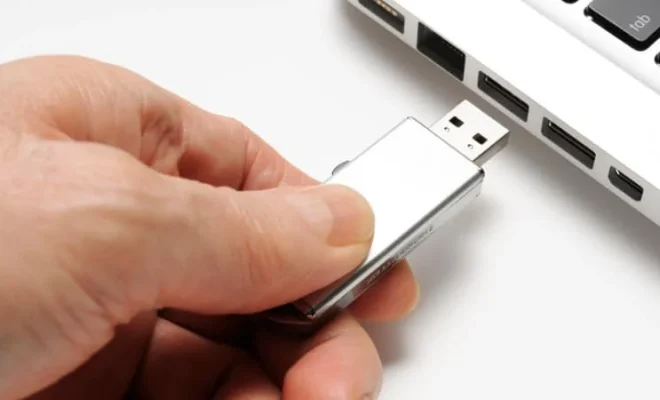
A recovery USB is a bootable USB drive that contains a complete copy of the operating system along with other important tools and utilities that can be used to repair or troubleshoot your computer. If your Windows 10 system is experiencing issues like a blue screen of death, constant freezing, or is generally unresponsive, a recovery USB can help revive your PC.

So, how do you create a recovery USB for your Windows 10 system? Here are the steps:

Step 1: Prepare a USB flash drive of at least 8GB capacity.

Step 2: Open the Windows Create a Recovery Drive tool by searching for “Create a Recovery Drive” in the start menu or the Cortana search bar.

Step 3: Select the option “Back up system files to the recovery drive” and click “Next”.

Step 4: Choose the USB flash drive you wish to use and click “Next”.

Step 5: Click “Create” to start creating the recovery USB.

Once the process is complete, you will have a bootable USB drive that can be used to revive your Windows 10 system. The next step is to use the recovery USB to revive your computer.

To do this:

Step 1: Insert the recovery USB into your PC.

Step 2: Restart your computer and enter the BIOS settings by pressing the appropriate key during bootup. The key to enter the BIOS settings varies depending on the manufacturer of your system, but common keys include F2, Del, or Esc.

Step 3: In the BIOS settings, navigate to the boot menu and select the option to boot from the USB drive.

Step 4: Save the changes and exit the BIOS settings, then wait for your computer to boot from the USB drive.

Step 5: Once the recovery environment loads, you will be presented with several options, including system restore, startup repair, and command prompt.

Step 6: Choose the appropriate option based on the issue you are experiencing.

If you’re unable to pinpoint the exact issue, the recommended option is to choose the “System Restore” option. This will restore your computer to an earlier state when it was working properly. Simply follow the on-screen instructions to complete the process.

In conclusion, a recovery USB is a simple and effective tool to revive your Windows 10 system. Creating a recovery USB is easy, and it can help you avoid the frustration that comes with system crashes and errors. With these simple steps, you can create a recovery USB and revive your Windows 10 system with ease.


Previous Article

How to Draw Freehand in PowerPoint

Next Article

What Is the Catalyst Control Center (CCC.exe)?

Matthew Lynch

Related articles More from author

  • Digital & Mobile Technology

    Speech Services by Google Won’t Stop Downloading? Ways to Fix It

    August 5, 2023
    By Matthew Lynch
  • Digital & Mobile Technology

    What Is Litecoin Halving? When Will the Litecoin Halving Happen?

    June 15, 2023
    By Matthew Lynch
  • Digital & Mobile Technology

    How to Calculate Weighted Average in Excel

    August 5, 2023
    By Matthew Lynch
  • Digital & Mobile Technology

    How to Change the Email Sender Name in Microsoft Outlook

    June 23, 2023
    By Matthew Lynch
  • Digital & Mobile Technology

    Use This Trick to Convert Any Image to PDF on Windows 10

    June 15, 2023
    By Matthew Lynch
  • Digital & Mobile Technology

    Must-Have iMessage Sticker Packs for Fun Conversations

    June 12, 2023
    By Matthew Lynch

Search

Login & Registration

  • Log in
  • Entries feed
  • Comments feed
  • WordPress.org

Newsletter

Signup for The Tech Edvocate Newsletter and have the latest in EdTech news and opinion delivered to your email address!

About Us

Since technology is not going anywhere and does more good than harm, adapting is the best course of action. That is where The Tech Edvocate comes in. We plan to cover the PreK-12 and Higher Education EdTech sectors and provide our readers with the latest news and opinion on the subject. From time to time, I will invite other voices to weigh in on important issues in EdTech. We hope to provide a well-rounded, multi-faceted look at the past, present, the future of EdTech in the US and internationally.

We started this journey back in June 2016, and we plan to continue it for many more years to come. I hope that you will join us in this discussion of the past, present and future of EdTech and lend your own insight to the issues that are discussed.

Newsletter

Signup for The Tech Edvocate Newsletter and have the latest in EdTech news and opinion delivered to your email address!

Contact Us

The Tech Edvocate
910 Goddin Street
Richmond, VA 23231
(601) 630-5238
[email protected]

Copyright © 2026 Matthew Lynch. All rights reserved.