The Tech Edvocate

Top Menu

  • Advertisement
  • Apps
  • Home Page
  • Home Page Five (No Sidebar)
  • Home Page Four
  • Home Page Three
  • Home Page Two
  • Home Tech2
  • Icons [No Sidebar]
  • Left Sidbear Page
  • Lynch Educational Consulting
  • My Account
  • My Speaking Page
  • Newsletter Sign Up Confirmation
  • Newsletter Unsubscription
  • Our Brands
  • Page Example
  • Privacy Policy
  • Protected Content
  • Register
  • Request a Product Review
  • Shop
  • Shortcodes Examples
  • Signup
  • Start Here
    • Governance
    • Careers
    • Contact Us
  • Terms and Conditions
  • The Edvocate
  • The Tech Edvocate Product Guide
  • Topics
  • Write For Us
  • Advertise

Main Menu

  • Start Here
    • Our Brands
    • Governance
      • Lynch Educational Consulting, LLC.
      • Dr. Lynch’s Personal Website
      • Careers
    • Write For Us
    • The Tech Edvocate Product Guide
    • Contact Us
    • Books
    • Edupedia
    • Post a Job
    • The Edvocate Podcast
    • Terms and Conditions
    • Privacy Policy
  • Topics
    • Assistive Technology
    • Child Development Tech
    • Early Childhood & K-12 EdTech
    • EdTech Futures
    • EdTech News
    • EdTech Policy & Reform
    • EdTech Startups & Businesses
    • Higher Education EdTech
    • Online Learning & eLearning
    • Parent & Family Tech
    • Personalized Learning
    • Product Reviews
  • Advertise
  • Tech Edvocate Awards
  • The Edvocate
  • Pedagogue
  • School Ratings

logo

The Tech Edvocate

  • Start Here
    • Our Brands
    • Governance
      • Lynch Educational Consulting, LLC.
      • Dr. Lynch’s Personal Website
        • My Speaking Page
      • Careers
    • Write For Us
    • The Tech Edvocate Product Guide
    • Contact Us
    • Books
    • Edupedia
    • Post a Job
    • The Edvocate Podcast
    • Terms and Conditions
    • Privacy Policy
  • Topics
    • Assistive Technology
    • Child Development Tech
    • Early Childhood & K-12 EdTech
    • EdTech Futures
    • EdTech News
    • EdTech Policy & Reform
    • EdTech Startups & Businesses
    • Higher Education EdTech
    • Online Learning & eLearning
    • Parent & Family Tech
    • Personalized Learning
    • Product Reviews
  • Advertise
  • Tech Edvocate Awards
  • The Edvocate
  • Pedagogue
  • School Ratings
  • Miro vs Conceptboard for project management

  • How to use Teamwork for resource management

  • How much does Procore cost per month

  • How to organize Microsoft Planner buckets

  • Is Teamwork good for billable hours

  • Procore vs Buildertrend which is better

  • Airtable project management templates

  • Can Miro track project progress

  • How to use Basecamp for client work

  • Can Lucidchart create swimlane diagrams

Assistive Technology
Home›Assistive Technology›How to Reseat Internal Data and Power Cables

How to Reseat Internal Data and Power Cables
By Matthew Lynch
June 12, 2023
0
Spread the love

When it comes to dealing with computer issues, one of the most common solutions is to reseat internal data and power cables. While it may sound intimidating at first, it’s actually a simple process that can be completed in just a few minutes. In this article, we’ll guide you through the steps to reseat internal data and power cables to troubleshoot your computer problems.

Step 1: Shut down your computer

Before you begin, make sure your computer is completely shut down. This means that there is no power running through it, and it’s safe to touch internal components. Turning off your computer also ensures that you don’t accidentally delete any important data or shut down any running programs.

Step 2: Unplug all external peripherals

It’s important to unplug all external peripherals, such as printers, scanners, and USB drives, connected to your computer. This prevents any accidental power surges or electrostatic discharge from damaging your components. If your computer is a laptop, make sure that it’s unplugged from the AC adapter and the battery is removed.

Step 3: Ground yourself

Before handling any internal components, it’s crucial to ground yourself. This means that you need to discharge any static electricity that may be present in your body. Touching any metal surface or using an anti-static wristband can help you ground yourself.

Step 4: Open the computer case

Most computer cases come with screws that you need to remove to open the case. You can find these screws on the back or side panel of the case. Depending on the type of case you have, you may require a screwdriver or a socket wrench to remove the screws.

Step 5: Locate internal data and power cables

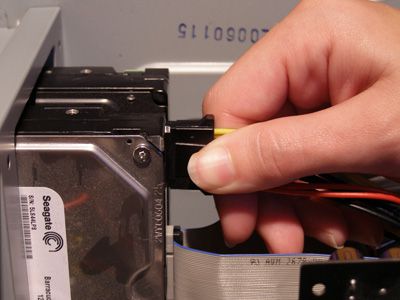
Once the computer case is open, you can locate the internal data and power cables. These cables run from the motherboard to the hard drive, optical drive, and other internal components. There are two types of cables, SATA and IDE. The SATA cables are small and usually red or black, while the IDE cables are wide and ribbon-like.

Step 6: Reseat the cables

To reseat the cables, you need to gently pull out the cables from the motherboard and the internal components. Make sure you note down the position of the cables, so you can correctly reattach them. Then, insert the cables back into the appropriate ports, ensuring that they’re securely connected. The cables should fit snugly into the ports, and the connectors should be aligned correctly. You can also use a bit of force to push the cables in, but don’t apply too much pressure, as this can damage the components.

Step 7: Close the computer case and turn on the computer

Finally, replace the screws in their respective positions and close the computer case. Then, connect all external peripherals, and turn on your computer. Check if the issues you were facing earlier are still present. If the problem still persists, you can try reseating the cables again or seek professional help.

In conclusion, reseating internal data and power cables is an easy process that can help you troubleshoot various computer problems. By following the above-mentioned steps, you can reattach the cables correctly and ensure that your computer runs smoothly. If you’re unsure about the process, you can refer to the user manual or seek professional help.    

Previous Article

How to Upgrade to macOS Ventura

Next Article

Introduction to LANs, WANs, and Other Kinds ...

Matthew Lynch

Related articles More from author

  • Assistive Technology

    How to Restore Deleted Apps and In-App Purchases on Your iPhone

    June 6, 2023
    By Matthew Lynch
  • Assistive Technology

    Coaxial vs. Optical Digital Audio Cables

    June 4, 2023
    By Matthew Lynch
  • Assistive Technology

    How to Fix the “VAC Was Unable to Verify Your Game Session” Error on Steam for Windows

    September 7, 2023
    By Matthew Lynch
  • Assistive Technology

    How to Reset Wi-Fi Extender to New Router

    June 11, 2023
    By Matthew Lynch
  • Assistive Technology

    How to Fix It When a Tablet Won’t Turn On

    June 8, 2023
    By Matthew Lynch
  • Assistive Technology

    A Guide to Moving Your Mac Photos Library to an External Drive

    July 15, 2023
    By Matthew Lynch

Search

Login & Registration

  • Log in
  • Entries feed
  • Comments feed
  • WordPress.org

Newsletter

Signup for The Tech Edvocate Newsletter and have the latest in EdTech news and opinion delivered to your email address!

About Us

Since technology is not going anywhere and does more good than harm, adapting is the best course of action. That is where The Tech Edvocate comes in. We plan to cover the PreK-12 and Higher Education EdTech sectors and provide our readers with the latest news and opinion on the subject. From time to time, I will invite other voices to weigh in on important issues in EdTech. We hope to provide a well-rounded, multi-faceted look at the past, present, the future of EdTech in the US and internationally.

We started this journey back in June 2016, and we plan to continue it for many more years to come. I hope that you will join us in this discussion of the past, present and future of EdTech and lend your own insight to the issues that are discussed.

Newsletter

Signup for The Tech Edvocate Newsletter and have the latest in EdTech news and opinion delivered to your email address!

Contact Us

The Tech Edvocate
910 Goddin Street
Richmond, VA 23231
(601) 630-5238
[email protected]

Copyright © 2026 Matthew Lynch. All rights reserved.