
The Tech Edvocate

Top Menu

  • Advertisement
  • Apps
  • Home Page
  • Home Page Five (No Sidebar)
  • Home Page Four
  • Home Page Three
  • Home Page Two
  • Home Tech2
  • Icons [No Sidebar]
  • Left Sidbear Page
  • Lynch Educational Consulting
  • My Account
  • My Speaking Page
  • Newsletter Sign Up Confirmation
  • Newsletter Unsubscription
  • Our Brands
  • Page Example
  • Privacy Policy
  • Protected Content
  • Register
  • Request a Product Review
  • Shop
  • Shortcodes Examples
  • Signup
  • Start Here
    • Governance
    • Careers
    • Contact Us
  • Terms and Conditions
  • The Edvocate
  • The Tech Edvocate Product Guide
  • Topics
  • Write For Us
  • Advertise

Main Menu

  • Start Here
    • Our Brands
    • Governance
      • Lynch Educational Consulting, LLC.
      • Dr. Lynch’s Personal Website
      • Careers
    • Write For Us
    • The Tech Edvocate Product Guide
    • Contact Us
    • Books
    • Edupedia
    • Post a Job
    • The Edvocate Podcast
    • Terms and Conditions
    • Privacy Policy
  • Topics
    • Assistive Technology
    • Child Development Tech
    • Early Childhood & K-12 EdTech
    • EdTech Futures
    • EdTech News
    • EdTech Policy & Reform
    • EdTech Startups & Businesses
    • Higher Education EdTech
    • Online Learning & eLearning
    • Parent & Family Tech
    • Personalized Learning
    • Product Reviews
  • Advertise
  • Tech Edvocate Awards
  • The Edvocate
  • Pedagogue
  • School Ratings

logo

The Tech Edvocate

  • Start Here
    • Our Brands
    • Governance
      • Lynch Educational Consulting, LLC.
      • Dr. Lynch’s Personal Website
        • My Speaking Page
      • Careers
    • Write For Us
    • The Tech Edvocate Product Guide
    • Contact Us
    • Books
    • Edupedia
    • Post a Job
    • The Edvocate Podcast
    • Terms and Conditions
    • Privacy Policy
  • Topics
    • Assistive Technology
    • Child Development Tech
    • Early Childhood & K-12 EdTech
    • EdTech Futures
    • EdTech News
    • EdTech Policy & Reform
    • EdTech Startups & Businesses
    • Higher Education EdTech
    • Online Learning & eLearning
    • Parent & Family Tech
    • Personalized Learning
    • Product Reviews
  • Advertise
  • Tech Edvocate Awards
  • The Edvocate
  • Pedagogue
  • School Ratings
  • The AI Job Apocalypse: Are Companies Hiding The Real Reason For Mass Layoffs?

  • One Crucial Factor Could Decimate Your US Auto Insurance Rates in 2026

  • Unbelievable: Meta Hit With $25 Billion Fine — Is Your Health Data Next?

  • 10 Crucial AI Literacy Courses Every Parent Needs Now

  • The Unseen Force Quietly Reshaping Rural Life: 7 Satellite Internet Providers Battling for Supremacy

  • Best Buy’s Gamers Hub: The Unbelievable Truth About Its “Rewards” And Discounts

  • 8 Crucial Reasons Why MAI-DxO Just Obliterated Doctors in a Head-to-Head Diagnosis Battle

  • The Brutal Truth About Student Loan Refinancing for New Grads in 2024

  • The Brutal Truth: AI Just Blew Up PHP Security – Here’s How to Survive ‘Black October’

  • Sodium-ion storage maker Peak Energy raises $108 million in GM-led round – PV Magazine

Tech Advice
Home›Tech Advice›How to Remove Malware From Your PC

How to Remove Malware From Your PC
By Matthew Lynch
July 22, 2023
0
Spread the love

Malware, or malicious software, is any software created to harm your computer or gain unauthorized access. It could be disguised as a simple program, an email attachment, or even a link on a website. Keeping your PC clean from such attacks is essential to safeguard your data and protect your privacy. In this article, we will discuss various steps to remove malware from your PC effectively.

Step 1: Enter Safe Mode

First and foremost, disconnect your computer from the internet and reboot it in Safe Mode.

– For Windows 10 and Windows 8:

– Press and hold the Shift key while selecting Restart from the Start menu.

– For Windows 7 and earlier versions:

– As your computer starts up, press the F8 key repeatedly until the Advanced Boot Options menu appears, then choose Safe Mode with Networking from the list.

In Safe Mode, only necessary system programs run, making it harder for malware to operate.

Step 2: Delete Temporary Files

Once you’re in Safe Mode, delete any temporary files using Disk Cleanup utility as some malware may hide there.

– For Windows 10, search for “Disk Cleanup” in the start menu and run the program.

– For Windows 7 and earlier versions, open My Computer or Computer > right-click on C: drive > select Properties > click Disk Cleanup.

Step 3: Download Malware Scanner

You’ll need a reliable malware scanner to remove infections. Some reputable scanners include Malwarebytes Anti-Malware, Avast Free Antivirus, and Norton Power Eraser. Download one of these scanners on another device and transfer it via a USB drive to your infected PC.

Step 4: Run a Malware Scan

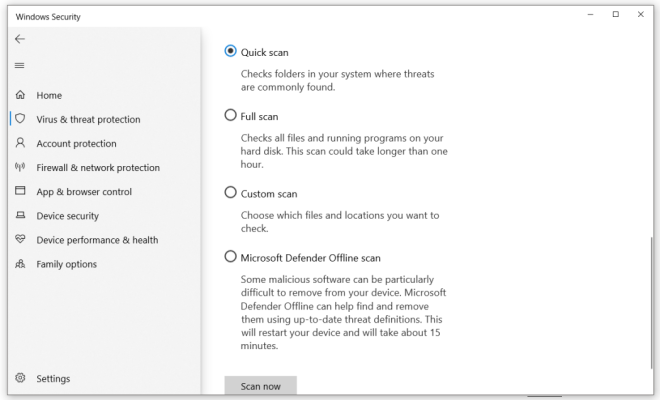
Install and update the malware scanner before running a full system scan. Follow any prompts provided by the malware scanner for best results. Some software may require you to restart your PC after the scan to finish the removal process.

Step 5: Fix Browser Settings

Malware often alters your browser settings – for example, by changing your homepage or adding toolbars. So, after removing the malware, check and fix your browser settings.

– For Google Chrome:

– Click the three vertical dots in the top-right corner > select Settings > click Advanced at the bottom of the page > Under “Reset and clean up,” click Restore settings to their original defaults > Click Reset Settings.

– For Mozilla Firefox:

– Click the three horizontal lines in the top-right corner > select Help > Troubleshooting Information > click Refresh Firefox.

– For Microsoft Edge:

– Press Alt+F on your keyboard > click Settings > click Reset settings on the right-hand side of the pane > Click Restore settings to their default values.

Step 6: Regularly Update Software and Practice Safe Browsing Habits

To avoid future malware infections, keep all software up to date, especially your operating system and antivirus software. Be cautious when downloading files or clicking links from unknown sources. If you receive an unexpected email with attachments or links, thoroughly check to make sure it’s legitimate before opening any attached files or clicking any links. Avoid using public Wi-Fi networks that may expose your computer to potential threats.

Conclusion:

Removing malware from your PC can seem intimidating, but with the right tools and steps in place, you can effectively protect your data and maintain a malware-free system. Regular software updates and safe browsing habits play a crucial role in keeping your PC secure against malicious software. Stay vigilant and take prompt action if you suspect any malware infection.

Previous Article

How to Print From Your iPad

Next Article

The 9 Best Docker Alternatives for Container ...

Matthew Lynch

Related articles More from author

  • Tech Advice

    7 Surprising Girl Scout Cookie Secrets — Including the 51 Flavors They Discontinued

    July 4, 2023
    By Matthew Lynch
  • Tech Advice

    Google TV Adds 800+ Free Live TV Channels

    August 9, 2023
    By Matthew Lynch
  • Tech Advice

    PS5 Slim Rumors: What We Know So Far

    October 19, 2023
    By Matthew Lynch
  • Tech Advice

    Scoring A Top Tech Position 2024

    June 4, 2024
    By Matthew Lynch
  • Tech Advice

    Inspire Sleep Apnea Treatment Review

    August 9, 2023
    By Matthew Lynch
  • Tech Advice

    SmartTags: 8 must-know tips for using Samsung’s answer to AirTag and Tile

    July 16, 2023
    By Matthew Lynch

Search

Login & Registration

  • Log in
  • Entries feed
  • Comments feed
  • WordPress.org

Newsletter

Signup for The Tech Edvocate Newsletter and have the latest in EdTech news and opinion delivered to your email address!

About Us

Since technology is not going anywhere and does more good than harm, adapting is the best course of action. That is where The Tech Edvocate comes in. We plan to cover the PreK-12 and Higher Education EdTech sectors and provide our readers with the latest news and opinion on the subject. From time to time, I will invite other voices to weigh in on important issues in EdTech. We hope to provide a well-rounded, multi-faceted look at the past, present, the future of EdTech in the US and internationally.

We started this journey back in June 2016, and we plan to continue it for many more years to come. I hope that you will join us in this discussion of the past, present and future of EdTech and lend your own insight to the issues that are discussed.

Newsletter

Signup for The Tech Edvocate Newsletter and have the latest in EdTech news and opinion delivered to your email address!

Contact Us

The Tech Edvocate
910 Goddin Street
Richmond, VA 23231
(601) 630-5238
[email protected]

Copyright © 2026 Matthew Lynch. All rights reserved.
