The Tech Edvocate

Top Menu

  • Advertisement
  • Apps
  • Home Page
  • Home Page Five (No Sidebar)
  • Home Page Four
  • Home Page Three
  • Home Page Two
  • Home Tech2
  • Icons [No Sidebar]
  • Left Sidbear Page
  • Lynch Educational Consulting
  • My Account
  • My Speaking Page
  • Newsletter Sign Up Confirmation
  • Newsletter Unsubscription
  • Our Brands
  • Page Example
  • Privacy Policy
  • Protected Content
  • Register
  • Request a Product Review
  • Shop
  • Shortcodes Examples
  • Signup
  • Start Here
    • Governance
    • Careers
    • Contact Us
  • Terms and Conditions
  • The Edvocate
  • The Tech Edvocate Product Guide
  • Topics
  • Write For Us
  • Advertise

Main Menu

  • Start Here
    • Our Brands
    • Governance
      • Lynch Educational Consulting, LLC.
      • Dr. Lynch’s Personal Website
      • Careers
    • Write For Us
    • The Tech Edvocate Product Guide
    • Contact Us
    • Books
    • Edupedia
    • Post a Job
    • The Edvocate Podcast
    • Terms and Conditions
    • Privacy Policy
  • Topics
    • Assistive Technology
    • Child Development Tech
    • Early Childhood & K-12 EdTech
    • EdTech Futures
    • EdTech News
    • EdTech Policy & Reform
    • EdTech Startups & Businesses
    • Higher Education EdTech
    • Online Learning & eLearning
    • Parent & Family Tech
    • Personalized Learning
    • Product Reviews
  • Advertise
  • Tech Edvocate Awards
  • The Edvocate
  • Pedagogue
  • School Ratings

logo

The Tech Edvocate

  • Start Here
    • Our Brands
    • Governance
      • Lynch Educational Consulting, LLC.
      • Dr. Lynch’s Personal Website
        • My Speaking Page
      • Careers
    • Write For Us
    • The Tech Edvocate Product Guide
    • Contact Us
    • Books
    • Edupedia
    • Post a Job
    • The Edvocate Podcast
    • Terms and Conditions
    • Privacy Policy
  • Topics
    • Assistive Technology
    • Child Development Tech
    • Early Childhood & K-12 EdTech
    • EdTech Futures
    • EdTech News
    • EdTech Policy & Reform
    • EdTech Startups & Businesses
    • Higher Education EdTech
    • Online Learning & eLearning
    • Parent & Family Tech
    • Personalized Learning
    • Product Reviews
  • Advertise
  • Tech Edvocate Awards
  • The Edvocate
  • Pedagogue
  • School Ratings
  • A Visitor’s Guide to Fresno (CA), United States

  • A Visitors Guide to New Orleans (LA), United States

  • A Visitors Guide to Sacramento (CA), United States

  • A Visitors Guide to Lyon, France

  • JisuLife Ultra2 Portable Fan: A Powerful Multi-Function Cooling Solution

  • A Visitors Guide to Viña del Mar, Chile

  • A Visitors Guide to Århus, Denmark

  • A Visitors Guide to Bakersfield (CA), United States

  • A Visitors Guide to Aurora (CO), United States

  • A Visitor’s Guide to Toledo (OH), United States

Digital & Mobile Technology
Home›Digital & Mobile Technology›How to Remove an SD Card from a MacBook

How to Remove an SD Card from a MacBook
By Matthew Lynch
June 10, 2023
0
Spread the love

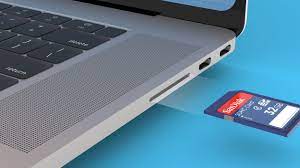
Removing an SD card from a MacBook is a simple procedure, but it needs to be done carefully to ensure that neither the card nor the computer gets damaged. An SD card is a small, portable device that stores data, such as photos, videos, documents, and music. This article will guide you on how to remove an SD card from a MacBook safely.

Step 1: Eject the SD Card from the MacBook

Before removing the SD card from the computer, it’s essential to eject the card properly. This ensures that any running applications or processes that are using the card are closed, and the card is not in use by the system anymore.

To eject the SD card, open Finder by clicking on the Finder icon in the Dock or pressing the Command + Spacebar shortcut and typing “Finder” in the search bar. In the left sidebar, under “Devices,” you should see a list of connected drives, including the SD card.

Hover over the SD card icon and click on the eject icon (a small upward arrow) that appears next to it. You can also right-click on the SD card and select “Eject” from the popup menu. Wait a few seconds until the icon disappears from the Finder sidebar, indicating that the card has been safely ejected.

Step 2: Locate the SD Card Slot on the MacBook

The location of the SD card slot on a MacBook varies depending on the model. Some older models have a dedicated SD card slot on the side of the computer, while newer ones have a smaller one on the back of the MacBook, near the USB-C ports.

To locate the SD card slot on your MacBook, consult the user manual or visit the Apple website for information on your specific model.

Step 3: Remove the SD Card from the MacBook

Once you’ve ejected the SD card and located the slot, it’s time to remove the card from the MacBook.

Gently insert your finger or a thin object, like a paper clip or a SIM eject tool, into the SD card slot and push down on the card until it pops up slightly. Carefully pull the card out of its slot, making sure not to apply too much pressure or force. If the card doesn’t come out easily, stop and make sure you’re not pulling it at an angle or grabbing the wrong part of the card.

Step 4: Check the SD Card for Damage

Inspect the SD card for any visible signs of damage, such as cracks, scratches, or dents. If you notice any damage, it’s best to dispose of the card or have it repaired by a professional. Using a damaged card can lead to data loss or corrupt files.

Step 5: Store the SD Card Safely

Once you’ve removed the SD card, store it in a safe and secure place, preferably in a protective case or sleeve. Keep it away from magnets, liquids, or extreme temperatures. If you plan on reinserting the card later, make sure to keep it within reach.

Conclusion

Removing an SD card from a MacBook is a quick and easy process as long as you follow the proper steps. Remember to eject the card before removing it, locate the correct slot, remove it carefully, inspect it for damage, and store it securely. By following these guidelines, you can ensure that your SD card and your MacBook remain safe and functional for years to come.


Previous Article

The 9 Best White Noise Apps for ...

Next Article

What Is an Ethernet Card?

Matthew Lynch

Related articles More from author

  • Digital & Mobile Technology

    How to Burn Any Video File to a Playable Blu-Ray Disc

    May 19, 2023
    By Matthew Lynch
  • Digital & Mobile Technology

    How to Delete Your Tweets Using TweetDelete

    June 22, 2023
    By Matthew Lynch
  • Digital & Mobile Technology

    What Is a USB Hub? Reasons Why You Need One

    June 15, 2023
    By Matthew Lynch
  • Digital & Mobile Technology

    What is a USB Flash Drive?

    April 24, 2023
    By Matthew Lynch
  • Digital & Mobile Technology

    What Is Plex and How Does It Work?

    June 26, 2023
    By Matthew Lynch
  • Digital & Mobile Technology

    How to Set an Animated GIF as Your Wallpaper in Windows 10 and 1

    August 5, 2023
    By Matthew Lynch

Search

Login & Registration

  • Register
  • Log in
  • Entries feed
  • Comments feed
  • WordPress.org

Newsletter

Signup for The Tech Edvocate Newsletter and have the latest in EdTech news and opinion delivered to your email address!

About Us

Since technology is not going anywhere and does more good than harm, adapting is the best course of action. That is where The Tech Edvocate comes in. We plan to cover the PreK-12 and Higher Education EdTech sectors and provide our readers with the latest news and opinion on the subject. From time to time, I will invite other voices to weigh in on important issues in EdTech. We hope to provide a well-rounded, multi-faceted look at the past, present, the future of EdTech in the US and internationally.

We started this journey back in June 2016, and we plan to continue it for many more years to come. I hope that you will join us in this discussion of the past, present and future of EdTech and lend your own insight to the issues that are discussed.

Newsletter

Signup for The Tech Edvocate Newsletter and have the latest in EdTech news and opinion delivered to your email address!

Contact Us

The Tech Edvocate
910 Goddin Street
Richmond, VA 23231
(601) 630-5238
[email protected]

Copyright © 2025 Matthew Lynch. All rights reserved.