The Tech Edvocate

Top Menu

  • Advertisement
  • Apps
  • Home Page
  • Home Page Five (No Sidebar)
  • Home Page Four
  • Home Page Three
  • Home Page Two
  • Home Tech2
  • Icons [No Sidebar]
  • Left Sidbear Page
  • Lynch Educational Consulting
  • My Account
  • My Speaking Page
  • Newsletter Sign Up Confirmation
  • Newsletter Unsubscription
  • Our Brands
  • Page Example
  • Privacy Policy
  • Protected Content
  • Register
  • Request a Product Review
  • Shop
  • Shortcodes Examples
  • Signup
  • Start Here
    • Governance
    • Careers
    • Contact Us
  • Terms and Conditions
  • The Edvocate
  • The Tech Edvocate Product Guide
  • Topics
  • Write For Us
  • Advertise

Main Menu

  • Start Here
    • Our Brands
    • Governance
      • Lynch Educational Consulting, LLC.
      • Dr. Lynch’s Personal Website
      • Careers
    • Write For Us
    • The Tech Edvocate Product Guide
    • Contact Us
    • Books
    • Edupedia
    • Post a Job
    • The Edvocate Podcast
    • Terms and Conditions
    • Privacy Policy
  • Topics
    • Assistive Technology
    • Child Development Tech
    • Early Childhood & K-12 EdTech
    • EdTech Futures
    • EdTech News
    • EdTech Policy & Reform
    • EdTech Startups & Businesses
    • Higher Education EdTech
    • Online Learning & eLearning
    • Parent & Family Tech
    • Personalized Learning
    • Product Reviews
  • Advertise
  • Tech Edvocate Awards
  • The Edvocate
  • Pedagogue
  • School Ratings

logo

The Tech Edvocate

  • Start Here
    • Our Brands
    • Governance
      • Lynch Educational Consulting, LLC.
      • Dr. Lynch’s Personal Website
        • My Speaking Page
      • Careers
    • Write For Us
    • The Tech Edvocate Product Guide
    • Contact Us
    • Books
    • Edupedia
    • Post a Job
    • The Edvocate Podcast
    • Terms and Conditions
    • Privacy Policy
  • Topics
    • Assistive Technology
    • Child Development Tech
    • Early Childhood & K-12 EdTech
    • EdTech Futures
    • EdTech News
    • EdTech Policy & Reform
    • EdTech Startups & Businesses
    • Higher Education EdTech
    • Online Learning & eLearning
    • Parent & Family Tech
    • Personalized Learning
    • Product Reviews
  • Advertise
  • Tech Edvocate Awards
  • The Edvocate
  • Pedagogue
  • School Ratings
  • OpenAI’s GPT-6 Cyber: A Dangerous New AI Threat or Our Ultimate Digital Guardian?

  • This Game-Changing Natural Ozempic Alternative Just Blew Up on Social Media

  • Bónuszösszeg, ingyen pörgetés és befizetési feltétel: üdvözlő és befizetés nélküli kaszinóajánlatok magyar játékosoknak

  • 9 Critical Reasons Why Athexio Might Be The Investment You Need (Or Should Avoid)

  • A Single Breakthrough Could Finally Kill Range Anxiety for Millions of EV Owners

  • Your Money, Their AI: The Secret Agents Invading Bank Accounts

  • US Battery as a Service Market Shifts Toward Fleet-Based Energy

  • The Startling Truth: Why Americans Distrust AI with Their Health

  • This Crucial Deadline for Banks Is Closer Than You Think

  • Baffling: CrowdStrike’s $500 Million AI Bet Reshapes Cybersecurity

Assistive Technology
Home›Assistive Technology›How to Put Echo Buds in Pairing Mode

How to Put Echo Buds in Pairing Mode
By Matthew Lynch
June 9, 2023
0
Spread the love

Echo Buds are a great wireless earbud that is designed to deliver exceptional audio quality and a comfortable fit. To get started with the Echo Buds, you first need to put them into pairing mode. In this article, we’ll guide you through the steps to put the Echo Buds in pairing mode.

Step One: Charge Your Echo Buds

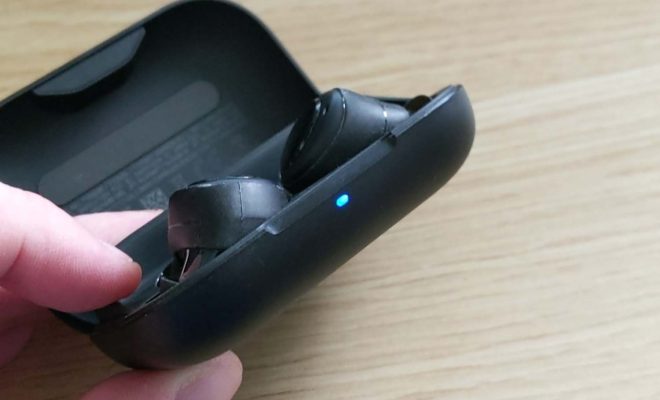
The first step is to make sure that your Echo Buds have enough battery charge. If they have less than 30% battery, you’ll need to charge them before you can put them in pairing mode. To charge your Echo Buds, place them in the charging case and make sure that the LED light on the case turns on. The light will turn off once the Echo Buds are fully charged.

Step Two: Open Your Bluetooth Settings

After you’ve charged your Echo Buds, you need to open your Bluetooth settings on the device you want to pair with the earbuds. This could be your smartphone, tablet, or laptop. The process will vary slightly depending on your device, but you usually have to go to your settings menu and look for “Bluetooth.”

Step Three: Put the Echo Buds in Your Ears

After you’ve opened your Bluetooth settings, you need to put the Echo Buds into your ears. Make sure that you’re wearing them securely and that the ear tips fit snugly into your ear canals.

Step Four: Press and Hold the Echo Buds Buttons

With the Echo Buds in your ears, press and hold the button on each earbud for three seconds. You’ll see a blue light flashing on the earbuds, indicating they are in pairing mode.

Step Five: Connect Your Device to the Echo Buds

Once you see the blue light flashing on the Echo Buds, go back to your device’s Bluetooth settings and look for the “Echo Buds” option. Tap on it to connect your device to the Echo Buds.

Step Six: Test Your Connection

After completing the pairing process, test your connection by playing music or a video. If you can hear audio through your Echo Buds, your pairing process was successful.

In summary, putting your Echo Buds in pairing mode is an easy process that shouldn’t take more than a few minutes. By following the steps outlined above, you can quickly connect your device to the Echo Buds and start enjoying premium audio quality from the earbuds.


Previous Article

What Is a Netbook?

Next Article

How to Use a PS5 Controller on ...

Matthew Lynch

Related articles More from author

  • Assistive Technology

    How to Uninstall Norton Antivirus From Any Computer

    June 12, 2023
    By Matthew Lynch
  • Assistive Technology

    How to Forget a Network in Windows 11

    June 21, 2023
    By Matthew Lynch
  • Assistive Technology

    How to Change the Time Zone Settings on Windows

    June 22, 2023
    By Matthew Lynch
  • Assistive Technology

    How to Turn Off Read Receipts in Outlook

    June 22, 2023
    By Matthew Lynch
  • Assistive Technology

    How to Use and Customize the Share Sheet on Your iPhone

    June 15, 2023
    By Matthew Lynch
  • Assistive Technology

    Is the Mail App Not Syncing on Windows? Here How to Fix it

    September 30, 2024
    By Matthew Lynch

Search

Login & Registration

  • Log in
  • Entries feed
  • Comments feed
  • WordPress.org

Newsletter

Signup for The Tech Edvocate Newsletter and have the latest in EdTech news and opinion delivered to your email address!

About Us

Since technology is not going anywhere and does more good than harm, adapting is the best course of action. That is where The Tech Edvocate comes in. We plan to cover the PreK-12 and Higher Education EdTech sectors and provide our readers with the latest news and opinion on the subject. From time to time, I will invite other voices to weigh in on important issues in EdTech. We hope to provide a well-rounded, multi-faceted look at the past, present, the future of EdTech in the US and internationally.

We started this journey back in June 2016, and we plan to continue it for many more years to come. I hope that you will join us in this discussion of the past, present and future of EdTech and lend your own insight to the issues that are discussed.

Newsletter

Signup for The Tech Edvocate Newsletter and have the latest in EdTech news and opinion delivered to your email address!

Contact Us

The Tech Edvocate
910 Goddin Street
Richmond, VA 23231
(601) 630-5238
[email protected]

Copyright © 2026 Matthew Lynch. All rights reserved.