The Tech Edvocate

Top Menu

  • Advertisement
  • Apps
  • Home Page
  • Home Page Five (No Sidebar)
  • Home Page Four
  • Home Page Three
  • Home Page Two
  • Home Tech2
  • Icons [No Sidebar]
  • Left Sidbear Page
  • Lynch Educational Consulting
  • My Account
  • My Speaking Page
  • Newsletter Sign Up Confirmation
  • Newsletter Unsubscription
  • Our Brands
  • Page Example
  • Privacy Policy
  • Protected Content
  • Register
  • Request a Product Review
  • Shop
  • Shortcodes Examples
  • Signup
  • Start Here
    • Governance
    • Careers
    • Contact Us
  • Terms and Conditions
  • The Edvocate
  • The Tech Edvocate Product Guide
  • Topics
  • Write For Us
  • Advertise

Main Menu

  • Start Here
    • Our Brands
    • Governance
      • Lynch Educational Consulting, LLC.
      • Dr. Lynch’s Personal Website
      • Careers
    • Write For Us
    • The Tech Edvocate Product Guide
    • Contact Us
    • Books
    • Edupedia
    • Post a Job
    • The Edvocate Podcast
    • Terms and Conditions
    • Privacy Policy
  • Topics
    • Assistive Technology
    • Child Development Tech
    • Early Childhood & K-12 EdTech
    • EdTech Futures
    • EdTech News
    • EdTech Policy & Reform
    • EdTech Startups & Businesses
    • Higher Education EdTech
    • Online Learning & eLearning
    • Parent & Family Tech
    • Personalized Learning
    • Product Reviews
  • Advertise
  • Tech Edvocate Awards
  • The Edvocate
  • Pedagogue
  • School Ratings

logo

The Tech Edvocate

  • Start Here
    • Our Brands
    • Governance
      • Lynch Educational Consulting, LLC.
      • Dr. Lynch’s Personal Website
        • My Speaking Page
      • Careers
    • Write For Us
    • The Tech Edvocate Product Guide
    • Contact Us
    • Books
    • Edupedia
    • Post a Job
    • The Edvocate Podcast
    • Terms and Conditions
    • Privacy Policy
  • Topics
    • Assistive Technology
    • Child Development Tech
    • Early Childhood & K-12 EdTech
    • EdTech Futures
    • EdTech News
    • EdTech Policy & Reform
    • EdTech Startups & Businesses
    • Higher Education EdTech
    • Online Learning & eLearning
    • Parent & Family Tech
    • Personalized Learning
    • Product Reviews
  • Advertise
  • Tech Edvocate Awards
  • The Edvocate
  • Pedagogue
  • School Ratings
  • A Visitor’s Guide to Fresno (CA), United States

  • A Visitors Guide to New Orleans (LA), United States

  • A Visitors Guide to Sacramento (CA), United States

  • A Visitors Guide to Lyon, France

  • JisuLife Ultra2 Portable Fan: A Powerful Multi-Function Cooling Solution

  • A Visitors Guide to Viña del Mar, Chile

  • A Visitors Guide to Århus, Denmark

  • A Visitors Guide to Bakersfield (CA), United States

  • A Visitors Guide to Aurora (CO), United States

  • A Visitor’s Guide to Toledo (OH), United States

Digital & Mobile Technology
Home›Digital & Mobile Technology›How to Play Minecraft on a Chromebook

How to Play Minecraft on a Chromebook
By Matthew Lynch
July 6, 2023
0
Spread the love

Minecraft is an incredibly popular sandbox game that has garnered millions of players worldwide. It involves exploration, creativity, and survival in a blocky, pixelated world. While it was initially designed for Windows and Mac OS, Minecraft can now be played on a variety of platforms, including Chromebooks. If you own a Chromebook and would love to play Minecraft, here’s how to get started:

1. Install Linux on Your Chromebook

The first step to playing Minecraft on a Chromebook is to install Linux. Chromebooks come with a Linux terminal, which can be used to install and run Linux applications. However, most Chromebooks have a locked bootloader, which means that you will have to go through some additional steps to enable the installation of Linux.

To enable Linux installation, you’ll need to enable Developer Mode on your Chromebook. This process will wipe all the data on your Chromebook, so you should back up all files you want to keep. After entering Developer Mode, you can install a Linux distribution like Ubuntu or GalliumOS. This process requires some technical know-how, so it’s best to research your specific Chromebook model and read step-by-step guides before proceeding.

2. Install Minecraft

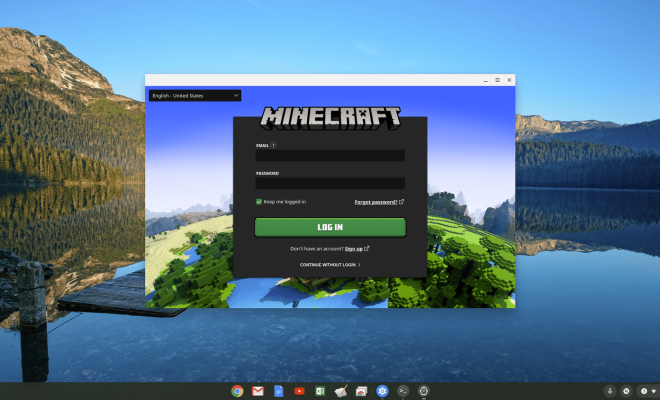
Once you have Linux running on your Chromebook, the next step is to download and install Minecraft. You can download the Minecraft launcher from the official Minecraft website. The launcher will then install Minecraft on your device.

3. Configure Minecraft

After installing Minecraft, you’ll need to configure it to run smoothly on your Chromebook. There are a few settings you can adjust to make sure Minecraft runs smoothly. For instance, you can increase the allocated RAM to improve performance. You can also adjust the graphics settings to match your device’s specifications.

4. Play Minecraft

After completing the steps above, you can now start playing Minecraft on your Chromebook. The world of Minecraft is yours to explore, and you can get started by creating a new world and building your own unique structure.

In conclusion, playing Minecraft on a Chromebook can be a bit of work, but it’s entirely possible. With this guide, you can now set up Linux on your Chromebook, install Minecraft, and configure it to run smoothly. As with any new game or application, it may take some time to get used to it, but once you do, you’ll be able to enjoy the awesome world of Minecraft on your Chromebook.


Previous Article

How to Create a Virtual Machine in ...

Next Article

How to Find Contacts on Instagram

Matthew Lynch

Related articles More from author

  • Digital & Mobile Technology

    What Is Traction Control and How Does It Work?

    August 5, 2023
    By Matthew Lynch
  • Digital & Mobile Technology

    DIY Projects to Turn a Broken Monitor Into Something New

    June 26, 2023
    By Matthew Lynch
  • Digital & Mobile Technology

    Reasons Not to Buy the Apple Studio Display

    June 23, 2023
    By Matthew Lynch
  • Digital & Mobile Technology

    How to Type a Degree Symbol on an iPhone or iPad

    August 5, 2023
    By Matthew Lynch
  • Digital & Mobile Technology

    Most Common iPhone 13 Issues and How to Fix Them

    June 23, 2023
    By Matthew Lynch
  • Digital & Mobile Technology

    How to Scan a Document in Windows 11

    May 7, 2023
    By Matthew Lynch

Search

Login & Registration

  • Register
  • Log in
  • Entries feed
  • Comments feed
  • WordPress.org

Newsletter

Signup for The Tech Edvocate Newsletter and have the latest in EdTech news and opinion delivered to your email address!

About Us

Since technology is not going anywhere and does more good than harm, adapting is the best course of action. That is where The Tech Edvocate comes in. We plan to cover the PreK-12 and Higher Education EdTech sectors and provide our readers with the latest news and opinion on the subject. From time to time, I will invite other voices to weigh in on important issues in EdTech. We hope to provide a well-rounded, multi-faceted look at the past, present, the future of EdTech in the US and internationally.

We started this journey back in June 2016, and we plan to continue it for many more years to come. I hope that you will join us in this discussion of the past, present and future of EdTech and lend your own insight to the issues that are discussed.

Newsletter

Signup for The Tech Edvocate Newsletter and have the latest in EdTech news and opinion delivered to your email address!

Contact Us

The Tech Edvocate
910 Goddin Street
Richmond, VA 23231
(601) 630-5238
[email protected]

Copyright © 2025 Matthew Lynch. All rights reserved.