How to organize files in OneDrive
“`html
In today’s digital world, efficient file organization is crucial for both personal and professional productivity. With cloud storage solutions like OneDrive, organizing files doesn’t just simplify access; it enhances collaboration and streamlines workflows. If you’re looking to take control of your digital life and maximize your OneDrive experience, you’ve come to the right place. This guide will delve into practical strategies to effectively organize files in OneDrive, ensuring you can easily find what you need when you need it.
1. Understand the Basics of OneDrive
Before diving into organization tactics, it’s important to understand what OneDrive is and how it functions. OneDrive is Microsoft’s cloud storage solution, integrated with Microsoft 365. It allows users to store files and access them from any device with an internet connection. A significant advantage of OneDrive is that it seamlessly integrates with other Microsoft applications such as Word, Excel, and PowerPoint. This integration helps in the creation and sharing of documents while maintaining a centralized location for storage.
OneDrive offers a variety of file sharing options, allowing you to collaborate in real time. However, with all these features, it can quickly become cluttered if you don’t have a solid organization strategy in place. Understanding the basics will help you leverage the platform more effectively and utilize its features to enhance your productivity.
2. Set Up a Folder Structure
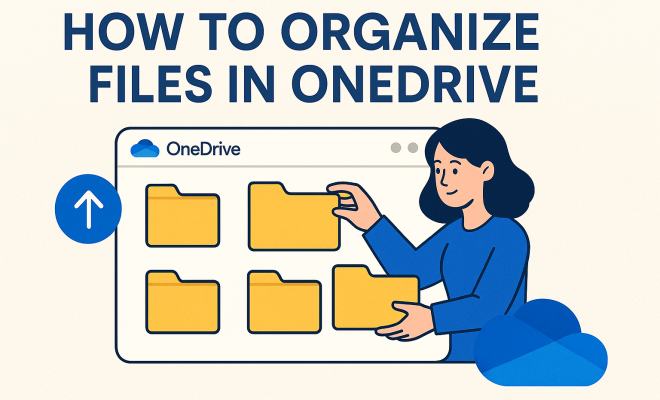
One of the first steps to effectively organize files in OneDrive is establishing a clear folder structure. Start by creating main folders that reflect your needs — these could be based on projects, departments, or personal categories. For instance, you might have folders for “Work,” “Personal Projects,” and “Shared Documents.” Within each main folder, consider adding subfolders for further categorization.
An effective folder structure not only makes it easier to locate files but also helps you maintain a consistent system. When naming your folders, use clear, descriptive titles that make it easy to identify their contents. Avoid vague titles; instead, opt for terms that clearly convey the folder’s purpose. This simple practice will save you time and frustration in the long run. Related reading: fixing OneDrive errors.
3. Utilize Tags and Metadata
While folders are a great start, utilizing tags and metadata can significantly enhance your organizational capabilities. Tags allow you to label files with specific keywords, making it easier to search for related documents across different folders. In OneDrive, you can add tags to files by right-clicking on them and selecting the ‘Add tags’ option.
Metadata, on the other hand, provides additional context about your files. This can include the file’s author, date created, or project name. Leveraging both tags and metadata allows for more sophisticated searches and retrieval methods. For example, if you’re searching for a report from last month, using the right tags and metadata will lead you to it much faster than scrolling through folders.
4. Implement a Naming Convention
A consistent naming convention is vital for keeping your files organized and easily searchable. When you use descriptive, structured naming for your files, you enhance your ability to locate them quickly. For instance, consider a format such as “YYYY-MM-DD_ProjectName_Version” for project-related files. This approach not only helps in identifying the file’s purpose but also sort them chronologically.
Be mindful of your audience when naming files. If you share documents with colleagues or clients, make sure your naming convention is logical and intuitive for them as well. A well-thought-out naming strategy reduces confusion and enhances collaboration, making it easier for everyone to find the files they need.
5. Take Advantage of OneDrive’s Search Features
OneDrive has powerful search capabilities that can significantly aid in organizing files. Instead of manually browsing through folders, you can utilize the search bar to locate documents quickly. The search feature allows you to enter keywords, file types, or even tags, making it a breeze to find specific items.
Additionally, OneDrive’s search function can recognize content within documents, which means you can find files based on the text included in them. This is particularly helpful if you’re working with a large volume of documents. To maximize this feature, ensure your files are well-tagged and that you utilize appropriate keywords in your document content. (See: Overview of OneDrive features.)
6. Regularly Clean Up and Archive
Maintaining an organized file system is an ongoing process. Schedule regular intervals to review and clean up your OneDrive. Remove files that are no longer needed, and consider archiving older documents that you don’t use frequently but still want to keep. This practice not only helps in decluttering but also keeps your storage space optimized.
When archiving, create a dedicated folder within OneDrive labeled “Archive” or “Old Projects.” This way, you can still access these documents if needed, without cluttering your main workspace. Regular cleanup prevents unnecessary stress and ensures that your organizational system remains functional and efficient.
7. Leverage Shared Folders for Collaboration
OneDrive makes collaboration easy with its shared folder feature. If you work on team projects, consider creating shared folders for specific teams or projects. This allows team members to access, edit, and collaborate on files in real time, promoting seamless teamwork.
When sharing folders, be clear about permissions. You can choose to allow team members to edit files or restrict access to view-only. Always communicate the folder’s purpose and guidelines to avoid confusion. This organized approach to collaboration not only enhances productivity but also ensures everyone is on the same page.
8. Utilize Version History
One of the significant benefits of using OneDrive is its version history feature. This functionality allows you to track changes made to files and revert to previous versions if necessary. If you ever find yourself needing to recover an earlier draft of a document, this feature is invaluable.
To access version history, right-click on the file and select ‘Version history.’ You will see a list of all previous versions along with timestamps. This is particularly useful in collaborative environments, where multiple users may be editing the same document. By understanding how to utilize version history effectively, you can maintain organized records and ensure the integrity of your documents over time.
9. Stay Updated with OneDrive Features
Finally, to truly master how to organize files in OneDrive, it’s essential to stay informed about updates and new features. Microsoft frequently updates OneDrive, introducing new functionalities that can enhance your file management experience. Keeping yourself updated allows you to leverage these features effectively, ensuring that your organization methods evolve alongside the platform.
Consider joining Microsoft forums or following tech blogs dedicated to Microsoft updates. These resources often provide insights into new features and best practices for using OneDrive. By remaining proactive about learning, you can continuously improve your organizational strategies and adapt to changes seamlessly.
10. Explore Advanced Organizational Techniques
If you want to take your file organization in OneDrive to the next level, consider advanced techniques that can help you further streamline your processes. This could involve integrating third-party tools or using automation to keep your files in order.
For instance, you can use tools like Microsoft Power Automate to create workflows that automatically move or rename files based on certain triggers. Imagine a scenario where every time you add a new document to a specific folder, it automatically gets tagged or moved to the appropriate project folder. This kind of automation not only saves time but also reduces the chance of human error in file placement.
11. Utilize OneDrive’s Offline Access
OneDrive also allows you to access files offline, which can be a game-changer when you’re working in locations with unreliable internet access. You can select certain files or folders to be available offline, allowing you to work on them at any time. Just remember that any changes you make while offline will sync to the cloud once you reconnect to the internet. For more on this, see apps to boost your productivity.
This feature is particularly useful for professionals who travel often or those who work in remote areas. Make sure to plan which files to download ahead of time, so you’re not scrambling to access essential documents when you need them.
12. Training and Resources
To truly master file organization in OneDrive, consider investing some time in training and learning resources. Microsoft offers a wealth of materials, including tutorials and webinars, that can provide deeper insights into optimizing OneDrive features. (See: Impact of technology on productivity.)
You can also find many online communities and forums dedicated to OneDrive users. Engaging with these communities can be a great way to learn new tips and tricks from fellow users who might have faced similar challenges. Don’t underestimate the value of collective knowledge. essential productivity tools for parents offers useful background here.
13. Common Challenges in Organizing Files in OneDrive
Even with the best strategies in place, you may run into challenges as you organize files in OneDrive. Some common issues include inconsistent naming conventions, forgotten file locations, or even issues with file syncing. Understanding these challenges can help you develop contingency plans.
For instance, if you notice that files are frequently misplaced, it might be worth revisiting your folder structure to ensure it actually aligns with how you and your team work. Alternatively, if you encounter numerous sync issues, take a look at your internet connection or the settings on your OneDrive application.
14. FAQ: Frequently Asked Questions about Organizing Files in OneDrive
Q1: How can I share files and folders in OneDrive effectively?
A1: To share files in OneDrive, right-click the file or folder you wish to share and select ‘Share.’ You can then enter the email addresses of the people you want to share with and set their permission levels. Consider using a shared link for broader access.
Q2: Is it possible to recover deleted files from OneDrive?
A2: Yes, OneDrive has a recycle bin feature where deleted files are stored for up to 30 days. You can recover these files by navigating to the Recycle Bin on the OneDrive interface and selecting the items you wish to restore.
Q3: Can I access OneDrive from mobile devices?
A3: Absolutely! OneDrive has mobile applications available for both iOS and Android devices. You can view, upload, and organize your files directly from your smartphone or tablet, making it convenient for on-the-go access.
Q4: What should I do if my OneDrive storage is full?
A4: If your OneDrive storage is full, consider upgrading your storage plan through Microsoft 365. Alternatively, you can delete unnecessary files or move them to another cloud service to free up space.
Q5: How can I ensure the security of my files in OneDrive?
A5: OneDrive encrypts your files both in transit and at rest, ensuring a high level of security. Additionally, you can enable two-factor authentication for your Microsoft account to add an extra layer of protection.
15. Creating a Backup Strategy
While OneDrive is a reliable storage solution, having a backup strategy for your files is essential. Consider keeping an additional copy of your critical documents in another cloud service or on an external hard drive. This way, if there are any issues with OneDrive, whether due to accidental deletion, syncing problems, or account issues, your data remains safe and accessible.
Regularly back up your important folders and files by exporting them to a different location. You can set a reminder on your calendar to do this monthly or quarterly, ensuring your backup is always up-to-date. Remember, the more layers of protection you have, the safer your data will be.
16. Integrating Other Services with OneDrive
OneDrive works seamlessly with several third-party services, which can enhance your file organization efforts. For instance, applications like Trello or Asana can integrate with OneDrive, allowing you to attach files directly to your project boards. This keeps relevant documents easily accessible and organized within the context of your projects. (See: Tips for organizing cloud storage.)
Additionally, you can use note-taking apps like Evernote or Microsoft OneNote in tandem with OneDrive to create a comprehensive organization system. By linking your notes and files, you can quickly find related materials without excessive searching.
17. Utilizing OneDrive for Team Projects
When working on team projects, OneDrive can serve as a central hub for collaboration. You can create a dedicated folder for each project and share it with all team members. Within this folder, everyone can upload updates, drafts, and final versions of documents, ensuring all project materials are stored in one place. We covered strategies for teachers' productivity in more detail.
Encourage your team to use the comment feature on documents, allowing for real-time feedback and discussions directly within OneDrive. This method not only keeps communication organized but also ties discussions directly to the relevant files, creating a coherent workflow.
18. Statistics on Cloud Storage Usage
The adoption of cloud storage has skyrocketed in recent years. According to a report from Statista, the global cloud storage market is projected to grow from approximately $50 billion in 2020 to over $137 billion by 2025. This growth reflects a broader trend towards digital storage solutions, with businesses and individuals alike recognizing the benefits of cloud technology.
Furthermore, research indicates that over 70% of organizations now use cloud storage to manage their data, underscoring the increasing reliance on platforms like OneDrive for file organization. Understanding these trends can help you appreciate the importance of efficient file management systems in the cloud environment.
19. Best Practices for File Sharing
When sharing files through OneDrive, it’s important to adhere to best practices to maintain professionalism and security. Always double-check the permissions you are granting—especially in a professional setting. You can set files to ‘view-only’ if you want to prevent recipients from making edits.
Additionally, consider using expiration dates on shared links to enhance security. This feature ensures that access to the file is limited to a specific timeframe, reducing the risk of unauthorized access after the project is complete. You can also monitor who has accessed the shared files, providing an added layer of oversight.
Organizing files in OneDrive doesn’t have to be a daunting task. By implementing these strategies, you can create a streamlined, efficient workspace that enhances your productivity and collaboration. Take the time to establish a solid foundation, and you’ll find that managing your files becomes second nature.
“`
Trending Now
Frequently Asked Questions
How do I organize files in OneDrive?
To organize files in OneDrive, start by setting up a clear folder structure. Create main folders based on categories such as projects or personal use, and add subfolders for further organization. This structure helps you easily locate files and enhances collaboration.
What are the benefits of using OneDrive for file organization?
OneDrive offers seamless integration with Microsoft 365 applications, allowing for efficient file sharing and collaboration. It provides cloud storage accessible from any device, which enhances productivity and streamlines workflows, making file organization simpler.
Can I access OneDrive files from any device?
Yes, OneDrive allows you to access your files from any device with an internet connection. This feature ensures that you can work on your documents anytime and anywhere, enhancing flexibility and productivity.
What features does OneDrive offer for collaboration?
OneDrive includes various file sharing options that enable real-time collaboration. You can share documents, work together with others, and manage permissions, making it an effective tool for team projects.
How can I improve my productivity using OneDrive?
To improve productivity in OneDrive, establish a well-organized folder structure, utilize its integration with Microsoft 365 apps, and take advantage of collaboration features. This will streamline your workflows and make file management more efficient.
What's your take on this? Share your thoughts in the comments below — we read every one.