The Tech Edvocate

Top Menu

  • Advertisement
  • Apps
  • Home Page
  • Home Page Five (No Sidebar)
  • Home Page Four
  • Home Page Three
  • Home Page Two
  • Home Tech2
  • Icons [No Sidebar]
  • Left Sidbear Page
  • Lynch Educational Consulting
  • My Account
  • My Speaking Page
  • Newsletter Sign Up Confirmation
  • Newsletter Unsubscription
  • Our Brands
  • Page Example
  • Privacy Policy
  • Protected Content
  • Register
  • Request a Product Review
  • Shop
  • Shortcodes Examples
  • Signup
  • Start Here
    • Governance
    • Careers
    • Contact Us
  • Terms and Conditions
  • The Edvocate
  • The Tech Edvocate Product Guide
  • Topics
  • Write For Us
  • Advertise

Main Menu

  • Start Here
    • Our Brands
    • Governance
      • Lynch Educational Consulting, LLC.
      • Dr. Lynch’s Personal Website
      • Careers
    • Write For Us
    • The Tech Edvocate Product Guide
    • Contact Us
    • Books
    • Edupedia
    • Post a Job
    • The Edvocate Podcast
    • Terms and Conditions
    • Privacy Policy
  • Topics
    • Assistive Technology
    • Child Development Tech
    • Early Childhood & K-12 EdTech
    • EdTech Futures
    • EdTech News
    • EdTech Policy & Reform
    • EdTech Startups & Businesses
    • Higher Education EdTech
    • Online Learning & eLearning
    • Parent & Family Tech
    • Personalized Learning
    • Product Reviews
  • Advertise
  • Tech Edvocate Awards
  • The Edvocate
  • Pedagogue
  • School Ratings

logo

The Tech Edvocate

  • Start Here
    • Our Brands
    • Governance
      • Lynch Educational Consulting, LLC.
      • Dr. Lynch’s Personal Website
        • My Speaking Page
      • Careers
    • Write For Us
    • The Tech Edvocate Product Guide
    • Contact Us
    • Books
    • Edupedia
    • Post a Job
    • The Edvocate Podcast
    • Terms and Conditions
    • Privacy Policy
  • Topics
    • Assistive Technology
    • Child Development Tech
    • Early Childhood & K-12 EdTech
    • EdTech Futures
    • EdTech News
    • EdTech Policy & Reform
    • EdTech Startups & Businesses
    • Higher Education EdTech
    • Online Learning & eLearning
    • Parent & Family Tech
    • Personalized Learning
    • Product Reviews
  • Advertise
  • Tech Edvocate Awards
  • The Edvocate
  • Pedagogue
  • School Ratings
  • Can Kayak book directly

  • How to list hotel on Booking.com

  • How to optimize Airbnb listing

  • How to get more bookings on Booking.com

  • How accurate is Kayak price forecast

  • How does Hopper app work

  • Travelocity vs Hotels.com comparison

  • Is Kayak a booking site or search engine

  • Can Google Flights find error fares

  • How to bundle flights and hotels Travelocity

Digital & Mobile Technology
Home›Digital & Mobile Technology›How to Make a Flyer with Microsoft Word

How to Make a Flyer with Microsoft Word
By Matthew Lynch
June 1, 2023
0
Spread the love

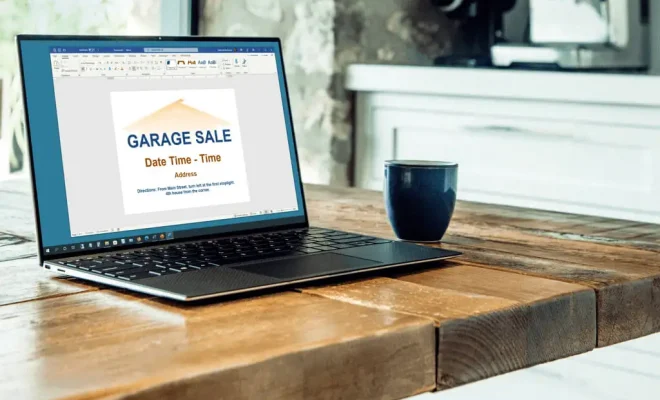
Flyers are an inexpensive and effective way to promote any event, business, or cause. With a little creativity and some basic design skills, you can make a compelling flyer that will catch the attention of your target audience. Here’s how to make a flyer with Microsoft Word:

1. Assess your needs

First, decide on the purpose and scope of your flyer. What message do you want to convey? Who is your target audience? What are the important details that need to be included? Answering these questions will help you determine the layout and design of your flyer.

2. Open Microsoft Word

Open a new document in Microsoft Word and set the page orientation to landscape. This page setup allows you to make a larger flyer with more space.

3. Choose a template or start from scratch

If you’re new to designing flyers, it can be helpful to start with a template. Go to “File” > “New” and type “flyer” into the search bar. Microsoft Word offers a variety of pre-made templates to choose from, which you can customize with your own text and images.

If you prefer to design your flyer from scratch, select “Blank document” and start with a clean slate.

4. Add text

The text on your flyer should be clear and concise, with a catchy headline that grabs attention. Use a bold, easy-to-read font for your headline and subheadings, and a smaller font for the body of the text.

Organize your information in a logical order and use bullet points to make it easy to read. Include all the important details, like the date, time, location, and any special instructions.

5. Add images

Visuals are a key element of any flyer. Use high-quality images that are relevant to your message and target audience. If you’re using a template, you can replace the placeholder images with your own.

To add an image, go to “Insert” > “Pictures” and choose the image you want to use. You can adjust the size and placement of the image by clicking and dragging it.

6. Customize the design

Once you have your text and images in place, it’s time to customize the design. You can change the font, font color, and background color to match your brand or event theme.

To do this, go to “Design” > “Page Color” or “Font” and choose the color or font style you want to use. You can also add shapes, lines, or other design elements to make your flyer more visually appealing.

7. Print and distribute

Before printing your flyer, make sure to proofread it and double-check all the details. Print it out on high-quality paper or cardstock and distribute it in areas where your target audience is likely to see it, such as community bulletin boards, coffee shops, or local businesses.

In conclusion, making a flyer with Microsoft Word is a simple and cost-effective way to promote your event or business. Follow these steps and unleash your creativity to make your flyer stand out from the crowd!

Previous Article

How to Fix Not Getting Text Notifications ...

Next Article

How to Calculate and Find Variance in ...

Matthew Lynch

Related articles More from author

  • Digital & Mobile Technology

    How to Disable Telemetry on Windows 10 and 11

    June 12, 2023
    By Matthew Lynch
  • Digital & Mobile Technology

    Document technology giant Xerox plans breakup

    April 13, 2023
    By Matthew Lynch
  • Digital & Mobile Technology

    Bose SoundTouch 30 Review

    July 31, 2023
    By Matthew Lynch
  • Digital & Mobile Technology

    Tools to View Old Versions of Any Website

    August 4, 2023
    By Matthew Lynch
  • Digital & Mobile Technology

    Best Online FPS Games for Android

    June 22, 2023
    By Matthew Lynch
  • Digital & Mobile Technology

    The Best YouTube Thumbnail Maker Apps for Android

    June 22, 2023
    By Matthew Lynch

Search

Login & Registration

  • Log in
  • Entries feed
  • Comments feed
  • WordPress.org

Newsletter

Signup for The Tech Edvocate Newsletter and have the latest in EdTech news and opinion delivered to your email address!

About Us

Since technology is not going anywhere and does more good than harm, adapting is the best course of action. That is where The Tech Edvocate comes in. We plan to cover the PreK-12 and Higher Education EdTech sectors and provide our readers with the latest news and opinion on the subject. From time to time, I will invite other voices to weigh in on important issues in EdTech. We hope to provide a well-rounded, multi-faceted look at the past, present, the future of EdTech in the US and internationally.

We started this journey back in June 2016, and we plan to continue it for many more years to come. I hope that you will join us in this discussion of the past, present and future of EdTech and lend your own insight to the issues that are discussed.

Newsletter

Signup for The Tech Edvocate Newsletter and have the latest in EdTech news and opinion delivered to your email address!

Contact Us

The Tech Edvocate
910 Goddin Street
Richmond, VA 23231
(601) 630-5238
[email protected]

Copyright © 2026 Matthew Lynch. All rights reserved.