The Tech Edvocate

Top Menu

  • Advertisement
  • Apps
  • Home Page
  • Home Page Five (No Sidebar)
  • Home Page Four
  • Home Page Three
  • Home Page Two
  • Home Tech2
  • Icons [No Sidebar]
  • Left Sidbear Page
  • Lynch Educational Consulting
  • My Account
  • My Speaking Page
  • Newsletter Sign Up Confirmation
  • Newsletter Unsubscription
  • Our Brands
  • Page Example
  • Privacy Policy
  • Protected Content
  • Register
  • Request a Product Review
  • Shop
  • Shortcodes Examples
  • Signup
  • Start Here
    • Governance
    • Careers
    • Contact Us
  • Terms and Conditions
  • The Edvocate
  • The Tech Edvocate Product Guide
  • Topics
  • Write For Us
  • Advertise

Main Menu

  • Start Here
    • Our Brands
    • Governance
      • Lynch Educational Consulting, LLC.
      • Dr. Lynch’s Personal Website
      • Careers
    • Write For Us
    • The Tech Edvocate Product Guide
    • Contact Us
    • Books
    • Edupedia
    • Post a Job
    • The Edvocate Podcast
    • Terms and Conditions
    • Privacy Policy
  • Topics
    • Assistive Technology
    • Child Development Tech
    • Early Childhood & K-12 EdTech
    • EdTech Futures
    • EdTech News
    • EdTech Policy & Reform
    • EdTech Startups & Businesses
    • Higher Education EdTech
    • Online Learning & eLearning
    • Parent & Family Tech
    • Personalized Learning
    • Product Reviews
  • Advertise
  • Tech Edvocate Awards
  • The Edvocate
  • Pedagogue
  • School Ratings

logo

The Tech Edvocate

  • Start Here
    • Our Brands
    • Governance
      • Lynch Educational Consulting, LLC.
      • Dr. Lynch’s Personal Website
        • My Speaking Page
      • Careers
    • Write For Us
    • The Tech Edvocate Product Guide
    • Contact Us
    • Books
    • Edupedia
    • Post a Job
    • The Edvocate Podcast
    • Terms and Conditions
    • Privacy Policy
  • Topics
    • Assistive Technology
    • Child Development Tech
    • Early Childhood & K-12 EdTech
    • EdTech Futures
    • EdTech News
    • EdTech Policy & Reform
    • EdTech Startups & Businesses
    • Higher Education EdTech
    • Online Learning & eLearning
    • Parent & Family Tech
    • Personalized Learning
    • Product Reviews
  • Advertise
  • Tech Edvocate Awards
  • The Edvocate
  • Pedagogue
  • School Ratings
  • Viaim Opennote Review: The AI Note-Taker That Disappears Into Your Daily Routine

  • A Visitors Guide to Long Beach (CA), United States

  • A Visitor’s Guide to Fresno (CA), United States

  • A Visitors Guide to New Orleans (LA), United States

  • A Visitors Guide to Sacramento (CA), United States

  • A Visitors Guide to Lyon, France

  • JisuLife Ultra2 Portable Fan: A Powerful Multi-Function Cooling Solution

  • A Visitors Guide to Viña del Mar, Chile

  • A Visitors Guide to Århus, Denmark

  • A Visitors Guide to Bakersfield (CA), United States

Assistive Technology
Home›Assistive Technology›How to Invert Colors on Chromebook

How to Invert Colors on Chromebook
By Matthew Lynch
June 6, 2023
0
Spread the love

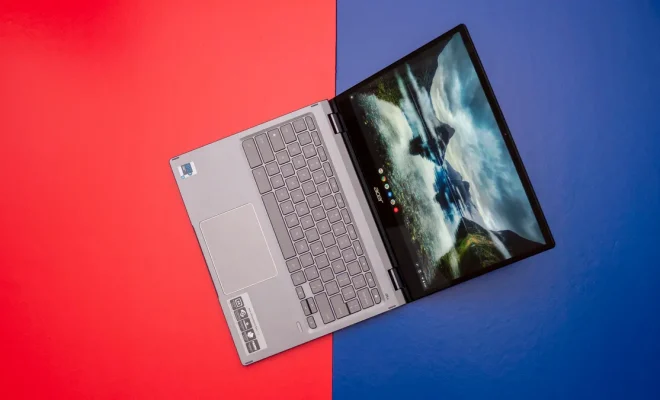
Chromebooks are popular among students, professionals, and anyone who needs a lightweight and easy-to-use device for browsing, creating, and collaborating. However, the default settings of Chrome OS may not suit everyone’s preferences or needs. For instance, some users may need to invert the colors on their Chromebook to reduce eye strain, improve readability, or accommodate visual impairments. Fortunately, Chromebooks offer a quick and simple way to invert colors, as well as other accessibility options.

Here’s how to invert colors on a Chromebook:

1. Open the Settings app. You can either click on the gear icon in the bottom right corner of the screen or click on the time icon in the top right corner and select “Settings” from the menu.

2. Scroll down to the “Device” section and click on “Accessibility.”

3. Under the “Display” heading, click on “Invert colors.”

4. Toggle the switch to the “On” position to enable color inversion. You should see a preview of inverted colors on the screen.

5. If you want to customize the inversion settings, click on “Advanced settings.” This will let you choose between different types of inversion, such as grayscale, high-contrast, or negative colors. You can also set a keyboard shortcut to toggle inversion on and off, as well as adjust the brightness and contrast of inverted colors.

6. When you’re done, click on “Done” to save the settings and close the window.

Now, your Chromebook’s colors will be inverted, which means that white will become black, black will become white, and all colors will be reversed. This can make it easier to read text, view images, or browse the web without straining your eyes or brain. Moreover, if you need to switch back to normal colors, simply follow the same steps and toggle the switch to the “Off” position.

In addition to color inversion, Chromebooks offer other accessibility features, such as screen magnification, spoken feedback, closed captions, and high-contrast mode. These options can be found under the “Accessibility” settings, as well as through keyboard shortcuts or the accessibility icon in the bottom right corner of the screen.

In summary, inverting colors on a Chromebook is a handy accessibility option that can benefit many users who need a different visual experience. Whether you’re working in a dimly lit environment or have a color vision impairment, Chromebooks let you customize your display settings to suit your needs. Try it out and see if it helps you.


Previous Article

The Best Change-Your-Hair-Color Apps of 2023

Next Article

How to Factory Reset a Lenovo Laptop

Matthew Lynch

Related articles More from author

  • Assistive Technology

    How to Clear Your Search Bar History

    June 10, 2023
    By Matthew Lynch
  • Assistive Technology

    How to Fix Windows Update When It’s Stuck in Windows 10

    June 15, 2023
    By Matthew Lynch
  • Assistive Technology

    How to Play Oculus-Exclusive VR Games on Any SteamVR Headset With Revive

    June 9, 2023
    By Matthew Lynch
  • Assistive Technology

    How to Fix ‘macOS Could Not Be Installed on Your Computer’ Error

    June 10, 2023
    By Matthew Lynch
  • Assistive Technology

    How to Live Stream the Winter Olympics (2026)

    June 23, 2023
    By Matthew Lynch
  • Assistive Technology

    How to Fix It When Amazon Prime Video Is Not Working

    June 10, 2023
    By Matthew Lynch

Search

Login & Registration

  • Register
  • Log in
  • Entries feed
  • Comments feed
  • WordPress.org

Newsletter

Signup for The Tech Edvocate Newsletter and have the latest in EdTech news and opinion delivered to your email address!

About Us

Since technology is not going anywhere and does more good than harm, adapting is the best course of action. That is where The Tech Edvocate comes in. We plan to cover the PreK-12 and Higher Education EdTech sectors and provide our readers with the latest news and opinion on the subject. From time to time, I will invite other voices to weigh in on important issues in EdTech. We hope to provide a well-rounded, multi-faceted look at the past, present, the future of EdTech in the US and internationally.

We started this journey back in June 2016, and we plan to continue it for many more years to come. I hope that you will join us in this discussion of the past, present and future of EdTech and lend your own insight to the issues that are discussed.

Newsletter

Signup for The Tech Edvocate Newsletter and have the latest in EdTech news and opinion delivered to your email address!

Contact Us

The Tech Edvocate
910 Goddin Street
Richmond, VA 23231
(601) 630-5238
[email protected]

Copyright © 2025 Matthew Lynch. All rights reserved.