
The Tech Edvocate

Top Menu

  • Advertisement
  • Apps
  • Home Page
  • Home Page Five (No Sidebar)
  • Home Page Four
  • Home Page Three
  • Home Page Two
  • Home Tech2
  • Icons [No Sidebar]
  • Left Sidbear Page
  • Lynch Educational Consulting
  • My Account
  • My Speaking Page
  • Newsletter Sign Up Confirmation
  • Newsletter Unsubscription
  • Our Brands
  • Page Example
  • Privacy Policy
  • Protected Content
  • Register
  • Request a Product Review
  • Shop
  • Shortcodes Examples
  • Signup
  • Start Here
    • Governance
    • Careers
    • Contact Us
  • Terms and Conditions
  • The Edvocate
  • The Tech Edvocate Product Guide
  • Topics
  • Write For Us
  • Advertise

Main Menu

  • Start Here
    • Our Brands
    • Governance
      • Lynch Educational Consulting, LLC.
      • Dr. Lynch’s Personal Website
      • Careers
    • Write For Us
    • The Tech Edvocate Product Guide
    • Contact Us
    • Books
    • Edupedia
    • Post a Job
    • The Edvocate Podcast
    • Terms and Conditions
    • Privacy Policy
  • Topics
    • Assistive Technology
    • Child Development Tech
    • Early Childhood & K-12 EdTech
    • EdTech Futures
    • EdTech News
    • EdTech Policy & Reform
    • EdTech Startups & Businesses
    • Higher Education EdTech
    • Online Learning & eLearning
    • Parent & Family Tech
    • Personalized Learning
    • Product Reviews
  • Advertise
  • Tech Edvocate Awards
  • The Edvocate
  • Pedagogue
  • School Ratings

logo

The Tech Edvocate

  • Start Here
    • Our Brands
    • Governance
      • Lynch Educational Consulting, LLC.
      • Dr. Lynch’s Personal Website
        • My Speaking Page
      • Careers
    • Write For Us
    • The Tech Edvocate Product Guide
    • Contact Us
    • Books
    • Edupedia
    • Post a Job
    • The Edvocate Podcast
    • Terms and Conditions
    • Privacy Policy
  • Topics
    • Assistive Technology
    • Child Development Tech
    • Early Childhood & K-12 EdTech
    • EdTech Futures
    • EdTech News
    • EdTech Policy & Reform
    • EdTech Startups & Businesses
    • Higher Education EdTech
    • Online Learning & eLearning
    • Parent & Family Tech
    • Personalized Learning
    • Product Reviews
  • Advertise
  • Tech Edvocate Awards
  • The Edvocate
  • Pedagogue
  • School Ratings
  • 9 Critical Reasons Why Athexio Might Be The Investment You Need (Or Should Avoid)

  • A Single Breakthrough Could Finally Kill Range Anxiety for Millions of EV Owners

  • Your Money, Their AI: The Secret Agents Invading Bank Accounts

  • US Battery as a Service Market Shifts Toward Fleet-Based Energy

  • The Startling Truth: Why Americans Distrust AI with Their Health

  • This Crucial Deadline for Banks Is Closer Than You Think

  • Baffling: CrowdStrike’s $500 Million AI Bet Reshapes Cybersecurity

  • This Crucial Autonomous Driving Rule Could Cost You Everything

  • Baffling: Microsoft AI CEO Demands Halt to Conscious AI Development

  • O seară în ritmul tău: atmosfera divertismentului de cazinou pe internet

Tech Advice
Home›Tech Advice›How to Install Xbox Cloud Gaming on Steam Deck

How to Install Xbox Cloud Gaming on Steam Deck
By Matthew Lynch
July 20, 2023
0
Spread the love

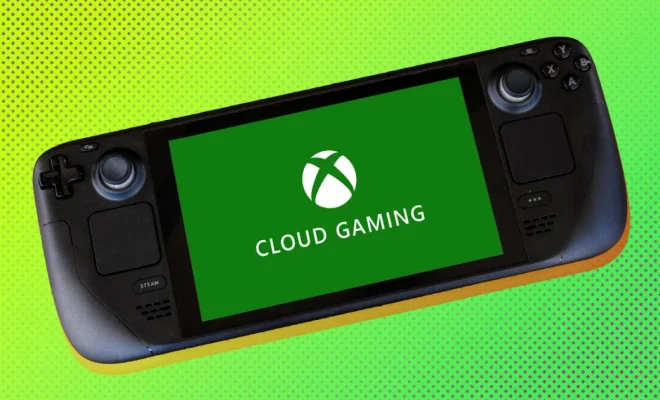
The Steam Deck, Valve’s latest handheld device, is designed to bring PC gaming into the palm of your hand. As impressive as the native library is, you might want to expand your gaming horizons even further by enjoying games from the ever-growing Xbox Cloud Gaming library. This article will guide you through the process of installing Xbox Cloud Gaming on your Steam Deck.

Step 1: Set up your Xbox Game Pass Ultimate subscription

To access Xbox Cloud Gaming (formerly known as Project xCloud), you need to sign up for an Xbox Game Pass Ultimate subscription. Head over to the official Xbox website and create an account if you don’t already have one. After that, subscribe to the Xbox Game Pass Ultimate, which costs $14.99/month and includes access to cloud gaming, in addition to other perks.

Step 2: Prepare your Steam Deck for web browsing

By default, the Steam Deck runs SteamOS, which focuses on providing a smooth gaming experience via the Steam platform. However, it offers limited web browsing capabilities. To browse the web and access Xbox Cloud Gaming, we recommend installing a Linux distro like Ubuntu or Arch Linux alongside SteamOS using dual boot configuration. Numerous guides are available online to help you set this up.

Step 3: Install a compatible web browser

Once you have your preferred Linux distro installed on your Steam Deck, open the terminal and install a compatible web browser like Google Chrome or Microsoft Edge Dev (based on Chromium). For example, run the following command to install Google Chrome via terminal for Ubuntu:
“`bash

wget https://dl.google.com/linux/direct/google-chrome-stable_current_amd64.deb
sudo dpkg -i google-chrome-stable_current_amd64.deb
“`

Step 4: Access Xbox Cloud Gaming in your browser

Launch your newly-installed web browser and visit https://www.xbox.com/play, where you’ll need to sign in with your Xbox account that has an active Game Pass Ultimate subscription. Upon logging in, you’ll see a library of games that are available to play via Xbox Cloud Gaming.

Step 5: Connect a compatible controller

Connect your controller to the Steam Deck via USB or Bluetooth. Most modern game controllers like the Xbox Wireless Controller, PlayStation 4 DualShock or 5 DualSense Controller, as well as some third-party controllers, will work without issues.

Step 6: Start playing

Browse through the library of supported games on the Xbox Cloud Gaming website and choose a game to start playing. Simply click on the game and wait for it to load in your browser window. Enjoy gaming from the comfort of your Steam Deck with Xbox Cloud Gaming!

And that’s it! You’ve successfully installed Xbox Cloud Gaming on your Steam Deck. Now you have access to an even more extensive library of games and can reap the benefits of both platforms. Happy gaming!


Previous Article

AOMEI Partition Assistant Standard Edition v9.15

Next Article

Can Your iPad Run Apple iPadOS 16?

Matthew Lynch

Related articles More from author

  • Tech Advice

    How to Prequalify for an Auto Loan

    August 19, 2023
    By Matthew Lynch
  • Best of the Best ListsTech Advice

    Masterbuilt Gravity Series XT: Revolutionizing Charcoal Grilling

    April 11, 2026
    By Matthew Lynch
  • Tech Advice

    Honda to Build a New EV on Its Own Platform in 2023

    August 22, 2023
    By Matthew Lynch
  • Tech Advice

    Fall Guys: Ultimate Knockout (for PC) Review

    July 20, 2023
    By Matthew Lynch
  • Tech Advice

    The Tower of London: Take a look inside

    July 14, 2023
    By Matthew Lynch
  • Tech Advice

    Tesla’s Model 3 Highland: Latest Rumors and Speculation

    September 4, 2023
    By Matthew Lynch

Search

Login & Registration

  • Log in
  • Entries feed
  • Comments feed
  • WordPress.org

Newsletter

Signup for The Tech Edvocate Newsletter and have the latest in EdTech news and opinion delivered to your email address!

About Us

Since technology is not going anywhere and does more good than harm, adapting is the best course of action. That is where The Tech Edvocate comes in. We plan to cover the PreK-12 and Higher Education EdTech sectors and provide our readers with the latest news and opinion on the subject. From time to time, I will invite other voices to weigh in on important issues in EdTech. We hope to provide a well-rounded, multi-faceted look at the past, present, the future of EdTech in the US and internationally.

We started this journey back in June 2016, and we plan to continue it for many more years to come. I hope that you will join us in this discussion of the past, present and future of EdTech and lend your own insight to the issues that are discussed.

Newsletter

Signup for The Tech Edvocate Newsletter and have the latest in EdTech news and opinion delivered to your email address!

Contact Us

The Tech Edvocate
910 Goddin Street
Richmond, VA 23231
(601) 630-5238
[email protected]

Copyright © 2026 Matthew Lynch. All rights reserved.