The Tech Edvocate

Top Menu

  • Advertisement
  • Apps
  • Home Page
  • Home Page Five (No Sidebar)
  • Home Page Four
  • Home Page Three
  • Home Page Two
  • Home Tech2
  • Icons [No Sidebar]
  • Left Sidbear Page
  • Lynch Educational Consulting
  • My Account
  • My Speaking Page
  • Newsletter Sign Up Confirmation
  • Newsletter Unsubscription
  • Our Brands
  • Page Example
  • Privacy Policy
  • Protected Content
  • Register
  • Request a Product Review
  • Shop
  • Shortcodes Examples
  • Signup
  • Start Here
    • Governance
    • Careers
    • Contact Us
  • Terms and Conditions
  • The Edvocate
  • The Tech Edvocate Product Guide
  • Topics
  • Write For Us
  • Advertise

Main Menu

  • Start Here
    • Our Brands
    • Governance
      • Lynch Educational Consulting, LLC.
      • Dr. Lynch’s Personal Website
      • Careers
    • Write For Us
    • The Tech Edvocate Product Guide
    • Contact Us
    • Books
    • Edupedia
    • Post a Job
    • The Edvocate Podcast
    • Terms and Conditions
    • Privacy Policy
  • Topics
    • Assistive Technology
    • Child Development Tech
    • Early Childhood & K-12 EdTech
    • EdTech Futures
    • EdTech News
    • EdTech Policy & Reform
    • EdTech Startups & Businesses
    • Higher Education EdTech
    • Online Learning & eLearning
    • Parent & Family Tech
    • Personalized Learning
    • Product Reviews
  • Advertise
  • Tech Edvocate Awards
  • The Edvocate
  • Pedagogue
  • School Ratings

logo

The Tech Edvocate

  • Start Here
    • Our Brands
    • Governance
      • Lynch Educational Consulting, LLC.
      • Dr. Lynch’s Personal Website
        • My Speaking Page
      • Careers
    • Write For Us
    • The Tech Edvocate Product Guide
    • Contact Us
    • Books
    • Edupedia
    • Post a Job
    • The Edvocate Podcast
    • Terms and Conditions
    • Privacy Policy
  • Topics
    • Assistive Technology
    • Child Development Tech
    • Early Childhood & K-12 EdTech
    • EdTech Futures
    • EdTech News
    • EdTech Policy & Reform
    • EdTech Startups & Businesses
    • Higher Education EdTech
    • Online Learning & eLearning
    • Parent & Family Tech
    • Personalized Learning
    • Product Reviews
  • Advertise
  • Tech Edvocate Awards
  • The Edvocate
  • Pedagogue
  • School Ratings
  • 77% of Employees Believe They Can Outperform AI in Their Jobs

  • Rethinking Recruitment Strategies in Higher Education

  • 1 in 4 Gen Z Are Considering Ditching Corporate for Content Creation

  • This One Flaw Just Blew Up the Guardian Smart Baby Monitor

  • The AI Race: Why Doomsday Warnings Can’t Stop the Train

  • XBOX: Activision takes over Halo, Obsidian joins Bethesda, and Ninja Theory is going

  • White House Arcade: 2nd Japan Protest, Nintendo Feud [2026]

  • One-Fifth of White-Collar Jobs Could Vanish by 2030, New Report Claims

  • Is a ‘Pacing’ AI Slowdown Really Possible? This Week’s AI News Roundup Reveals the Truth

  • California’s Bold Move: AB 1709 Social Media Restrictions Could Banish Teen Addiction

Assistive Technology
Home›Assistive Technology›How to Install Windows 10 From a Bootable USB Drive

How to Install Windows 10 From a Bootable USB Drive
By Matthew Lynch
June 6, 2023
0
Spread the love

Windows 10 is the latest operating system from Microsoft and if you want to install it on your computer, you have several options. One of the most popular methods is to create a bootable USB drive, which can be used to install Windows 10 on any computer. In this article, we will show you how to create a bootable USB drive and install Windows 10 on your computer.

Creating a Bootable USB Drive

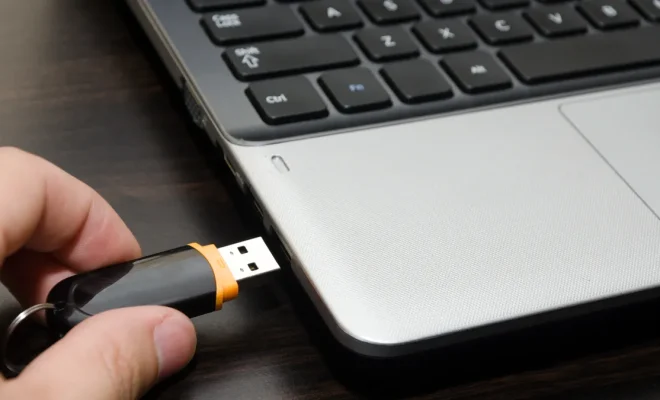
To create a bootable USB drive, you will need a USB drive with at least 8GB of storage space, a Windows 10 ISO file, and a computer running Windows. Follow these steps to create a bootable USB drive:

Step 1: Download the Windows 10 ISO file

You can download the Windows 10 ISO file from Microsoft’s website. Go to the Microsoft website and select the edition of Windows 10 you want to install. Next, choose the language and click on the download button. The ISO file will be downloaded to your computer.

Step 2: Create a bootable USB drive

To create a bootable USB drive, you will need a tool called Rufus. Rufus is a free and open-source tool that you can download from its official website. After downloading Rufus, follow these steps:

1. Insert the USB drive into your computer’s USB port.

2. Open Rufus and select the USB drive from the Device dropdown menu.

3. Click on the Select button and choose the Windows 10 ISO file you downloaded in step 1.

4. Make sure the Partition scheme is set to MBR and the File system is set to FAT32.

5. Click on Start and wait for Rufus to create the bootable USB drive.

Installing Windows 10 from a Bootable USB Drive

Once you have created the bootable USB drive, you can use it to install Windows 10 on any computer. Follow these steps:

Step 1: Insert the bootable USB drive into the computer

Insert the bootable USB drive into the computer you want to install Windows 10 on. Make sure the computer is turned off.

Step 2: Boot the computer from the USB drive

Start the computer and press the key that opens the boot menu. The key varies by manufacturer, but it is usually F2, F10, F12, or Del. Once you are in the boot menu, select the USB drive and press Enter to boot the computer from the USB drive.

Step 3: Install Windows 10

Once the computer has booted from the USB drive, you will see the Windows Setup screen. Follow the on-screen instructions to install Windows 10 on your computer. You will need to select the language, time, and currency format, and keyboard or input method. Next, click on Install Now and accept the license terms. Choose the Custom installation option and select the hard drive where you want to install Windows 10. Click on Next and wait for Windows 10 to complete the installation.


Previous Article

How to Turn Off Mouse Acceleration in ...

Next Article

Where Do FaceTime Photos Go? How to ...

Matthew Lynch

Related articles More from author

  • Assistive Technology

    How to Save Your Resume on Your Phone (and Apply for Jobs!)

    June 12, 2023
    By Matthew Lynch
  • Assistive Technology

    How to Identify Network Hardware IP Addresses on a Local Network

    June 23, 2023
    By Matthew Lynch
  • Assistive Technology

    Apple Watch Won’t Reset? How to Fix The Problem

    June 6, 2023
    By Matthew Lynch
  • Assistive Technology

    How to Add Audio to Google Slides

    June 21, 2023
    By Matthew Lynch
  • Assistive Technology

    How to Put Ink in HP Printer

    June 10, 2023
    By Matthew Lynch
  • Assistive Technology

    How to Add a New Contact on Telegram

    July 15, 2023
    By Matthew Lynch

Search

Login & Registration

  • Log in
  • Entries feed
  • Comments feed
  • WordPress.org

Newsletter

Signup for The Tech Edvocate Newsletter and have the latest in EdTech news and opinion delivered to your email address!

About Us

Since technology is not going anywhere and does more good than harm, adapting is the best course of action. That is where The Tech Edvocate comes in. We plan to cover the PreK-12 and Higher Education EdTech sectors and provide our readers with the latest news and opinion on the subject. From time to time, I will invite other voices to weigh in on important issues in EdTech. We hope to provide a well-rounded, multi-faceted look at the past, present, the future of EdTech in the US and internationally.

We started this journey back in June 2016, and we plan to continue it for many more years to come. I hope that you will join us in this discussion of the past, present and future of EdTech and lend your own insight to the issues that are discussed.

Newsletter

Signup for The Tech Edvocate Newsletter and have the latest in EdTech news and opinion delivered to your email address!

Contact Us

The Tech Edvocate
910 Goddin Street
Richmond, VA 23231
(601) 630-5238
[email protected]

Copyright © 2026 Matthew Lynch. All rights reserved.