The Tech Edvocate

Top Menu

  • Advertisement
  • Apps
  • Home Page
  • Home Page Five (No Sidebar)
  • Home Page Four
  • Home Page Three
  • Home Page Two
  • Home Tech2
  • Icons [No Sidebar]
  • Left Sidbear Page
  • Lynch Educational Consulting
  • My Account
  • My Speaking Page
  • Newsletter Sign Up Confirmation
  • Newsletter Unsubscription
  • Our Brands
  • Page Example
  • Privacy Policy
  • Protected Content
  • Register
  • Request a Product Review
  • Shop
  • Shortcodes Examples
  • Signup
  • Start Here
    • Governance
    • Careers
    • Contact Us
  • Terms and Conditions
  • The Edvocate
  • The Tech Edvocate Product Guide
  • Topics
  • Write For Us
  • Advertise

Main Menu

  • Start Here
    • Our Brands
    • Governance
      • Lynch Educational Consulting, LLC.
      • Dr. Lynch’s Personal Website
      • Careers
    • Write For Us
    • The Tech Edvocate Product Guide
    • Contact Us
    • Books
    • Edupedia
    • Post a Job
    • The Edvocate Podcast
    • Terms and Conditions
    • Privacy Policy
  • Topics
    • Assistive Technology
    • Child Development Tech
    • Early Childhood & K-12 EdTech
    • EdTech Futures
    • EdTech News
    • EdTech Policy & Reform
    • EdTech Startups & Businesses
    • Higher Education EdTech
    • Online Learning & eLearning
    • Parent & Family Tech
    • Personalized Learning
    • Product Reviews
  • Advertise
  • Tech Edvocate Awards
  • The Edvocate
  • Pedagogue
  • School Ratings

logo

The Tech Edvocate

  • Start Here
    • Our Brands
    • Governance
      • Lynch Educational Consulting, LLC.
      • Dr. Lynch’s Personal Website
        • My Speaking Page
      • Careers
    • Write For Us
    • The Tech Edvocate Product Guide
    • Contact Us
    • Books
    • Edupedia
    • Post a Job
    • The Edvocate Podcast
    • Terms and Conditions
    • Privacy Policy
  • Topics
    • Assistive Technology
    • Child Development Tech
    • Early Childhood & K-12 EdTech
    • EdTech Futures
    • EdTech News
    • EdTech Policy & Reform
    • EdTech Startups & Businesses
    • Higher Education EdTech
    • Online Learning & eLearning
    • Parent & Family Tech
    • Personalized Learning
    • Product Reviews
  • Advertise
  • Tech Edvocate Awards
  • The Edvocate
  • Pedagogue
  • School Ratings
  • Luksusa tēli kazino spēļu vizuālajā valodā

  • Les studios de casino en direct rapprochent le jeu en ligne de l’expérience audiovisuelle

  • Wie Spieletitel Thema und Genre vor dem Start vermitteln

  • Wie Vorschaubilder die Orientierung in digitalen Casino Lobbys prägen

  • This One Privacy Camera Feature Could Change Smart Homes Forever

  • Unprecedented: White House Mandates AI Security Incident Reporting After Troubling Breaches

  • The AI Storm Tracker Predicting Viral Narratives Just Landed $7 Million – Here’s Why It Matters

  • This State Just Unleashed AI to Prescribe Meds — Are We Ready for the Future of Medicine?

  • Outrageous: YouTuber Loses Decade of Work to Single YouTube Channel Ban

  • The CyberLeek Saga: What This New GTA 6 Footage Means For Rockstar

Digital & Mobile Technology
Home›Digital & Mobile Technology›How to Install Ubuntu 22.04 LTS on Your PC or Laptop

How to Install Ubuntu 22.04 LTS on Your PC or Laptop
By Matthew Lynch
June 12, 2023
0
Spread the love

Ubuntu is a popular open-source operating system that is based on the Linux kernel. It is a powerful and reliable operating system that can run on various devices such as desktops, laptops, and servers. If you are considering installing Ubuntu 22.04 LTS on your PC or laptop, here is a step-by-step guide to help you get started.

Step 1: Download Ubuntu 22.04 LTS

The first step in installing Ubuntu 22.04 LTS is to download the ISO image from the official website. You can choose to download the 32-bit or 64-bit version, depending on the architecture of your PC or laptop.

Step 2: Create a Bootable USB Drive

Once you have downloaded the Ubuntu 22.04 LTS ISO image, you need to create a bootable USB drive using software like Rufus or BalenaEtcher. This will allow you to boot your PC or laptop from the USB drive and install Ubuntu onto your device.

Step 3: Boot from the USB Drive

To boot your PC or laptop from the USB drive, you need to enter the boot menu. The key to enter the boot menu varies from device to device, but it is usually F2 or F12. Once you have entered the boot menu, select the USB drive as the boot device and hit Enter.

Step 4: Install Ubuntu

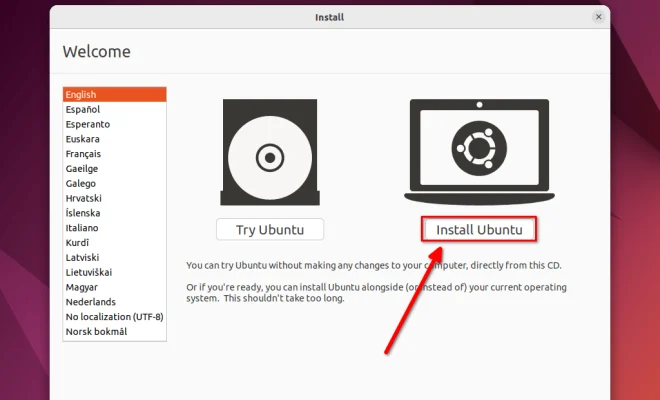
Once you have booted from the USB drive, you will see the Ubuntu installation screen. Select “Install Ubuntu” and follow the prompts to install Ubuntu 22.04 LTS on your device. You will be asked to select your language, time zone, keyboard layout, and network settings.

Step 5: Partition Your Hard Drive

During the Ubuntu installation process, you will be prompted to partition your hard drive. You can choose to erase the entire disk and install Ubuntu or partition the disk manually. If you choose to partition the disk manually, you can create separate partitions for the root file system, swap, and home directory.

Step 6: Create a User Account

After partitioning the hard drive, you need to create a user account. This account will be used to log in to the Ubuntu desktop. You will be asked to enter your name, username, password, and other details.

Step 7: Finish the Installation

Once you have created your user account, the Ubuntu installation process will continue to install the operating system and any additional software packages you have selected. This process can take some time, depending on the speed of your computer and the size of the packages you have selected.

In Conclusion

By following these steps, you can install Ubuntu 22.04 LTS on your PC or laptop. Ubuntu is a powerful and reliable operating system that is easy to use and customizable. It is a great choice for those who are looking for an open-source operating system that is free from viruses and malware.


Previous Article

How to Fix Copy and Paste Not ...

Next Article

Everyday Challenges You Might Face When Switching ...

Matthew Lynch

Related articles More from author

  • Digital & Mobile Technology

    How to Find Your Windows 11 Product Key Using the Command Prompt

    May 28, 2023
    By Matthew Lynch
  • Digital & Mobile Technology

    How to Unshare a Google Doc

    June 30, 2023
    By Matthew Lynch
  • Digital & Mobile Technology

    How to See PC Startup and Shutdown History in Windows 11

    May 7, 2023
    By Matthew Lynch
  • Digital & Mobile Technology

    What Is Security Content Automation Protocol (SCAP)?

    June 9, 2023
    By Matthew Lynch
  • Digital & Mobile Technology

    Can You Print in White Ink?

    June 9, 2023
    By Matthew Lynch
  • Digital & Mobile TechnologyEdTech & Innovation

    5 Tech Devices That Should Be Part of All Classrooms

    May 5, 2022
    By Matthew Lynch

Search

Login & Registration

  • Log in
  • Entries feed
  • Comments feed
  • WordPress.org

Newsletter

Signup for The Tech Edvocate Newsletter and have the latest in EdTech news and opinion delivered to your email address!

About Us

Since technology is not going anywhere and does more good than harm, adapting is the best course of action. That is where The Tech Edvocate comes in. We plan to cover the PreK-12 and Higher Education EdTech sectors and provide our readers with the latest news and opinion on the subject. From time to time, I will invite other voices to weigh in on important issues in EdTech. We hope to provide a well-rounded, multi-faceted look at the past, present, the future of EdTech in the US and internationally.

We started this journey back in June 2016, and we plan to continue it for many more years to come. I hope that you will join us in this discussion of the past, present and future of EdTech and lend your own insight to the issues that are discussed.

Newsletter

Signup for The Tech Edvocate Newsletter and have the latest in EdTech news and opinion delivered to your email address!

Contact Us

The Tech Edvocate
910 Goddin Street
Richmond, VA 23231
(601) 630-5238
[email protected]

Copyright © 2026 Matthew Lynch. All rights reserved.