The Tech Edvocate

Top Menu

  • Advertisement
  • Apps
  • Home Page
  • Home Page Five (No Sidebar)
  • Home Page Four
  • Home Page Three
  • Home Page Two
  • Home Tech2
  • Icons [No Sidebar]
  • Left Sidbear Page
  • Lynch Educational Consulting
  • My Account
  • My Speaking Page
  • Newsletter Sign Up Confirmation
  • Newsletter Unsubscription
  • Our Brands
  • Page Example
  • Privacy Policy
  • Protected Content
  • Register
  • Request a Product Review
  • Shop
  • Shortcodes Examples
  • Signup
  • Start Here
    • Governance
    • Careers
    • Contact Us
  • Terms and Conditions
  • The Edvocate
  • The Tech Edvocate Product Guide
  • Topics
  • Write For Us
  • Advertise

Main Menu

  • Start Here
    • Our Brands
    • Governance
      • Lynch Educational Consulting, LLC.
      • Dr. Lynch’s Personal Website
      • Careers
    • Write For Us
    • The Tech Edvocate Product Guide
    • Contact Us
    • Books
    • Edupedia
    • Post a Job
    • The Edvocate Podcast
    • Terms and Conditions
    • Privacy Policy
  • Topics
    • Assistive Technology
    • Child Development Tech
    • Early Childhood & K-12 EdTech
    • EdTech Futures
    • EdTech News
    • EdTech Policy & Reform
    • EdTech Startups & Businesses
    • Higher Education EdTech
    • Online Learning & eLearning
    • Parent & Family Tech
    • Personalized Learning
    • Product Reviews
  • Advertise
  • Tech Edvocate Awards
  • The Edvocate
  • Pedagogue
  • School Ratings

logo

The Tech Edvocate

  • Start Here
    • Our Brands
    • Governance
      • Lynch Educational Consulting, LLC.
      • Dr. Lynch’s Personal Website
        • My Speaking Page
      • Careers
    • Write For Us
    • The Tech Edvocate Product Guide
    • Contact Us
    • Books
    • Edupedia
    • Post a Job
    • The Edvocate Podcast
    • Terms and Conditions
    • Privacy Policy
  • Topics
    • Assistive Technology
    • Child Development Tech
    • Early Childhood & K-12 EdTech
    • EdTech Futures
    • EdTech News
    • EdTech Policy & Reform
    • EdTech Startups & Businesses
    • Higher Education EdTech
    • Online Learning & eLearning
    • Parent & Family Tech
    • Personalized Learning
    • Product Reviews
  • Advertise
  • Tech Edvocate Awards
  • The Edvocate
  • Pedagogue
  • School Ratings
  • A Visitors Guide to Long Beach (CA), United States

  • A Visitor’s Guide to Fresno (CA), United States

  • A Visitors Guide to New Orleans (LA), United States

  • A Visitors Guide to Sacramento (CA), United States

  • A Visitors Guide to Lyon, France

  • JisuLife Ultra2 Portable Fan: A Powerful Multi-Function Cooling Solution

  • A Visitors Guide to Viña del Mar, Chile

  • A Visitors Guide to Århus, Denmark

  • A Visitors Guide to Bakersfield (CA), United States

  • A Visitors Guide to Aurora (CO), United States

Assistive Technology
Home›Assistive Technology›How to Install Octoprint on a Raspberry Pi and Manage Your 3D Prints from Anywhere

How to Install Octoprint on a Raspberry Pi and Manage Your 3D Prints from Anywhere
By Matthew Lynch
June 23, 2023
0
Spread the love

If you own a desktop 3D printer and want to manage your prints from anywhere, then Octoprint can come in handy. Octoprint is an open-source software that allows you to monitor and control your 3D printer from any device. The software is compatible with Raspberry Pi, which means you can install Octoprint on a Raspberry Pi and use it as a standalone device for your 3D printer. In this article, we’ll guide you through the steps of installing Octoprint on a Raspberry Pi and managing your 3D prints from anywhere.

Step 1: Set Up Your Raspberry Pi

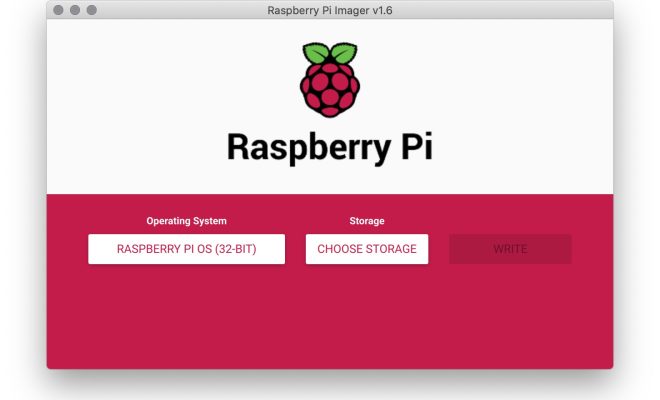
The first step is to set up your Raspberry Pi. To do this, download the latest version of Raspberry Pi OS and install it on a micro SD card. Insert the micro SD card into your Raspberry Pi and turn it on. Follow the on-screen instructions to complete the setup process. Once you have set up your Raspberry Pi, connect it to your local network using an Ethernet cable or Wi-Fi.

Step 2: Install Octoprint

Now that your Raspberry Pi is set up, it’s time to install Octoprint. You’ll need to connect to your Raspberry Pi using SSH (Secure Shell). To do this, open up a terminal window on your computer and enter the following command:

ssh pi@

Replace “” with the IP address of your Raspberry Pi. You should be prompted to enter the default password for the Raspberry Pi, which is “raspberry”. Once you have logged in, enter the following commands:

sudo apt update
sudo apt upgrade
sudo apt install python-pip python-dev python-setuptools python-virtualenv git libyaml-dev build-essential

These commands will update your Raspberry Pi, install some necessary dependencies, and install Git.

Next, you’ll need to create a virtual environment for Octoprint:

mkdir ~/OctoPrint && cd ~/OctoPrint
virtualenv venv
source venv/bin/activate

Now you’re ready to install Octoprint. Enter the following command:

pip install OctoPrint

This will install the latest version of Octoprint.

Step 3: Configure Octoprint

Once Octoprint is installed, you’ll need to configure it. Enter the following command to start the configuration wizard:

~/OctoPrint/venv/bin/octoprint

Follow the on-screen instructions to set up Octoprint. You’ll be prompted to enter some information about your 3D printer, such as the serial port and baud rate. Once you have completed the configuration wizard, you should be able to access Octoprint by entering your Raspberry Pi’s IP address into a web browser.

Step 4: Access Octoprint From Anywhere

Now that Octoprint is up and running, you can access it from anywhere. To do this, you’ll need to set up a remote access solution. One popular solution is to use a VPN (Virtual Private Network) service such as OpenVPN. Another option is to use a service such as ngrok or PageKite, which allow you to access your Raspberry Pi from a public URL.

If you’re using OpenVPN, follow the instructions provided by your VPN service to set up a VPN connection with your Raspberry Pi. Once you’re connected to the VPN, you should be able to access Octoprint by entering your Raspberry Pi’s IP address into a web browser.

If you’re using ngrok, first sign up for a free account on the ngrok website. Then, enter the following command in your Raspberry Pi’s terminal:

./ngrok http 5000

This will start a reverse tunnel to your Raspberry Pi. You should see a public URL that you can use to access your Raspberry Pi from anywhere.

Conclusion

By following these steps, you can install Octoprint on a Raspberry Pi and manage your 3D prints from anywhere. Octoprint is a powerful tool that can help you streamline your 3D printing workflow and increase your productivity. With remote access, you can monitor and control your prints from anywhere, giving you the freedom to work on other projects while your printer is running. Give it a try and see how it can improve your 3D printing experience!


Previous Article

Sites to Find and Print Free Sheet ...

Next Article

Why Did Samsung Kill the Galaxy Note ...

Matthew Lynch

Related articles More from author

  • Assistive Technology

    How to Fix an iPhone Glitch

    June 10, 2023
    By Matthew Lynch
  • Assistive Technology

    How to Use External Controllers on Steam Deck

    June 8, 2023
    By Matthew Lynch
  • Assistive Technology

    How to Fix the Most Common HomePod Mini Problems

    June 10, 2023
    By Matthew Lynch
  • Assistive Technology

    How to Fix the “Product Activation Failed” Error on Microsoft Office Apps for Windows

    June 11, 2023
    By Matthew Lynch
  • Assistive Technology

    How to Clear the Cache in Windows 10

    June 10, 2023
    By Matthew Lynch
  • Assistive Technology

    How to Fix a Frozen Computer

    June 8, 2023
    By Matthew Lynch

Search

Login & Registration

  • Register
  • Log in
  • Entries feed
  • Comments feed
  • WordPress.org

Newsletter

Signup for The Tech Edvocate Newsletter and have the latest in EdTech news and opinion delivered to your email address!

About Us

Since technology is not going anywhere and does more good than harm, adapting is the best course of action. That is where The Tech Edvocate comes in. We plan to cover the PreK-12 and Higher Education EdTech sectors and provide our readers with the latest news and opinion on the subject. From time to time, I will invite other voices to weigh in on important issues in EdTech. We hope to provide a well-rounded, multi-faceted look at the past, present, the future of EdTech in the US and internationally.

We started this journey back in June 2016, and we plan to continue it for many more years to come. I hope that you will join us in this discussion of the past, present and future of EdTech and lend your own insight to the issues that are discussed.

Newsletter

Signup for The Tech Edvocate Newsletter and have the latest in EdTech news and opinion delivered to your email address!

Contact Us

The Tech Edvocate
910 Goddin Street
Richmond, VA 23231
(601) 630-5238
[email protected]

Copyright © 2025 Matthew Lynch. All rights reserved.