
The Tech Edvocate

Top Menu

  • Advertisement
  • Apps
  • Home Page
  • Home Page Five (No Sidebar)
  • Home Page Four
  • Home Page Three
  • Home Page Two
  • Home Tech2
  • Icons [No Sidebar]
  • Left Sidbear Page
  • Lynch Educational Consulting
  • My Account
  • My Speaking Page
  • Newsletter Sign Up Confirmation
  • Newsletter Unsubscription
  • Our Brands
  • Page Example
  • Privacy Policy
  • Protected Content
  • Register
  • Request a Product Review
  • Shop
  • Shortcodes Examples
  • Signup
  • Start Here
    • Governance
    • Careers
    • Contact Us
  • Terms and Conditions
  • The Edvocate
  • The Tech Edvocate Product Guide
  • Topics
  • Write For Us
  • Advertise

Main Menu

  • Start Here
    • Our Brands
    • Governance
      • Lynch Educational Consulting, LLC.
      • Dr. Lynch’s Personal Website
      • Careers
    • Write For Us
    • The Tech Edvocate Product Guide
    • Contact Us
    • Books
    • Edupedia
    • Post a Job
    • The Edvocate Podcast
    • Terms and Conditions
    • Privacy Policy
  • Topics
    • Assistive Technology
    • Child Development Tech
    • Early Childhood & K-12 EdTech
    • EdTech Futures
    • EdTech News
    • EdTech Policy & Reform
    • EdTech Startups & Businesses
    • Higher Education EdTech
    • Online Learning & eLearning
    • Parent & Family Tech
    • Personalized Learning
    • Product Reviews
  • Advertise
  • Tech Edvocate Awards
  • The Edvocate
  • Pedagogue
  • School Ratings

logo

The Tech Edvocate

  • Start Here
    • Our Brands
    • Governance
      • Lynch Educational Consulting, LLC.
      • Dr. Lynch’s Personal Website
        • My Speaking Page
      • Careers
    • Write For Us
    • The Tech Edvocate Product Guide
    • Contact Us
    • Books
    • Edupedia
    • Post a Job
    • The Edvocate Podcast
    • Terms and Conditions
    • Privacy Policy
  • Topics
    • Assistive Technology
    • Child Development Tech
    • Early Childhood & K-12 EdTech
    • EdTech Futures
    • EdTech News
    • EdTech Policy & Reform
    • EdTech Startups & Businesses
    • Higher Education EdTech
    • Online Learning & eLearning
    • Parent & Family Tech
    • Personalized Learning
    • Product Reviews
  • Advertise
  • Tech Edvocate Awards
  • The Edvocate
  • Pedagogue
  • School Ratings
  • A Visitors Guide to Colorado Springs (CO), United States

  • 5 Pairs of Shoes That Will Instantly Step Your Shoe Game Up

  • Radiant Youthful Skin is the Perfect Christmas Gift

  • Give Your Loved One the Gift of Youthful, Radiant Skin this Christmas

  • Give Your Loved One the Gift of a Restful Night Sleep this Christmas

  • Nex Playground’s Holiday Sales Bring Active Play Indoors This Seaso

  • A Visitors Guide to Louisville (KY), United States

  • A Visitor’s Guide to Nashville-Davidson (TN), United States

  • A Visitors Guide to Portland (OR), United States

  • 7 Men’s Bruno Marc Shoes That Are the Perfect Christmas Gift

How To
Home›How To›How to Install Custom Maps in Minecraft

How to Install Custom Maps in Minecraft
By Matthew Lynch
March 3, 2024
0
Spread the love

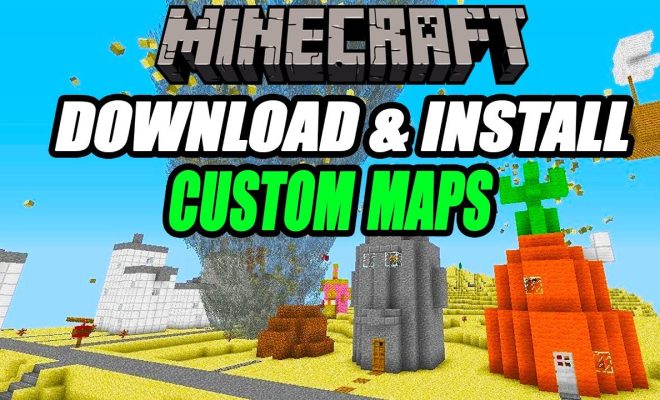
Minecraft, the popular sandbox-style game, invites players to enter and shape a vast world filled with endless possibilities. One of the many features that make this game exceptional is the ability to install custom maps created by fellow Minecraft enthusiasts. With custom maps, you can explore new terrains, embark on exciting adventures, or even build intricate structures. In this article, we’ll guide you through the process of installing custom maps in Minecraft on various platforms.

Step 1: Find and Choose Your Custom Map

Before getting started, you’ll need to find a custom map that interests you. There are numerous online resources dedicated to sharing user-created Minecraft maps. Some popular sites include MinecraftMaps.com, PlanetMinecraft.com, and CurseForge.com.

Once you’ve found a custom map that piques your interest, download it. Typically, downloaded maps come in a compressed file format (.zip or .rar).

Step 2: Extracting Your Map Files

To access the files needed for installation, you’ll first need to extract them from their compressed format. On most computers, this can be done by right-clicking on the file and selecting “extract all” or using an extraction program such as WinRAR or 7-Zip.

Upon extraction, you should find a folder containing your custom map’s files. Make sure that there is a level.dat file within the folder—this is a crucial component needed for the map to function correctly.

Step 3: Locate Your Minecraft Saves Folder

Now it’s time to add your custom map into the game. To do this, locate your Minecraft saves folder where your current worlds are stored.

For Windows users:

Press Windows key + R, type “%appdata%\.minecraft\saves\” (without quotation marks), and hit Enter.

For macOS users:

Navigate to “~/Library/Application Support/minecraft/saves/” (without quotation marks) in Finder.

For Linux users:

Locate the “~/.minecraft/saves/” (without quotation marks) directory.

Step 4: Add Your Custom Map to the Saves Folder

To install the map into your Minecraft game, copy the extracted folder containing the custom map files into the saves folder that you located in Step 3. Make sure your custom map folder is inside the saves folder, not inside another subdirectory.

Step 5: Launch Minecraft and Enjoy Your New Map

Once you’ve added the custom map to your saves folder, it’s time to enjoy your new adventure. Launch Minecraft, select “Singleplayer,” and find your custom map on the list of worlds. Click on it, hit “Play Selected World,” and jump into your newfound realm!

When following these steps, you’ll have countless possibilities to take your Minecraft experience to the next level. As long as you download maps from reputable sources and remember to back up your important files, installing custom maps can prove a thrilling addition to your gameplay repertoire. Happy exploring!


Previous Article

10 Best Anime Openings of 2024

Next Article

8 Best Guard Dog Breeds for Home ...

Matthew Lynch

Related articles More from author

  • How To

    3 Ways to Have Flawless Skin in a Week

    December 5, 2023
    By Matthew Lynch
  • How To

    How to Clean a Rabbit Cage

    October 22, 2023
    By Matthew Lynch
  • How To

    How To Choose The Best Wedding Or Birthday Limo Services In Baltimore?

    March 24, 2024
    By Matthew Lynch
  • How To

    4 Ways to Read Cat Food Labels

    April 6, 2024
    By Matthew Lynch
  • How To

    How to Zero Your Rifle Scope: 15 Steps

    October 5, 2023
    By Matthew Lynch
  • How To

    How to Blow Into a Saxophone: 13 Steps

    January 7, 2024
    By Matthew Lynch

Search

Login & Registration

  • Register
  • Log in
  • Entries feed
  • Comments feed
  • WordPress.org

Newsletter

Signup for The Tech Edvocate Newsletter and have the latest in EdTech news and opinion delivered to your email address!

About Us

Since technology is not going anywhere and does more good than harm, adapting is the best course of action. That is where The Tech Edvocate comes in. We plan to cover the PreK-12 and Higher Education EdTech sectors and provide our readers with the latest news and opinion on the subject. From time to time, I will invite other voices to weigh in on important issues in EdTech. We hope to provide a well-rounded, multi-faceted look at the past, present, the future of EdTech in the US and internationally.

We started this journey back in June 2016, and we plan to continue it for many more years to come. I hope that you will join us in this discussion of the past, present and future of EdTech and lend your own insight to the issues that are discussed.

Newsletter

Signup for The Tech Edvocate Newsletter and have the latest in EdTech news and opinion delivered to your email address!

Contact Us

The Tech Edvocate
910 Goddin Street
Richmond, VA 23231
(601) 630-5238
[email protected]

Copyright © 2025 Matthew Lynch. All rights reserved.