The Tech Edvocate

Top Menu

  • Advertisement
  • Apps
  • Home Page
  • Home Page Five (No Sidebar)
  • Home Page Four
  • Home Page Three
  • Home Page Two
  • Home Tech2
  • Icons [No Sidebar]
  • Left Sidbear Page
  • Lynch Educational Consulting
  • My Account
  • My Speaking Page
  • Newsletter Sign Up Confirmation
  • Newsletter Unsubscription
  • Our Brands
  • Page Example
  • Privacy Policy
  • Protected Content
  • Register
  • Request a Product Review
  • Shop
  • Shortcodes Examples
  • Signup
  • Start Here
    • Governance
    • Careers
    • Contact Us
  • Terms and Conditions
  • The Edvocate
  • The Tech Edvocate Product Guide
  • Topics
  • Write For Us
  • Advertise

Main Menu

  • Start Here
    • Our Brands
    • Governance
      • Lynch Educational Consulting, LLC.
      • Dr. Lynch’s Personal Website
      • Careers
    • Write For Us
    • The Tech Edvocate Product Guide
    • Contact Us
    • Books
    • Edupedia
    • Post a Job
    • The Edvocate Podcast
    • Terms and Conditions
    • Privacy Policy
  • Topics
    • Assistive Technology
    • Child Development Tech
    • Early Childhood & K-12 EdTech
    • EdTech Futures
    • EdTech News
    • EdTech Policy & Reform
    • EdTech Startups & Businesses
    • Higher Education EdTech
    • Online Learning & eLearning
    • Parent & Family Tech
    • Personalized Learning
    • Product Reviews
  • Advertise
  • Tech Edvocate Awards
  • The Edvocate
  • Pedagogue
  • School Ratings

logo

The Tech Edvocate

  • Start Here
    • Our Brands
    • Governance
      • Lynch Educational Consulting, LLC.
      • Dr. Lynch’s Personal Website
        • My Speaking Page
      • Careers
    • Write For Us
    • The Tech Edvocate Product Guide
    • Contact Us
    • Books
    • Edupedia
    • Post a Job
    • The Edvocate Podcast
    • Terms and Conditions
    • Privacy Policy
  • Topics
    • Assistive Technology
    • Child Development Tech
    • Early Childhood & K-12 EdTech
    • EdTech Futures
    • EdTech News
    • EdTech Policy & Reform
    • EdTech Startups & Businesses
    • Higher Education EdTech
    • Online Learning & eLearning
    • Parent & Family Tech
    • Personalized Learning
    • Product Reviews
  • Advertise
  • Tech Edvocate Awards
  • The Edvocate
  • Pedagogue
  • School Ratings
  • The End of an Era: Kia Soul Bids Farewell After 17 Years of Quirkiness

  • Unlocking the Secrets of Super Bowl Ad Success: Insights from YouTube’s AdBlitz

  • Navigating the New Era of Digital Marketing: Key Updates and Strategies for 2026

  • Innovative Marketing Techniques Transforming the Landscape in 2026

  • March Madness: Key Sports Matchups Set for March 8, 2026

  • Golden Knights Set to Battle Oilers: A Crucial Game for Pacific Division Dominance

  • NHL Showdown: Bruins Face Off Against Penguins Amid Star Power Absence

  • Divided Opinions: Analyzing U.S. Public Sentiment on the Iran Conflict

  • Economic Turmoil Amid Trump’s Promises: A Closer Look at 2026’s Early Challenges

  • Renewed Trade Talks: Canada and the U.S. Seek Common Ground

Tech Advice
Home›Tech Advice›How to Install Chrome Extensions Manually

How to Install Chrome Extensions Manually
By Matthew Lynch
July 24, 2023
0
Spread the love

Chrome extensions are powerful tools that enhance your browsing experience by adding additional features and functionality to Google Chrome. While most extensions can be installed directly from the Chrome Web Store, there may be instances where you need to install an extension manually. In this article, we will guide you through the process of manually installing Chrome extensions.

Step 1: Downloading the Extension Files

To begin:

1. Open your preferred web browser (not necessarily Google Chrome).

2. Search for the desired extension using a trusted source or visit the developer’s website directly.

3. Look for a download link or button provided by the developer to download the extension files onto your computer.

Step 2: Extracting Extension Files (If Necessary)

Some downloaded extensions may come in compressed formats such as ZIP files. If this is the case:

• Right-click on the downloaded file and select “Extract” or use any extraction software like WinRAR or 7-Zip to extract its contents into a new folder.

Step 3: Enabling Developer Mode in Google Chrome

Before proceeding with manual installation, ensure that Developer Mode is enabled in Google Chrome:

1 . Launch Google Chrome on your computer.

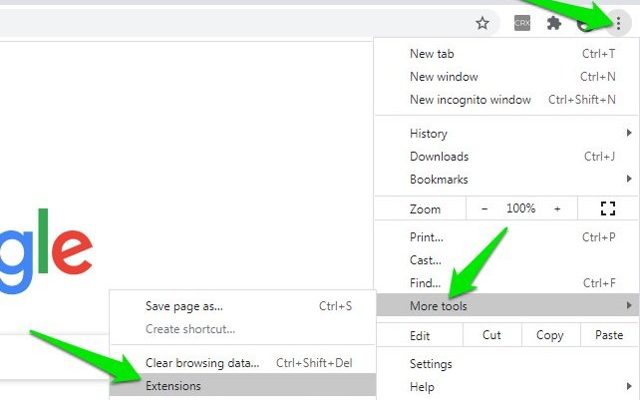
2 . Click on the three-dot menu icon at the top-right corner of the browser window.

3 . From within this menu, go to More Tools > Extensions.

4 . Toggle on “Developer mode” located at the top-right corner of this page.

Step 4: Installing Extension Manually

Now that Developer Mode is enabled:

1 . Click/tap on “Load unpacked” or similar option available within Extensions settings.

2 . A dialog box will appear—navigate and select/choose/open either:

• The extracted folder containing extension files if it was previously compressed.

• The folder where you downloaded and saved individual extension files.

3 . Click/tap on the “Select Folder” or “Open” button.

4 . Google Chrome will proceed to install the extension.

Step 5: Managing Installed Extensions

After installation:

• You can manage your installed extensions by going to More Tools > Extensions in the Chrome menu.

• From here, you can enable/disable extensions, remove them completely, or customize their settings based on your preferences.

Conclusion

While most Chrome extensions are readily available for installation from the Chrome Web Store with just a few clicks, there may be occasions where you need to manually install an extension. By downloading and extracting extension files (if necessary), enabling Developer Mode in Google Chrome, and using the “Load unpacked” option within Extensions settings, you can successfully install extensions manually.

Remember that manual installation should only be done with trusted sources and reputable developers. Exercise caution when installing extensions from unknown or unverified websites to ensure a safe browsing experience.
Enjoy expanding the capabilities of Google Chrome by exploring various chrome extensions and installing them manually when needed!


Previous Article

How to Install Amazon Appstore on Your ...

Next Article

Nintendo: Switch Screen Dead Pixels Are Not ...

Matthew Lynch

Related articles More from author

  • Tech Advice

    Big Air: Hands On With the 15-Inch Apple MacBook Air

    July 24, 2023
    By Matthew Lynch
  • Tech Advice

    How to find your Mac’s Home folder (and add it to Finder)

    July 13, 2023
    By Matthew Lynch
  • Tech Advice

    How to stop worrying about speaker impedance

    July 16, 2023
    By Matthew Lynch
  • Tech Advice

    Jackson Hewitt Review 2023: Attractive $25 Filing Cost, But Less Appealing User Experience

    July 11, 2023
    By Matthew Lynch
  • Tech Advice

    2024 Mazda Mazda3 2.5 S Select Sport 4dr Front-Wheel Drive Hatchback : Trim Details, Reviews, Prices, Specs, and Incentives

    August 21, 2023
    By Matthew Lynch
  • Tech Advice

    The Best Washer and Dryer Pairs You Can Buy

    July 9, 2023
    By Matthew Lynch

Search

Login & Registration

  • Register
  • Log in
  • Entries feed
  • Comments feed
  • WordPress.org

Newsletter

Signup for The Tech Edvocate Newsletter and have the latest in EdTech news and opinion delivered to your email address!

About Us

Since technology is not going anywhere and does more good than harm, adapting is the best course of action. That is where The Tech Edvocate comes in. We plan to cover the PreK-12 and Higher Education EdTech sectors and provide our readers with the latest news and opinion on the subject. From time to time, I will invite other voices to weigh in on important issues in EdTech. We hope to provide a well-rounded, multi-faceted look at the past, present, the future of EdTech in the US and internationally.

We started this journey back in June 2016, and we plan to continue it for many more years to come. I hope that you will join us in this discussion of the past, present and future of EdTech and lend your own insight to the issues that are discussed.

Newsletter

Signup for The Tech Edvocate Newsletter and have the latest in EdTech news and opinion delivered to your email address!

Contact Us

The Tech Edvocate
910 Goddin Street
Richmond, VA 23231
(601) 630-5238
[email protected]

Copyright © 2025 Matthew Lynch. All rights reserved.