How to insert symbols in Word
“`html
When it comes to creating professional documents in Microsoft Word, the ability to insert symbols can significantly enhance your text presentation. Whether you’re crafting a report, a thesis, or simply jotting down notes, knowing how to insert symbols in Word allows you to convey complex ideas with clarity and style. In this article, we’ll explore seven essential methods for incorporating symbols into your documents, as well as tips for making the most of this powerful feature.
1. Using the Symbol Dialog Box
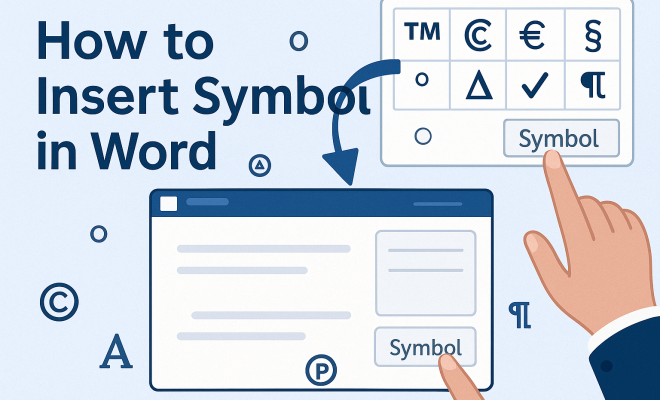
The most straightforward way to insert symbols in Word is through the Symbol dialog box. This feature provides access to a wide variety of symbols, including mathematical symbols, currency signs, and special characters.
To access the Symbol dialog box, follow these steps:
- Open Microsoft Word and navigate to the “Insert” tab on the ribbon.
- Click on the “Symbol” button located on the far right side of the toolbar.
- Select “More Symbols” from the dropdown menu.
Once the Symbol dialog box opens, you can browse through different fonts and character sets. If you frequently use a particular symbol, you can also assign it a shortcut key for quicker access in the future.
2. Keyboard Shortcuts for Quick Access
If you prefer speed over navigating menus, learning keyboard shortcuts is an excellent way to insert symbols in Word efficiently. Word offers numerous shortcuts for commonly used symbols.
For instance, typing “Ctrl + Shift + @” will insert the “@” symbol, while “Ctrl + Alt + 4” gives you the euro sign (€). For special characters, you can hold down the “Alt” key and type the corresponding numeric code on the numeric keypad. For example, typing “Alt + 0169” will produce the copyright symbol (©).
By memorizing a few key shortcuts, you can save time and streamline your workflow, especially if you deal with symbols frequently.
3. Inserting Special Characters with Character Map
Windows comes equipped with a tool known as Character Map, which shows all the characters available in a specific font. This tool is particularly useful when searching for symbols that aren’t readily available in Word’s Symbol dialog box.
To use Character Map:
- Press “Windows Key + R” to open the Run dialog box.
- Type “charmap” and hit Enter.
- Select the desired font and scroll through the options to find the symbol you need.
After selecting a symbol, click the “Copy” button and then paste it into your Word document. This method is perfect for finding unique symbols that might not be included in Word’s native options.
4. Using AutoCorrect to Insert Symbols Automatically
AutoCorrect is a powerful feature in Word that can help you speed up your document creation process. By configuring AutoCorrect to replace specific text with symbols, you can automate the insertion of frequently used symbols.
To set up AutoCorrect for symbols: (See: Microsoft Word overview on Wikipedia.)
- Go to the “File” tab, select “Options,” and navigate to “Proofing.”
- Click on “AutoCorrect Options.”
- In the dialog box, type a unique text string in the “Replace” field and paste the desired symbol in the “With” field.
For example, you could set it so typing “(c)” automatically converts to the copyright symbol (©). This will save you time and ensure consistency across your documents.
5. Utilizing the Equation Editor for Mathematical Symbols
If you often use mathematical symbols, the Equation Editor in Word can be a game changer. This tool allows you to create complex equations and insert a variety of mathematical symbols with ease.
To access the Equation Editor:
- Go to the “Insert” tab and click on “Equation.”
- Select a pre-defined equation or choose “Insert New Equation.”
From here, you can insert fractions, exponents, and symbols like the integral sign or summation. The Equation Editor is especially useful for academic papers or any document requiring mathematical notation, enhancing both clarity and professionalism.
6. Inserting Symbols from the Word Toolbar
Word’s Quick Access Toolbar can be customized to include your most-used symbols, making them readily available whenever you need them. This approach is particularly useful for users who regularly insert the same symbols.
To customize your Quick Access Toolbar:
- Right-click on the toolbar and select “Customize Quick Access Toolbar.”
- In the dropdown, choose “More Commands.”
- From the “Choose commands from” dropdown, select “Symbols” and add the desired symbols to the toolbar.
This way, you can click your favorite symbols without rummaging through the menus or dialog boxes, streamlining your document creation process.
7. Exploring Online Resources for Unique Symbols
While Microsoft Word offers numerous built-in options, there is a vast universe of unique symbols available online. Websites like Unicode Table or Symbolab can provide you with a comprehensive list of symbols, including those from various languages, cultures, and disciplines.
To use an online resource:
- Visit a website that specializes in symbols or unicode.
- Search for the specific symbol you need.
- Copy the symbol and paste it into your Word document.
This method allows you to expand beyond the limits of Word and find aesthetically pleasing or culturally significant symbols that can enrich your documents.
8. Commonly Used Symbols and Their Meanings
Understanding the symbols you might need can improve your efficiency. Here’s a quick guide to some commonly used symbols and what they represent:
- © – Copyright symbol, used to protect creative works.
- ® – Registered trademark symbol, indicating a registered trademark.
- ™ – Trademark symbol, used for unregistered trademarks.
- € – Euro sign, representing the currency of the European Union.
- £ – Pound sign, used for British currency.
- ¥ – Yen sign, representing Japanese currency.
- ° – Degree symbol, commonly used in temperature readings.
In addition to these, specific fields like mathematics or science may require more specialized symbols, such as the infinity symbol (∞) or various Greek letters (α, β, γ), which are frequently used in equations and formulas.
9. Tips for Using Symbols Effectively
To get the most out of symbols in your documents, consider these practical tips:
- Consistency is Key: Use symbols consistently throughout your document to prevent confusion. For instance, if you use the euro sign (€) in one part of your report, stick to it.
- Know Your Audience: Not all readers will be familiar with every symbol. If you’re using a less common one, consider providing a brief explanation.
- Utilize Symbols in Headers and Footers: If you want to maintain a professional look, consider inserting symbols in headers or footers where appropriate, like placing a trademark symbol next to your company name.
- Avoid Overuse: While symbols can enhance your document, overusing them can make it look cluttered. Use them judiciously to maintain clarity.
10. Advanced Symbol Editing with WordArt
If you want to take your symbols to the next level, consider using WordArt. This feature allows you to create stylized text and symbols that can draw attention and make your document visually appealing. (See: CDC FAQ page.)
To insert WordArt:
- Navigate to the “Insert” tab.
- Click on “WordArt” in the Text group and choose your desired style.
- Type your symbol or text, and use the WordArt tools to customize the font, style, and color.
WordArt can be particularly effective for titles or important sections in your document, creating a more engaging reading experience.
11. Frequently Asked Questions (FAQs)
1. Can I insert symbols in Word on a Mac using the same methods?
Yes, most methods outlined in this article apply to Microsoft Word on a Mac as well. The menus may be slightly different, but the core functionalities remain the same.
2. Are there symbols that cannot be inserted into Word?
While Word accommodates a vast range of symbols, some specialized or unique symbols may not be available. In such cases, using online resources or external character maps can help find and insert them.
3. How can I insert symbols in Word if I’m using a mobile device?
If you’re using Word on a mobile device, you can typically find symbols through the keyboard by accessing special characters. Some devices have a dedicated symbols button or a character map within the app.
4. Is there a way to see a preview of symbols before inserting them?
In the Symbol dialog box, you can hover your mouse over different symbols to see their names, but there’s no direct preview feature. Explore online databases for a comprehensive view of available symbols.
5. Can I create custom symbols in Word?
While you can’t create custom symbols from scratch, you can combine shapes, words, and existing symbols using drawing tools or WordArt to achieve a unique look.
12. How to Find and Use Emojis in Word
In today’s digital age, emojis have become a popular way to convey emotions and ideas simply and visually. Microsoft Word allows you to insert emojis just like symbols, enhancing your document’s expressiveness.
To insert emojis in Word:
- Go to the “Insert” tab.
- Click on the “Symbol” button, and you may find emojis listed there, or you can use the Windows emoji keyboard by pressing “Windows Key + . (period)” to bring it up.
- Select your desired emoji and insert it into your document.
Using emojis can add a fun and modern flair to your documents, but be mindful of your audience and context. In professional settings, use them sparingly.
13. Practical Examples of Symbol Use
To better understand how symbols can enhance your documents, let’s look at some practical examples across different types of documents:
Reports and Presentations
In corporate reports, using symbols can help convey information efficiently. For instance, using checkmarks (✔️) to indicate completed tasks or status symbols like exclamation marks (❗) for urgent items can quickly communicate important information. (See: New York Times technology section.)
Academic Papers
In academic writing, symbols like Greek letters (α, β, γ) are essential for denoting variables in equations. The use of mathematical symbols in equations can also clarify complex ideas, making them more accessible to readers.
Creative Projects
In creative writing or graphic design projects, using unique symbols can evoke emotions or themes. For example, using a heart symbol (❤️) can emphasize love or passion in poetry, while a star symbol (⭐) can highlight important quotes or sections.
14. Statistics on Symbol Use in Documents
Research has indicated that the use of symbols in documents can significantly improve readability and retention of information. A study published in the Journal of Visual Literacy found that documents containing visuals, including symbols, were 43% more likely to be remembered than those that contained text alone.
Additionally, companies that incorporate symbols in their reports often report higher engagement rates from stakeholders. A survey by the Communication Research Institute indicated that 75% of respondents found reports with visual symbols more appealing and easier to understand.
15. Comparing Symbols Across Different Software
While Microsoft Word has robust tools for inserting symbols, other software may offer different capabilities. Here’s a quick comparison:
Google Docs
In Google Docs, inserting symbols can be done through the “Insert” menu as well, but you may find fewer options compared to Word. Google Docs does allow for emoji insertion easily, making it great for quick communications.
Apple Pages
Pages offers a similar feature for inserting symbols, but its character viewer can be more intuitive for Mac users. The integration of emoji is smooth, making it simple to add them into text seamlessly.
16. Final Thoughts on Inserting Symbols in Word
Learning how to insert symbols in Word can vastly improve the way you communicate your ideas. Whether you’re using the Symbol dialog box, keyboard shortcuts, or AutoCorrect, each method serves a specific purpose and can be utilized based on your individual needs. Experiment with these techniques to find the ones that work best for you, and soon you’ll be inserting symbols like a pro.
With the added ability to customize your Word experience through the Quick Access Toolbar and external resources, the sky’s the limit for what you can achieve in your documents. So go ahead, start exploring these methods today, and watch your document quality soar.
“`
Trending Now
Frequently Asked Questions
How do I insert symbols in Word?
To insert symbols in Word, go to the 'Insert' tab, click on the 'Symbol' button, and select 'More Symbols'. This opens the Symbol dialog box, allowing you to browse various symbols and assign shortcut keys for frequently used ones.
What are the keyboard shortcuts for symbols in Word?
Word offers several keyboard shortcuts for symbols. For example, 'Ctrl + Shift + @' inserts the '@' symbol, and 'Ctrl + Alt + 4' gives you the euro sign (€). You can also use 'Alt' plus a numeric code to insert special characters.
Can I use Character Map to insert symbols in Word?
Yes, you can use the Character Map tool in Windows to insert symbols in Word. This utility allows you to select and copy symbols, which you can then paste directly into your Word document.
Where can I find special characters in Word?
Special characters can be found in the Symbol dialog box in Word. By navigating to the 'Insert' tab and selecting 'Symbol', you can access a variety of special characters, including mathematical symbols and currency signs.
How can I assign shortcut keys to symbols in Word?
To assign shortcut keys to symbols in Word, open the Symbol dialog box, select the symbol you want, and click on 'Shortcut Key'. Here, you can set a custom key combination for quick access in the future.
Agree or disagree? Drop a comment and tell us what you think.