How to insert page break in Google Docs
“`html
When it comes to creating well-structured documents, knowing how to insert page break in Google Docs is essential. Whether you’re drafting a report, writing an essay, or compiling a newsletter, a page break allows you to control the flow of your document, ensuring content is organized and visually appealing. This guide will walk you through the intricacies of page breaks in Google Docs, offering valuable insights, tips, and practical knowledge you can apply immediately.
1. Understanding Page Breaks
Before diving into the mechanics of inserting page breaks in Google Docs, let’s clarify what a page break actually is. In essence, a page break is a tool that lets you end the current page and start a new one. This is particularly useful for keeping sections organized and maintaining a clean layout. Unlike simply hitting ‘Enter’ multiple times, which can create gaps and inconsistencies, a page break provides a clear demarcation.
Page breaks are often used in documents that require distinct sections, such as chapters in a book or separate topics in a report. They help enhance readability and can make your document appear more polished and professional. Understanding this fundamental concept will set the stage for mastering your formatting skills in Google Docs.
2. How to Insert Page Break in Google Docs
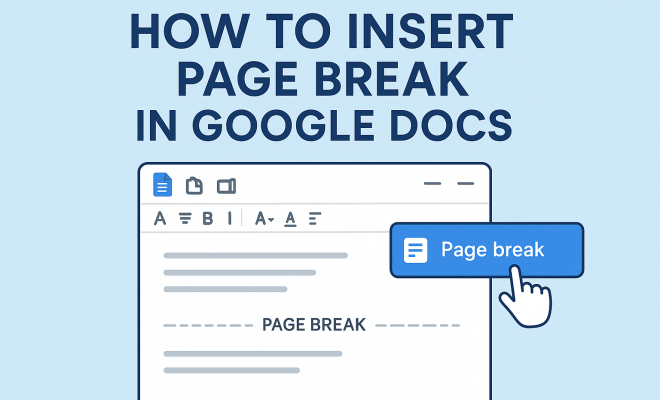
Inserting a page break in Google Docs is straightforward, and you have a couple of methods at your disposal. Here’s how to do it:
- Method 1: Using the Menu Bar
1. Place your cursor where you want the page to break.
2. Click on ‘Insert’ in the menu bar.
3. From the drop-down menu, select ‘Break’, then click on ‘Page break’. - Method 2: Using Keyboard Shortcut
1. Position your cursor at the desired location.
2. Press Ctrl + Enter (on Windows) or Cmd + Enter (on Mac).
Both methods will effectively insert a page break. Choose whichever one feels more comfortable for you. The keyboard shortcut is particularly useful for those who prefer efficiency and speed while working.
3. Practical Uses of Page Breaks
Understanding how to insert page break in Google Docs is just the beginning. Knowing when and why to use page breaks can significantly enhance your document’s professionalism. Here are some practical scenarios where page breaks come in handy:
- Section Separation: If you’re dividing your document into chapters or sections, page breaks will help keep your content organized and prevent overlapping text.
- Reports and Proposals: For formal documents, such as business reports or academic proposals, using page breaks can help in keeping headers and footers aligned correctly across pages.
- Presentations: When preparing presentation notes, page breaks can help in separating slides or key points, making it easier to follow along.
By using page breaks effectively, you can significantly improve the user experience for anyone reading your document, whether it’s a colleague, client, or teacher.
4. Editing and Removing Page Breaks
While inserting page breaks is crucial, knowing how to edit or remove them is equally important. Sometimes, you might find that a page break was inserted in error or that you want to adjust the layout. Here’s how to manage page breaks: (See: Understanding page breaks.)
To remove a page break, simply place your cursor immediately before the break and press the Delete key. Alternatively, you can switch to the ‘Edit’ mode and use the ‘Undo’ option if you just inserted a page break by mistake. This will revert your document to its previous state.
5. Page Breaks vs. Section Breaks
As you get familiar with inserting page breaks, you’ll likely encounter section breaks. Understanding the difference between the two can enhance your document formatting skills. While a page break pushes the entire content after the break down to the next page, a section break allows for more complex formatting options.
Section breaks can be particularly useful when you want to change the formatting styles, such as headers or footers, within different sections of the same document. For instance, you may want to have a different header for the first chapter compared to subsequent chapters. By using section breaks, you can achieve this without altering the overall document structure.
6. Best Practices for Using Page Breaks
To get the most out of your ability to insert page break in Google Docs, consider these best practices:
- Consistency: Use page breaks consistently throughout your document. This helps maintain a clean and professional look.
- Previewing: Before finalizing your document, always preview it. This way, you can ensure your page breaks are placed correctly and that your document flows well.
- Avoid Overusing: While page breaks are beneficial, overusing them can lead to excessive blank pages. This can make your document feel disjointed.
By adhering to these best practices, you can ensure that your documents are not only well-organized but also visually appealing.
7. Collaborating with Page Breaks
One of the standout features of Google Docs is its collaboration capabilities. When multiple people are working on a single document, consistent use of page breaks becomes even more critical. If co-workers or peers are unfamiliar with your formatting style, it could lead to confusion or inconsistency.
Encourage team members to adopt similar practices regarding page breaks. You might even consider creating a style guide that outlines how to use them effectively. This ensures everyone involved in the document’s development adheres to the same formatting standards, thereby enhancing the final product.
8. Advanced Formatting Options
Once you’re comfortable with basic page breaks, you might want to explore advanced formatting options. Page breaks can be combined with styles, margins, and layouts to create intricate and professional documents. For instance, you can set different page orientations or sizes for various sections by using section breaks in tandem with page breaks. (See: Importance of document organization.) There’s a fuller look at using Google Docs in class.
Additionally, explore how custom headers and footers interact with page breaks. By controlling what appears at the top or bottom of pages, you can significantly influence the document’s overall presentation. This is particularly useful for items like reports, where branding and document identity are crucial.
9. Common Challenges with Page Breaks
Using page breaks might seem straightforward, but you may encounter some challenges along the way. Here are a few common issues users face and tips on how to overcome them:
- Accidental Page Breaks: It’s easy to insert a page break by mistake, especially if you’re using keyboard shortcuts. To mitigate this, familiarize yourself with the document’s layout before finalizing it. Regularly check for unintended page breaks that could disrupt the flow of your content.
- Inconsistent Formatting: If you collaborate with others, different users may have varying formatting styles. Encourage everyone to follow the same guidelines to avoid inconsistencies. You might want to set up a document template that includes your preferred page break styles and spacing.
- Adjusting for Print: If you plan on printing your document, remember that page breaks can affect how your document looks on paper. Always print a test copy to check that the breaks appear where you intend them to be.
10. Examples of Effective Use of Page Breaks
Seeing page breaks in action can help clarify their importance in document design. Here are a few examples where page breaks are effectively utilized:
- Academic Papers: In a research paper, each section (such as the introduction, methodology, results, and discussion) often starts on a new page. This format not only makes it easier for reviewers to navigate through the paper but also gives it a more professional appearance.
- Business Reports: When creating a business report, using page breaks to start each new section or analysis on a new page allows for better presentations during meetings. Audience members can easily track different parts of the report without losing their place.
- Creative Writing: For authors, using page breaks between chapters can enhance the reading experience. It provides a visual cue to the reader that they are transitioning to a new part of the story, adding to the overall pacing and flow of the narrative.
11. Frequently Asked Questions (FAQ)
Q1: Can I insert multiple page breaks at once in Google Docs?
A: No, Google Docs does not allow for inserting multiple page breaks in one action. Each page break needs to be inserted individually, either through the menu or using the keyboard shortcut.
Q2: Will adding a page break affect my document’s layout?
A: Yes, adding a page break will affect your document’s layout by moving any content following the break to the next page. This can change the overall appearance of your document, so it’s essential to consider where you place the breaks.
Q3: Can I see page breaks in print layout view?
A: Yes, if you switch to print layout view in Google Docs, you can see where your page breaks are positioned. This is helpful for visualizing how your document will look when printed.
Q4: What should I do if the page break isn’t working?
A: If you encounter issues with page breaks not functioning as expected, try refreshing the page or checking your document’s formatting settings. Sometimes, changes may not appear immediately due to temporary glitches.
Q5: Can I customize the spacing before and after a page break?
A: While you can’t customize the page break itself, you can adjust the spacing of the text before and after the break by modifying paragraph settings. This can help you create the desired look around your page breaks. (See: Professional document presentation.)
12. Tips for Optimizing Document Layout with Page Breaks
It’s vital to not only insert page breaks but also to optimize your document layout using them effectively. Here are some additional tips to get the most out of your page breaks:
- Use Page Breaks for Title Pages: For formal documents such as reports or thesis papers, consider using a page break to create a distinct title page. This enhances the professionalism of your document and gives it a polished presentation.
- Integrate Page Breaks with Lists: If your document contains lists, using page breaks between major sections can help maintain clarity. Each list can start on a new page, making it easier for readers to digest the information.
- Adjust Margins and Layout: When using page breaks, consider adjusting the margins and layout of each section. You can create a visually striking document that draws the reader’s attention and provides a better flow of content.
13. Incorporating Visual Elements with Page Breaks
Visual elements such as images, charts, and graphs can enhance your document’s appeal and clarity. When using page breaks, consider how these elements fit into your layout:
- Positioning Images: Place images or graphs on pages following a page break to allow adequate space for captions and descriptions. This ensures that visual elements don’t crowd your text, maintaining a clean and professional appearance.
- Creating Infographics: If your document includes infographics, consider using page breaks to separate them from surrounding text. This not only highlights the infographic but also allows readers to focus on the information presented.
- Adding Tables: Use page breaks to ensure that tables have adequate space around them. This can prevent tables from becoming cramped and hard to read, making your document more user-friendly.
14. Feedback and Revisions
After applying page breaks and finalizing your document, seek feedback from peers or colleagues. They may provide insights into how effectively your page breaks contribute to the overall clarity and organization of your work. Here are some questions to consider when gathering feedback:
- Are the page breaks placed effectively? Ask whether the page breaks create a logical flow and enhance readability.
- Is the document visually appealing? Check if the layout, including page breaks, supports a professional appearance.
- Are there any issues with navigation? Ensure that readers can easily navigate through the document, especially if it’s lengthy.
15. Conclusion: Mastering Page Breaks for Exceptional Documents
Now that you know how to insert page break in Google Docs and the various ways to use them, you’re well on your way to creating more organized and professional documents. From understanding the fundamental role of page breaks to applying best practices and advanced formatting techniques, every aspect discussed in this guide is designed to enhance your efficiency and effectiveness when using Google Docs.
Next time you sit down to create a document, keep these insights in mind. With the right application of page breaks, you can transform your writing into a structured masterpiece that captivates your audience and conveys your message clearly.
“`
Trending Now
- read the full story
- our breakdown of “gross motor play ideas for different ages: infant through elementary school”
- “How Teacher Feedback Affects Student Self-Esteem in the Classroom”
- this guide on how to fix zoom audio not working
- “How to Teach to Different Learning Preferences Without Limiting Student Growth”
Frequently Asked Questions
How do I insert a page break in Google Docs?
To insert a page break in Google Docs, place your cursor where you want the break, then click 'Insert' in the menu bar, select 'Break', and choose 'Page break'. Alternatively, you can use the keyboard shortcut Ctrl + Enter on Windows or Cmd + Enter on Mac.
What is the purpose of a page break in Google Docs?
A page break in Google Docs helps organize content by ending the current page and starting a new one. This is useful for separating sections, making documents more readable, and enhancing the overall layout.
Can I remove a page break in Google Docs?
Yes, you can remove a page break in Google Docs by placing your cursor just before the page break and pressing the 'Backspace' key, or by selecting the break and deleting it. This will merge the content from the two pages.
Is there a keyboard shortcut for page breaks in Google Docs?
Yes, the keyboard shortcut for inserting a page break in Google Docs is Ctrl + Enter on Windows or Cmd + Enter on Mac. This provides a quick way to create breaks without navigating through the menu.
What happens if I hit Enter multiple times instead of using a page break?
Hitting 'Enter' multiple times instead of using a page break can create inconsistent gaps in your document. This can lead to a cluttered layout, whereas a page break provides a clear and professional separation between sections.
What did we miss? Let us know in the comments and join the conversation.