The Tech Edvocate

Top Menu

  • Advertisement
  • Apps
  • Home Page
  • Home Page Five (No Sidebar)
  • Home Page Four
  • Home Page Three
  • Home Page Two
  • Home Tech2
  • Icons [No Sidebar]
  • Left Sidbear Page
  • Lynch Educational Consulting
  • My Account
  • My Speaking Page
  • Newsletter Sign Up Confirmation
  • Newsletter Unsubscription
  • Our Brands
  • Page Example
  • Privacy Policy
  • Protected Content
  • Register
  • Request a Product Review
  • Shop
  • Shortcodes Examples
  • Signup
  • Start Here
    • Governance
    • Careers
    • Contact Us
  • Terms and Conditions
  • The Edvocate
  • The Tech Edvocate Product Guide
  • Topics
  • Write For Us
  • Advertise

Main Menu

  • Start Here
    • Our Brands
    • Governance
      • Lynch Educational Consulting, LLC.
      • Dr. Lynch’s Personal Website
      • Careers
    • Write For Us
    • The Tech Edvocate Product Guide
    • Contact Us
    • Books
    • Edupedia
    • Post a Job
    • The Edvocate Podcast
    • Terms and Conditions
    • Privacy Policy
  • Topics
    • Assistive Technology
    • Child Development Tech
    • Early Childhood & K-12 EdTech
    • EdTech Futures
    • EdTech News
    • EdTech Policy & Reform
    • EdTech Startups & Businesses
    • Higher Education EdTech
    • Online Learning & eLearning
    • Parent & Family Tech
    • Personalized Learning
    • Product Reviews
  • Advertise
  • Tech Edvocate Awards
  • The Edvocate
  • Pedagogue
  • School Ratings

logo

The Tech Edvocate

  • Start Here
    • Our Brands
    • Governance
      • Lynch Educational Consulting, LLC.
      • Dr. Lynch’s Personal Website
        • My Speaking Page
      • Careers
    • Write For Us
    • The Tech Edvocate Product Guide
    • Contact Us
    • Books
    • Edupedia
    • Post a Job
    • The Edvocate Podcast
    • Terms and Conditions
    • Privacy Policy
  • Topics
    • Assistive Technology
    • Child Development Tech
    • Early Childhood & K-12 EdTech
    • EdTech Futures
    • EdTech News
    • EdTech Policy & Reform
    • EdTech Startups & Businesses
    • Higher Education EdTech
    • Online Learning & eLearning
    • Parent & Family Tech
    • Personalized Learning
    • Product Reviews
  • Advertise
  • Tech Edvocate Awards
  • The Edvocate
  • Pedagogue
  • School Ratings
  • A Visitor’s Guide to Fresno (CA), United States

  • A Visitors Guide to New Orleans (LA), United States

  • A Visitors Guide to Sacramento (CA), United States

  • A Visitors Guide to Lyon, France

  • JisuLife Ultra2 Portable Fan: A Powerful Multi-Function Cooling Solution

  • A Visitors Guide to Viña del Mar, Chile

  • A Visitors Guide to Århus, Denmark

  • A Visitors Guide to Bakersfield (CA), United States

  • A Visitors Guide to Aurora (CO), United States

  • A Visitor’s Guide to Toledo (OH), United States

Digital & Mobile Technology
Home›Digital & Mobile Technology›How to Identify Devices on My Network

How to Identify Devices on My Network
By Matthew Lynch
June 12, 2023
0
Spread the love

As technology continues to advance, more and more devices are being added to our networks. It’s essential to know which devices are connecting to your network, especially when it comes to security and performance issues. Here’s how to identify devices on your network:

1. Check Your Router’s Connected Devices List

One of the easiest ways to identify all devices connected to your network is to check your router’s connected devices list. To access your router’s connected devices list, log in to your router’s web interface and navigate to the “Connected Devices” or “Device List” section. This feature is available on most routers, and it will show you all the devices that are currently connected to your network.

2. Use Network Scanning Software

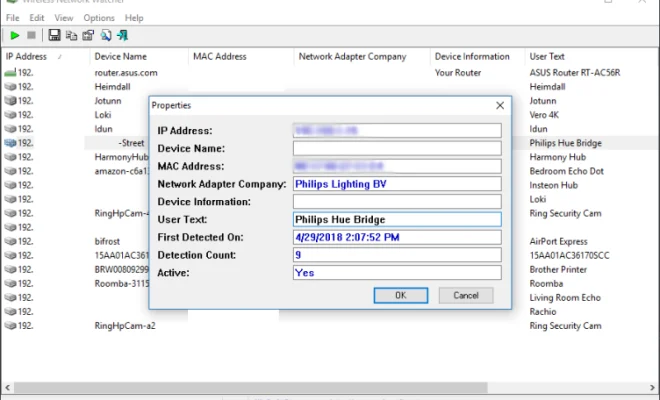
Another way to identify devices on your network is to use network scanning software. These programs scan your network and display all the devices that are currently connected to it. Network scanning software like Fing, Angry IP Scanner, or Advanced IP Scanner are all great tools for identifying devices on your network.

3. Look at DHCP Client List

Most routers keep a DHCP client list, which is a list of all the devices that your router has assigned an IP address. So, if you want to identify devices on your network, you can check your router’s DHCP client list. To access this list on most routers, log in to your router’s web interface, and navigate to the “DHCP Clients” or “Attached Devices” section.

4. Monitor Network Activity

If you notice unusual network activity or strange behavior on your network, it can be a sign that an unauthorized device is connected to your network. You can monitor network activity using network analysis tools like Wireshark or NetworkMiner.

5. Check Physical Connections

If you have physical access to your network devices, you can identify devices by checking their labels or searching for devices with the same manufacturer’s label. If you’re unsure what a particular device is, you can try searching for its MAC address online to determine the manufacturer.

In conclusion, identifying devices on your network is crucial for maintaining security and optimizing your network’s performance. By using one or more of the methods outlined above, you can quickly and easily identify all the devices connected to your network.

Previous Article

How to Convert a Word Document to ...

Next Article

How to Download Apps on a Samsung ...

Matthew Lynch

Related articles More from author

  • Digital & Mobile Technology

    Can you suggest alternatives to info@mydomain for a new email address?

    June 13, 2023
    By Matthew Lynch
  • Digital & Mobile Technology

    ARJ File (What It Is & How to Open One)

    June 4, 2023
    By Matthew Lynch
  • Digital & Mobile Technology

    How to Run Old Games and Software on Windows 10

    June 15, 2023
    By Matthew Lynch
  • Digital & Mobile Technology

    How to Set an Animated GIF as Your Wallpaper in Windows 10 and 1

    August 5, 2023
    By Matthew Lynch
  • Digital & Mobile Technology

    How to Change the User Profile Folder Name in Windows 11

    August 5, 2023
    By Matthew Lynch
  • Digital & Mobile Technology

    How to Install HBO Max on Your LG Smart TV

    September 8, 2023
    By Matthew Lynch

Search

Login & Registration

  • Register
  • Log in
  • Entries feed
  • Comments feed
  • WordPress.org

Newsletter

Signup for The Tech Edvocate Newsletter and have the latest in EdTech news and opinion delivered to your email address!

About Us

Since technology is not going anywhere and does more good than harm, adapting is the best course of action. That is where The Tech Edvocate comes in. We plan to cover the PreK-12 and Higher Education EdTech sectors and provide our readers with the latest news and opinion on the subject. From time to time, I will invite other voices to weigh in on important issues in EdTech. We hope to provide a well-rounded, multi-faceted look at the past, present, the future of EdTech in the US and internationally.

We started this journey back in June 2016, and we plan to continue it for many more years to come. I hope that you will join us in this discussion of the past, present and future of EdTech and lend your own insight to the issues that are discussed.

Newsletter

Signup for The Tech Edvocate Newsletter and have the latest in EdTech news and opinion delivered to your email address!

Contact Us

The Tech Edvocate
910 Goddin Street
Richmond, VA 23231
(601) 630-5238
[email protected]

Copyright © 2025 Matthew Lynch. All rights reserved.