The Tech Edvocate

Top Menu

  • Advertisement
  • Apps
  • Home Page
  • Home Page Five (No Sidebar)
  • Home Page Four
  • Home Page Three
  • Home Page Two
  • Home Tech2
  • Icons [No Sidebar]
  • Left Sidbear Page
  • Lynch Educational Consulting
  • My Account
  • My Speaking Page
  • Newsletter Sign Up Confirmation
  • Newsletter Unsubscription
  • Our Brands
  • Page Example
  • Privacy Policy
  • Protected Content
  • Register
  • Request a Product Review
  • Shop
  • Shortcodes Examples
  • Signup
  • Start Here
    • Governance
    • Careers
    • Contact Us
  • Terms and Conditions
  • The Edvocate
  • The Tech Edvocate Product Guide
  • Topics
  • Write For Us
  • Advertise

Main Menu

  • Start Here
    • Our Brands
    • Governance
      • Lynch Educational Consulting, LLC.
      • Dr. Lynch’s Personal Website
      • Careers
    • Write For Us
    • The Tech Edvocate Product Guide
    • Contact Us
    • Books
    • Edupedia
    • Post a Job
    • The Edvocate Podcast
    • Terms and Conditions
    • Privacy Policy
  • Topics
    • Assistive Technology
    • Child Development Tech
    • Early Childhood & K-12 EdTech
    • EdTech Futures
    • EdTech News
    • EdTech Policy & Reform
    • EdTech Startups & Businesses
    • Higher Education EdTech
    • Online Learning & eLearning
    • Parent & Family Tech
    • Personalized Learning
    • Product Reviews
  • Advertise
  • Tech Edvocate Awards
  • The Edvocate
  • Pedagogue
  • School Ratings

logo

The Tech Edvocate

  • Start Here
    • Our Brands
    • Governance
      • Lynch Educational Consulting, LLC.
      • Dr. Lynch’s Personal Website
        • My Speaking Page
      • Careers
    • Write For Us
    • The Tech Edvocate Product Guide
    • Contact Us
    • Books
    • Edupedia
    • Post a Job
    • The Edvocate Podcast
    • Terms and Conditions
    • Privacy Policy
  • Topics
    • Assistive Technology
    • Child Development Tech
    • Early Childhood & K-12 EdTech
    • EdTech Futures
    • EdTech News
    • EdTech Policy & Reform
    • EdTech Startups & Businesses
    • Higher Education EdTech
    • Online Learning & eLearning
    • Parent & Family Tech
    • Personalized Learning
    • Product Reviews
  • Advertise
  • Tech Edvocate Awards
  • The Edvocate
  • Pedagogue
  • School Ratings
  • The Chew That Changed My Training: Why Nitraflex Pre-Workout Chews Deliver Unbelievable Pumps

  • The Brutal Truth: Why Your AI Skills Training Is Failing (And How to Fix It)

  • 8 Essential AI Upskilling Programs Your Business Needs to Thrive Now

  • One Critical Mistake Companies Make With AI Skills Training

  • The AI Career Showdown: Which Path Pays More And Fits You Best?

  • The Shocking Truth About the Highest Paying AI Jobs in 2026

  • The Staggering Truth About 5 AI Job Roles That Will Redefine Your Career by 2026

  • Crypto Crackdown: Is the FCA’s Iron Fist Crushing Innovation, or Just Protecting You?

  • 7 Critical Steps to Survive the Crypto Crackdown: How to Navigate FCA Regulations

  • This One Thing Is Quietly Reshaping Illegal Crypto Trading — And Regulators Are Panicking

Digital & Mobile Technology
Home›Digital & Mobile Technology›How to Hide and Access Hidden Apps in OxygenOS 12 and 13 on OnePlus Phones

How to Hide and Access Hidden Apps in OxygenOS 12 and 13 on OnePlus Phones
By Matthew Lynch
June 15, 2023
0
Spread the love

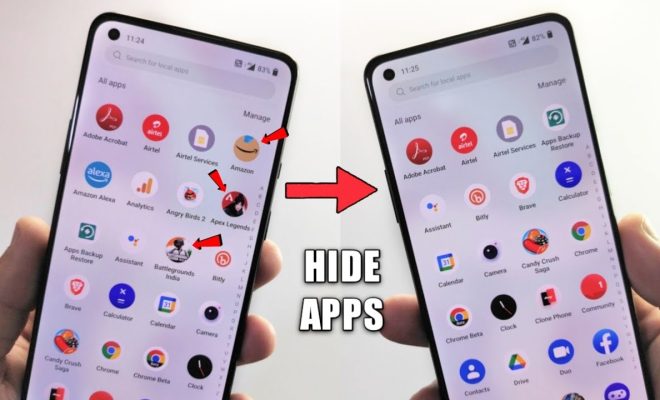
OnePlus phones running on OxygenOS 12 and 13 come with a number of privacy features, including the ability to hide apps. This feature is particularly useful for those who want to keep certain apps private, or hide them from prying eyes.

Here’s how to hide and access hidden apps in OxygenOS 12 and 13 on OnePlus phones:

1. Hide the app:

To hide an app, go to your app drawer and long-press on the app you want to hide. The ‘Edit’ option should appear at the top of your screen, click on it, and choose the ‘Hide’ option. The app will now disappear from your app drawer, and will only be accessible through the app settings.

2. Access the hidden app:

To access the hidden app, go to your phone settings, then ‘Apps & notifications’. From there, click on ‘See all apps’, and scroll down to the bottom of the page. Here, you will see a section labeled ‘Hidden Space’. Click on it, and you’ll find all the apps that you’ve hidden.

3. Set up a password:

You can add an extra layer of security to your hidden apps by setting up a password. Go to your phone settings, then ‘Apps & notifications’. Click on ‘See all apps’, and scroll down to the bottom of the page. Here, you will see a section labeled ‘Hidden Space’. Click on it, and tap on the three dots in the top right corner. Choose ‘Settings’ and click on ‘Hidden Space password’. You will now be prompted to set up a password.

4. Hide hidden space:

You can also hide the Hidden Space feature itself from your app drawer. To do this, go to your phone settings, then ‘Apps & notifications’. From there, click on ‘See all apps’, and find the ‘Settings’ app. Click on it, and choose ‘App info’. From here, choose ‘Hide’ and the Hidden Space feature will no longer appear in your app drawer.

In conclusion, hiding apps in OxygenOS 12 and 13 on OnePlus phones is relatively straightforward. It’s a useful feature that allows you to keep certain apps private and secure, and with the option to add a password, you can ensure that your hidden apps remain hidden. It’s also easy to access the hidden apps when needed, making this feature a valuable addition to the OxygenOS.


Previous Article

Wondering How to Disable Face ID on ...

Next Article

Certifications for Software Engineers

Matthew Lynch

Related articles More from author

  • Digital & Mobile Technology

    How to Disable Word Wise on Your Kindle Reader

    February 20, 2024
    By Matthew Lynch
  • Digital & Mobile Technology

    How to Create a Batch File in Windows 10

    June 12, 2023
    By Matthew Lynch
  • Digital & Mobile Technology

    Best Free Christmas E-Cards

    June 6, 2023
    By Matthew Lynch
  • Digital & Mobile Technology

    What is Digital Theater Sound (DTS)?

    May 6, 2023
    By Matthew Lynch
  • Digital & Mobile Technology

    How to Fix it When Your iPhone Won’t Connect to Wi-Fi

    June 12, 2023
    By Matthew Lynch
  • Digital & Mobile Technology

    Best Apps to Identify Anything Using Your Phone’s Camera

    August 5, 2023
    By Matthew Lynch

Search

Login & Registration

  • Log in
  • Entries feed
  • Comments feed
  • WordPress.org

Newsletter

Signup for The Tech Edvocate Newsletter and have the latest in EdTech news and opinion delivered to your email address!

About Us

Since technology is not going anywhere and does more good than harm, adapting is the best course of action. That is where The Tech Edvocate comes in. We plan to cover the PreK-12 and Higher Education EdTech sectors and provide our readers with the latest news and opinion on the subject. From time to time, I will invite other voices to weigh in on important issues in EdTech. We hope to provide a well-rounded, multi-faceted look at the past, present, the future of EdTech in the US and internationally.

We started this journey back in June 2016, and we plan to continue it for many more years to come. I hope that you will join us in this discussion of the past, present and future of EdTech and lend your own insight to the issues that are discussed.

Newsletter

Signup for The Tech Edvocate Newsletter and have the latest in EdTech news and opinion delivered to your email address!

Contact Us

The Tech Edvocate
910 Goddin Street
Richmond, VA 23231
(601) 630-5238
[email protected]

Copyright © 2026 Matthew Lynch. All rights reserved.