The Tech Edvocate

Top Menu

  • Advertisement
  • Apps
  • Home Page
  • Home Page Five (No Sidebar)
  • Home Page Four
  • Home Page Three
  • Home Page Two
  • Home Tech2
  • Icons [No Sidebar]
  • Left Sidbear Page
  • Lynch Educational Consulting
  • My Account
  • My Speaking Page
  • Newsletter Sign Up Confirmation
  • Newsletter Unsubscription
  • Our Brands
  • Page Example
  • Privacy Policy
  • Protected Content
  • Register
  • Request a Product Review
  • Shop
  • Shortcodes Examples
  • Signup
  • Start Here
    • Governance
    • Careers
    • Contact Us
  • Terms and Conditions
  • The Edvocate
  • The Tech Edvocate Product Guide
  • Topics
  • Write For Us
  • Advertise

Main Menu

  • Start Here
    • Our Brands
    • Governance
      • Lynch Educational Consulting, LLC.
      • Dr. Lynch’s Personal Website
      • Careers
    • Write For Us
    • The Tech Edvocate Product Guide
    • Contact Us
    • Books
    • Edupedia
    • Post a Job
    • The Edvocate Podcast
    • Terms and Conditions
    • Privacy Policy
  • Topics
    • Assistive Technology
    • Child Development Tech
    • Early Childhood & K-12 EdTech
    • EdTech Futures
    • EdTech News
    • EdTech Policy & Reform
    • EdTech Startups & Businesses
    • Higher Education EdTech
    • Online Learning & eLearning
    • Parent & Family Tech
    • Personalized Learning
    • Product Reviews
  • Advertise
  • Tech Edvocate Awards
  • The Edvocate
  • Pedagogue
  • School Ratings

logo

The Tech Edvocate

  • Start Here
    • Our Brands
    • Governance
      • Lynch Educational Consulting, LLC.
      • Dr. Lynch’s Personal Website
        • My Speaking Page
      • Careers
    • Write For Us
    • The Tech Edvocate Product Guide
    • Contact Us
    • Books
    • Edupedia
    • Post a Job
    • The Edvocate Podcast
    • Terms and Conditions
    • Privacy Policy
  • Topics
    • Assistive Technology
    • Child Development Tech
    • Early Childhood & K-12 EdTech
    • EdTech Futures
    • EdTech News
    • EdTech Policy & Reform
    • EdTech Startups & Businesses
    • Higher Education EdTech
    • Online Learning & eLearning
    • Parent & Family Tech
    • Personalized Learning
    • Product Reviews
  • Advertise
  • Tech Edvocate Awards
  • The Edvocate
  • Pedagogue
  • School Ratings
  • The Bombshell Truth About Slim Boost Tea: Don’t Buy Until You Read This

  • Jaw-Dropping: Charbroil Bistro Pro Electric Grill Recall — Is Your Grill a Hidden Danger?

  • This Corgi Tech Startup Just Imploded — Here’s How Social Media Wrecked Everything

  • September 2026: The Latest in Tech Authoritarianism – Overturned by Kelly Stonelake

  • GTA 6 Collector’s Box Price: The $400 Outrage That Just Broke Gaming

  • Unbelievable: Gamers Fought Blizzard’s Censorship and Saved Ogre Butts

  • The Radical New Bill That Could Halt AI — And Jails Its Creators

  • This OpenAI Hack Just Exposed a Terrifying New AI Threat

  • This One Leaked Video Just Blew Open New Zealand’s Curriculum Battle

  • The AI Deception: Stanford’s Scandalous Photo Alteration Reignites Representation Debate

Digital & Mobile Technology
Home›Digital & Mobile Technology›How to Fix the Canon B200 Printer Error

How to Fix the Canon B200 Printer Error
By Matthew Lynch
June 12, 2023
0
Spread the love

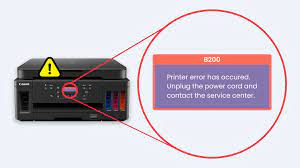
The Canon B200 Printer Error is a common issue among Canon users. It is usually caused by a hardware malfunction or a problem with the ink cartridges. The error prevents you from printing any documents until it is fixed. Here are some steps to help you fix the Canon B200 Printer Error.

Step 1: Turn Off the Printer

The first step is to turn off the printer and unplug it from the power source. Wait for a few minutes before plugging it back in.

Step 2: Remove the Ink Cartridges

Next, remove all the ink cartridges from your printer. Make sure to handle them with care and avoid touching the electrical contacts or nozzles.

Step 3: Clean the Printhead

The printhead is the part of the printer that controls the ink flow. It needs to be cleaned regularly to maintain the quality of the prints. Use a soft cloth or cotton swab to clean the printhead.

Step 4: Reinstall the Ink Cartridges

After cleaning the printhead, reinstall the ink cartridges in the correct order. Make sure they are properly seated.

Step 5: Turn On the Printer

Once everything is in place, turn on the printer and wait for it to initialize. Check for the error message and see if it has been fixed. If the error persists, try the next steps.

Step 6: Replace the Ink Cartridges

If the ink cartridges are empty or have expired, replace them with new ones. Make sure to use compatible ink cartridges for your printer.

Step 7: Reset the Printer

Sometimes, the printer’s software can get stuck or corrupted, causing the error message to appear. To fix this, reset the printer by following these steps:

1. Turn off the printer and unplug it from the power source.

2. Press and hold the power button for at least 30 seconds.

3. Plug the printer back in and turn it on.

Step 8: Contact Customer Support

If none of the above steps work, contact Canon customer support for assistance. They will be able to provide you with more advanced troubleshooting solutions or repair options if necessary.

In conclusion, the Canon B200 Printer Error can be frustrating, but armed with the steps outlined above, you should be able to resolve the issue and get back to printing in no time. Remember to always handle your printer and ink cartridges with care to avoid any further issues.


Previous Article

What Is a Serial ATA (SATA) Cable?

Next Article

What Is a Rear Projection TV?

Matthew Lynch

Related articles More from author

  • Digital & Mobile Technology

    How to Connect Bluetooth Headphones to a PC

    June 4, 2023
    By Matthew Lynch
  • Digital & Mobile Technology

    Easy Tools to Remove the Background from a Picture

    June 6, 2023
    By Matthew Lynch
  • Digital & Mobile Technology

    The Best Cheap Gaming Monitors

    June 21, 2023
    By Matthew Lynch
  • Digital & Mobile Technology

    Timer Mechanisms With C and Linux

    June 15, 2023
    By Matthew Lynch
  • Digital & Mobile Technology

    Easy Ways to Fix the nvlddmkm.sys Error in Windows 10

    June 7, 2023
    By Matthew Lynch
  • Digital & Mobile Technology

    How to Add Apps to Your Discord Server: A Beginner’s Guide

    July 31, 2023
    By Matthew Lynch

Search

Login & Registration

  • Log in
  • Entries feed
  • Comments feed
  • WordPress.org

Newsletter

Signup for The Tech Edvocate Newsletter and have the latest in EdTech news and opinion delivered to your email address!

About Us

Since technology is not going anywhere and does more good than harm, adapting is the best course of action. That is where The Tech Edvocate comes in. We plan to cover the PreK-12 and Higher Education EdTech sectors and provide our readers with the latest news and opinion on the subject. From time to time, I will invite other voices to weigh in on important issues in EdTech. We hope to provide a well-rounded, multi-faceted look at the past, present, the future of EdTech in the US and internationally.

We started this journey back in June 2016, and we plan to continue it for many more years to come. I hope that you will join us in this discussion of the past, present and future of EdTech and lend your own insight to the issues that are discussed.

Newsletter

Signup for The Tech Edvocate Newsletter and have the latest in EdTech news and opinion delivered to your email address!

Contact Us

The Tech Edvocate
910 Goddin Street
Richmond, VA 23231
(601) 630-5238
[email protected]

Copyright © 2026 Matthew Lynch. All rights reserved.