Fix Origin Not Opening: 10 Proven Solutions for Gamers
“`html
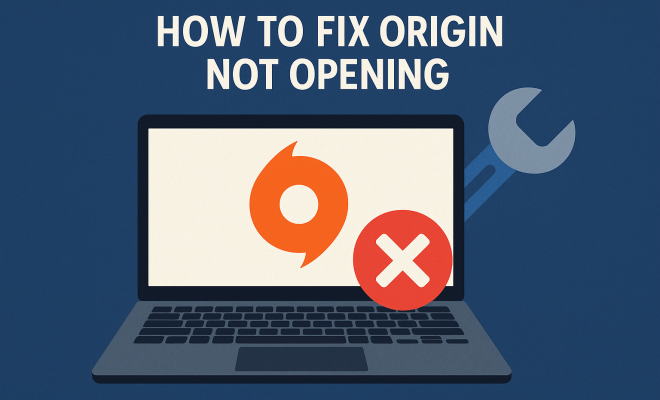
Origin, the popular gaming platform developed by Electronic Arts, allows players to purchase and play their favorite games online. However, many users frequently encounter the frustrating issue of Origin not opening. If you’re one of those players staring blankly at a non-responsive launcher, fear not! This article presents ten proven solutions to help you fix Origin not opening and get back into your games without further delay.
1. Check for Server Issues
Before diving into technical fixes, it’s wise to first check if the problem lies with Origin’s servers. Sometimes, maintenance or unexpected outages can prevent the launcher from opening. You can check the server status by visiting EA’s official support page or by searching for current user reports on platforms like Twitter or Reddit.
If you find that the servers are down, you’ll need to wait for EA to resolve the issue. However, if the servers are running smoothly, it’s time to explore the potential issues on your end.
2. Restart Your Computer
It may sound too simple, but restarting your computer can often resolve a myriad of software issues, including problems with Origin. A fresh start clears temporary files and resets network connections, which can help fix Origin not opening. So, before trying more complex solutions, give your system a quick restart.
After rebooting, try launching Origin again. If it opens successfully, you’ve solved the issue! If not, proceed to the next troubleshooting method.
3. Run Origin as an Administrator
Origin may require elevated permissions to function correctly. Running the application as an administrator can sometimes resolve problems related to permissions. To do this, navigate to the Origin shortcut on your desktop or in your applications folder, right-click it, and select ‘Run as Administrator.’
Running Origin with admin rights allows it to bypass some security restrictions that could prevent it from launching. If this works, you can set it to always run as an administrator by going to the properties of the shortcut, selecting the Compatibility tab, and checking the ‘Run this program as an administrator’ option.
4. Temporarily Disable Antivirus Software
Antivirus software often interferes with applications like Origin, mistakenly identifying them as threats. If your antivirus is blocking Origin, it won’t be able to start properly. To determine if this is the issue, temporarily disable your antivirus and try launching Origin again.
If Origin opens without issue, you’ll need to add it to your antivirus exceptions list to prevent this problem from recurring. Make sure to re-enable your antivirus software afterward to keep your computer protected.
5. Clear the Origin Cache
A corrupted cache can lead to performance problems and prevent applications like Origin from launching. Clearing the cache can often resolve these issues. To do this, navigate to the Origin installation directory (the default path is usually C:\Program Files (x86)\Origin). Here, find and delete the files within the ‘Cache’ folder.
After clearing the cache, restart your computer and try launching Origin again. If you’re still unable to open the application, consider the next troubleshooting step. (See: Origin software overview on Wikipedia.)
6. Repair the Origin Client
If Origin still won’t open, it might be necessary to repair the client itself. To do this, open the Control Panel and navigate to ‘Programs and Features.’ Find Origin in the list of installed programs, right-click on it, and select ‘Repair.’ This process can fix any corrupted files that may be preventing Origin from launching.
Once the repair is complete, try opening Origin again. If it still fails to launch, don’t worry—there are still more solutions to explore.
7. Update Your Operating System
Outdated operating systems can lead to compatibility issues with newer software like Origin. Ensure that your operating system is up to date, as these updates often include essential patches and performance improvements that can resolve launch problems.
To check for updates, navigate to your system settings. For Windows, go to ‘Settings’ > ‘Update & Security’ > ‘Windows Update’ and check for updates. If there are updates available, install them and restart your computer before trying to open Origin again.
8. Check Firewall Settings
Windows Firewall can sometimes block Origin, preventing it from opening. To check if this is the case, access your firewall settings and look for any rules related to Origin. Ensure that Origin is allowed to communicate through the firewall. You can also temporarily disable the firewall to see if this resolves the issue.
If Origin opens successfully after adjusting your firewall settings, be sure to add it as an exception in the firewall rules to prevent future conflicts.
9. Reinstall Origin
If all else fails, a complete reinstallation of Origin may be necessary. Uninstall the application through the Control Panel, and then download the latest version from the official Origin website. This process removes any corrupted files and ensures that you have the most current version of the software.
After reinstalling Origin, launch it to see if the issue is resolved. You should also log back into your account and check that all your games are present and functional.
10. Contact EA Support
If you’ve tried all these solutions and still can’t get Origin to open, it might be time to reach out to EA Support. Their knowledgeable customer service team can provide assistance tailored to your specific situation, helping you resolve the issue quickly.
Before contacting support, gather any relevant information about your problem, including error codes and the troubleshooting steps you’ve already attempted. This information can help expedite the support process.
11. Check for Background Applications
Sometimes, background applications can interfere with Origin’s ability to open. Applications like Discord, overlays from graphics card software, or even other game launchers can cause conflicts. To rule this out, open the Task Manager (Ctrl + Shift + Esc) and look for any applications that might be causing issues. Close them and try launching Origin again.
12. Adjust Compatibility Settings
If you’re using a newer version of Windows, compatibility issues can sometimes arise. Right-click the Origin shortcut, select ‘Properties,’ then navigate to the ‘Compatibility’ tab. Here, you can try running the program in compatibility mode for an earlier version of Windows. Testing it in Windows 8 or 7 compatibility mode may help resolve the issue.
13. Check for Graphics Driver Updates
Your graphics drivers can also play a significant role in launching games and applications. If your drivers are outdated, it can contribute to issues with Origin. To update your drivers, go to the manufacturer’s website (NVIDIA, AMD, Intel) and download the latest version compatible with your graphics card. Once updated, restart your computer and try launching Origin again. (See: CDC FAQ on software issues.)
14. Monitor Performance with Resource Monitor
If you’re still having trouble, using the Resource Monitor can help identify what’s happening in real-time. Open the Resource Monitor through the Task Manager and check the CPU and Memory tab while trying to launch Origin. This might give you insights into any processes that are consuming resources or causing delays.
15. Use the Windows Event Viewer
The Windows Event Viewer can help diagnose why Origin isn’t opening. Look for any error messages related to Origin in the Application logs. This can provide clues about what’s going wrong. To access the Event Viewer, type “Event Viewer” in the Windows search bar, and then navigate to Windows Logs > Application to find relevant entries.
16. Common Error Codes and Their Fixes
Sometimes, Origin may display specific error codes when it fails to launch. Understanding these codes can help you pinpoint the issue. Here are a few common error codes and suggested fixes:
- Code 0x00000001: This indicates a network issue. Check your internet connection and restart your router.
- Code 0x00000002: Usually signifies corrupted files. Attempt to clear your cache or repair the Origin client.
- Code 0x00000003: This code may suggest a permissions issue. Ensure Origin is running as an administrator.
17. FAQ: Frequently Asked Questions
What should I do if Origin won’t open after an update?
If Origin won’t open after an update, it’s possible that the update was not installed correctly or that it’s causing compatibility issues. In this case, try repairing the client or rolling back the update if possible.
Can I use Origin on Mac?
Yes, Origin is available for Mac users. If you’re having trouble opening it on a Mac, check for software updates and ensure that your Mac meets the minimum system requirements for the application.
Does Origin use a lot of system resources?
Origin is designed to be lightweight, but it can use more resources during game downloads or updates. If your system is struggling, consider pausing downloads or closing other resource-heavy applications.
How can I ensure Origin starts with Windows?
You can add Origin to your startup programs by pressing Windows + R, typing ‘shell:startup’ and hitting Enter. Place a shortcut to Origin in the folder that opens. This will start Origin automatically when you boot your computer.
Why does Origin keep crashing on startup?
Origin may crash due to corrupted installation files, outdated drivers, or conflicts with other applications. Following the troubleshooting steps above can help identify and fix the issue.
18. Common Fixes for Specific Conditions
While the general fixes listed above will address most issues with Origin, some conditions may require specific attention. Here’s a look at various scenarios and their solutions:
Origin Not Opening After a Game Update
Sometimes, Origin itself may become unstable following a game update. If this happens, first ensure that the game is fully updated and that there are no pending patches. If the issue persists, consider clearing the cache specifically for that game. (See: New York Times technology articles.)
To clear the game cache, locate the game folder under your Origin library, delete any temporary files within it, and then attempt to launch Origin again. This can help clear out any conflicts that arose during the update process.
Issues on a High-DPI Display
If you’re using a high-resolution or high-DPI display, Origin may not render correctly, causing it not to open. To address this, access the properties of the Origin shortcut, navigate to the Compatibility tab, and check the box for ‘Override high DPI scaling behavior.’ Set it to ‘Application.’ This setting can sometimes fix display issues that prevent the application from launching.
Network Connection Problems
Network connectivity issues can also lead to Origin not opening. Check your network connection, and try resetting your router. Additionally, you can switch between wired and wireless connections to see if the issue persists. Using a VPN can sometimes cause problems with Origin, so try disabling it if you’re connected to one.
19. Advanced Troubleshooting Techniques
If you’ve gone through all the standard troubleshooting steps and still can’t fix Origin not opening, here are some advanced techniques to consider:
Check System Integrity
On Windows, you can run a system file check to ensure that all necessary files are intact. Open the Command Prompt as an administrator, and type ‘sfc /scannow’. This will scan your system for corrupted files and attempt to repair them. Once the scan is complete, restart your computer and try launching Origin again.
Check Windows Services
Some essential services need to be running for Origin to function properly. Press Windows + R, type ‘services.msc’, and press Enter. Look for services like ‘EA Access’ and ‘Origin Client Service.’ Ensure they are running and set to ‘Automatic.’ If any services are stopped, right-click and select ‘Start.’
Network Reset
If you’re still facing connectivity problems, consider performing a network reset. This will reset all networking components back to their default settings. Go to ‘Settings’ > ‘Network & Internet’ > ‘Status’ > ‘Network reset.’ Please note, this will remove all saved networks and passwords, so prepare to reconnect once completed.
20. Final Thoughts
In a world where gaming is a primary source of entertainment for millions, encountering issues like Origin not opening can be a major inconvenience. However, by following these comprehensive solutions, you can tackle the problem head-on. Remember that patience is key, and methodically trying each suggestion will lead you to the root of the issue. Don’t let a stubborn launcher keep you from enjoying your favorite games—try these steps and get back to gaming!
“`
Trending Now
Frequently Asked Questions
Why is Origin not opening on my computer?
Origin may not open due to server issues, software conflicts, or insufficient permissions. First, check if EA's servers are operational, then try restarting your computer. If the issue persists, running Origin as an administrator might resolve permission-related problems.
How do I fix Origin if it won’t launch?
To fix Origin not launching, start by checking for server outages. Then, restart your computer to clear temporary files. If that doesn't work, try running Origin as an administrator by right-clicking the app and selecting 'Run as Administrator.'
What should I do if Origin is stuck on the loading screen?
If Origin is stuck on the loading screen, first check for server issues on EA's support page. Then, restart your computer and try launching Origin again. If the problem continues, consider running the application as an administrator or reinstalling it.
Can I run Origin without administrative privileges?
While you can run Origin without administrative privileges, doing so might prevent it from functioning correctly. Running the application as an administrator can help bypass potential security restrictions and resolve issues related to launching.
How do I check if Origin servers are down?
To check if Origin servers are down, visit EA's official support page or search social media platforms like Twitter or Reddit for real-time user reports. If the servers are experiencing issues, you will need to wait until they are resolved.
Have you experienced this yourself? We’d love to hear your story in the comments.