How to fix Instagram DMs not working
“`html
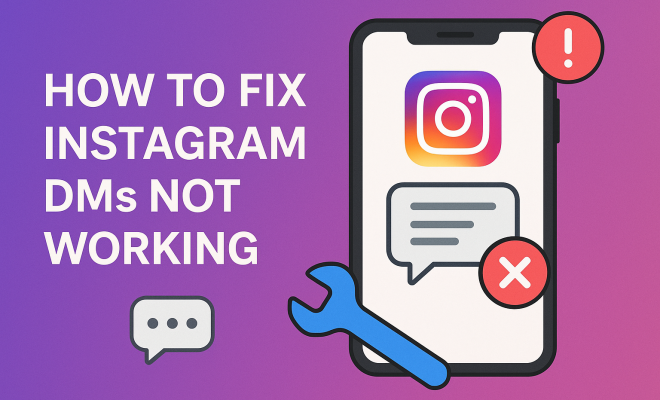
Instagram Direct Messages (DMs) have become a cornerstone of communication for millions of users around the globe. However, many people face issues with sending or receiving messages, leaving them frustrated and disconnected. If you’re among the users wondering how to fix Instagram DMs that aren’t functioning correctly, you’ve come to the right place. Here are nine effective solutions that can help you troubleshoot and resolve the problem.
1. Check for Instagram Server Issues
Before diving into your app settings or device configurations, it’s wise to check if Instagram itself is experiencing server issues. Sometimes, the problem lies not with your device but with Instagram’s servers. You can visit websites like DownDetector or Twitter to see if other users are reporting similar issues.
If there’s a widespread problem, the best course of action is to wait it out. Instagram usually resolves server issues promptly. However, if you’re still facing DM problems after a few hours, it might be time to move on to other troubleshooting methods.
2. Restart the Instagram App
Simple yet effective, restarting the Instagram app can sometimes resolve temporary glitches. To do this, fully close the application (don’t just minimize it) and then reopen it. On most smartphones, you can swipe up or down (depending on your device) to close apps. Once you restart, check if you can send or receive DMs again.
This method works because it refreshes the app’s cache and can clear out any minor bugs affecting its performance. If the problem persists, you might need to explore deeper settings.
3. Clear Cache and Data
A cluttered app cache can lead to performance issues. Therefore, clearing the cache and data can be a viable solution. On Android devices, go to Settings > Apps > Instagram > Storage, then tap on Clear Cache. If you want a fresh start, you can also opt to Clear Data, but keep in mind that this will log you out of the app.
For iOS users, there’s no direct way to clear the cache. Instead, uninstalling and reinstalling the app achieves a similar effect, as it will remove all cached data. Following this step, log back into your account and see if the DMs are functioning properly.
4. Update the Instagram App
Outdated apps can often cause issues, including problems with DMs. Always ensure that you’re using the latest version of Instagram. Go to your device’s app store and check for updates. If an update is available, download and install it. After updating, launch the app and check if you can use DMs effectively.
Regularly updating your app ensures you have the latest features and bug fixes that Instagram provides. In some cases, developers may have already identified issues with the DM feature in previous versions and released fixes to resolve them.
5. Check Your Internet Connection
A stable internet connection is crucial for using Instagram smoothly. If you’re experiencing issues with DMs, first check your Wi-Fi or mobile data connection. You can do this by trying to load other apps or websites. If you’re experiencing slow speeds or no connectivity, that might be the root of your DM issues. (See: Instagram DMs and user communication.)
If you’re using Wi-Fi, try switching to mobile data or vice versa. Additionally, resetting your router or toggling airplane mode on and off can sometimes restore a better connection. Once your internet is stable, open Instagram and test the DMs again.
6. Check Instagram Permissions
Instagram requires certain permissions to function correctly. Ensure that the app has permission to access your device’s storage, camera, and microphone. On Android, you can check this by going to Settings > Apps > Instagram > Permissions. For iOS, go to Settings > Instagram and review the permissions granted to the app.
Without the necessary permissions, some features, including DMs, may not work correctly. If you notice any permissions are disabled, enable them and then restart the app to see if that resolves the issue.
7. Logout and Log Back In
Sometimes, simply logging out and then logging back into your account can refresh your session and resolve minor glitches. To do this, go to your profile, tap on the three lines in the top right corner, select Settings, scroll down to Log Out, and confirm. Once logged out, wait a few seconds and log back in.
This method forces a refresh of your account settings and may help fix Instagram DMs that aren’t working. If the problem persists even after this step, consider the next methods.
8. Reinstall Instagram
If none of the above methods work, you might need to take a more drastic approach: reinstalling the app. This process can eliminate any corrupted files or settings that might be causing issues with DMs. Uninstall the app, then head to the app store to download and install the latest version.
After reinstalling, log in to your account and check if DMs are functioning again. Keep in mind that this process will remove any saved data, so be prepared to set up your profile again if needed.
9. Contact Instagram Support
If you’ve tried all the previous troubleshooting steps and still can’t fix Instagram DMs, it may be time to contact Instagram support. You can do this directly through the app by navigating to Settings > Help > Report a Problem. Provide detailed information about your issue to help them understand and possibly resolve it more quickly.
While it may take some time to get a response, Instagram support can provide insights or fixes that may not be available to regular users. Be patient, as they receive numerous requests daily, and ensure to keep your app updated for any future fixes they may release.
Understanding Common Instagram DM Issues
Before diving deeper into fixes, it’s beneficial to understand the common issues users face that prevent Instagram DMs from functioning properly. Here are a few scenarios:
- Messages Not Sending: This could be due to a temporary glitch or a connectivity issue.
- Can’t Open DMs: Users may experience crashes or freezes when trying to access their direct messages.
- Message Notifications Not Appearing: Sometimes users miss messages because they aren’t notified properly.
- Inability to Send or Receive Media: Issues can arise when trying to send photos or videos through DMs.
Additional Tips for a Smooth Instagram DM Experience
In addition to the troubleshooting methods listed above, you can adopt some preventive measures to ensure a smoother experience with Instagram DMs: (See: Health communication and social media.)
- Regular Maintenance: Make it a habit to update your app regularly and check your phone’s storage to ensure there’s enough space available.
- Manage App Permissions: Regularly review and manage app permissions to ensure they meet Instagram’s requirements.
- Stay Informed: Follow Instagram’s official social media channels or support page for updates related to server issues or app functionalities.
- Engage with the Community: Many users share insights and fixes for common issues on forums and social media, which can be a great resource.
Statistics on Instagram Messaging
To understand the significance of DMs on Instagram, let’s look at some statistics:
- Instagram has over 1 billion monthly active users, making it one of the largest social media platforms globally.
- According to a recent study, around 70% of users communicate privately through DMs, highlighting its importance for personal and business communications.
- Businesses using Instagram can engage with customers via DMs, potentially leading to 20% higher conversion rates compared to other platforms.
What to Do When Instagram DMs Don’t Work on Specific Devices
If you’ve tried all the previous methods and are still having issues, consider the device you’re using. Here are tailored troubleshooting tips:
For Android Users
Android devices can have unique challenges due to different manufacturers and software versions. Make sure your operating system is updated. Sometimes, compatibility issues with older versions of Android can lead to performance problems with apps like Instagram.
If your device has a custom user interface (UI) from the manufacturer, it might affect how apps function. Ensure that background app restrictions are not limiting Instagram. Also, check if your device has sufficient storage space, as low storage can hinder app performance.
For iOS Users
iOS users should ensure that their device is updated to the latest version of iOS. Apple frequently releases updates that improve app compatibility and security, which can resolve DM issues. In addition, check your device’s settings to make sure that it allows Instagram to run in the background and has access to network data.
Another consideration for iOS users is ensuring that your device isn’t in Low Power Mode, as this can limit app functionalities and performance. Make adjustments in your device settings if needed.
For Older Devices
Older devices may struggle to run newer versions of apps due to hardware limitations. If you’re using an older smartphone, consider upgrading your device or using a lighter version of the app, like Instagram Lite. This version is optimized for low-end devices and can provide a smoother experience for basic functionalities including DMs.
Additionally, if your device is running an older operating system, you might find that certain features in Instagram, including DMs, may not work correctly or at all. Upgrading your device can help mitigate these issues.
Frequently Asked Questions (FAQ)
Why can’t I send messages on Instagram?
There could be several reasons including server issues, app glitches, or connectivity problems. Try some of the troubleshooting methods mentioned above.
How do I know if my message was sent on Instagram?
When you send a message, if it appears in your DM thread, it means it has been sent. If it shows a small ‘delivered’ notification beneath the message, it confirms it has reached the recipient. (See: Social media's impact on health.)
What should I do if Instagram says DMs are disabled?
If you see a message stating that DMs are disabled, it could be due to a temporary restriction by Instagram or your account being flagged. Review Instagram’s Community Guidelines, and if you believe it’s an error, you can contact support for clarification.
Can I recover deleted DMs on Instagram?
Unfortunately, once you delete a message on Instagram, you cannot recover it. Always be cautious before deleting any direct messages.
How can I avoid DM issues in the future?
Regularly update your app, check your permissions, and maintain a stable internet connection to minimize the chances of encountering DM issues in the future.
Are there limits to the number of DMs I can send?
Yes, Instagram has limits on the number of DMs you can send to prevent spam. If you exceed these limits, you might experience temporary restrictions on sending messages.
Can I mute DMs from specific users?
Absolutely! If you want to mute notifications from specific users, you can go to their profile, tap on the ‘Following’ button, then select ‘Mute’ and choose ‘Messages’ to stop receiving notifications.
Can I send DMs to users who don’t follow me?
In general, you can send DMs to users who don’t follow you, but they may have privacy settings that only allow messages from people they follow. If they don’t follow you, your message will go to their request folder.
Overall, having trouble with Instagram DMs can be a frustrating experience, but these nine methods offer practical ways to address the problem. Whether it’s checking for server issues, updating your app, or contacting support, each step takes you closer to resolving your DM dilemmas. Don’t let communication breakdowns hinder your Instagram experience – take action today!
“`
Trending Now
Frequently Asked Questions
Why are my Instagram DMs not working?
Instagram DMs may not work due to server issues, temporary glitches in the app, or a cluttered cache. It's essential to check Instagram's server status and try restarting the app to resolve minor bugs.
How can I fix Instagram DMs not sending?
To fix Instagram DMs not sending, first check for server issues. If everything is fine, try restarting the app or clearing the cache and data. This can help resolve any temporary glitches affecting message delivery.
What should I do if my Instagram DMs are not showing up?
If your Instagram DMs are not showing up, start by checking for server problems. If that's not the issue, restarting the app or clearing its cache and data may help restore visibility to your messages.
How do I clear Instagram cache?
To clear Instagram's cache on Android, go to Settings > Apps > Instagram > Storage, and tap on Clear Cache. For iOS users, you may need to uninstall and reinstall the app to clear the cache.
Is there a way to check if Instagram is down?
Yes, you can check if Instagram is down by visiting websites like DownDetector or searching on Twitter. These platforms provide real-time updates on server issues reported by other users.
What’s your take on this? Share your thoughts in the comments below — we read every one.