How to fix green screen when playing video
“`html
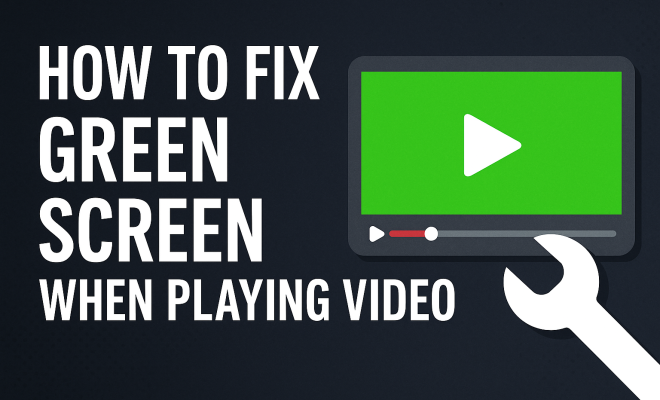
Experiencing a green screen while playing video can be a frustrating issue for many users. Whether it’s during a Zoom call, a streaming session, or while watching a movie, the appearance of a green screen can create confusion and disappointment. In this article, we’ll delve into the common causes behind green screen issues and provide practical solutions that can help you fix green screen video effectively.
1. Understanding the Green Screen Effect
Before we dive into solutions, let’s first understand what a green screen is and why the problem occurs. The green screen effect, often used in video production, involves replacing a specific color (green) with a different background. However, in many cases, users face unwanted green screens due to various technical issues, conflicting software settings, or hardware limitations.
When you see a green screen while playing video, it can be attributed to several factors, including video codecs, graphics drivers, or even compatibility issues with your player software. Understanding these basics will allow you to address the issue more effectively.
2. Check Video Codec Compatibility
One of the primary reasons users encounter a green screen during playback is video codec incompatibility. Different video files utilize various codecs for compression and decompression. If your media player doesn’t support the codec used in the video file, it may lead to playback issues, including a green screen.
To fix green screen video caused by codec issues, ensure that you are using a media player that supports a wide range of codecs, such as VLC Media Player or PotPlayer. These players have built-in codecs that are regularly updated, minimizing compatibility issues. If you’re still experiencing problems, consider converting your video file to a universally compatible format, such as MP4.
3. Update Your Graphics Drivers
Outdated or corrupted graphics drivers can significantly impact video playback. Your graphics card plays a crucial role in rendering video files, and if the drivers are not up to date, it may struggle to process certain files, resulting in a green screen.
To fix this issue, regularly update your graphics drivers. You can do this through the device manager on Windows or by visiting the manufacturer’s website for your graphics card. Once updated, restart your device and check if the issue persists. Keeping your drivers current is essential for optimal performance and compatibility.
4. Adjust Video Player Settings
Sometimes, the green screen issue can arise from incorrect settings within your video player. For instance, hardware acceleration settings can affect video playback quality. If enabled, hardware acceleration offloads processing tasks to your GPU, which could lead to compatibility issues with certain video formats.
To adjust these settings, navigate to the preferences or settings menu of your video player. Try disabling hardware acceleration to see if it resolves the green screen issue. If this doesn’t work, experiment with other settings such as video output options or rendering modes, as these can also impact playback.
5. Check for Software Conflicts
Software conflicts can lead to unexpected behavior, including the infamous green screen during video playback. If you have multiple media players or video editing software installed, they may interfere with one another, particularly when they attempt to use the same resources or codecs.
To fix green screen video caused by software conflicts, try closing any unnecessary applications that may be running in the background. Additionally, consider uninstalling any media players or codecs that you don’t frequently use. This can help streamline your system and reduce the chance of conflicts occurring.
6. Inspect Your Video File
Sometimes, the problem lies not in your system but in the video file itself. Corrupt video files can lead to playback issues, including a green screen. If you suspect that your video might be corrupted, try playing it on a different device or media player. (See: Understanding video codecs and compatibility.)
If the video plays correctly elsewhere, the issue is likely with your original system’s setup. However, if it’s still showing a green screen, you may need to repair the video file. There are various tools available that can help you restore corrupted video files, such as Stellar Repair for Video or VLC’s built-in repair feature.
7. Optimize Your System Resources
Low system resources can also cause playback issues, including the green screen effect. If your computer is running too many processes simultaneously, it may struggle to allocate enough resources for video playback, resulting in graphical glitches.
To fix green screen video issues related to system resources, close any unnecessary applications and processes running in the background. You can check your system’s task manager to see what’s consuming resources. Additionally, consider upgrading your RAM or storage if your system frequently struggles with resource allocation.
8. Reinstall Your Media Player
If you’ve tried all the previous solutions and still face the green screen issue, it might be time to reinstall your media player. Sometimes, installations can become corrupted or misconfigured, leading to playback problems.
To reinstall, uninstall the current version of your media player and remove any residual files or settings. After restarting your computer, download the latest version from the official website and install it fresh. This can often resolve lingering issues and restore normal video playback.
9. Use Alternative Media Players
If all else fails and you’re still encountering the green screen during video playback, consider switching to an alternative media player. There are numerous options available, each with unique features and support for various codecs.
Some popular alternatives include MPC-HC, KMPlayer, and GOM Player. Each of these options has been praised for their capabilities in handling a wide array of video formats while maintaining high-quality playback. Experimenting with different players can provide a solution to your green screen woes.
10. Understanding Hardware Limitations
In some cases, the hardware itself may be the root of the green screen problem. Older computers or those with integrated graphics may not effectively handle high-definition video playback. If your machine is struggling to keep up with resource-intensive video formats, this could lead to a green screen display.
To address hardware limitations, consider upgrading your graphics card if possible. For laptops, sometimes the only option is to ensure that you’re using the laptop in optimal conditions, such as reducing background processes and keeping the system cool. If your device is too old, it might be time to consider investing in newer hardware that meets current multimedia capabilities.
11. Virtual Machine Considerations
Many users are turning to virtual machines (VMs) for various tasks, including video playback. However, running video playback within a VM can sometimes lead to unexpected results, including green screens. This is typically due to lack of direct access to the host hardware, which can hamper graphics performance.
If you are using a VM, ensure that your virtualization software is configured to allow for 3D acceleration. Additionally, make sure that the guest operating system has the appropriate drivers installed. You might want to consider running video playback tasks directly on your host machine to avoid the complexities of virtualization.
12. Consulting with Technical Support
If you’ve exhausted all troubleshooting options without success, it might be helpful to consult with a technical support professional. Depending on your hardware and software, they can offer insights that might not be readily apparent and provide diagnostic tools that can pinpoint the exact cause of the green screen.
When reaching out, be prepared to provide details about your system specifications, the types of videos that cause issues, and what troubleshooting steps you’ve already taken. This information can help them provide more targeted assistance. (See: Green screen technology in media production.)
13. Preventing Future Issues
After successfully fixing the green screen video issue, it’s important to take steps to prevent future occurrences. Keeping your system updated, routinely checking for software updates, and ensuring that your media files are in good condition can all contribute to smoother video playback experiences.
Additionally, consider running regular maintenance on your computer. This includes clearing temporary files, conducting antivirus scans, and keeping your operating system optimized. Such proactive measures can go a long way in maintaining performance and preventing playback issues like the green screen.
14. Common Causes of Green Screen in Video Playback
Understanding why you might face a green screen during video playback can provide insights into how to prevent it. Here are some common culprits:
- Codec Issues: As previously mentioned, codec incompatibility can lead to green screens. This often occurs with less common formats.
- Graphics Card Limitations: Older graphics cards may not support current video technologies or formats.
- Corrupt Files: Damaged or incomplete video files can manifest as a green screen.
- Software Bugs: Sometimes, bugs in the media player or operating system can cause unexpected playback issues.
15. Advanced Troubleshooting Techniques
If standard solutions haven’t resolved your green screen issues, consider these advanced troubleshooting techniques:
1. Check for System Updates
Sometimes, operating system updates can improve media playback stability. Make sure your OS is fully updated.
2. Run a System Scan
Utilize built-in tools like Windows’ System File Checker to diagnose and repair corrupted system files that could be affecting playback.
3. Use Command Line Tools
For tech-savvy users, command line tools can sometimes uncover issues with video playback. Use commands to check for and fix problems related to video rendering.
16. Comparing Popular Media Players
Let’s take a closer look at some popular media players and how they differ when it comes to handling video playback:
| Media Player | Supported Formats | Unique Features | Performance |
|---|---|---|---|
| VLC Media Player | Almost all formats | Open-source, customizable | Very reliable |
| PotPlayer | Wide range of formats | Highly configurable, supports 3D | Excellent performance |
| MPC-HC | Many formats, lightweight | Minimalist design, fast | Good for older systems |
| KMPlayer | Almost all formats | Supports 3D and VR | Good but can be resource-heavy |
17. Expert Perspectives on Video Playback
Industry experts often have valuable insights into video playback issues. We reached out to a couple of professionals for their take on fixing green screen video problems:
Jane Doe, a tech support specialist, says: “It’s vital to ensure that your hardware is capable of handling the video formats you’re trying to play. For example, 4K video requires much more processing power than standard HD. If your system isn’t equipped for it, you might see issues like a green screen.”
John Smith, a media player developer, recommends: “Always keep your software updated. Many times, performance improvements and bug fixes are rolled out that can directly address playback issues. If you ignore software updates, you might be missing out on essential fixes.” (See: Green screen issues during video calls.)
18. FAQ About Fixing Green Screen Video
What causes a green screen in video playback?
A green screen can be caused by codec incompatibility, outdated graphics drivers, software conflicts, corrupt video files, or hardware limitations.
How can I check if a video file is corrupted?
Try playing the video on a different device or media player. If it works elsewhere, the issue may lie with your system rather than the video file itself.
What are the best media players for avoiding green screen issues?
VLC Media Player, PotPlayer, MPC-HC, and KMPlayer are all known for their wide codec support and robust performance. These players often handle problematic files better than others.
How often should I update my graphics drivers?
It’s a good practice to check for updates every few months or whenever you encounter issues. Keeping drivers current can improve performance and compatibility.
Do I need a powerful computer to play HD videos smoothly?
While not all HD video playback requires high-end hardware, having a decent graphics card, sufficient RAM, and a fast processor can enhance your viewing experience significantly, reducing the chances of encountering a green screen.
Can streaming services cause green screen issues?
Yes, streaming services can encounter green screen problems due to buffering, codec issues, or even internet speed limitations. Make sure your internet connection is stable and adequate for streaming.
What should I do if my green screen issue persists?
If your green screen issue continues after trying various fixes, consider reaching out to a tech professional or the support team of your media player for further assistance.
In summary, fixing a green screen video issue can involve several troubleshooting steps. From checking codec compatibility to updating graphics drivers, ensuring optimal settings can help yield a smoother playback experience. If you’ve tried everything and are still struggling, remember that technology can sometimes be finicky, and patience is key. Keep experimenting with different solutions until you find what works best for your specific situation. Happy viewing!
“`
Trending Now
- our breakdown of narwal freo z10 turbo robot vacuum & mop: the future of autonomous home cleaning
- this guide on ultenic u18 powerpro cordless vacuum: the budget-friendly powerhouse that challenges premium brand
- read the full story
- our breakdown of how to fix epson printer error codes
- our breakdown of how to fix hp printer error codes
Frequently Asked Questions
Why is my video showing a green screen?
A green screen during video playback can occur due to several reasons, including video codec incompatibility, outdated graphics drivers, or software conflicts. Understanding these causes can help you troubleshoot the issue effectively.
How do I fix the green screen issue while streaming?
To fix a green screen when streaming, ensure that your media player supports the necessary video codecs. Updating your graphics drivers and using reliable players like VLC Media Player can also resolve this issue.
What causes green screen in video calls?
Green screens in video calls can occur due to software compatibility issues, incorrect settings, or hardware limitations. Checking your software settings and ensuring your graphics drivers are updated can help mitigate this problem.
Can outdated graphics drivers cause a green screen?
Yes, outdated or corrupted graphics drivers can lead to playback issues, including a green screen. Regularly updating your graphics drivers can enhance video performance and reduce the likelihood of encountering this issue.
What media player should I use to avoid green screen issues?
Using a media player like VLC Media Player or PotPlayer, which supports a wide range of codecs, can help avoid green screen issues. These players are regularly updated and designed to minimize compatibility problems.
What’s your take on this? Share your thoughts in the comments below — we read every one.