The Tech Edvocate

Top Menu

  • Advertisement
  • Apps
  • Home Page
  • Home Page Five (No Sidebar)
  • Home Page Four
  • Home Page Three
  • Home Page Two
  • Home Tech2
  • Icons [No Sidebar]
  • Left Sidbear Page
  • Lynch Educational Consulting
  • My Account
  • My Speaking Page
  • Newsletter Sign Up Confirmation
  • Newsletter Unsubscription
  • Our Brands
  • Page Example
  • Privacy Policy
  • Protected Content
  • Register
  • Request a Product Review
  • Shop
  • Shortcodes Examples
  • Signup
  • Start Here
    • Governance
    • Careers
    • Contact Us
  • Terms and Conditions
  • The Edvocate
  • The Tech Edvocate Product Guide
  • Topics
  • Write For Us
  • Advertise

Main Menu

  • Start Here
    • Our Brands
    • Governance
      • Lynch Educational Consulting, LLC.
      • Dr. Lynch’s Personal Website
      • Careers
    • Write For Us
    • The Tech Edvocate Product Guide
    • Contact Us
    • Books
    • Edupedia
    • Post a Job
    • The Edvocate Podcast
    • Terms and Conditions
    • Privacy Policy
  • Topics
    • Assistive Technology
    • Child Development Tech
    • Early Childhood & K-12 EdTech
    • EdTech Futures
    • EdTech News
    • EdTech Policy & Reform
    • EdTech Startups & Businesses
    • Higher Education EdTech
    • Online Learning & eLearning
    • Parent & Family Tech
    • Personalized Learning
    • Product Reviews
  • Advertise
  • Tech Edvocate Awards
  • The Edvocate
  • Pedagogue
  • School Ratings

logo

The Tech Edvocate

  • Start Here
    • Our Brands
    • Governance
      • Lynch Educational Consulting, LLC.
      • Dr. Lynch’s Personal Website
        • My Speaking Page
      • Careers
    • Write For Us
    • The Tech Edvocate Product Guide
    • Contact Us
    • Books
    • Edupedia
    • Post a Job
    • The Edvocate Podcast
    • Terms and Conditions
    • Privacy Policy
  • Topics
    • Assistive Technology
    • Child Development Tech
    • Early Childhood & K-12 EdTech
    • EdTech Futures
    • EdTech News
    • EdTech Policy & Reform
    • EdTech Startups & Businesses
    • Higher Education EdTech
    • Online Learning & eLearning
    • Parent & Family Tech
    • Personalized Learning
    • Product Reviews
  • Advertise
  • Tech Edvocate Awards
  • The Edvocate
  • Pedagogue
  • School Ratings
  • Why Your Mortgage Could Be Denied by Biased AI – And What the Fed Is Doing About It

  • Unprecedented: Lawsuit Demands Total AI Shutdown Amid Rising Global Panic

  • The Astonishing Truth: Microcredentials Now Trump MBAs for Data Science Jobs

  • The Astonishing Twist: AI Cuts Your Job, Then Helps You Sue Your Boss

  • The Staggering Truth About Palo Alto’s $4.5 Billion AI Bet

  • Mind-Blowing: Satellite Metals Now Outweigh Meteoroids, Sparking Urgent Insurance Crisis

  • The Silent Threat From Above: Your Sky Is Changing, And Here’s Why

  • The AI Property Management Revolution: Visitt MCP’s Astonishing Edge

  • Why Your Home Needs These 9 Groundbreaking Battery Storage Solutions by 2027

  • Devastating Data Breach Exposes Millions: What You MUST Know Now

Digital & Mobile Technology
Home›Digital & Mobile Technology›How to Fix DNS Server Not Responding on Windows 11

How to Fix DNS Server Not Responding on Windows 11
By Matthew Lynch
June 22, 2023
0
Spread the love

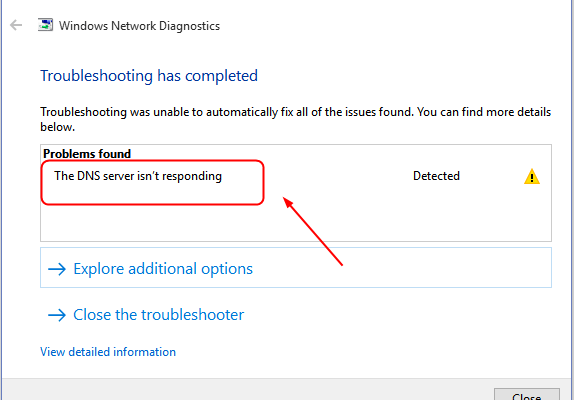
When you encounter a “DNS server not responding” error on your Windows 11 computer, it means your system is having trouble connecting to the internet. The Domain Name System (DNS) is responsible for translating website domain names to their respective IP addresses, which your computer can understand. Without a functional DNS server, you won’t be able to browse the web, access online services, or perform any internet-based activity.

However, there are several ways to troubleshoot and fix the “DNS server not responding” error on Windows 11. In this article, we’ll go through some of the common solutions you can try.

1. Restart Your Router and Modem

Sometimes, the problem might be with your broadband modem or Wi-Fi router rather than your computer. Simply turning off your modem and router for 30 seconds, then turning them back on, can fix many network issues, including DNS errors. After power cycling your devices, give them a minute or two to reconnect with your computer and then see if the problem is resolved.

2. Check Network Adapter Settings

Incorrect network adapter settings can also cause DNS errors. Follow these steps to ensure your network settings are correct:

– Press Win + X and go to Device Manager.
– Expand the Network adapters section.
– Right-click on your network adapter and select Properties.
– From the Properties window, choose Internet Protocol Version 4 (TCP/IPv4) and click on Properties.
– Check if “Obtain an IP address automatically” and “Obtain DNS server address automatically” options are selected.
– Click OK to save the changes.

3. Check Your Firewall Settings

Firewall settings can block your computer from communicating with the DNS server, leading to DNS errors. Check if your firewall is causing the issue by temporarily turning it off and then try accessing the internet again. If the error goes away, then you may need to adjust your firewall settings to allow DNS traffic.

4. Use Google DNS

If the above steps don’t fix the DNS server not responding error, you can try using a different DNS server. The most popular alternative is the Google Public DNS. To switch to Google DNS:

– Press Win + R and type ncpa.cpl.
– Right-click on your network adapter and select Properties.
– From the Properties window, choose Internet Protocol Version 4 (TCP/IPv4) and click on Properties.
– Choose “Use the following DNS server addresses” and enter the following values for Preferred DNS server and Alternate DNS server:

Preferred DNS server: 8.8.8.8
Alternate DNS server: 8.8.4.4

– Click OK to save the changes.

5. Flush DNS Cache

If you have an outdated DNS cache, it may be the cause of DNS errors. Flushing the DNS cache can help resolve this issue. Follow these steps to flush the DNS cache:

– Press Win + X and select Command Prompt (Admin).
– Type ipconfig/flushdns and press Enter.
– Once the command is successfully executed, check if the issue is resolved.

Conclusion

DNS server not responding errors on Windows 11 can be frustrating and prevent you from browsing the internet. However, with these simple troubleshooting steps, you can identify and fix the issue quickly. If the problem persists, you may need to contact your internet service provider (ISP) for further assistance.


Previous Article

How to Speed Up Game Downloads on ...

Next Article

How to Scan Documents on Your Samsung ...

Matthew Lynch

Related articles More from author

  • Digital & Mobile Technology

    Importance of physical fitness and ways to maintain it

    June 11, 2023
    By Matthew Lynch
  • Digital & Mobile Technology

    How to Fix Broken Keys on Your Computer Keyboard

    August 5, 2023
    By Matthew Lynch
  • Digital & Mobile Technology

    9 Tips That Will Help You Master the People Album in Photos

    August 1, 2023
    By Matthew Lynch
  • Digital & Mobile Technology

    How to Install YouTube Music on Your PC From the Browser

    August 3, 2023
    By Matthew Lynch
  • Digital & Mobile Technology

    How to Fix a Stereo Receiver That’s Not Making Sound

    July 14, 2023
    By Matthew Lynch
  • Digital & Mobile Technology

    How to Subscribe to a YouTube Channel

    August 5, 2023
    By Matthew Lynch

Search

Login & Registration

  • Log in
  • Entries feed
  • Comments feed
  • WordPress.org

Newsletter

Signup for The Tech Edvocate Newsletter and have the latest in EdTech news and opinion delivered to your email address!

About Us

Since technology is not going anywhere and does more good than harm, adapting is the best course of action. That is where The Tech Edvocate comes in. We plan to cover the PreK-12 and Higher Education EdTech sectors and provide our readers with the latest news and opinion on the subject. From time to time, I will invite other voices to weigh in on important issues in EdTech. We hope to provide a well-rounded, multi-faceted look at the past, present, the future of EdTech in the US and internationally.

We started this journey back in June 2016, and we plan to continue it for many more years to come. I hope that you will join us in this discussion of the past, present and future of EdTech and lend your own insight to the issues that are discussed.

Newsletter

Signup for The Tech Edvocate Newsletter and have the latest in EdTech news and opinion delivered to your email address!

Contact Us

The Tech Edvocate
910 Goddin Street
Richmond, VA 23231
(601) 630-5238
[email protected]

Copyright © 2026 Matthew Lynch. All rights reserved.