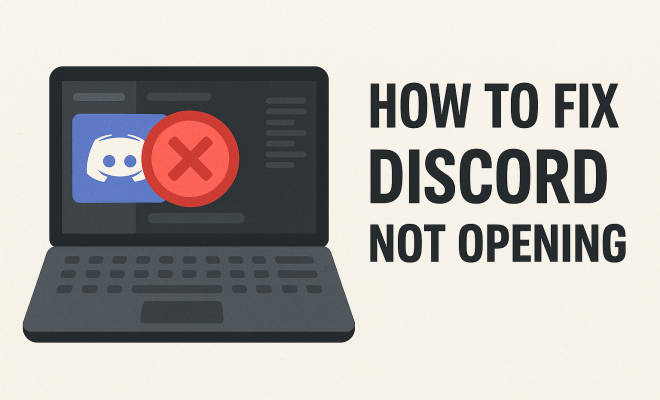
How to fix Discord not opening
“`html
Discord has become a cornerstone for communication, especially among gamers and online communities. But what happens when you try to launch Discord and it doesn’t open? This frustrating issue can disrupt your plans, whether you’re gearing up for a game night or waiting for a virtual meeting. In this article, we’ll explore how to fix Discord not opening, covering seven effective methods to help you get back online quickly.
1. Check Discord’s Server Status
Before diving into troubleshooting on your end, it’s wise to check whether the problem lies with Discord’s servers. Occasionally, Discord experiences outages or maintenance that affect its functionality. You can verify the status by visiting the Discord Status page, which provides real-time updates on server performance.
If there is a known issue, all you can do is wait for Discord to resolve it. However, if the servers are operational, it’s time to move on to other troubleshooting methods. Remember, network problems can sometimes be mistaken for server issues, so ensure your internet connection is stable before proceeding.
2. Restart Your Computer
It’s surprising how often a simple restart can resolve software issues. Restarting your computer clears temporary files and resets the system, which can help clear up any conflicts preventing Discord from launching. If you’re experiencing problems with your applications, a reboot might just do the trick.
To restart your computer, click on the Start menu and select the Restart option. Once your computer is back up, try launching Discord again. If it still doesn’t open, don’t worry; there are more solutions to explore.
3. Run Discord as an Administrator
Sometimes, Discord may require elevated permissions to function correctly. Running the application as an administrator can resolve permission issues that might be blocking it from opening. To do this, locate the Discord shortcut on your desktop or in the Start menu, right-click on it, and select ‘Run as administrator.’
If Discord opens successfully in administrator mode, you may want to adjust the settings to always run as an administrator. To set this up, right-click the Discord shortcut, go to Properties, then the Compatibility tab, and check the box for ‘Run this program as an administrator.’
4. Clear Discord’s Cache
Over time, cached data can become corrupted and lead to issues with Discord. Clearing the cache might help fix Discord not opening by allowing it to start fresh with new data. To clear the cache, navigate to the Discord folder on your computer:
- Press Win + R to open the Run dialog.
- Type in %appdata% and hit Enter.
- Find the Discord folder and delete it.
After clearing the data, restart Discord, and it should recreate the necessary files. This step often resolves issues related to startup errors that can occur when old cache files are involved. (See: Learn more about Discord software.)
5. Check for Software Conflicts
Many users might not realize that certain software can conflict with Discord, causing it not to open. Antivirus programs and firewalls, for instance, might mistakenly block Discord’s access to the internet or its ability to operate. To troubleshoot this, temporarily disable your antivirus or firewall and see if Discord launches.
If disabling your security software allows Discord to open, you can add it to the exclusions list in your antivirus settings to prevent future conflicts. Make sure to re-enable your antivirus or firewall afterward to keep your system protected.
6. Reinstall Discord
If all else fails and you still can’t get Discord to open, reinstalling the application may be your best bet. Sometimes, files can become corrupted during updates or installations, and a fresh installation can resolve these issues. Here’s how to do it:
- Press Win + R, type appwiz.cpl, and hit Enter to open the Programs and Features window.
- Find Discord in the list, right-click, and select Uninstall.
- Once uninstalled, go to the Discord website to download the latest version of the application.
- Install Discord again and check if it opens properly.
Reinstallation can seem drastic, but it often resolves persistent issues that other troubleshooting steps can’t.
7. Update Your Operating System and Drivers
Outdated operating systems or drivers can lead to compatibility issues with applications like Discord. Ensure that your operating system is up to date by going to Settings > Update & Security and checking for updates. Installing the latest updates can resolve various bugs and improve overall performance.
Additionally, ensure that your graphics card drivers are up to date, as Discord relies on graphics resources for its interface. Check your graphics card manufacturer’s website for the latest drivers and install them accordingly. Keeping your system updated can help not just with Discord, but with your overall computing experience.
Common Issues and Solutions
While the steps above cover the primary methods to fix Discord not opening, it’s useful to know other common issues and solutions that users have faced. Here are a few:
- Discord not opening on startup: If you prefer Discord to start automatically when your computer boots up, ensure that it’s enabled in the App settings. Check in the User Settings under Windows Settings and ensure ‘Open Discord’ on startup is checked.
- Discord stuck on loading screen: This can often be resolved by clearing the app’s cache or ensuring that your internet connection is stable.
- Discord opens but crashes immediately: Try disabling hardware acceleration in the User Settings under Appearance, or reinstalling the app may also resolve this issue.
8. Inspect Network Settings
Sometimes, network settings can impede Discord from functioning normally. If you are using a VPN or a proxy, try disabling them and then launching Discord. VPNs can often interfere with the application’s ability to connect to its servers.
To check your network settings:
- Open the Control Panel.
- Go to ‘Network and Internet’ then ‘Network and Sharing Center.’
- Select ‘Change adapter settings’ on the left pane.
- Right-click your network connection, select ‘Properties,’ and check the settings under Internet Protocol Version 4 (TCP/IPv4). Make sure it’s set to obtain an IP address automatically.
9. Check Task Manager for Background Processes
Sometimes, Discord may already be running in the background, which can prevent it from launching again. To check, open Task Manager by pressing Ctrl + Shift + Esc. Look for any Discord processes under the ‘Processes’ tab. If you see any, right-click and select ‘End Task’ to close them. Then, try opening Discord again. (See: Ergonomics and computer use.)
10. Check for Conflicting Applications
There are certain applications known to conflict with Discord. For instance, applications like Razer Cortex, GeForce Experience, or even some screen recording software can interfere with its operation. If you have any of these installed, try closing them before launching Discord.
If you find that conflicts are common, consider reaching out to Discord’s support to see if they have any updates or patches in progress for compatibility with specific applications.
11. Utilize Discord’s Web Version
If all else fails and you need immediate access, consider using Discord’s web version. You can access it at discord.com. Although it may not have all the features of the desktop app, it can serve as a temporary solution while you troubleshoot the desktop application issues.
12. Advanced Troubleshooting for Persistent Issues
If you’ve tried the standard methods and Discord still refuses to open, you might want to consider advanced troubleshooting techniques. These can include:
- Disabling Hardware Acceleration: In some cases, hardware acceleration can cause issues. If you’re able to access Discord through the web version, you can temporarily disable hardware acceleration by going to User Settings > Appearance and toggling off ‘Hardware Acceleration.’
- Repair the Discord Installation: You might need additional tools to repair the installation. Some users recommend using repair tools that can check for corrupted files and fix them automatically. These are usually built into certain applications that manage installs and updates.
- Check Event Viewer: Windows has a built-in tool called Event Viewer that logs application and system events. You can access it by typing ‘Event Viewer’ in the Windows search bar. Look for any errors related to Discord, which might give you a clearer idea of what’s going wrong.
13. Consider User Settings Adjustment
Sometimes, changes in Discord’s user settings can lead to issues with the application. If you recently changed settings related to voice, display, or notifications, it might be worth resetting them to their defaults. To do so, open Discord and navigate to User Settings (the gear icon) and manually reset any settings that you suspect might be causing issues.
14. Utilizing Safe Mode to Isolate Issues
Booting your computer in Safe Mode can help you determine if other software conflicts with Discord. In Safe Mode, only essential system programs and services are loaded. If Discord opens successfully in Safe Mode, it may indicate that a third-party application is the source of the problem. You can then selectively enable applications one by one to identify the conflicting software.
Frequently Asked Questions (FAQ)
Why is Discord not opening on my computer?
There could be several reasons for Discord not opening, ranging from server issues to problems with your internet connection, corrupted files, or software conflicts. The above methods should help you identify and fix the specific issue.
Can I use Discord on mobile while troubleshooting the desktop version?
Yes, you can download the Discord app on your smartphone or access the web version from your mobile browser. This allows you to stay connected while you address the issues on your desktop.
Will reinstalling Discord delete my chat history and server settings?
No, reinstalling Discord does not delete your chat history or server settings. Your data is stored on Discord’s servers, so it will remain intact. However, you may need to log back into your account after reinstalling. (See: New York Times article on Discord.)
What should I do if none of the methods work?
If you’ve tried all the troubleshooting steps and Discord still won’t open, consider reaching out to Discord’s support service. They may be able to offer additional insights or solutions for your specific issue.
How can I improve my internet connection for Discord?
To improve your internet connection, try using a wired connection instead of Wi-Fi, closing unnecessary applications that use bandwidth, and ensuring that your router firmware is up-to-date. It’s also worth checking for any bandwidth-heavy applications running in the background.
Can software updates cause Discord not to open?
Yes, sometimes software updates, either to Discord itself or your operating system, can cause compatibility issues. Ensuring that both Discord and your OS are updated to their latest versions can mitigate this risk.
What are the system requirements for Discord?
Discord requires minimal resources to run. However, for optimal performance, your PC should have at least:
- Windows: Windows 7 or later.
- Mac: macOS 10.11 or later.
- Processor: 2GHz dual-core processor.
- RAM: 4 GB of RAM or more.
- Internet: Broadband internet connection.
What should I do if Discord updates fail?
If you’re having issues with Discord updates, try the following steps:
- Clear the update cache by deleting the contents of the Discord folder in %appdata%.
- Reinstall Discord as mentioned earlier.
- Check your firewall settings to ensure that they aren’t blocking the update process.
Conclusion
Experiencing issues with Discord not opening can be annoying, especially if you’re eager to connect with friends or colleagues. By following the methods outlined in this article, you should be able to troubleshoot and resolve the issue effectively. Remember, whether it’s a simple restart, clearing cache, or reinstalling the application, there are multiple ways to get Discord back up and running. Don’t let a technical hiccup keep you from your online interactions!
“`
Trending Now
Frequently Asked Questions
Why is Discord not opening on my computer?
Discord may not open due to various reasons, including server outages, permission issues, or conflicts with other software. Checking the server status can help determine if the problem is on Discord's end. If the servers are operational, consider restarting your computer or running Discord as an administrator.
How can I fix Discord not launching?
To fix Discord not launching, you can try several methods: check Discord's server status, restart your computer, run the application as an administrator, or ensure your internet connection is stable. If these steps don’t work, there are additional troubleshooting methods to explore.
What should I do if Discord keeps crashing?
If Discord keeps crashing, first check for any server issues and ensure your internet connection is stable. You can also try restarting your computer, running Discord as an administrator, or reinstalling the app. These steps can often resolve crashing problems.
Is there a way to reset Discord settings?
Yes, resetting Discord settings can help resolve issues. To do this, you can delete the settings folder in the Discord AppData directory. This will reset your preferences and may fix issues related to the application not opening.
How do I check if Discord servers are down?
To check if Discord servers are down, visit the Discord Status page, which provides real-time updates on server performance and any ongoing outages. If the servers are operational, you can proceed with troubleshooting on your end.
What’s your take on this? Share your thoughts in the comments below — we read every one.