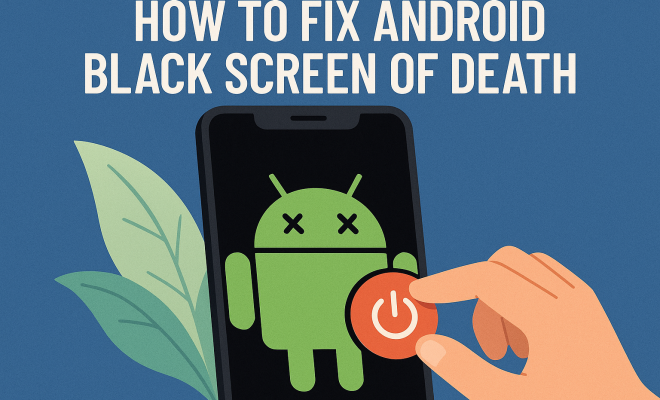
How to fix Android black screen of death
“`html
The Android black screen of death is a frustrating issue many users face, rendering their devices unusable. If you’ve found yourself staring at a blank screen, don’t worry. There are practical solutions to fix the Android black screen problem. Whether it’s a software glitch, hardware failure, or a battery issue, understanding the root cause can help you take the right steps. In this article, we’ll walk through nine effective methods to restore functionality to your device and ensure you’re not left in the dark.
1. Perform a Soft Reset
One of the simplest ways to fix the Android black screen is to perform a soft reset. This action is akin to rebooting your computer and can solve temporary glitches that may cause the screen to go black. To perform a soft reset on most Android devices, press and hold the power button for about 10-20 seconds until the device restarts.
If your device becomes responsive after this, you’ve successfully resolved a minor issue. However, if the screen remains black, it may require a more in-depth solution, as a soft reset is typically just a quick fix.
2. Charge Your Device
Sometimes, the simplest explanations are the most overlooked. If your Android is displaying a black screen, it might be due to a drained battery. Plugging the device into a charger and allowing it to charge for at least 15-30 minutes can work wonders. It’s also advisable to check if the charging cable and adapter are functioning properly.
While the device is charging, look for any signs that it is responding, such as vibrating or showing a charging icon. If charging doesn’t solve the issue, it could indicate a deeper problem, such as a faulty battery or charging port.
3. Boot into Safe Mode
An application malfunction can lead to a black screen if it conflicts with the system. Booting your Android device into safe mode can help identify if third-party apps are the culprit. In safe mode, your device only runs pre-installed applications.
To enter safe mode, press and hold the power button until the power menu appears. Then, press and hold the “Power off” option until prompted to reboot in safe mode. If your screen works in safe mode, you’ll want to review and uninstall recently downloaded apps that could be causing the conflict.
4. Boot into Recovery Mode
If the black screen persists, you may need to boot your device into recovery mode. This method allows you to access various system recovery options, including wiping the cache partition or performing a factory reset. To boot into recovery mode, the steps can vary slightly based on your device model, but generally, it involves holding the power and volume buttons simultaneously.
Once in recovery mode, use the volume buttons to navigate and the power button to select options. Wiping the cache partition can often fix issues without erasing personal data. However, if that doesn’t work, a factory reset might be necessary, but keep in mind this will erase all data on the device.
5. Check for Hardware Issues
In some cases, the black screen of death is a symptom of underlying hardware problems. Issues like a damaged display, loose connections, or water damage can prevent your device from functioning properly. Inspect your phone for any visible signs of damage, especially around the screen and buttons. (See: Overview of Android operating system.)
If you suspect hardware damage, it’s best to consult a professional technician. Attempting to fix hardware problems without expertise can lead to further complications or permanent damage.
6. Update Your Operating System
Outdated software can lead to various performance issues, including black screen errors. Ensuring that your Android operating system is up to date can prevent bugs that might cause your device to malfunction. To check for updates, go to Settings > About Phone > Software Updates.
If any updates are available, follow the prompts to install them. Regular updates not only fix existing bugs but also improve overall device performance and security features.
7. Reset App Preferences
Sometimes, the issue may not stem from a specific app but rather from misconfigurations in the app settings. Resetting app preferences can help restore default settings and potentially resolve conflicts. Go to Settings > Apps > Menu > Reset App Preferences.
This will not delete any app data, but it will reset permissions and default applications. After resetting preferences, check if the black screen issue is resolved and if your apps function as expected.
8. Utilize Android Debug Bridge (ADB)
For more advanced users familiar with technical troubleshooting, utilizing the Android Debug Bridge (ADB) can provide deeper insights into your device’s health. ADB allows you to communicate with your device through a computer and can enable deeper operations like accessing the system files.
To use ADB, you’ll need to have USB debugging enabled on your device (which may be challenging if the screen is black). Connecting your phone to a computer with ADB installed can allow you to send commands to troubleshoot or even reboot the device in a different mode. It’s a powerful tool but requires a level of technical knowledge.
9. Seek Professional Help
If all else fails, it might be time to reach out for professional assistance. Repair shops and authorized service centers have the tools and expertise to diagnose and address complex issues that might not be solvable at home.
Before taking your device for repair, consider backing up your data if possible. Many repair services can assist with data recovery even when the screen is unresponsive. Remember, sometimes professional help is the most effective way to fix Android black screen issues, especially if your device is still under warranty.
10. Understanding the Causes of Black Screen Issues
To effectively fix the Android black screen issue, it’s essential to understand the various causes. These can range from software errors, hardware malfunctions, to external factors like water damage. For example, software updates that fail to install correctly can leave the operating system in a state where it can’t load the display, resulting in a black screen. Similarly, physical damage to the device can disrupt the internal connections that supply power to the screen.
Statistics indicate that about 20% of smartphone users report encountering issues related to the black screen of death at least once during their device’s lifecycle. Understanding these causes can help users take preventive measures, such as regularly backing up data and avoiding unauthorized software modifications.
11. Preventive Measures
Once you’ve fixed the Android black screen, consider taking steps to prevent it from happening again. Here are some key preventive measures: (See: Ergonomics and device usage.)
- Regular Software Updates: Keep your device updated with the latest software to ensure optimal performance and security.
- Battery Care: Avoid letting your battery drain completely on a regular basis. Charge it when it gets low to prevent potential issues.
- Safe App Installation: Be cautious about the apps you install. Stick to reputable sources and read reviews before downloading any application.
Implementing these preventive measures can save you time and frustration in the long run, allowing you to enjoy your device without interruptions.
12. Frequently Asked Questions (FAQ)
What is the Android black screen of death?
The Android black screen of death is a term used to describe a situation where your device’s screen turns black and becomes unresponsive. This can be due to various factors, including software glitches, hardware issues, or battery problems.
How can I tell if my Android device is charging?
You can usually tell if your device is charging by looking for a charging icon or LED indicator. If your device vibrates when you connect it to a charger, that’s another sign that it’s receiving power.
What should I do if my device won’t turn on at all?
If your device won’t turn on, try a soft reset first. If that doesn’t work, check to see if the battery is charged, and consider booting into safe mode or recovery mode to troubleshoot further.
Are there any risks involved in performing a factory reset?
Yes, performing a factory reset will erase all data on your device, including apps, settings, and personal files. Always back up your data before proceeding with a factory reset.
Can I fix a black screen caused by water damage?
Water damage can be tricky. If your device shows signs of water exposure, it’s best to turn it off immediately and seek professional help. Trying to fix a water-damaged device on your own could cause more harm.
Is it worth trying to fix an old Android device with a black screen?
It depends on the device’s age and your personal preferences. If the cost of repair is significantly less than purchasing a new device and you’re satisfied with the phone’s performance otherwise, it may be worth the effort. However, if the device is old and requires multiple repairs, it might be better to invest in a new model.
13. Additional Tools and Resources
If you’re comfortable with a bit of tech-savviness, various tools can help diagnose and fix your Android device with a black screen. Some of these tools include:
- Dr.Fone: This software can assist in repairing various Android system issues, including black screen problems. It guides you through the process and offers a user-friendly interface.
- Tenorshare ReiBoot: Another reliable tool for Android that allows you to enter and exit recovery modes, fix system issues without data loss, and resolve black screen errors.
- Samsung Smart Switch: If you own a Samsung device, this tool can help backup your data and restore your device to a previous state, potentially fixing the black screen issue.
Each of these tools often provides a free trial or limited functionality without a purchase, so you can see if the solution works before committing to a purchase.
14. Exploring User Experiences and Case Studies
Many users have reported successful fixes for their black screen issues through community forums and shared experiences. For example, one user reported that their device had a black screen after installing a specific app. The solution involved booting into safe mode and uninstalling the app, which resolved the issue. (See: Latest technology news updates.)
Another case highlighted the importance of checking hardware. A user discovered that their black screen issue was due to a loose display connector after dropping the phone. Reconnecting the display fixed the problem without needing a full repair.
These experiences reinforce the idea that troubleshooting can sometimes lead to unexpected solutions. Engaging with user forums can provide insights into unique fixes that may not be covered in standard troubleshooting guides.
15. Statistical Insights on Android Black Screen Issues
Research indicates that the Android black screen of death impacts a substantial number of users. In a survey conducted by a tech support company, 30% of respondents reported experiencing a black screen issue at least once within their device’s lifespan. The survey also noted that a high percentage of users resolved their issues through soft resets and charging, but a significant portion required professional assistance.
Furthermore, the data suggests that users who regularly update their devices and maintain backups are less likely to encounter severe issues, reinforcing the need for preventive maintenance.
16. When to Consider a New Device
Sometimes, despite your best efforts, a black screen might indicate that it’s time to consider investing in a new device. If your Android device is old, frequently malfunctioning, or requires multiple repairs, it may be more economical to upgrade rather than constantly patching issues. Look at factors such as:
- Age of the Device: If your phone is more than three years old, consider the benefits a new model could bring, such as improved speed, battery life, and features.
- Performance Issues: If you’re experiencing lag, freezing, or constant errors, a new model could provide a significant performance boost.
- Cost of Repairs: If repair costs are approaching or exceeding the price of a new phone, it may be wiser to invest in a new device.
Weighing these factors can help you make a balanced decision about whether to fix your existing device or move on to a new one.
The Android black screen of death can be frustrating, but it doesn’t have to mean the end for your device. By systematically troubleshooting using these twelve effective methods, you can identify and resolve the underlying issues. Stay calm, follow the steps, and soon enough, you may find yourself back in the light.
“`
Trending Now
Frequently Asked Questions
What causes the Android black screen of death?
The Android black screen of death can be caused by various factors including software glitches, hardware failures, or battery issues. It often occurs when the device's operating system encounters a critical error or when the hardware malfunctions.
How can I perform a soft reset on my Android phone?
To perform a soft reset on most Android devices, press and hold the power button for about 10-20 seconds until the device restarts. This can help resolve temporary glitches that may cause the screen to go black.
What should I do if my Android screen is black but it’s charging?
If your Android screen is black while charging, first ensure the charger and cable are functioning properly. Allow the device to charge for 15-30 minutes. If it remains unresponsive, there may be a deeper issue, such as a faulty battery or charging port.
How do I boot my Android device into safe mode?
To boot your Android device into safe mode, press and hold the power button until the power off option appears. Then, press and hold the 'Power off' option until you see the 'Reboot to safe mode' prompt, and tap 'OK' to confirm.
Can a black screen on Android be fixed?
Yes, a black screen on Android can often be fixed through several methods, including performing a soft reset, charging the device, or booting into safe mode to identify problematic apps. If these methods fail, further investigation into hardware issues may be needed.
What’s your take on this? Share your thoughts in the comments below — we read every one.