The Tech Edvocate

Top Menu

  • Advertisement
  • Apps
  • Home Page
  • Home Page Five (No Sidebar)
  • Home Page Four
  • Home Page Three
  • Home Page Two
  • Home Tech2
  • Icons [No Sidebar]
  • Left Sidbear Page
  • Lynch Educational Consulting
  • My Account
  • My Speaking Page
  • Newsletter Sign Up Confirmation
  • Newsletter Unsubscription
  • Our Brands
  • Page Example
  • Privacy Policy
  • Protected Content
  • Register
  • Request a Product Review
  • Shop
  • Shortcodes Examples
  • Signup
  • Start Here
    • Governance
    • Careers
    • Contact Us
  • Terms and Conditions
  • The Edvocate
  • The Tech Edvocate Product Guide
  • Topics
  • Write For Us
  • Advertise

Main Menu

  • Start Here
    • Our Brands
    • Governance
      • Lynch Educational Consulting, LLC.
      • Dr. Lynch’s Personal Website
      • Careers
    • Write For Us
    • The Tech Edvocate Product Guide
    • Contact Us
    • Books
    • Edupedia
    • Post a Job
    • The Edvocate Podcast
    • Terms and Conditions
    • Privacy Policy
  • Topics
    • Assistive Technology
    • Child Development Tech
    • Early Childhood & K-12 EdTech
    • EdTech Futures
    • EdTech News
    • EdTech Policy & Reform
    • EdTech Startups & Businesses
    • Higher Education EdTech
    • Online Learning & eLearning
    • Parent & Family Tech
    • Personalized Learning
    • Product Reviews
  • Advertise
  • Tech Edvocate Awards
  • The Edvocate
  • Pedagogue
  • School Ratings

logo

The Tech Edvocate

  • Start Here
    • Our Brands
    • Governance
      • Lynch Educational Consulting, LLC.
      • Dr. Lynch’s Personal Website
        • My Speaking Page
      • Careers
    • Write For Us
    • The Tech Edvocate Product Guide
    • Contact Us
    • Books
    • Edupedia
    • Post a Job
    • The Edvocate Podcast
    • Terms and Conditions
    • Privacy Policy
  • Topics
    • Assistive Technology
    • Child Development Tech
    • Early Childhood & K-12 EdTech
    • EdTech Futures
    • EdTech News
    • EdTech Policy & Reform
    • EdTech Startups & Businesses
    • Higher Education EdTech
    • Online Learning & eLearning
    • Parent & Family Tech
    • Personalized Learning
    • Product Reviews
  • Advertise
  • Tech Edvocate Awards
  • The Edvocate
  • Pedagogue
  • School Ratings
  • RayNeo iO Smart Glasses: A Comprehensive Review

  • Glo Skin Beauty: The Aesthetician-Backed Brand Taking 25% Off for October Prime Day

  • The Shocking Truth: ESG Training Programs Are Quietly Reshaping Your Career Path

  • Why Millions of People Are Switching to These Green Energy Certifications Right Now

  • The green skills gap in 2026: How to address this growing problem

  • The Shocking Truth: Your Degree Won’t Land You the Best IT Jobs in 2026

  • The Brutal Truth About Degrees: Why Micro-Credentials Are Quietly Dominating Careers by 2026

  • Why 96% of Employers Now Prefer Skills Over Degrees: The Micro-Credential Revolution

  • This Crucial Mistake With AI Is Stunting Student Minds: Here’s How to Fix It

  • The AI ‘Cognitive Surrender’ Crisis: 7 Tools Every Educator Needs NOW

Tech Advice
Home›Tech Advice›How to fix a Windows 10 laptop that’s plugged in but isn’t charging

How to fix a Windows 10 laptop that’s plugged in but isn’t charging
By Matthew Lynch
July 13, 2023
0
Spread the love

Introduction

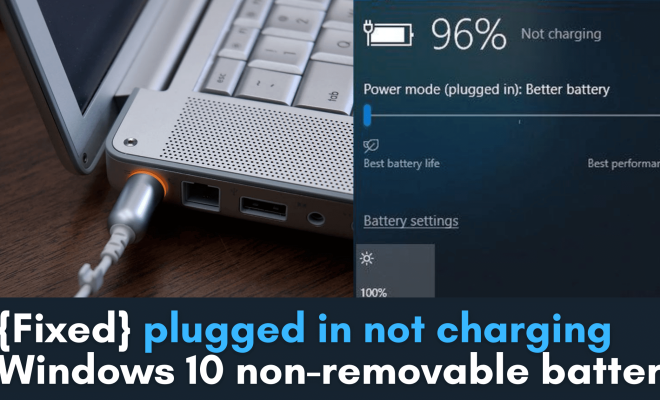
One common issue you may encounter with a Windows 10 laptop is when it’s plugged in but not charging. Many people experience this frustrating problem and it can be caused by multiple factors. In this article, we will guide you through some simple steps to help you troubleshoot and fix the issue.

1. Check your charger and laptop connection

Before diving into technical fixes, ensure that your laptop charger is firmly connected to both the power outlet and your laptop’s charging port. Sometimes, a loose connection might be the cause of the problem.

2. Troubleshoot your power cables and AC adapter

Inspect your laptop’s power cable and AC adapter for any signs of physical damage or wear. If there is any visible damage, consider replacing it. Additionally, try plugging it into a different power outlet or using a different charger if you have one available to rule out any issues with malfunctioning cables or adapters.

3. Update your device drivers

Outdated or corrupted device drivers might be causing the charging issue on your Windows 10 laptop. To update them:

a) Right-click on the Start button and select “Device Manager.”

b) Expand the “Batteries” section.

c) Right-click on each item listed under Batteries and select “Update driver.”

d) Choose “Search automatically for updated driver software” and follow the prompts.

e) Restart your laptop after updating all battery-related drivers.

4. Run Windows 10 battery troubleshooter

Windows 10 has a built-in battery troubleshooter that can detect and fix charging issues:

a) Press the Windows key + I to open Settings.

b) Navigate to Update & Security > Troubleshoot > Additional troubleshooters.

c) Click on “Power” and then select “Run the troubleshooter.”

d) Follow the on-screen instructions and apply any suggested fixes.

e) Restart your laptop to see if the charging issue is resolved.

5. Remove and reinsert the laptop battery (if applicable)

For laptops with removable batteries, power down your device and disconnect the charger. Carefully remove the battery and reinsert it after a couple of minutes, ensuring that it’s securely in place. Reconnect the charger and check if your laptop is now charging.

6. Check your power settings

Configure Windows 10 power settings to ensure optimal battery performance by following these steps:

a) Press the Windows key + I to open Settings.

b) Go to System > Power & sleep > Additional power settings.

c) Choose “Change plan settings” next to your current power plan.

d) Click “Restore default settings for this plan” and then confirm by selecting “Yes.”

e) Restart your laptop and check if the charging issue is resolved.

Conclusion

If you’ve followed all the steps above but your laptop still isn’t charging, there might be a hardware issue, such as a faulty battery or motherboard. In this case, consult with a professional technician or contact your device’s manufacturer for further assistance. Remember that regular maintenance and keeping your laptop’s software up-to-date can significantly reduce the occurrence of such problems in the future.


Previous Article

How to fix a broken iPad screen

Next Article

‘This PC can’t run Windows 11’: How ...

Matthew Lynch

Related articles More from author

  • Tech Advice

    2024 Chrysler Pacifica Touring L All-Wheel Drive Passenger Van : Trim Details, Reviews, Prices, Specs, and Incentives

    August 21, 2023
    By Matthew Lynch
  • Tech Advice

    How to get your car repaired at home

    July 12, 2023
    By Matthew Lynch
  • Tech Advice

    Gmail’s scheduling tool to send email messages later is one of our favorite things

    July 17, 2023
    By Matthew Lynch
  • Tech Advice

    Google Pixel 3A Review: Google’s Cheaper Pixel 4 Alternative Has a Great Camera

    July 12, 2023
    By Matthew Lynch
  • Tech Advice

    Overtraining: Here’s what happens when you workout every single day

    July 6, 2023
    By Matthew Lynch
  • Tech Advice

    Confused about locked vs. unlocked phones? Ask Maggie explains

    July 17, 2023
    By Matthew Lynch

Search

Login & Registration

  • Log in
  • Entries feed
  • Comments feed
  • WordPress.org

Newsletter

Signup for The Tech Edvocate Newsletter and have the latest in EdTech news and opinion delivered to your email address!

About Us

Since technology is not going anywhere and does more good than harm, adapting is the best course of action. That is where The Tech Edvocate comes in. We plan to cover the PreK-12 and Higher Education EdTech sectors and provide our readers with the latest news and opinion on the subject. From time to time, I will invite other voices to weigh in on important issues in EdTech. We hope to provide a well-rounded, multi-faceted look at the past, present, the future of EdTech in the US and internationally.

We started this journey back in June 2016, and we plan to continue it for many more years to come. I hope that you will join us in this discussion of the past, present and future of EdTech and lend your own insight to the issues that are discussed.

Newsletter

Signup for The Tech Edvocate Newsletter and have the latest in EdTech news and opinion delivered to your email address!

Contact Us

The Tech Edvocate
910 Goddin Street
Richmond, VA 23231
(601) 630-5238
[email protected]

Copyright © 2026 Matthew Lynch. All rights reserved.