How to factory reset Samsung from recovery
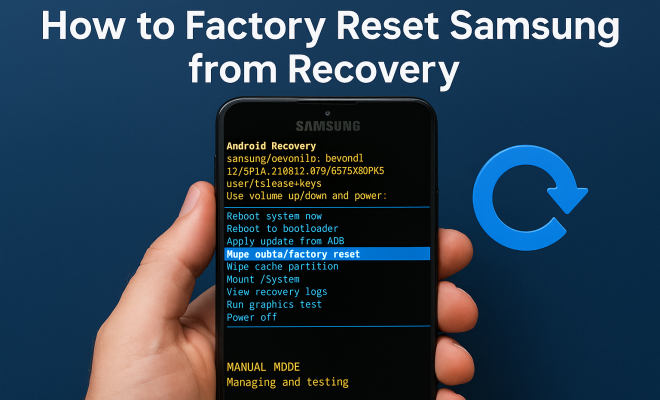
“`html
In a digital age where smartphones are integral to our daily lives, knowing how to manage and troubleshoot your device is essential. If you own a Samsung device and are facing issues like sluggish performance, persistent crashes, or software glitches, understanding how to factory reset Samsung recovery can be a game-changer. This comprehensive guide will walk you through the intricacies of factory resetting your Samsung device from recovery mode, offering practical insights, tips, and background context.
1. Understanding Factory Resetting
Before diving into the steps of a factory reset, it’s crucial to grasp what a factory reset entails. Essentially, a factory reset wipes all data from your device, returning it to its original state when it was first purchased. This process can resolve persistent software issues, eliminate bugs, and enhance overall performance. However, it’s important to remember that a factory reset will erase all personal data, including photos, messages, and applications.
Factory resets are often recommended as a last resort. If your device is slow or unresponsive, you might want to try lighter troubleshooting methods, such as clearing the cache or uninstalling problematic apps. However, if those options fail, then a factory reset may be necessary.
2. Why Use Recovery Mode?
Recovery mode is a built-in feature in Android devices, including Samsung smartphones. It’s a powerful tool that allows users to perform various maintenance tasks, such as applying software updates, wiping cache partitions, or conducting factory resets. Recovery mode is particularly useful if your device is unresponsive or if you can’t access the settings menu due to a software failure.
Accessing recovery mode can be different across devices, but it typically involves pressing a combination of hardware buttons. For Samsung devices, this is often the Power, Volume Up, and Home buttons simultaneously. Knowing how to navigate recovery mode can help you troubleshoot issues without needing to access the main operating system.
3. Preparing for a Factory Reset
Before proceeding with a factory reset, preparation is key. Here are the essential steps you should take:
- Backup Your Data: Since a factory reset will erase all data, it’s vital to back up important files and information. Use Samsung Cloud, Google Drive, or other backup services to save your contacts, photos, and documents.
- Charge Your Device: Make sure your device is sufficiently charged, ideally over 50%. A factory reset can take time, and you don’t want your phone to shut down mid-process.
- Know Your Credentials: Ensure you remember your Google or Samsung account credentials. After a reset, you may need these to access your device and restore your data.
Being well-prepared not only saves you time but also ensures that you can quickly restore your phone to a functional state.
4. Steps to Factory Reset Samsung from Recovery Mode
Now that you understand the importance of preparation, let’s walk through the steps to factory reset Samsung recovery: (See: Understanding factory resets.)
- Power Off Your Device: Begin by turning off your Samsung device completely. This step is critical as you need to initiate recovery mode from a powered-off state.
- Enter Recovery Mode: Depending on your device model, press and hold the Power, Volume Up, and Home buttons simultaneously. For newer models without a Home button, you may need to use the Power and Volume Up buttons instead. Release the buttons when you see the Samsung logo.
- Navigate Recovery Menu: Once in recovery mode, you’ll see a menu with various options. Use the Volume Up and Down buttons to navigate this menu. Highlight the “Wipe data/factory reset” option.
- Confirm Factory Reset: Press the Power button to select this option. The device will ask for confirmation; highlight “Yes” and press the Power button again. This action begins the factory reset process.
- Reboot Your Device: After the reset is complete, you’ll be returned to the recovery menu. Select the “Reboot system now” option to restart your device.
Following these steps carefully will ensure a successful factory reset, restoring your Samsung device to its original factory settings.
5. Post-Reset Considerations
After a factory reset, you may find that your device performs significantly better. However, there are a few key considerations to keep in mind:
- Setup Process: Upon rebooting, you’ll need to go through the initial setup process. This includes connecting to Wi-Fi, signing into your Google/Samsung account, and restoring data from your backup if desired.
- Install Updates: After resetting, check for any software updates that may have been released since your last update. Keeping your device updated is crucial for security and performance.
- Reinstall Applications: You’ll need to manually reinstall any apps you want back on your device. This might be a good time to evaluate which apps you actually use and need.
These post-reset steps will help ensure that your device is set up efficiently and that you’re maximizing its potential.
6. Common Issues After a Factory Reset
While factory resets can solve many problems, some users may encounter issues afterward. Here are a few common concerns:
- Google Account Verification: If your device is linked to a Google account, you may be prompted to verify your account after a reset. This is a security measure to prevent unauthorized access. Make sure you have your login credentials handy.
- Data Restoration Challenges: Sometimes, restoring data from a backup may lead to complications, such as missing files or application settings not transferring correctly. Be prepared to troubleshoot these instances.
- Device Performance: In some cases, users report that their device does not perform as expected post-reset. This could be due to reinstalled apps or failing hardware components. If problems persist, further diagnostics may be necessary.
Having a plan for these potential issues can help you navigate the aftermath of a factory reset smoothly.
7. Alternatives to Factory Resetting
While a factory reset can be a valuable tool, it’s not the only option available for resolving device issues. Here are some alternatives you might consider:
- Clear Cache Partition: This option is less drastic than a full reset and can help improve performance. By clearing the cache, you can free up storage and remove temporary files that may be causing slowdowns.
- Safe Mode: Booting your Samsung device in Safe Mode allows you to troubleshoot issues by disabling third-party apps. If your device functions better in Safe Mode, this indicates that a third-party app may be the culprit.
- Software Updates: Keeping your device’s software up-to-date can prevent many issues. Manufacturers frequently release updates to fix bugs and improve functionality.
Using these methods before resorting to a factory reset can save your data and time. Assess the situation carefully and choose the best resolution for your needs.
8. Expert Tips for Smooth Recovery
To ensure a smooth process when performing a factory reset Samsung recovery, consider these expert tips:
- Read Device Manuals: Different Samsung models may have specific requirements for recovery mode. Familiarize yourself with the manual for your device to avoid common pitfalls.
- Use Samsung Smart Switch: This tool can help you back up and restore your data easily. It’s a valuable resource for those transitioning between devices or after a factory reset.
- Stay Informed: Join online forums or communities where tech enthusiasts discuss troubleshooting and Samsung-related topics. You might find additional tips and tricks that could help you resolve issues or enhance your device’s performance.
These tips can help improve your experience, making it easier to navigate the intricacies of Samsung recovery.
9. Real-Life Scenarios: When to Factory Reset
Understanding when a factory reset is the right solution can save you from unnecessary data loss and frustration. Here are some scenarios where performing a factory reset may be warranted: (See: Importance of device management.)
- Persistent Software Glitches: If your device consistently crashes or apps freeze, a factory reset can restore stability.
- Before Selling or Giving Away: If you’re parting with your device, a factory reset ensures your personal data is wiped clean.
- Upgrading to a New Device: If you plan to upgrade, a factory reset before transitioning to a new phone can be beneficial for a seamless switch.
- Malware Concerns: If you suspect your device is compromised by malware that you can’t remove by other means, a factory reset can eliminate it entirely.
These scenarios illustrate the importance of understanding not just how to perform a factory reset but also when it is appropriate to do so.
10. Statistics on Factory Resets
Understanding the broader implications of factory resets can enhance your comprehension of smartphone maintenance. Here are some statistics to consider:
- According to a survey conducted by a leading tech magazine, 45% of smartphone users have performed a factory reset at least once in their device’s lifetime.
- Out of those who reset their devices, about 60% reported significant performance improvements post-reset.
- Data recovery services report that approximately 35% of users regret not backing up data before performing a factory reset.
These statistics highlight the prevalence of factory resets and the importance of proper data management before proceeding with such a drastic step.
11. Frequently Asked Questions (FAQ)
What happens to my apps after a factory reset?
All apps will be removed from your device after a factory reset. You’ll need to reinstall apps from the Google Play Store or Samsung Galaxy Store. If you backed up app data, you can restore it during the setup process.
Will a factory reset remove my SIM card data?
No, your SIM card data (like contacts or messages stored on the SIM) is not affected by a factory reset. However, any data stored on the device itself will be erased.
How long does a factory reset take?
The process typically takes about 10 to 15 minutes, but it can vary based on your device model and the amount of data stored on it.
Can I perform a factory reset remotely?
Yes, if you have set up the “Find My Mobile” feature through Samsung, you can perform a factory reset remotely. Just log into the service and select the option to wipe your device. (See: Troubleshooting smartphone issues.)
Is a factory reset the same as a hard reset?
Not exactly. A hard reset often refers to resetting hardware components, while a factory reset specifically pertains to restoring software settings to default, erasing all user data.
12. Common Misconceptions About Factory Resets
Despite the widespread use of factory resets, several misconceptions can lead to confusion:
- Factory Reset is a Complete Solution: Some believe that a factory reset will completely resolve all device issues. However, hardware problems or deeply embedded malware may persist despite a reset.
- Data Recovery is Guaranteed: Users often think that their data can be easily recovered after a reset. While some recovery tools exist, there’s no guarantee that all files can be restored successfully.
- Only Experts Should Perform Resets: Many think factory resets require technical knowledge. In reality, following straightforward steps outlined in manuals or guides makes it accessible to everyday users.
Understanding these misconceptions can help set realistic expectations and encourage users to approach factory resets with informed caution.
13. Tips for Managing Smartphone Data Wisely
Preventing the need for a factory reset in the first place is often the best strategy. Here are some tips for effective data management:
- Regular Backups: Schedule regular backups using Samsung Cloud or Google Drive. This ensures that your data is safe, even if you need to perform a reset.
- Uninstall Unused Apps: Regularly assess your apps and remove those you no longer use. This can free up space and reduce the chance of software conflicts.
- Monitor Storage Space: Keep an eye on your device’s storage. If it’s nearing capacity, it can lead to slow performance and increase the likelihood of needing a reset.
By managing your smartphone data wisely, you can extend the lifespan of your device and minimize the chances of encountering issues that require a factory reset.
14. Conclusion: Empower Yourself with Knowledge
Understanding how to factory reset Samsung recovery is an invaluable skill for any smartphone user. It not only empowers you to tackle various issues but also enhances your overall user experience. By following the steps outlined in this guide and considering alternative solutions, you can manage your device more effectively. Remember, a well-prepared user is a confident user, so equip yourself with knowledge and make the most of your Samsung device.
“`
Trending Now
Frequently Asked Questions
How do I factory reset my Samsung phone from recovery mode?
To factory reset your Samsung phone from recovery mode, first power off the device. Then, press and hold the Power, Volume Up, and Home buttons simultaneously until the recovery menu appears. Use the volume buttons to navigate to 'Wipe data/factory reset' and confirm with the Power button. Follow the prompts to complete the reset.
What happens when I factory reset my Samsung device?
A factory reset on your Samsung device erases all personal data, returning it to its original settings. This process can resolve software issues, eliminate bugs, and improve performance. However, it’s important to back up your data beforehand, as photos, messages, and apps will be permanently deleted.
Why would I need to use recovery mode on my Samsung phone?
Recovery mode on your Samsung phone is useful for performing maintenance tasks, such as factory resets or cache wipes, especially if the device is unresponsive or you can’t access the settings menu. It provides a way to troubleshoot and fix persistent software issues effectively.
Is there a way to reset my Samsung phone without losing data?
While a full factory reset erases all data, you can try lighter troubleshooting methods like clearing the cache or uninstalling problematic apps to improve performance without losing data. If these methods fail, a factory reset may be necessary, but ensure to back up your data first.
What should I do before performing a factory reset on my Samsung device?
Before performing a factory reset, it's crucial to back up your data to prevent loss. Ensure you save important files, photos, and contacts. Additionally, try troubleshooting methods like clearing the cache or updating apps, as these may resolve issues without needing a full reset.
What’s your take on this? Share your thoughts in the comments below — we read every one.