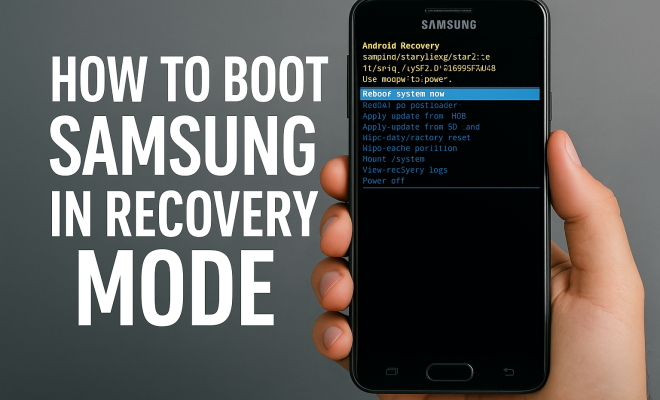
How to boot Samsung in recovery mode
“`html
For many Samsung users, navigating the various settings and modes of their devices can feel overwhelming at times. One of the most critical modes you’ll encounter is the recovery mode, which can help troubleshoot issues, install updates, or even reset your device. So, let’s dive into how to boot Samsung in recovery mode effectively, ensuring you have the tools you need to keep your device running smoothly.
1. What is Recovery Mode?
Recovery mode is a built-in feature found on Android devices, including Samsung smartphones. Its primary purpose is to provide access to various recovery options that can help you manage your device without needing a fully operational operating system. This mode allows you to perform tasks such as factory resets, software updates via ADB (Android Debug Bridge), and cache wipes, among other essential functions.
When your device experiences issues such as boot loops, crashes, or sluggish performance, entering recovery mode can be a lifesaver. It offers a way to troubleshoot and sometimes resolve these problems without the need for professional help. Understanding how to access this mode can empower you as a user, giving you greater control over your device.
2. Why You Might Need to Boot into Recovery Mode
There are several scenarios where you might find yourself needing to boot Samsung in recovery mode. Here are a few common situations:
- Software Updates: If you’re trying to install a custom ROM or firmware update, recovery mode is necessary to flash the new software.
- Factory Reset: When your device is malfunctioning, performing a factory reset via recovery can restore it to its original state, erasing all data in the process.
- Clearing Cache: Sometimes, accumulated cache can cause performance issues. Recovery mode lets you clear the cache without affecting personal data.
- Accessing ADB: Developers might need access to ADB while troubleshooting issues on the device.
Being aware of when and why you might need recovery mode can help you prepare for unexpected device issues.
3. How to Boot Samsung in Recovery Mode: The Step-by-Step Guide
Booting your Samsung device into recovery mode is a straightforward process. While the steps might vary slightly between models, the general procedure remains similar. Here’s how you do it:
- Power Off Your Device: Begin by turning off your Samsung smartphone completely. You can do this by holding down the power button and selecting the power off option.
- Press the Correct Button Combination: Depending on your device model, the button combination can vary. For most Samsung devices, you need to press and hold the Volume Up button, the Bixby button (if available), and the Power button simultaneously.
- Release the Buttons: Once the Samsung logo appears, you can release the buttons. You’ll soon see the Android Recovery screen.
- Navigating the Recovery Menu: Use the Volume buttons to navigate through the options and the Power button to select.
Once you’re familiar with this process, booting into recovery mode will become second nature.
4. Different Samsung Models and Their Recovery Mode Access
While the general steps for entering recovery mode are similar across Samsung devices, there are slight variations depending on the model. Here’s a brief overview of some popular Samsung models and their specific recovery mode access methods:
- Samsung Galaxy S Series: For models like the Galaxy S10 and S20, use the Volume Up + Bixby + Power button combo.
- Samsung Galaxy A Series: Models such as the Galaxy A50 and A70 typically use the Volume Up + Power button together.
- Samsung Galaxy Note Series: For devices like the Galaxy Note 10, hold the Volume Up + Bixby + Power buttons.
- Older Models: For older Samsung devices, the combination often includes Home + Volume Up + Power buttons.
Knowing your specific model’s method can prevent confusion and ensure a smooth entry into recovery mode. (See: Understanding recovery mode on devices.)
5. Common Issues Encountered in Recovery Mode
Even though recovery mode is built to assist users, you might run into some common issues. Here are a few problems you might encounter:
- Stuck in Recovery Mode: Occasionally, a device can become stuck in recovery mode due to software glitches. Restarting the device usually solves this.
- Inability to Access Recovery: If you can’t enter recovery mode, ensure you’re using the correct button combination. Timing is also crucial—press the buttons until you see the logo.
- Corrupted Recovery Partition: In rare cases, the recovery partition might become corrupted, making it impossible to use recovery features. This may require advanced troubleshooting.
Understanding these potential issues can help you troubleshoot more effectively should they arise.
6. What to Do Once in Recovery Mode
Once you successfully boot Samsung in recovery mode, you’ll see a menu with several options. Here’s a quick breakdown of what you can do:
- Reboot System Now: The most common option to exit recovery mode and boot normally.
- Wipe Data/Factory Reset: This option erases all user data and settings, returning the device to factory conditions.
- Wipe Cache Partition: This clears temporary files that might be causing issues without deleting personal data.
- Apply Update from ADB: Used for developers or advanced users to sideload updates via a computer.
- Power Off: Turns off the device without making any changes.
Each option serves a specific purpose, and knowing when to use them can save you time and frustration.
7. Advanced Recovery Options: Custom Recovery
For those looking to do more than just basic troubleshooting, custom recovery options like TWRP (Team Win Recovery Project) can provide additional features. Custom recovery allows users to:
- Flash Custom ROMs: Upgrade or change the operating system of your device.
- Take Nandroid Backups: Create complete backups of your device’s current state, ensuring safety before making changes.
- Access More Advanced Features: Such as file management and terminal commands.
However, installing custom recovery carries risks and requires a degree of technical knowledge. It’s essential to research thoroughly and follow guides specific to your device model before proceeding.
8. Tips for Safe Use of Recovery Mode
While recovery mode is a powerful tool, it’s essential to proceed with caution. Here are some tips to ensure safe use:
- Backup Your Data: Always create a backup before performing any factory resets or cache wipes.
- Follow Instructions Carefully: Whether you’re flashing a new ROM or resetting your device, ensure you’re following reliable guides specific to your model.
- Stay Informed: Keep up-to-date with forums and communities that discuss issues and solutions related to Samsung devices.
These practices can help you avoid pitfalls and ensure a smoother experience when using recovery mode.
9. When to Seek Professional Help
While many users can troubleshoot their devices successfully, there are times when seeking professional help is best. If you find that:
- Your device is still malfunctioning after using recovery mode
- You encounter hardware issues, such as a broken screen or faulty buttons
- You’re unsure or uncomfortable with the steps needed to resolve the issue
In these cases, it’s advisable to consult with trained technicians. They have the tools and expertise to diagnose and resolve problems that might be beyond standard user capabilities.
10. Frequently Asked Questions (FAQ)
What happens if I perform a factory reset from recovery mode?
A factory reset will erase all data on your device, returning it to its original settings. This includes personal files, apps, and settings. Make sure to back up any important data before proceeding with this option. (See: Health communication and technology.)
Can I boot Samsung in recovery mode without a power button?
If your Power button is malfunctioning, you may find it challenging to boot into recovery mode since it’s typically part of the button combination required. Some users have had success using ADB commands from a connected computer to initiate a reboot into recovery mode, provided USB debugging is enabled prior to the device failing.
Will clearing the cache partition delete my data?
No, clearing the cache partition does not delete any personal data. It simply removes temporary files that can help improve device performance. It’s a safe option that can assist in resolving performance-related issues.
How often should I use recovery mode?
Recovery mode is generally used when experiencing significant issues, such as persistent crashes or software updates. Regular users may not need to access it often, but it’s a good tool to know how to use in case of emergencies.
What if my device won’t boot into recovery mode?
If you’re unable to access recovery mode, check that you’re using the correct button combination and that you’re timing your button presses accurately. If all else fails, it may indicate a deeper software issue or hardware malfunction that needs professional assessment.
11. Statistics on Samsung Device Issues
Understanding the prevalence of issues can help emphasize the importance of knowing how to boot Samsung in recovery mode. According to recent surveys, about 30% of smartphone users report encountering software issues at least once a year. These issues range from slow performance to boot loops and crashing applications.
Furthermore, studies show that a significant percentage of users (over 45%) tend to resolve their smartphone issues without professional help, relying on built-in recovery options or online resources. This highlights the value of being informed about recovery mode and its functionalities.
12. Expert Perspectives on Recovery Mode
Experts in mobile technology emphasize the importance of recovery mode as a foundational skill for smartphone users. According to Dr. Sarah Chen, a mobile technology researcher, “Knowing how to access recovery mode can greatly reduce the frustration associated with device issues. It puts the power back in the hands of users, allowing for immediate troubleshooting.”
Another expert, tech reviewer Mark Thompson, suggests, “While recovery mode can be intimidating at first, familiarizing yourself with this feature can save you time and money. It’s an essential tool for maintaining device health.”
13. Additional Tools for Managing Samsung Devices
In addition to recovery mode, there are several tools and applications that can assist in managing Samsung devices effectively. Here are some worth considering: (See: Tech support and troubleshooting tips.)
- Samsung Smart Switch: This application allows users to back up data, restore it, and even transfer data from other devices. It’s a great tool for ensuring your data is safe before performing any major actions like factory resets.
- Galaxy Labs: A built-in feature on some Samsung devices that offers optimization tools and system tweaks. This can help improve overall performance and battery life.
- Battery Usage Monitor: This feature allows users to track which applications are consuming the most battery. It can help identify problematic apps and optimize device performance.
Utilizing these tools can enhance your overall experience with your Samsung device, complementing the recovery mode functionalities.
14. Best Practices for Device Maintenance
Maintaining your Samsung device is crucial for ensuring longevity and optimal performance. Here are some best practices:
- Regular Updates: Keep your device updated with the latest software. This can resolve bugs and improve security.
- Optimize Storage: Regularly check your storage usage and delete unnecessary files and apps. This can prevent slow performance and storage issues.
- Use Device Care: Samsung devices come with a Device Care feature that optimizes performance, checks for issues, and improves battery health with just one tap.
Implementing these best practices will not only help in preventing issues but also prolong the life of your Samsung device.
15. When to Consider a New Device
Even with proper maintenance and care, there may come a time when investing in a new device is the best option. Here are some signs it might be time for an upgrade:
- Frequent Crashes: If your device is crashing often despite troubleshooting efforts, it may indicate underlying hardware problems.
- Outdated Software: If your device no longer receives updates or is running a version of Android that’s no longer supported, it might be time to consider newer options.
- Slow Performance: If your device is consistently sluggish, and clearing cache or data hasn’t helped, the hardware may be outdated for your needs.
Evaluating these factors can help you make an informed decision about whether to keep your device or upgrade to a newer model.
16. Conclusion
Mastering how to boot Samsung in recovery mode can be a game-changer for both casual and advanced users alike. Not only does it empower you to handle common issues independently, but it also deepens your understanding of how your device works. Whether you’re troubleshooting, updating software, or making significant changes, confidence in accessing recovery mode can help you maintain your Samsung device effectively.
“`
Trending Now
Frequently Asked Questions
How do I boot my Samsung phone into recovery mode?
To boot your Samsung phone into recovery mode, turn off your device first. Then, press and hold the Volume Up button and the Power button simultaneously until the Samsung logo appears. Release the buttons, and after a few moments, you will enter recovery mode.
What can I do in recovery mode on a Samsung device?
In recovery mode on a Samsung device, you can perform several tasks such as factory resets, clearing the cache, installing software updates, and accessing ADB for troubleshooting. This mode provides essential tools for managing device issues without needing a fully operational system.
Why would I need to use recovery mode on my Samsung phone?
You might need to use recovery mode for various reasons, including troubleshooting software issues, installing custom ROMs, performing a factory reset to fix malfunctions, or clearing the cache to improve performance. It's a useful tool for maintaining your device.
Is entering recovery mode safe for my Samsung device?
Yes, entering recovery mode is generally safe for your Samsung device. It allows you to perform maintenance tasks like factory resets and cache wipes. However, be cautious with actions that erase data, as these cannot be undone.
Can I exit recovery mode on my Samsung phone?
Yes, you can exit recovery mode on your Samsung phone by selecting the 'Reboot system now' option using the volume buttons to navigate and the power button to confirm. Your device will restart normally.
Agree or disagree? Drop a comment and tell us what you think.