How to export passwords from Chrome
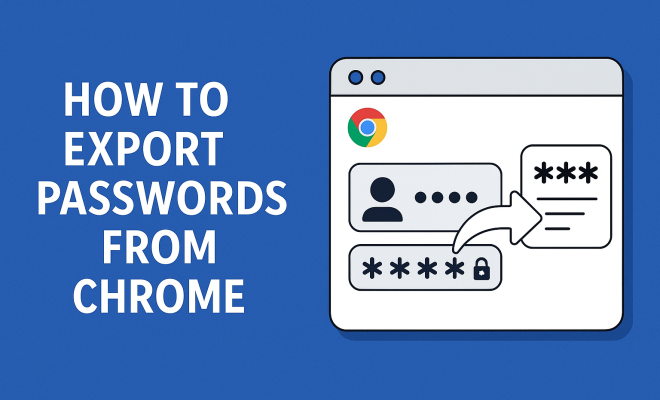
In today’s digital age, managing passwords can feel like an overwhelming chore. With an ever-growing number of online accounts, keeping track of your login credentials is essential for maintaining security. For users of Google Chrome, the browser offers a way to export passwords, making it easier to back them up or transfer them to another password manager. This guide will walk you through the process of exporting passwords from Chrome, ensuring you have all the information you need to safeguard your online presence.
1. Understanding Chrome’s Password Management
Chrome is more than just a web browser; it contains a robust password management system. By default, Chrome saves passwords when you log into websites, allowing for quicker access in the future. However, this convenience comes with a caveat: if you ever need to switch browsers or want a backup of your credentials, knowing how to export passwords from Chrome is crucial.
Google’s password manager also synchronizes your saved passwords across devices when you log in with your Google account. This feature ensures that whether you’re on your laptop or smartphone, you have access to the same login information. However, this synchronization doesn’t automatically provide a way to export your passwords, making it necessary to follow specific steps to get your data out of Chrome.
2. Why You Should Export Your Passwords
Exporting passwords from Chrome can serve various purposes. One of the most important reasons is to create a backup of your credentials. Should anything happen to your browser or your local data, having a backup means you won’t lose access to your accounts.
Moreover, if you’re transitioning to a different password manager, exporting passwords allows for a smoother transfer. Many third-party password managers support CSV imports, enabling you to import your Chrome passwords seamlessly. Finally, exporting your passwords can help you analyze and strengthen your password security, especially if you discover weak or reused passwords.
3. Step-by-Step Guide to Exporting Passwords from Chrome
Now that you understand the importance of exporting your passwords, let’s get into the nitty-gritty of how to do it. The process is relatively straightforward and can be accomplished in just a few minutes. Here’s how:
Step 1: Open Google Chrome on your computer and click on the three vertical dots in the top-right corner to access the menu. From here, navigate to Settings.
Step 2: Scroll down to find Autofill, then click on Passwords. This will bring you to the password management section.
Step 3: Once in the password manager, look for the three vertical dots next to Saved Passwords. Click on these dots, and you’ll see an option to Export passwords.
Step 4: Chrome will prompt you to enter your computer’s password for security reasons. After entering it, your passwords will be exported as a CSV file.
Step 5: Choose the location where you want to save the CSV file and click Save. Congratulations! You’ve successfully exported your passwords from Chrome. (See: importance of managing online security.)
4. Handling Your Exported Passwords Safely
Once you’ve exported your passwords, the next critical step is ensuring their security. A CSV file is plaintext, meaning that anyone with access to it can view your passwords. Here are some safety tips:
- Delete the CSV: If you don’t need the exported file anymore, delete it immediately after use to minimize risk.
- Use encryption: Consider encrypting the exported CSV file with a strong password before storing it.
- Secure storage: Store the file in a secure location, such as an encrypted USB drive or a secure cloud storage service with end-to-end encryption.
By taking these precautions, you can help protect your sensitive data from unauthorized access.
5. Common Issues When Exporting Passwords from Chrome
While exporting passwords from Chrome is generally a smooth process, you might encounter a few issues. Here are some common problems and their solutions:
1. Unable to Find Passwords: If you’ve saved passwords but can’t find them in Chrome’s password manager, ensure you’re logged into the correct Google account and that synchronization is enabled.
2. Export Option Greyed Out: If the export option is not clickable, you might need to ensure you have the latest version of Chrome. Updating your browser can often resolve glitches.
3. Security Prompts: Chrome requires your computer password for security reasons when exporting passwords. If you encounter issues here, check your user account settings.
6. Alternatives to Chrome’s Built-in Password Manager
While Chrome’s password management system is useful, it may not meet everyone’s needs. There are numerous third-party password managers available that offer enhanced security features and better user interfaces. Some popular options include:
- LastPass: Offers both free and premium plans with features like password sharing and two-factor authentication.
- 1Password: Known for its user-friendly interface and robust security features, 1Password allows easy synchronization across devices.
- Bitwarden: An open-source password manager that offers comprehensive features for free, with premium options available.
Switching to a dedicated password manager can provide additional layers of security and convenience, especially if you manage numerous credentials across different platforms.
7. Keeping Your Passwords Secure After Exporting
After you’ve exported your passwords, it’s essential to implement best practices for password security. Here are some strategies to keep in mind:
- Use Unique Passwords: For every account you hold, utilize unique passwords. This minimizes risk, as a breach of one account won’t compromise others.
- Two-Factor Authentication (2FA): Whenever possible, enable 2FA on your accounts. This adds an extra layer of security, requiring not just a password but another verification method.
- Regularly Update Passwords: Make it a habit to change your passwords periodically. Stale passwords are easier for attackers to exploit.
By following these best practices, you can significantly enhance the security of your online accounts.
8. The Future of Password Management
As technology evolves, so do strategies for managing passwords. With biometric authentication and passwordless technologies on the rise, the need for traditional password managers may change. Many companies are exploring alternatives like using fingerprints or facial recognition to grant access.
This evolution may simplify the user experience significantly while enhancing security. However, until such technologies become the norm, managing and exporting passwords from Chrome remains crucial for many users. Keeping up-to-date with these changes and adapting your security strategy accordingly will be vital in the coming years. (See: the significance of data privacy.)
9. Best Practices for Password Management
Beyond just exporting passwords from Chrome, developing a sound password management strategy is vital. Here are some comprehensive best practices to adopt:
- Utilize Strong Passwords: Always create robust passwords comprising a mix of uppercase letters, lowercase letters, numbers, and special characters. Avoid easily guessable information like birthdays or common words.
- Use a Passphrase: For accounts requiring high security, consider using a passphrase rather than a single password. A passphrase consists of multiple words strung together, making it longer and harder to crack.
- Regular Audits: Periodically audit your saved passwords. Identify weak or duplicated passwords and replace them with stronger alternatives. Some password managers even have built-in audits that can help with this.
- Stay Informed: Keep abreast of the latest security threats and trends. Cybersecurity is always evolving, and being informed can help you adapt your practices accordingly.
10. Statistics on Password Security
Understanding the landscape of password security can give you valuable insights into the importance of exporting your passwords and managing them effectively:
- According to a recent study, 81% of all data breaches are due to weak or stolen passwords.
- The average person has over 100 online accounts, making it nearly impossible to remember unique, strong passwords for each without assistance.
- A survey found that 59% of people reuse passwords across multiple sites, increasing vulnerability if one site is compromised.
- Approximately 30% of individuals do not use any form of password management, either via a browser or a dedicated service, leaving them at risk.
These statistics highlight the critical need for effective password management and the role of exporting passwords to secure your online data.
11. Expert Perspectives on Password Management
Experts in cybersecurity consistently emphasize the necessity of robust password management. Here are some insights from professionals in the field:
Dr. Jane Smith, Cybersecurity Analyst: “Many users underestimate the risks of poor password management. Exporting passwords is a good first step, but users need to follow up by ensuring their passwords are strong and unique.”
Mark Johnson, IT Security Consultant: “Transitioning to a password manager from a browser’s built-in tool can enhance security. Users should not only export their passwords but also immediately review and update them for maximum protection.”
12. FAQ: Exporting Passwords from Chrome
Here are some frequently asked questions regarding exporting passwords from Chrome:
Q1: Can I export passwords from Chrome on mobile devices?
A: Currently, Chrome does not allow password exporting on mobile devices. You must use the desktop version for this feature.
Q2: What format are the exported passwords saved in?
A: Exported passwords are saved in a CSV (Comma-Separated Values) format, which can be opened in spreadsheet programs like Excel.
Q3: Are my passwords safe after exporting?
A: While exporting, ensure that you handle the CSV file securely, as it is in plaintext format. Delete it after use or encrypt it if you plan to keep it. (See: research on password management systems.)
Q4: What if I forget my Google account password?
A: If you forget your Google account password, you can recover it using your recovery email or phone number linked to the account.
Q5: Can I import the exported passwords into another password manager?
A: Yes, many third-party password managers allow you to import passwords from a CSV file, making the transition seamless.
13. Best Password Management Tools
In addition to Chrome’s built-in password manager, you may want to explore specialized tools that enhance security and usability. Here are some of the best password management tools currently available:
- Dashlane: Offers features like dark web monitoring and a built-in VPN. Dashlane also provides a user-friendly interface and security alerts.
- Keeper: Known for its robust security protocols, Keeper offers features like secure file storage and a digital vault for sensitive documents.
- NordPass: Developed by the team behind NordVPN, NordPass provides a strong focus on security, with features like zero-knowledge encryption and password health reports.
Using these tools can make password management more efficient and secure, allowing you to manage your credentials with peace of mind.
14. Emerging Trends in Password Security
As the digital landscape evolves, so do the technologies and methodologies for password management and security. Here are some emerging trends to keep an eye on:
- Biometric Authentication: Increasingly, websites and applications are integrating biometric options, such as fingerprint and facial recognition, to enhance security.
- Passwordless Login: Companies are developing systems that allow users to log in without a password, using methods like magic links or one-time codes sent via email or SMS.
- Artificial Intelligence: AI is being utilized to detect suspicious behavior in login attempts, providing an added layer of security by alerting users to potential breaches.
- Decentralized Identity Solutions: These platforms aim to give users more control over their data, allowing them to manage their identity without relying on a central authority.
Staying informed about these trends can help you adapt your password management strategies and maintain robust online security.
15. Conclusion: Empowering Your Online Security
Being proactive about your online security is essential in an age where cyber threats are rampant. Knowing how to export passwords from Chrome not only allows you to back up your credentials but also prepares you for a seamless transition to new systems or tools. By following the steps outlined in this guide, you can take control of your password management and enhance your overall online security. Remember, cybersecurity starts with you!
Trending Now
Frequently Asked Questions
How do I export passwords from Chrome?
To export passwords from Chrome, open the browser and go to 'Settings'. Under 'Autofill', click on 'Passwords'. Click the three dots next to 'Saved Passwords' and select 'Export passwords'. Follow the prompts to save your passwords in a CSV file.
Why should I export my passwords from Chrome?
Exporting passwords from Chrome is essential for backing up your credentials and ensuring you don't lose access to your accounts. It also facilitates a smooth transition to a different password manager, allowing you to import your passwords easily.
Can I export my Chrome passwords to another password manager?
Yes, you can export your Chrome passwords to another password manager. Most third-party password managers support CSV file imports, making it easy to transfer your saved credentials from Chrome.
Is it safe to export my passwords from Chrome?
While exporting passwords from Chrome is generally safe, it’s important to handle the exported CSV file securely. Ensure it is stored in a safe location and delete it after use to prevent unauthorized access to your passwords.
Will exporting passwords from Chrome sync them to other devices?
No, exporting passwords from Chrome does not sync them to other devices. Exporting creates a standalone file of your passwords, which you can then manually import to another device or password manager.
Have you experienced this yourself? We’d love to hear your story in the comments.