How to enable Windows Defender
“`html
1. Understanding Windows Defender
Windows Defender, now officially known as Microsoft Defender, serves as a built-in antivirus and anti-malware solution for Windows operating systems. Initially introduced in Windows XP, it has evolved significantly over the years. Microsoft Defender aims to provide robust security features to protect users from various cyber threats, including viruses, ransomware, spyware, and more. With increasing cyber threats, enabling Windows Defender is crucial for safeguarding your personal information and maintaining system integrity.
One of the standout features of Windows Defender is its integration with Windows Security, which provides a centralized dashboard for managing all security settings. Whether you’re a novice user or a tech-savvy individual, this user-friendly interface allows for easy navigation through the various options available, making it essential to understand how to enable Windows Defender effectively.
2. Why You Need Windows Defender
In an age where cyber threats are rampant, the importance of enabling Windows Defender cannot be overstated. Cybercriminals utilize a range of tactics to infiltrate systems, steal data, and compromise user privacy. According to a report from Cybersecurity Ventures, cybercrime is projected to cost the world $10.5 trillion annually by 2025. Having a reliable defense mechanism like Windows Defender significantly reduces the risks associated with such threats.
Moreover, Microsoft Defender offers real-time protection, ensuring that any malicious activity is detected and neutralized immediately. This proactive approach is especially vital for users who frequently download files, browse the internet, or use external drives, which often serve as entry points for malware. By enabling Windows Defender, you’re equipping your system with a powerful line of defense against these pervasive threats.
3. How to Check if Windows Defender is Enabled
Before diving into how to enable Windows Defender, it’s essential to check its current status. To do this, you can follow a few simple steps. First, navigate to the Start menu and click on the gear icon to open the Settings app. From there, select ‘Update & Security’ and click on ‘Windows Security.’ Here, you will see an overview of your security settings.
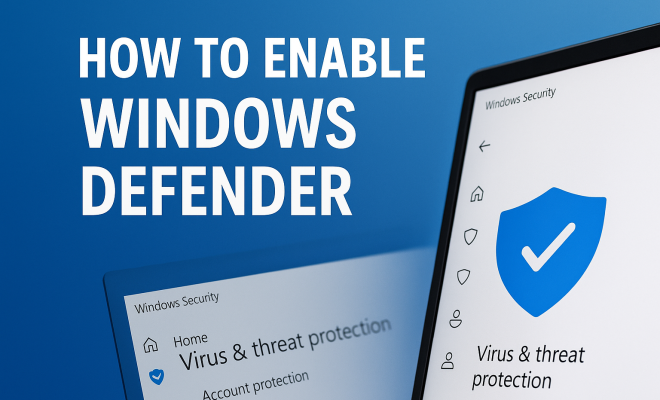
Under the Windows Security section, click on ‘Virus & threat protection.’ If Windows Defender is enabled, you will see a message indicating that your device is being protected. On the other hand, if it’s turned off, you may receive prompts to enable it. This quick check ensures that you know exactly what kind of protection your system currently has.
4. How to Enable Windows Defender
Enabling Windows Defender is a straightforward process, and it can be accomplished in several ways. The most common method involves using the Windows Security app. After confirming that Windows Defender is not enabled, you can go back to the Windows Security settings, click on ‘Virus & threat protection,’ and then select ‘Manage settings’ under the ‘Virus & threat protection settings’ section.
Here, you will find an option to turn on ‘Real-time protection.’ Toggle this switch to the On position. Once enabled, Windows Defender will automatically initiate scans for potential threats and ensure your system remains secure. Additionally, you can check and enable other features like ‘Cloud-delivered protection’ and ‘Automatic sample submission’ for enhanced security.
5. Using the Windows Defender Firewall
While enabling Windows Defender primarily focuses on virus protection, the Windows Defender Firewall plays a crucial role in securing your network connections. A firewall acts as a barrier between your computer and potential threats from the internet. By default, Windows Defender Firewall is enabled on Windows machines, but it’s essential to check its settings to ensure optimal protection.
To access the firewall settings, go to the Control Panel and select ‘System and Security.’ Click on ‘Windows Defender Firewall’ and then view the status of your firewall. If it’s turned off, you can click on ‘Turn Windows Defender Firewall on or off’ to enable it. Remember, having both Windows Defender and the firewall enabled provides a layered security approach, minimizing the chances of cyber intrusions.
6. Configuring Windows Defender Settings
Customizing the settings of Windows Defender allows users to tailor the application to their specific needs. Once you have enabled Windows Defender, you may want to adjust certain parameters like scan frequency and exclusions. In the ‘Virus & threat protection settings,’ you can find various options to optimize your security experience. (See: CDC on cybersecurity threats.)
For example, you can schedule automatic scans to run at times that suit your routine, ensuring that your device is consistently monitored for threats. Additionally, you can define exclusions for specific files or folders that you trust, preventing Windows Defender from blocking legitimate software unnecessarily. This flexibility can greatly enhance your user experience while maintaining high security.
7. Common Issues When Enabling Windows Defender
While enabling Windows Defender is typically a smooth process, users may encounter some common issues along the way. One frequent problem is conflicts with third-party antivirus software. If you have another antivirus program installed, Windows Defender may automatically disable itself to avoid potential conflicts. In such cases, you will need to either uninstall the other antivirus software or adjust its settings to allow Windows Defender to run concurrently.
Another issue could arise from corrupted system files or improper configurations, which can prevent Windows Defender from functioning correctly. If you suspect this is the case, you might need to run the System File Checker tool. Open Command Prompt as an administrator and type ‘sfc /scannow’ to initiate the scan. This process can identify and fix problems that could be hindering your Windows Defender experience.
8. Keeping Windows Defender Updated
Just like any other software, Windows Defender requires regular updates to maintain its effectiveness against new and evolving threats. Microsoft frequently releases updates that include new virus definitions and feature enhancements. To ensure that Windows Defender is up to date, go to the ‘Update & Security’ section in Settings and click on ‘Windows Update.’
Make sure to enable automatic updates, so you’re always protected against the latest threats. Keeping your Windows operating system updated will also support Windows Defender in providing the highest level of protection possible, as many updates include critical security patches.
9. Using Windows Defender Offline Scan
In some cases, malware can prevent Windows Defender from functioning or hide from standard scans. To tackle this, Windows Defender offers an Offline Scan option that can be particularly useful. This feature allows you to perform a thorough scan of your system before the operating system loads, making it more difficult for malware to evade detection.
To use the Offline Scan, navigate to the ‘Virus & threat protection’ settings and select ‘Scan options.’ There, you can choose ‘Microsoft Defender Offline scan.’ Your computer will restart, and the scan will begin before Windows fully loads. This is a powerful tool for dealing with persistent threats and should be a part of your security regimen if you suspect serious malware issues.
10. Advanced Features of Windows Defender
Windows Defender isn’t just about basic virus scanning; it also includes several advanced features that enhance your security. These features leverage machine learning and artificial intelligence to provide better detection rates and faster responses to threats.
10.1. Cloud-Delivered Protection
This feature allows Windows Defender to utilize cloud resources to detect and mitigate threats that may not be present in the local database. By sending data to Microsoft’s cloud, Defender can analyze new threats almost instantly, ensuring that users are protected from the latest malware and vulnerabilities. This kind of intelligence is crucial in an environment where new malware is created every day.
10.2. Controlled Folder Access
Ransomware attacks often involve unauthorized changes to personal files. Windows Defender addresses this by allowing users to enable Controlled Folder Access, which restricts access to important files and folders. If an application tries to change the contents of these folders without permission, it will be blocked. This feature is particularly useful for those who handle sensitive information, as it adds an additional layer of security against unauthorized access and potential data loss.
10.3. Microsoft Defender Application Guard
This is particularly useful for business environments and offers an isolated browsing environment, preventing potentially harmful websites from affecting your system. When you enable Application Guard, any website that is deemed suspicious will be opened in a separate container, ensuring that any potential threats cannot interact with your main operating system. This feature is essential for those who often engage in online shopping or banking, as it significantly lowers the risk of online fraud.
11. Using Windows Defender with Other Security Tools
While Windows Defender is a robust security solution on its own, some users might question whether they can use it alongside other security tools. The good news is that Windows Defender is designed to coexist with other security applications, particularly those that focus on different aspects of cybersecurity, such as VPNs or anti-malware tools. (See: NIST Cybersecurity Framework.)
However, if you choose to install another antivirus program, it’s important to configure it properly to avoid conflicts. Typically, Windows Defender will disable itself when it detects another active antivirus application to prevent performance issues. If you prefer to keep both enabled, ensure that the settings of the third-party application allow for Windows Defender to run concurrently, or consider using features from both in a complementary manner.
12. Tips for Maximizing Windows Defender Protection
To make the most out of Windows Defender, you can implement a few best practices. Regularly updating your software, as mentioned earlier, is critical. Additionally, consider enabling the following options:
- Periodic Scanning: Schedule regular full system scans to ensure that any hidden threats are detected.
- Monitor Security Notifications: Pay attention to alerts and notifications from Windows Defender regarding potential threats and actions taken. This keeps you informed about your system’s security status.
- Educate Yourself on Threats: Stay informed about current cybersecurity threats and adjust your behavior accordingly. Awareness can help you avoid falling victim to phishing attacks or malicious downloads.
13. FAQ: Enabling Windows Defender
13.1. Can I use Windows Defender with another antivirus program?
Yes, you can use Windows Defender alongside other security tools, but conflicts may occur. Windows Defender will deactivate if it detects another antivirus program, but you can configure settings to allow both to coexist if necessary.
13.2. Does enabling Windows Defender slow down my computer?
Generally, enabling Windows Defender should not significantly slow down your computer. However, performance may vary based on your system’s specifications. Modern systems usually handle it well, but older machines might notice some impact during scans.
13.3. Is Windows Defender sufficient for basic security needs?
For most users, Windows Defender provides a robust level of protection. It includes real-time scanning, firewall protection, and various advanced features. However, for those with higher security needs, like businesses handling sensitive data, additional security measures may be beneficial.
13.4. How do I remove a detected threat using Windows Defender?
When Windows Defender detects a threat, it will automatically take action based on your settings. You can view detected items under ‘Virus & threat protection’ and choose to quarantine or remove them. Regularly checking this section is a good practice to ensure your system remains clean.
13.5. Can I disable Windows Defender temporarily?
Yes, you can disable Windows Defender temporarily through the settings. However, it’s crucial to re-enable it as soon as possible to maintain your system’s security. If you need to disable it for troubleshooting, consider doing a quick scan afterward.
14. Advanced Threat Protection with Windows Defender
Windows Defender offers an array of advanced threat protection measures that go beyond basic antivirus functions. This includes features that can identify potential threats using heuristic analysis and behavioral detection, which means it can identify malicious software based on how it acts, not just known signatures. This capability is crucial as it provides protection against zero-day attacks, where no prior signature exists for the malware.
Additionally, Windows Defender’s integration with Microsoft Defender Advanced Threat Protection (ATP) provides enterprise users with a high level of security. ATP is a unified endpoint security platform that helps to prevent, detect, investigate, and respond to advanced threats. It uses a combination of signals from Windows 10 devices, Microsoft Cloud services, and machine learning to provide comprehensive protection across various attack vectors.
15. Statistics on Cyber Threats and Windows Defender Efficacy
Understanding how effective Windows Defender is can be highlighted by looking at statistics in the realm of cybersecurity. According to AV-Test, a respected independent research institute, Windows Defender has achieved a 99.8% detection rate for prevalent malware. This places it competitively against many leading antivirus solutions. As cyber threats evolve, the significance of having a robust detection capability is paramount.
Furthermore, Microsoft reports that users who enable Windows Defender experience significantly fewer malware infections compared to those who do not. For instance, a study indicated that users with Windows Defender active reported 30% fewer incidents of ransomware attacks than those relying on other security solutions. This underscores the importance of enabling Windows Defender as a primary defense mechanism.
16. Real-World Examples of Windows Defender in Action
There are numerous real-world scenarios where Windows Defender has proven its worth. For instance, during a widespread malware outbreak, users who had Windows Defender enabled received prompt notifications about suspicious activities and were able to isolate the threats before they could cause damage. In one case, a notorious ransomware variant was detected and quarantined by Windows Defender within minutes of its release, showcasing its real-time protection capabilities.
Another example involves the use of Controlled Folder Access. Numerous users reported that this feature successfully blocked unauthorized applications from modifying their files during a series of targeted ransomware attacks. By maintaining strict control over which applications can access sensitive files, users effectively mitigated the risk of data loss.
17. Future of Windows Defender
The future of Windows Defender looks promising, with Microsoft continuously investing in improving its capabilities and expanding its reach. As cyber threats evolve, so too must the solutions that protect against them. Microsoft is integrating more artificial intelligence and machine learning into Windows Defender to enhance its threat detection algorithms. This means that as more data is collected, Windows Defender will learn and adapt, making it even more effective over time.
Additionally, as remote work becomes more prevalent, Microsoft is likely to enhance features that cater to mobile and remote device security. The integration of Windows Defender with cloud solutions will also play a crucial role in maintaining a secure environment for all users, whether at home or on the go.
18. Conclusion: Your Security Starts with You
Enabling Windows Defender is just one step in a broader approach to digital security. While it provides robust protection against many threats, it is crucial to practice safe browsing habits, exercise caution when downloading files, and regularly back up important data. Understanding how to enable Windows Defender and configure it to your needs empowers you to take control of your digital security.
By proactively managing your security settings and keeping your software up to date, you can significantly reduce the risks posed by cyber threats. Remember, you are the first line of defense in keeping your computer and personal information safe. Whether you’re a casual user or a business professional, ensuring that Windows Defender is enabled is a simple yet effective way to bolster your security strategy.
“`
Trending Now
Frequently Asked Questions
How do I enable Windows Defender?
To enable Windows Defender, go to the Windows Security app by searching for it in the Start menu. Click on 'Virus & threat protection' and then select 'Manage settings' under Virus protection settings. Toggle the 'Real-time protection' switch to 'On' to activate Windows Defender.
What is Windows Defender used for?
Windows Defender, now known as Microsoft Defender, is used to protect your computer from viruses, malware, ransomware, and other cyber threats. It provides real-time protection and integrates with Windows Security for easy management of security settings.
Is Windows Defender enough for my PC?
For many users, Windows Defender provides adequate protection against most threats. However, for added security, especially for high-risk activities, consider using additional security software alongside it for enhanced protection against more sophisticated cyber threats.
How can I check if Windows Defender is enabled?
To check if Windows Defender is enabled, open the Windows Security app and navigate to 'Virus & threat protection.' If it shows that protection is active and real-time protection is enabled, then Windows Defender is working correctly.
Why is it important to enable Windows Defender?
Enabling Windows Defender is crucial as it provides a robust defense against cyber threats, including malware and ransomware. With the increasing frequency of cyber attacks, having real-time protection helps safeguard your personal information and maintain system integrity.
What did we miss? Let us know in the comments and join the conversation.