How to enable two-factor authentication with 1Password
“`html
Listen, if you’re using a password manager like 1Password, you’ve already taken a massive leap forward in securing your digital life. That’s fantastic! You’re storing complex, unique passwords for every single online account, which is exactly what the experts recommend. But here’s the thing: even with a top-tier tool like 1Password, there’s a crucial, often overlooked step that could leave your entire digital kingdom vulnerable. We’re talking about the brutal oversight of not enabling two-factor authentication (2FA) for your 1Password account itself. It’s like buying the most secure safe in the world and then leaving the key under your doormat. Trust me, it happens more often than you’d think, and it’s a mistake you absolutely cannot afford to make. Let’s dig into why you need to enable two-factor authentication 1Password, and how to do it right.
Think about it: your 1Password account is the master key to everything. Your banking, your email, your social media, your shopping sites — all of it is protected by the strong, unique passwords 1Password generates and stores. If a bad actor ever managed to get hold of your Master Password (through a phishing attack, keylogger, or sheer luck), they’d have the keys to your entire digital life. That’s a terrifying thought, right? This is precisely where two-factor authentication comes in. It adds an extra layer of security, a second lock, making it exponentially harder for anyone to break in, even if they somehow get your Master Password. It’s not just a nice-to-have; it’s an essential, non-negotiable security measure for your most important digital asset.
1. The Unseen Threat: Why Your Master Password Isn’t Enough
Many people assume that a strong, unique Master Password for 1Password is all they need. And while a robust Master Password is absolutely foundational, it’s not an impenetrable shield. Cybercriminals are constantly evolving their tactics, and sophisticated attacks can sometimes bypass even the most complex passwords. Imagine a scenario where you accidentally fall victim to a phishing scam. You might click a malicious link or enter your Master Password into a fake login page that looks incredibly legitimate. Before you know it, a hacker has your Master Password.
Without 2FA enabled, that’s game over. The attacker now has full access to your 1Password vault, and by extension, every single one of your online accounts. This isn’t just theoretical; it’s a real and present danger. Data breaches are common, and sometimes even the most secure services can have their user credentials exposed. If your 1Password Master Password happens to be compromised in such an event, 2FA acts as a critical failsafe, preventing unauthorized access even with the correct password. This is why you must enable two-factor authentication 1Password to provide that crucial extra layer of defense.
2. Understanding Two-Factor Authentication (2FA)
So, what exactly is 2FA? At its core, it’s a security process where users provide two different authentication factors to verify themselves. These factors generally fall into three categories: something you know (like a password), something you have (like a phone or a hardware key), and something you are (like a fingerprint or facial scan). For 1Password, and most online services, 2FA typically involves ‘something you know’ (your Master Password) combined with ‘something you have’ (a code generated by an authenticator app on your phone, or a physical security key).
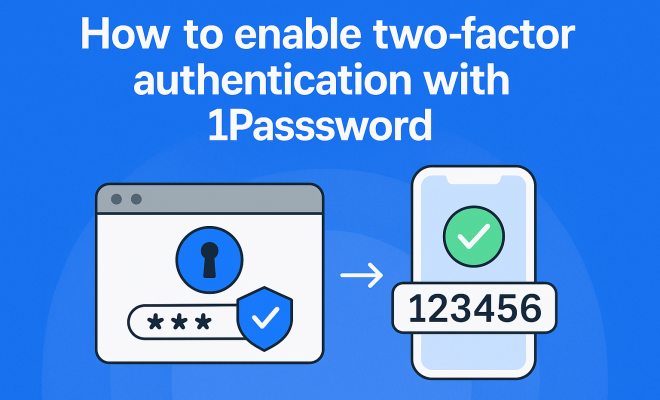
When you attempt to log into your 1Password account with 2FA enabled, you’ll first enter your Master Password as usual. Then, the system will prompt you for a second factor – typically a six-digit, time-based one-time password (TOTP) from an authenticator app. This code changes every 30-60 seconds, making it incredibly difficult for an attacker to intercept or guess. Even if they have your Master Password, they won’t have your phone or hardware key, and therefore can’t generate or access that second code, effectively locking them out.
3. Choosing Your 2FA Method for 1Password
1Password offers a few robust options to enable two-factor authentication. While SMS-based 2FA (codes sent via text message) is available on some platforms, it’s generally considered less secure due to vulnerabilities like SIM-swapping attacks. 1Password wisely focuses on more secure methods. Your primary choices will be an authenticator app or a hardware security key.
Authenticator apps, like Authy or Google Authenticator, are software-based and generate the time-sensitive codes directly on your smartphone. They’re convenient and widely supported. Hardware security keys, such as those from YubiKey or Titan Security Key, are physical devices that plug into your computer’s USB port or connect via NFC/Bluetooth. These are often considered the strongest form of 2FA because they are phishing-resistant and rely on a physical token that’s extremely difficult to compromise remotely. Both are excellent choices, but hardware keys offer an edge in terms of security for those who demand the absolute best protection.
4. Step-by-Step: Setting Up Authenticator App 2FA for 1Password
Let’s walk through the process of how to enable two-factor authentication 1Password using an authenticator app. It’s straightforward, but you’ll want to pay close attention to each step. First, ensure you have an authenticator app downloaded and set up on your smartphone. Popular choices include Authy, Google Authenticator, Microsoft Authenticator, or freeOTP. Pick one you’re comfortable with and install it. (See: importance of digital security practices.)
Next, log into your 1Password account on the web at 1Password.com. Once you’re in, navigate to your Profile or Security settings. You’ll typically find an option labeled ‘Two-Factor Authentication’ or ‘Two-Step Verification.’ Click on that. 1Password will then present you with a QR code. Open your authenticator app, tap the option to add a new account, and choose to scan a QR code. Point your phone’s camera at the QR code displayed on your computer screen. The authenticator app will then add 1Password to its list and immediately start generating 6-digit codes. Enter the current code from your authenticator app into the field on the 1Password website to confirm the setup. And just like that, you’ve significantly hardened your 1Password security!
5. Embracing Hardware Security Keys with 1Password
For those seeking the pinnacle of personal account security, hardware security keys are the way to go. These small physical devices leverage FIDO (Fast Identity Online) standards, making them exceptionally resistant to phishing attacks. Unlike authenticator apps, which display codes, a hardware key communicates directly with the website, verifying your presence and the legitimacy of the site. This means even if you’re tricked into visiting a fake login page, the hardware key won’t authenticate, protecting you from inadvertently giving away your credentials.
To enable two-factor authentication 1Password with a hardware key, the process is similar to setting up an authenticator app, but with a physical interaction. After logging into 1Password.com and navigating to the 2FA settings, you’ll select the option to add a security key (often labeled ‘FIDO Security Key’ or ‘U2F Key’). You’ll then be prompted to insert your key into a USB port or tap it to your device (if it’s NFC-enabled). Follow the on-screen instructions, which usually involve touching the key to confirm your presence. You might want to register at least two keys: one as your primary and another as a backup, stored securely in a different location, just in case you lose or damage your main key. This redundancy is crucial for maintaining access.
6. Crucial Considerations: Backup Codes and Recovery
Okay, so you’ve enabled 2FA. Fantastic! But what happens if you lose your phone, or your hardware key goes missing, or gets damaged? This is where backup codes and proper recovery procedures become absolutely critical. When you set up 2FA, 1Password will typically provide you with a set of one-time backup codes. These are typically 10-12 alphanumeric codes that you can use to log in if you don’t have access to your primary 2FA method.
Do NOT skip saving these codes. Print them out, store them in a secure physical location (like a safe deposit box or a home safe), and perhaps save them encrypted on a USB drive that’s also stored securely. Do not store them on your computer or phone where they could be easily compromised. Each code can only be used once. Once you use a backup code, it becomes invalid. If you ever run low on codes, 1Password will prompt you to generate a new set. Think of these as your emergency keys – you hope you never need them, but you’ll be incredibly grateful to have them if you do. Without them, losing your 2FA device could mean being locked out of your 1Password account permanently, which would be a digital disaster.
7. The Security Benefits Beyond the Basics
While the immediate benefit of 2FA is preventing unauthorized access even if your Master Password is stolen, the advantages extend further. By making your 1Password account significantly harder to compromise, you’re also protecting the integrity of all the other accounts stored within it. If a hacker can’t get into your 1Password, they can’t get into your bank, your email, or any other critical service.
Furthermore, by adopting 2FA for 1Password, you’re building a habit of robust security. This often translates to enabling 2FA on other critical accounts like your email provider, social media, and financial institutions. It raises your overall security posture and makes you less of an attractive target for cybercriminals. It’s a proactive step that demonstrates a commitment to personal cybersecurity, moving beyond just ‘good enough’ to truly secure your digital footprint. This is why it’s so important to enable two-factor authentication 1Password and then extend that practice to other crucial online services.
8. Common Pitfalls and How to Avoid Them
Even with the best intentions, people sometimes make mistakes when setting up or using 2FA. One common pitfall is not saving those crucial backup codes we just talked about. I’ve seen countless stories of users locked out because they lost their phone and didn’t have their recovery options. Another mistake is using the same authenticator app on multiple devices without proper synchronization, leading to confusion or issues if one device is lost. If you use an authenticator app, ensure it’s backed up or can be restored to a new device.
For hardware keys, the primary pitfall is not having a backup key. Losing your single hardware key without a secondary option or backup codes is a recipe for disaster. Also, be wary of phishing attempts even with 2FA; while hardware keys are highly phishing-resistant, some social engineering tactics might still trick you into revealing backup codes or other sensitive information. Always be suspicious of unexpected login prompts or requests for security codes. Your vigilance is the final, most important layer of defense.
9. Making 2FA a Habit: Beyond 1Password
Once you’ve taken the essential step to enable two-factor authentication 1Password, don’t stop there. Think of your 1Password vault as the crown jewel, and now you’ve secured its main entrance. But what about the other doors to your digital life? Your email account, for instance, is often the ‘reset’ button for many other services. If someone gains access to your email, they can initiate password resets for dozens of your other accounts. Therefore, securing your primary email with 2FA is equally, if not more, critical. (See: NIST Cybersecurity Framework.)
Extend this mindset to your banking apps, social media, and any service that holds sensitive personal information. Most major online platforms now offer 2FA as an option, and it’s almost always a good idea to turn it on. By consistently applying 2FA across your most important accounts, you’re building a formidable defense against the ever-present threat of cyberattacks. It might add a few seconds to your login process, but those few seconds are a small price to pay for peace of mind and robust digital security. Don’t leave your digital life exposed; make 2FA a universal habit.
10. Understanding the Different Types of 2FA
When it comes to two-factor authentication, there are several methods to choose from. Each has its own level of security and convenience. Here’s a breakdown:
- SMS Codes: While these codes sent via text messages may be convenient, they’re the least secure method of 2FA. SMS is susceptible to interception through SIM swapping or other methods.
- Authenticator Apps: Apps like Google Authenticator or Authy generate time-limited codes. They’re more secure than SMS because they don’t rely on cellular networks.
- Hardware Security Keys: As mentioned earlier, these devices provide the highest level of security by requiring a physical token for authentication. They are resistant to phishing and other attacks.
- Biometric Authentication: Using fingerprints or facial recognition adds another layer of security. Many devices today have built-in biometric capabilities that can easily integrate with 2FA.
Choosing the right method depends on your needs and your threat model. If you’re handling highly sensitive information, hardware keys and biometric authentication are generally recommended.
11. Statistics that Highlight the Importance of 2FA
To understand just how critical it is to enable two-factor authentication 1Password, consider these statistics:
- According to a study by Google, 2FA can block up to 100% of automated bot attacks and 96% of phishing attacks.
- A report from Microsoft revealed that 99.9% of account compromises can be prevented with 2FA.
- In a survey conducted by the Cybersecurity and Infrastructure Security Agency (CISA), 80% of breaches could be prevented with the implementation of 2FA.
These numbers speak volumes about the effectiveness of 2FA in protecting your accounts and personal information.
12. Expert Perspectives on 2FA
Cybersecurity experts consistently emphasize the importance of implementing two-factor authentication. Renowned security expert Bruce Schneier has stated that “2FA is one of the best ways to secure your accounts.” He highlights that even if a password is compromised, the additional layer of authentication significantly mitigates the risk of unauthorized access.
Another expert, Troy Hunt, the creator of the data breach notification service Have I Been Pwned, echoes this sentiment, stating, “Adding 2FA is like putting a deadbolt on your door — it’s an additional layer of security that makes it harder for attackers.” This analogy helps to visualize how simple yet effective 2FA can be in protecting your online accounts.
13. Frequently Asked Questions (FAQ)
What happens if I lose my phone with 2FA enabled?
If you lose your phone, you can use the backup codes provided during the setup process to access your 1Password account. Ensure you store these codes securely. (See: two-factor authentication effectiveness.)
Can I use 2FA on multiple devices?
Yes, you can set up 2FA on multiple devices, but make sure they are synchronized properly. Using the same authenticator app across devices can help with this.
Is 2FA necessary for all accounts?
While it may not be necessary for every account, any account that holds sensitive information or financial details should definitely have 2FA enabled.
Are hardware keys worth the investment?
Absolutely! If you handle sensitive information, the investment in a hardware key can provide peace of mind and an unparalleled level of security.
What if I don’t want to use SMS for 2FA?
You can choose an authenticator app or hardware security key instead, both of which are more secure alternatives to SMS.
Does enabling 2FA affect my login experience?
While it adds an extra step to the login process, the added security is well worth the minor inconvenience.
Securing your 1Password account with two-factor authentication isn’t just a recommendation; it’s a fundamental requirement for anyone serious about online security. By adding that crucial second layer of verification, you’re turning your 1Password vault into a digital fortress, protecting not just your passwords, but your entire digital identity from the relentless threats of the internet. Take the time to set it up today – your future self will thank you for it.
“`
Trending Now
Frequently Asked Questions
Why should I enable two-factor authentication for my 1Password account?
Enabling two-factor authentication (2FA) for your 1Password account adds an essential layer of security. Even if someone gains access to your Master Password, 2FA makes it exponentially harder for them to access your accounts, protecting your sensitive information from cybercriminals.
What is two-factor authentication and how does it work?
Two-factor authentication (2FA) is a security process that requires two different forms of identification before granting access. Typically, this involves something you know (like your Master Password) and something you have (like a code sent to your mobile device), adding an extra barrier against unauthorized access.
How do I enable two-factor authentication in 1Password?
To enable two-factor authentication in 1Password, log in to your account, go to the security settings, and select the option to enable 2FA. Follow the prompts to link an authentication app or receive codes via SMS, ensuring your account is much more secure.
Is a strong Master Password enough for securing my 1Password account?
While a strong Master Password is crucial, it is not enough on its own. Cybercriminals can use various tactics to compromise passwords. Enabling two-factor authentication provides an additional layer of protection, making it significantly harder for anyone to access your account.
What happens if I lose access to my two-factor authentication method?
If you lose access to your two-factor authentication method, you may have difficulty logging into your 1Password account. It's essential to set up backup recovery options, such as recovery codes or alternative authentication methods, to regain access if needed.
Agree or disagree? Drop a comment and tell us what you think.