How to enable touch up appearance on Zoom
“`html
In the age of remote work and virtual meetings, having a polished appearance during video calls has become increasingly important. One feature that users often seek to enhance their on-screen presence is the ability to enable touch up appearance on Zoom. This tool can be a game-changer for anyone looking to present themselves in the best light, whether for business meetings, online classes, or casual catch-ups. If you’ve ever found yourself wondering how to achieve that ideal look on Zoom, you’re in the right place. Here’s everything you need to know about enabling touch up appearance on Zoom.
1. Understanding Touch Up Appearance
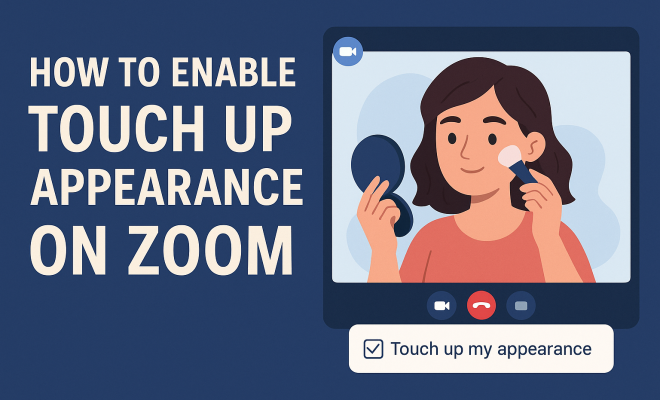
The touch up appearance feature on Zoom is designed to enhance your video feed by smoothing out skin tones and reducing the visibility of imperfections. Think of it as a digital filter that helps give you a more polished and refined look. This feature is particularly useful in professional settings where first impressions matter. By minimizing distractions caused by blemishes, fine lines, or uneven skin tones, touch up appearance allows you to focus more on your presentation and less on your appearance.
While the touch up appearance feature can be beneficial, it’s important to use it judiciously. Overuse can lead to an unnatural look, which may detract from the authenticity you want to convey in your meetings. Striking the right balance is key to ensuring you look professional while still appearing like yourself.
2. How to Enable Touch Up Appearance on Zoom
Enabling touch up appearance on Zoom is a straightforward process. Here’s a step-by-step guide to help you activate this feature:
- Step 1: Launch the Zoom application on your device, whether it’s a computer or mobile app.
- Step 2: Click on your profile picture located in the top right corner.
- Step 3: From the drop-down menu, select Settings.
- Step 4: In the settings menu, navigate to the Video tab.
- Step 5: Look for the option labeled Touch up my appearance and check the box next to it.
- Step 6: Adjust the slider to control the intensity of the effect, if applicable.
- Step 7: You can preview how it looks by enabling your camera while in the settings.
- Step 8: Once satisfied, close the settings menu. Your changes will be saved automatically.
- Step 9: Join or start a meeting to see the effect live!
With just a few clicks, you can ensure that you look your best for every Zoom call.
3. Adjusting Video Settings for Optimal Appearance
In addition to enabling touch up appearance, other video settings can help enhance your look during Zoom calls. Consider these adjustments:
- Use Virtual Backgrounds: If you’re not in a tidy space, using a virtual background can help maintain focus on you rather than your surroundings. You can choose from Zoom’s preset options or upload your own image.
- Good Lighting: Natural light is your best friend. Position yourself facing a window or invest in a ring light to ensure your face is well-illuminated, which complements the touch up appearance effect.
- Camera Angle: Place your camera at eye level. An angled camera can create unflattering shadows. A straightforward, head-on angle will present you in the best light.
These additional settings work in tandem with touch up appearance to create a polished and professional look.
4. The Psychological Impact of Your Appearance on Zoom
Believe it or not, how you appear on video calls can significantly influence not only how others perceive you but also how you feel about yourself. Studies suggest that a person’s self-image can affect their confidence levels. When you enable touch up appearance on Zoom, you might feel more at ease and less distracted by your appearance, allowing you to focus on the conversation at hand.
Moreover, your appearance can also influence the dynamics of the meeting. When you project confidence through a polished appearance, others are likely to respond positively, enhancing the overall interaction. As such, taking advantage of the touch up appearance feature can foster better communication and rapport in remote settings.
5. Common Misconceptions About Touch Up Appearance
Despite its popularity, there are several misconceptions surrounding the touch up appearance feature. Here are a few to clarify: (See: CDC on telework and ergonomics.)
- Myth 1: Touch up appearance is only for women. This feature is beneficial for anyone wanting to enhance their video presence, regardless of gender.
- Myth 2: It makes you look unnatural. When used correctly, touch up appearance can enhance your look without making it obvious. The key is to adjust the intensity to find what works best for you.
- Myth 3: You need a fancy camera to benefit. While better quality cameras can enhance your video, the touch up appearance feature is designed to improve your look regardless of your camera quality.
Understanding these myths can empower you to use the feature effectively and with confidence.
6. Comparing Zoom’s Touch Up Appearance with Other Platforms
Zoom isn’t the only video conferencing platform offering tools to enhance appearance. Here’s how it stacks up against competitors:
- Microsoft Teams: Microsoft Teams has a similar feature called “Adjust for low light,” which helps brighten your image in dim conditions, but lacks a dedicated touch up appearance function.
- Google Meet: Google Meet recently introduced a feature that allows users to apply filters to their video, including options for blurring backgrounds and adjusting brightness, but it does not offer a direct touch up appearance feature.
- Skype: Skype allows users to apply various effects and has options for adjusting brightness and contrast, but again lacks a specific touch up appearance tool.
Overall, Zoom’s touch up appearance feature is unique and stands out for its specific focus on enhancing skin tone and minimizing imperfections.
7. Practical Tips for Using Touch Up Appearance
For those looking to make the most of the touch up appearance feature on Zoom, here are some practical tips:
- Experiment with the Slider: Don’t just set it and forget it. Experiment with the slider to find the right level of touch up for your needs. Sometimes a subtle enhancement can be more effective than an overpowering effect.
- Pair with Makeup: If you wear makeup, consider that the touch up appearance feature doesn’t replace it. Use makeup to create a base, then enable touch up appearance for a polished finish.
- Regular Updates: Keep your Zoom application up to date. The developers frequently roll out enhancements and new features that could further improve your experience.
Using these tips will help you maximize the benefits of this feature, ensuring that you look your best in every video call.
8. The Future of Video Conferencing Enhancements
As remote work becomes a permanent fixture in many industries, the demand for video conferencing enhancements is likely to grow. Companies like Zoom will continue to innovate and introduce features that not only facilitate communication but also improve user experience. This could include advanced filters, enhanced virtual backgrounds, or even AI-driven tools that adapt to individual user needs.
As technology progresses, it’s crucial for users to stay informed about new features that can enhance their online presence and communication effectiveness. Keeping an eye on updates from platforms like Zoom can help you take advantage of these innovations as they become available.
9. Final Thoughts on Touch Up Appearance in Zoom
Enabling touch up appearance on Zoom can significantly change how you present yourself in virtual meetings. This powerful tool allows for a polished and professional appearance while helping to boost your confidence. By understanding how to effectively use this feature and combining it with other video settings, you can create a strong, positive impression in your calls.
As we continue to adapt to a world where video communication is a norm, leveraging features like touch up appearance will not only enhance your video presence but also contribute to more effective and engaging conversations. So, go ahead and enable touch up appearance on Zoom for your next meeting — your future self will thank you!
10. Understanding the Technical Aspects of Video Quality
When using Zoom, various technical elements impact the overall quality of your video feed. While touch up appearance enhances your look, understanding the underlying technology can also help you achieve a more professional appearance. Here are some important aspects to consider:
- Resolution: The resolution of your camera significantly affects how you appear on screen. Higher resolutions (720p, 1080p) provide clearer images, reducing blurriness and making touch up appearance more effective.
- Internet Speed: A stable internet connection is crucial for maintaining video quality. Zoom recommends a minimum upload speed of 1.5 Mbps for 720p video and 3 Mbps for 1080p video. Poor internet can lead to lagging video and reduced quality, negating the benefits of touch up appearance.
- Background Noise: Audio quality is just as important as video quality. Make sure to use a good microphone and ideally a quiet space to ensure your voice is clear, which complements your polished appearance.
Understanding these technical elements can significantly improve your overall video conferencing experience and make your touch up appearance feature work even better.
11. Expert Tips on Professional Appearance in Virtual Meetings
To further enhance your on-screen presence, consider these expert tips: (See: AP News on virtual meetings.)
- Dress the Part: Just because you’re at home doesn’t mean you should dress down. Wearing professional attire can set the right tone for your meeting and help you feel more confident.
- Mind Your Posture: Body language communicates a lot during video calls. Sit up straight and maintain eye contact with the camera to show engagement and confidence.
- Minimize Distractions: Ensure your surroundings are tidy and free of interruptions. This allows viewers to focus solely on you and your message.
- Practice Good Etiquette: Mute yourself when not speaking, and make sure to introduce yourself when joining a new meeting. Good manners go a long way in making a positive impression.
By combining these tips with the touch up appearance feature, you can create a lasting impression during your Zoom meetings.
12. Frequently Asked Questions (FAQ)
1. Can I use touch up appearance on my mobile device?
Yes, the touch up appearance feature is available on both desktop and mobile versions of Zoom. The settings can be accessed in the same way from the mobile app as they are on a computer.
2. Will using touch up appearance affect my video quality?
Not necessarily. Touch up appearance works by applying a digital filter to your video feed, which should not affect the overall quality of your video. However, using this feature alongside other enhancements can help create a more polished look.
3. Is touch up appearance available for all Zoom accounts?
Yes, touch up appearance is available for all Zoom users, regardless of whether they have a free or paid subscription. This means everyone can benefit from a more enhanced video presence.
4. Can I turn off touch up appearance during a meeting?
Absolutely! You can toggle the touch up appearance feature on and off at any time during a meeting. Simply go to the video settings and uncheck it if you want to disable the effect.
5. Are there any age limitations on using touch up appearance?
No, there are no age restrictions for using the touch up appearance feature. It is accessible to all users of Zoom, making it a versatile tool for anyone looking to enhance their video calls.
6. What if I accidentally enabled touch up appearance and don’t know how to turn it off?
If you’ve enabled touch up appearance and want to turn it off, go back to the video settings in the Zoom application. Uncheck the box next to the touch up appearance option, and your settings will update instantly.
7. Is there a limit to how much I can adjust the touch up appearance?
While you can adjust the intensity of the touch up appearance feature, it is recommended to keep adjustments subtle for a natural look. The slider allows you to find a balance that enhances rather than overhauls your appearance. For more on this, see Zoom basics for educators.
8. Can I use touch up appearance with virtual backgrounds?
Yes, you can use touch up appearance in conjunction with virtual backgrounds. Both features work together to enhance your overall video presence while keeping the focus on you.
9. Will touch up appearance affect my facial features during video calls?
Touch up appearance is designed to smooth and refine your look; it won’t change your facial features drastically. The effect is subtle and focuses on enhancing your overall appearance rather than altering who you are. (See: BBC article on video call appearance.)
10. Is touch up appearance effective for all skin types?
Yes, touch up appearance is designed to work across various skin tones and types. The goal is to create a more uniform appearance regardless of individual characteristics.
13. Exploring Alternatives to Touch Up Appearance
While Zoom’s touch up appearance feature is handy, you might want to explore other ways to enhance your appearance during video calls. Here are a few alternatives that you can consider:
- Professional Lighting Kits: Investing in a good lighting kit can drastically improve your video quality. LED lights can help eliminate shadows and ensure your skin tone appears natural and vibrant.
- High-Quality Webcams: Upgrading to a high-resolution webcam can enhance your overall look. Cameras with a higher frame rate and resolution capture more detail and color accuracy, making touch up appearance even more effective.
- Photo Editing Software: For pre-recorded video content, consider using editing software that offers skin retouching features. This allows for more artistic control over how you present yourself in videos.
Consider these alternatives if you’re looking for additional ways to maintain a polished and professional presence during your virtual meetings.
14. The Role of Lighting in Your Zoom Appearance
Lighting plays a critical role in how you appear on camera and can either enhance or detract from the effectiveness of the touch up appearance feature. Here are some tips for optimizing lighting during your Zoom calls:
- Natural Light: Whenever possible, use natural light by positioning yourself near a window. The soft light provides a flattering effect and enhances your overall appearance.
- Softbox Lights: If natural light isn’t available, consider using softbox lights. They diffuse light and reduce harsh shadows, which can help create a more balanced and flattering look.
- Backlighting: Avoid sitting with bright lights or windows directly behind you, as this can create a silhouette effect. Instead, position lights in front of you to illuminate your face evenly.
By paying attention to your lighting setup, you can further enhance the benefits of touch up appearance on Zoom.
15. Engaging with Others on Zoom: The Importance of Eye Contact
Making eye contact during video calls is essential for effective communication. It helps establish trust and connection with your audience. Here are some strategies to enhance your eye contact during Zoom meetings:
- Look at the Camera: When speaking, try to look directly at the camera rather than the screen. This simulates eye contact with your viewers and engages them more effectively.
- Position Your Monitor Correctly: Adjust your monitor so that the camera is at eye level. This makes it easier to maintain eye contact while also allowing you to see the faces of your participants.
- Use Speaker View: Zoom’s Speaker View allows you to focus on the person talking while still being able to monitor the reactions of others. This can help you connect with your audience while maintaining engagement.
Enhancing your eye contact skills can complement the professional appearance you create with touch up appearance, making your interactions more impactful.
“`
Trending Now
Frequently Asked Questions
How do I enable touch up appearance on Zoom?
To enable touch up appearance on Zoom, launch the app, click your profile picture in the top right corner, select 'Settings', go to the 'Video' tab, and look for the 'Touch up my appearance' option to activate it.
What is the touch up appearance feature on Zoom?
The touch up appearance feature on Zoom enhances your video feed by smoothing skin tones and reducing imperfections, providing a more polished look while maintaining authenticity during video calls.
Is touch up appearance on Zoom worth using?
Using touch up appearance on Zoom can be beneficial for presenting a polished image in professional settings. However, it should be used judiciously to avoid an unnatural look that could detract from your authenticity.
Can I adjust the touch up appearance settings on Zoom?
Currently, Zoom does not offer adjustable settings for the touch up appearance feature; it is either on or off. Users can enable it to achieve a smoother appearance during video calls.
Does touch up appearance work on all devices?
Yes, the touch up appearance feature is available on both the Zoom desktop and mobile applications, allowing users to enhance their appearance during video calls regardless of the device used.
Agree or disagree? Drop a comment and tell us what you think.