How to edit videos in GoPro app
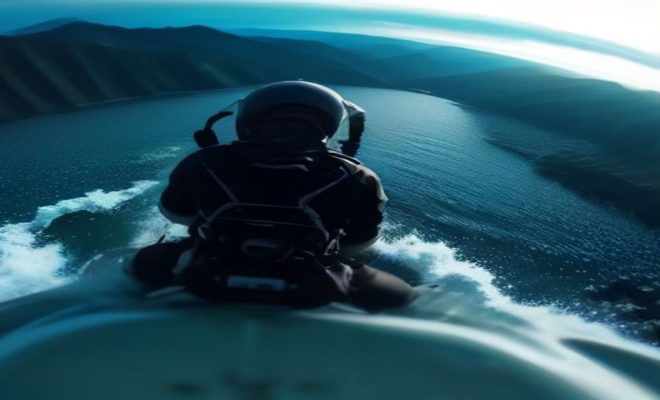
GoPro cameras have become synonymous with adventure, capturing everything from epic surf sessions to serene mountain hikes. But let’s be honest, shooting the footage is only half the battle. The real magic often happens in post-production, transforming raw clips into compelling stories that captivate your audience. And while professional editing suites certainly have their place, the convenience and power of the GoPro Quik app, available right on your smartphone, is truly a game-changer for many.
It’s designed to be intuitive, letting you quickly review, trim, and enhance your footage without needing a powerful desktop setup. For anyone looking to share their adventures swiftly, or even just compile personal memories, knowing how to edit videos in the GoPro app is an invaluable skill. You can move from capturing a moment to sharing a polished video in minutes, all from the device you probably carry everywhere anyway. This article will walk you through eight essential tricks to master video editing in the GoPro app, helping you get the most out out of your action camera footage.
1. Importing and Organizing Your Footage: The Foundation of Good Editing
Before you can even think about trimming or adding music, you need to get your footage into the app. The GoPro Quik app makes this remarkably straightforward, offering a couple of primary methods. Most commonly, you’ll connect your GoPro camera directly to your smartphone via Wi-Fi. The app will automatically detect your camera and display its media gallery. From there, you can browse thumbnails, select the clips you want to work with, and initiate the download to your phone’s local storage or the app’s media library. This direct connection is often the fastest way to get your content off the camera and into your editing workflow, especially if you’re on the go and don’t have access to a computer.
Alternatively, if you’ve already transferred your footage to your phone’s photo library – perhaps you used a USB cable, an SD card reader, or even GoPro’s cloud service – you can import those clips into the Quik app as well. The app integrates seamlessly with your device’s native photo and video galleries, allowing you to select footage from there. Once imported, the app provides basic organizational tools. You can create different ‘Stories’ or projects, grouping related clips together, which becomes incredibly helpful when you’re dealing with hours of footage from multiple outings. Good organization from the start will save you a ton of headaches later when you’re trying to locate that one perfect shot from last summer’s road trip.
2. Mastering the Trim and Cut Tools: Precision Editing on the Go
The most fundamental aspect of video editing is trimming. Nobody wants to watch five minutes of shaky footage leading up to the actual exciting event. The GoPro Quik app excels at making this process incredibly easy, even for beginners. Once you’ve selected a clip for your project, you’ll see a timeline representation of your video. You can drag the start and end points of the clip to define exactly which portion you want to keep. This non-destructive editing means you’re not actually deleting anything from the original file; you’re just telling the app which segment to use in your current project. It’s a huge relief, knowing you can always go back to the original if you make a mistake or change your mind.
Beyond simple trimming, the app also allows for more precise cuts. If you have a longer clip with multiple interesting moments, you can ‘split’ it into several smaller segments. This is particularly useful for removing unwanted sections from the middle of a clip, like a dull transition or a moment where you fumbled with the camera. You can then reorder these segments, or even delete the unwanted ones entirely. The interface uses clear visual cues and large touch targets, which makes precise adjustments surprisingly manageable on a small smartphone screen. Getting comfortable with these basic trim and cut tools is foundational to knowing how to edit videos in the GoPro app effectively, as it’s the first step in shaping your raw footage into a coherent narrative.
3. Applying Filters and Color Correction: Enhancing Visual Appeal
Even the best GoPro footage can sometimes benefit from a little visual polish. Environmental conditions, lighting, and even the camera’s settings can affect the final look of your video. The Quik app offers a selection of filters and basic color correction tools that can dramatically improve your video’s aesthetic with just a few taps. Think of filters as quick presets that adjust brightness, contrast, saturation, and color temperature to achieve a specific mood or style. You might choose a vibrant filter for a sunny beach scene or a cooler, more muted one for a cloudy mountain landscape. Experimentation is key here; what looks great on one clip might not work on another.
Beyond the pre-set filters, you also have access to manual adjustments. You can fine-tune parameters like exposure, contrast, highlights, shadows, and warmth. This level of control, usually reserved for more advanced desktop editors, is a powerful feature to have on your phone. For instance, if your underwater footage looks a bit too green, you can dial down the green tint and boost the blues. If a sunset shot is slightly underexposed, you can gently lift the shadows to reveal more detail without blowing out the highlights. These subtle tweaks can make a massive difference, transforming flat, uninspired footage into something truly eye-catching and professional-looking. Learning to effectively use these tools is a major step in learning to edit videos in the GoPro app like a pro. (See: GoPro overview on Wikipedia.)
4. Adding Music and Soundtracks: Setting the Mood and Pace
Music is the heart and soul of many great videos. It sets the tone, dictates the pace, and can evoke powerful emotions in your audience. The GoPro Quik app offers an extensive library of royalty-free music tracks that you can easily integrate into your projects. These tracks are categorized by genre and mood, making it simple to find something that complements your footage – whether it’s an upbeat track for an action sequence or a mellow tune for a scenic montage. The app also intelligently syncs your video edits to the beat of the music, which is a fantastic feature that instantly elevates the professional feel of your creation without any manual timing headaches on your part.
Of course, you’re not limited to the app’s built-in library. You can also import music from your phone’s personal music library, provided you have the rights to use it (always be mindful of copyright if you plan to share publicly). Once you’ve added a track, you have control over its volume, allowing you to blend it seamlessly with your original video audio. You can also trim the music to fit the length of your video, or loop it if your video is longer than the track. The ability to fade music in and out at the beginning and end of your video adds another layer of polish. Properly chosen and mixed music can transform a collection of clips into a dynamic, engaging story, making this a critical aspect when you edit videos in the GoPro app.
5. Utilizing Speed Control and Slow Motion: Emphasizing Key Moments
One of the most impactful ways to add dramatic flair or emphasize a particular action is through speed control. The GoPro Quik app gives you precise command over the playback speed of your clips, allowing you to create stunning slow-motion effects or speed up mundane moments. Imagine capturing a perfectly executed jump; slowing it down to a fraction of its original speed can highlight the athlete’s form and the sheer physics of the moment, creating a captivating visual. Conversely, if you have a long, uneventful section, like walking to a viewpoint, speeding it up as a hyperlapse can condense time and maintain viewer engagement. This is one of those features that, once you start using it, you’ll wonder how you ever edited without it.
The app allows you to apply speed changes to entire clips or even specific segments within a clip, giving you incredible flexibility. You can create ‘ramping’ effects, where the video smoothly transitions from normal speed to slow motion and back again, which looks incredibly professional. GoPro cameras are renowned for their high frame rate capabilities (like 240fps or 120fps), which are perfect for producing buttery-smooth slow-motion footage without any choppiness. When you combine high frame rate capture with the app’s intuitive speed controls, you unlock a whole new dimension of storytelling. Mastering speed adjustments is truly a crucial step when you want to edit videos in the GoPro app to create visually stunning and dynamic content.
6. Adding Text Overlays and Titles: Providing Context and Engagement
Sometimes, your visuals alone aren’t enough to convey all the necessary information or add a personal touch. That’s where text overlays and titles come in. The GoPro Quik app allows you to easily add text to your videos, providing context, introducing locations, identifying people, or even just adding a witty caption. This feature is incredibly useful for travel vlogs, instructional videos, or simply for dating your memories. You can choose from various fonts, colors, and styles to match the overall aesthetic of your video. This might seem like a small detail, but well-placed and well-designed text can significantly enhance viewer understanding and engagement.
Beyond simple text, you can also animate your titles and overlays. This means the text can fade in, slide across the screen, or appear with other dynamic effects, making your video feel more polished and professional. You have control over the duration for which the text appears on screen and its position, ensuring it doesn’t obscure important visual information. Imagine a quick title card at the beginning introducing your adventure, or a small overlay identifying a specific landmark as you pass it. These elements help guide your audience through your story and add a layer of production value that sets your videos apart. Using text effectively is a key skill to develop when you edit videos in the GoPro app for public consumption.
7. Leveraging QuikStories and Automatic Edits: Instant Gratification
Let’s be real: sometimes you don’t have the time or inclination to meticulously craft every edit. That’s where the GoPro Quik app’s signature ‘QuikStories’ feature, along with its automatic editing capabilities, truly shines. This intelligent functionality can analyze your imported footage, identify the best moments, and automatically create a polished, shareable video complete with music, transitions, and effects. It’s like having a miniature editor working tirelessly behind the scenes, all with a few taps. For those moments when you just want to quickly compile a highlight reel from a day out, this feature is an absolute lifesaver.
The beauty of QuikStories isn’t just in its automation; it’s also in its flexibility. While the app does most of the heavy lifting, you’re not locked into its initial suggestions. You can still go in and tweak the automatically generated video, swapping out clips, adjusting music, changing themes, or fine-tuning the length. This hybrid approach gives you the best of both worlds: instant results when you need them, and the option for further customization when you have more time or a specific vision in mind. It’s a fantastic entry point for beginners to see what’s possible, and a huge time-saver for experienced users who need a quick turnaround. This feature truly exemplifies the ‘quick’ in Quik app, making it incredibly easy to edit videos in the GoPro app.
8. Exporting and Sharing Your Masterpiece: Reaching Your Audience
You’ve put in the work, meticulously trimmed, enhanced, and polished your video. Now comes the satisfying final step: sharing it with the world. The GoPro Quik app makes exporting and sharing your finished projects incredibly straightforward. Once your video is complete, you’ll find clear options to save it to your phone’s gallery. You can usually choose the resolution and quality settings, allowing you to balance file size with visual fidelity. For most social media platforms, 1080p is perfectly adequate and offers a good balance, but if you shot in 4K and want to preserve that detail, the app often supports 4K export as well, depending on your device’s capabilities. (See: CDC on physical activity and adventure.)
Beyond saving locally, the app also provides direct sharing options to a variety of popular social media platforms and messaging apps. With just a few taps, you can upload your video directly to Instagram, Facebook, YouTube, TikTok, or send it via WhatsApp or email. This integrated sharing workflow streamlines the entire process, removing any friction between creation and distribution. You’re not left fumbling with file transfers or manual uploads; it’s all built right into the app. This seamless final step ensures that your adventures, once captured and edited, can quickly reach your friends, family, or global audience, making the entire process of how to edit videos in the GoPro app truly end-to-end convenient.
9. Utilizing GoPro’s Horizon Leveling and Image Stabilization: Smooth as Butter
GoPro cameras are famous for capturing action, but sometimes that action comes with a bit of shakiness. This is where the Quik app’s built-in horizon leveling and advanced image stabilization features become absolute lifesavers. Modern GoPro cameras, especially the HERO8 and newer, boast incredible in-camera stabilization like HyperSmooth. The Quik app can further enhance this, or even apply stabilization to older footage that might be a bit wobbly. When you import a clip that could use some smoothing, the app often offers to apply stabilization automatically, or you can manually toggle it on.
Horizon leveling is another fantastic tool, especially for activities where your camera might tilt, like surfing, mountain biking, or even just walking with a handheld grip. This feature automatically detects and corrects any tilt in your footage, keeping the horizon perfectly straight throughout your video. It makes a huge difference in the professional appearance of your content, preventing that disorienting, amateurish look. Imagine a seamless shot of a sunset over the ocean, with the horizon perfectly aligned despite your camera jostling on a boat. These stabilization and leveling tools transform erratic, shaky footage into smooth, cinematic sequences, making them indispensable when you edit videos in the GoPro app for a polished result.
10. Adding Stickers, GIFs, and GPS Overlays: Dynamic Storytelling
Beyond basic text, the GoPro Quik app lets you inject even more personality and information into your videos through stickers, GIFs, and unique GoPro performance overlays. Want to highlight a specific moment with a fun animated sticker? The app has a library for that. You can place these graphical elements anywhere on screen, adjust their size, and even set their duration. They’re great for adding humor, emphasis, or just a bit of visual flair to your clips.
But where it gets really interesting for action camera users is the integration of GPS data. If your GoPro recorded GPS information during your adventure (most newer models do), the Quik app can generate cool performance overlays. These can include your speed, altitude, GPS path, G-force, and more. Imagine showing your top speed as you race down a ski slope, or your elevation gain during a challenging hike, all dynamically displayed on your video. It’s a fantastic way to quantify your adventures and add an extra layer of engaging data for your viewers. These dynamic elements truly elevate your storytelling, allowing you to share not just what you saw, but also what you accomplished, which is a major benefit when you edit videos in the GoPro app.
GoPro Quik vs. Desktop Editors: When to Choose Which?
While the GoPro Quik app is incredibly powerful for mobile editing, it’s worth understanding its place in the broader video editing landscape. For quick edits, social media sharing, and on-the-go adjustments, Quik is unparalleled. Its intuitive interface and automated features make it a clear winner for efficiency and ease of use. If your goal is to share a highlight reel from your latest trip within minutes of capturing it, the app is your best friend.
However, professional desktop editing software like Adobe Premiere Pro, DaVinci Resolve, or Final Cut Pro still offer a level of granular control, multi-track editing, complex color grading, advanced audio mixing, and specialized effects that a mobile app simply can’t match. If you’re creating a documentary, a commercial, or a highly produced short film, you’ll eventually hit the limits of what Quik can do. Desktop editors handle larger files, offer more precise keyframing, and provide a wider array of plugins and third-party integrations. Think of Quik as your agile, fast-response tool, perfect for 80% of your everyday GoPro editing needs. For the remaining 20% – those truly epic, high-production projects – you’ll want to transfer your footage to a more robust desktop environment. The key is knowing which tool best fits the scope and ambition of your current project.
FAQ: Mastering the GoPro Quik App
Q1: Is the GoPro Quik app free to use?
Yes, the basic features of the GoPro Quik app are free to download and use. This includes importing, trimming, adding music from a limited library, and basic edits. However, GoPro offers a premium subscription (GoPro Quik Subscription) that unlocks additional features like unlimited cloud backup for your GoPro footage, a larger library of music, premium themes, advanced editing tools, and higher quality exports. Many users find the free version perfectly adequate for casual editing. (See: New York Times review of GoPro.)
Q2: Can I edit 4K footage in the GoPro Quik app?
Absolutely! The GoPro Quik app supports editing 4K footage, especially on newer, more powerful smartphones. The ability to smoothly scrub through and edit 4K clips will depend on your phone’s processing power and available RAM. When exporting, you’ll often have the option to save your finished video in 4K resolution, preserving the high detail captured by your GoPro camera. Just remember that 4K files are significantly larger and will take up more storage space on your device.
Q3: What’s the best way to get footage from my GoPro to the Quik app?
The most direct and often recommended method is to connect your GoPro camera directly to your smartphone via Wi-Fi and Bluetooth. Open the Quik app, select the camera icon, and follow the prompts to pair your device. Once connected, you can browse your camera’s media and download selected clips to your phone. Alternatively, you can transfer footage to your phone’s photo library using an SD card adapter or by connecting your camera to a computer first, and then import those clips into the Quik app.
Q4: How do I remove the GoPro Quik watermark?
If you’re using the free version of the Quik app, your exported videos might include a small “GoPro Quik” watermark, especially on certain auto-generated stories or themes. To remove this watermark, you generally need to subscribe to the GoPro Quik Subscription. The subscription also offers other benefits, so it’s worth considering if you frequently use the app and want a more polished, unbranded look for your videos.
Q5: Can I add my own music to videos in the Quik app?
Yes, you can! While the Quik app provides a decent library of royalty-free music, you can also import music from your phone’s local music library. Simply select the music option in your project, and look for an option to add music from your device. Just be mindful of copyright laws if you plan to share your video publicly, as using copyrighted music without permission can lead to your video being muted or taken down on platforms like YouTube or Instagram.
The GoPro Quik app has evolved into a surprisingly robust and user-friendly editing tool that empowers anyone with a GoPro camera and a smartphone to create compelling video content. From basic trimming and color correction to advanced speed effects and automatic story generation, it offers a comprehensive suite of features that belie its mobile-first design. By mastering these eight essential tricks, along with the added insights on stabilization, overlays, and understanding its place among editing tools, you’ll be well on your way to transforming your raw footage into engaging stories that truly do justice to your adventures. So go ahead, capture those epic moments, and then dive into the Quik app – your audience is waiting.
Trending Now
- Aviation’s Astonishing 574% ROI: The Degrees Quietly Reshaping Your Future
- This One Degree Delivers a 574%…
- this guide on the disturbing truth about i-ready data privacy – is your child’s info safe?
- The Disturbing Truth: Is i-Ready Exposing Your Child’s Data to Strangers?
Frequently Asked Questions
How do I import videos into the GoPro app?
To import videos into the GoPro app, connect your GoPro camera to your smartphone via Wi-Fi. The app will detect your camera and display its media gallery, allowing you to select and download clips directly to your phone's local storage or the app's media library.
Can I edit videos on my phone using the GoPro app?
Yes, the GoPro Quik app is designed for mobile editing, allowing you to quickly review, trim, and enhance your footage directly from your smartphone. This convenience makes it easy to create polished videos on the go.
What features does the GoPro editing app offer?
The GoPro Quik app offers various features including video trimming, adding music, applying filters, and creating highlights. It simplifies the editing process, enabling users to transform raw footage into engaging stories effortlessly.
Is the GoPro app easy to use for beginners?
Yes, the GoPro app is designed to be intuitive and user-friendly, making it accessible for beginners. It guides users through the editing process, allowing anyone to create compelling videos without extensive editing experience.
How can I share my edited videos from the GoPro app?
Once you've edited your videos in the GoPro app, you can easily share them directly to social media platforms or save them to your device. The app streamlines the process, making it quick to share your adventures with friends and family.
What did we miss? Let us know in the comments and join the conversation.