The Tech Edvocate

Top Menu

  • Advertisement
  • Apps
  • Home Page
  • Home Page Five (No Sidebar)
  • Home Page Four
  • Home Page Three
  • Home Page Two
  • Home Tech2
  • Icons [No Sidebar]
  • Left Sidbear Page
  • Lynch Educational Consulting
  • My Account
  • My Speaking Page
  • Newsletter Sign Up Confirmation
  • Newsletter Unsubscription
  • Our Brands
  • Page Example
  • Privacy Policy
  • Protected Content
  • Register
  • Request a Product Review
  • Shop
  • Shortcodes Examples
  • Signup
  • Start Here
    • Governance
    • Careers
    • Contact Us
  • Terms and Conditions
  • The Edvocate
  • The Tech Edvocate Product Guide
  • Topics
  • Write For Us
  • Advertise

Main Menu

  • Start Here
    • Our Brands
    • Governance
      • Lynch Educational Consulting, LLC.
      • Dr. Lynch’s Personal Website
      • Careers
    • Write For Us
    • The Tech Edvocate Product Guide
    • Contact Us
    • Books
    • Edupedia
    • Post a Job
    • The Edvocate Podcast
    • Terms and Conditions
    • Privacy Policy
  • Topics
    • Assistive Technology
    • Child Development Tech
    • Early Childhood & K-12 EdTech
    • EdTech Futures
    • EdTech News
    • EdTech Policy & Reform
    • EdTech Startups & Businesses
    • Higher Education EdTech
    • Online Learning & eLearning
    • Parent & Family Tech
    • Personalized Learning
    • Product Reviews
  • Advertise
  • Tech Edvocate Awards
  • The Edvocate
  • Pedagogue
  • School Ratings

logo

The Tech Edvocate

  • Start Here
    • Our Brands
    • Governance
      • Lynch Educational Consulting, LLC.
      • Dr. Lynch’s Personal Website
        • My Speaking Page
      • Careers
    • Write For Us
    • The Tech Edvocate Product Guide
    • Contact Us
    • Books
    • Edupedia
    • Post a Job
    • The Edvocate Podcast
    • Terms and Conditions
    • Privacy Policy
  • Topics
    • Assistive Technology
    • Child Development Tech
    • Early Childhood & K-12 EdTech
    • EdTech Futures
    • EdTech News
    • EdTech Policy & Reform
    • EdTech Startups & Businesses
    • Higher Education EdTech
    • Online Learning & eLearning
    • Parent & Family Tech
    • Personalized Learning
    • Product Reviews
  • Advertise
  • Tech Edvocate Awards
  • The Edvocate
  • Pedagogue
  • School Ratings
  • How to use ClickUp goals feature

  • Trello for Business

  • Can Smartsheet do automation

  • How to use Microsoft Planner boards

  • How many transactions in Kashoo

  • Sage

  • Is Sage worth it for accountants

  • How to use Smartsheet templates

  • How many users in Zoho Books free plan

  • Can Wrike integrate with Adobe Creative Cloud

Assistive Technology
Home›Assistive Technology›How to Download Songs to an iPod Nano

How to Download Songs to an iPod Nano
By Matthew Lynch
June 9, 2023
0
Spread the love

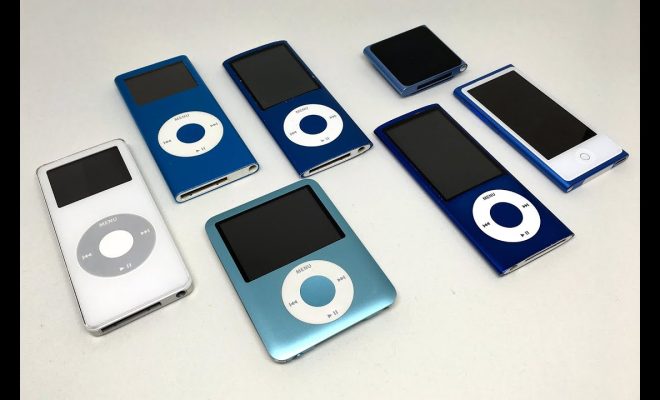
iPod Nano is a portable music player from Apple Inc. that lets you listen to your favorite music on the go. If you have just bought an iPod Nano, you might be wondering how to download songs to it. In this article, we will discuss the steps involved in downloading songs to an iPod Nano.

Step 1: Install iTunes

The first step in downloading songs to your iPod Nano is to install iTunes on your computer. iTunes is a media player and library that allows you to download and manage music, movies, TV shows, and other media. You can download the latest version of iTunes for free from the Apple website.

Step 2: Connect your iPod Nano to your computer

Once you have installed iTunes, connect your iPod Nano to your computer using a USB cable. iTunes will automatically recognize your device and display it in the upper right corner of the window.

Step 3: Add songs to your iTunes library

Before you can download songs to your iPod Nano, you need to add them to your iTunes library. To do this, click on the “File” menu in iTunes and select “Add to Library” or “Add Folder to Library”. Then select the songs or folders that you want to add, and click “Open”.

Step 4: Sync your iPod Nano with your iTunes library

After you have added the songs to your iTunes library, you need to sync your iPod Nano with your library. To do this, click on the “iPod Nano” icon in the upper right corner of the iTunes window. Then click on the “Music” tab and select the songs or playlists that you want to sync with your device. Finally, click on the “Sync” button to start the syncing process.

Step 5: Eject your iPod Nano

Once the syncing process is complete, eject your iPod Nano from your computer. To do this, click on the “Eject” button in the upper right corner of the iTunes window next to your device’s name.

Conclusion:

In conclusion, downloading songs to an iPod Nano is a simple process that involves installing iTunes, connecting your device to your computer, adding songs to your iTunes library, syncing your device with your library, and ejecting your iPod Nano. Once the songs are downloaded to your device, you can enjoy listening to them on the go. With these steps, you can easily download songs to your iPod Nano and build a personalized music library.


Previous Article

What Is a Hackintosh Computer?

Next Article

How to Hide IP Address on iPhone

Matthew Lynch

Related articles More from author

  • Assistive Technology

    How to Cut, Copy, and Paste Text on the iPad

    June 12, 2023
    By Matthew Lynch
  • Assistive Technology

    How To Get Facebook on Roku With Screen Mirroring

    June 10, 2023
    By Matthew Lynch
  • Assistive Technology

    How to Connect Google Home to Your TV

    June 15, 2023
    By Matthew Lynch
  • Assistive Technology

    What to Do If Your Stereo Receiver Suddenly Switches Off

    June 10, 2023
    By Matthew Lynch
  • Assistive Technology

    How to Change Voices on Waze

    June 11, 2023
    By Matthew Lynch
  • Assistive Technology

    How to Fix Spotify Song Change Notifications Not Working on Windows 11

    June 22, 2023
    By Matthew Lynch

Search

Login & Registration

  • Log in
  • Entries feed
  • Comments feed
  • WordPress.org

Newsletter

Signup for The Tech Edvocate Newsletter and have the latest in EdTech news and opinion delivered to your email address!

About Us

Since technology is not going anywhere and does more good than harm, adapting is the best course of action. That is where The Tech Edvocate comes in. We plan to cover the PreK-12 and Higher Education EdTech sectors and provide our readers with the latest news and opinion on the subject. From time to time, I will invite other voices to weigh in on important issues in EdTech. We hope to provide a well-rounded, multi-faceted look at the past, present, the future of EdTech in the US and internationally.

We started this journey back in June 2016, and we plan to continue it for many more years to come. I hope that you will join us in this discussion of the past, present and future of EdTech and lend your own insight to the issues that are discussed.

Newsletter

Signup for The Tech Edvocate Newsletter and have the latest in EdTech news and opinion delivered to your email address!

Contact Us

The Tech Edvocate
910 Goddin Street
Richmond, VA 23231
(601) 630-5238
[email protected]

Copyright © 2026 Matthew Lynch. All rights reserved.