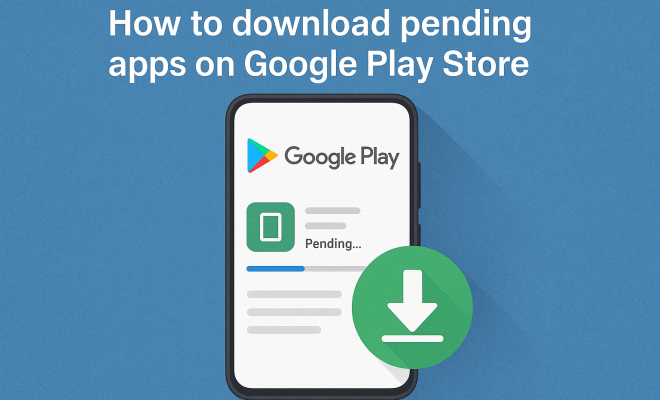
How to download pending apps on Google Play Store
“`html
The Google Play Store serves as a vital hub for Android users, housing millions of apps ranging from games to productivity tools. However, many users encounter the frustrating issue of pending downloads when trying to update or install new apps. If you’re finding yourself stuck with the dreaded ‘pending’ status, you’re not alone. In this guide, we’ll explore practical solutions and tips to help you successfully download pending apps on Google Play Store.
1. Understanding the ‘Pending’ Status
Before diving into solutions, it’s crucial to understand what causes apps to remain in a pending state. The ‘pending’ status indicates that the app you are trying to download is queued for installation, but something is preventing it from proceeding. This can stem from various factors including network issues, storage limitations, or glitches within the Play Store itself.
When your app is pending, it might be due to a slow or unstable internet connection, particularly on mobile networks. Additionally, if you’ve reached your device’s storage limit, the Play Store will be unable to download new apps. Lastly, temporary glitches or bugs in the Play Store can also cause downloads to stall. By understanding these factors, you can take appropriate steps to resolve the issue.
2. Check Your Internet Connection
A strong and stable internet connection is essential for downloading apps from the Google Play Store. If you notice that your downloads are stuck on pending, the first step is to check your Wi-Fi or mobile data connection. Try opening a webpage or streaming a video to see if your internet is functioning properly. Sometimes, simply toggling your Wi-Fi or mobile data off and on can help re-establish a connection.
If your connection is stable, consider switching to a different network. For instance, if you’re on mobile data, try connecting to a Wi-Fi network, or vice versa. This can help identify whether the problem lies with your current internet connection. If you consistently face issues, it might be worth contacting your internet service provider for assistance.
3. Clear Cache and Data of Google Play Store
Clearing the cache and data of the Google Play Store can often resolve pending download issues. Accumulated cache can interfere with app performance, leading to glitches and errors. To clear the cache and data, go to your device’s Settings, then find and select ‘Apps’ or ‘Application Manager’. Scroll down to locate the Google Play Store, tap on it, and select ‘Storage’. You’ll see options to ‘Clear Cache’ and ‘Clear Data’.
Once you’ve cleared both, restart your device and open the Google Play Store again. This process can refresh the application and help eliminate any temporary issues that may be causing the downloads to remain pending. Remember, clearing data may log you out of the Play Store, so ensure you have your login details handy.
4. Check Device Storage
Your device’s storage capacity plays a vital role in downloading new apps. If your internal storage is almost full, the Google Play Store will not be able to download or install new applications, resulting in a pending status. To check your storage, head to Settings > Storage. Here, you’ll see how much space you have available.
If your storage is low, consider deleting unnecessary files, apps you no longer use, or transferring media to an external source. Clearing out some space can provide the necessary room for the new app downloads. Additionally, apps like Google Files can help manage storage by suggesting files to delete based on your usage patterns.
5. Restart Your Device
Never underestimate the power of a simple reboot. Restarting your device can resolve a myriad of technical issues, including those pesky pending downloads. When you restart your device, it clears temporary memory, closes background processes, and can help reset any glitches causing your downloads to stall.
To restart your device, press and hold the power button until the power menu appears, then select ‘Restart’ or ‘Reboot’. Once your device powers back on, head to the Google Play Store to check if your apps are now downloading successfully. This step is simple yet often overlooked, and it can save you a lot of headache. (See: Google Play Store overview.)
6. Update the Google Play Store
Keeping the Google Play Store updated is crucial for smooth functionality. An outdated Play Store may lead to compatibility issues with newer apps and updates, resulting in downloads stuck on pending. To ensure you have the latest version, open the Play Store, go to Settings, and scroll down to the ‘Play Store version’. If an update is available, it will prompt you to download it.
If you can’t find an update option, check if your device’s operating system needs updating as well. Go to Settings > About Phone > System Updates. Keeping both your Play Store and operating system updated can prevent many issues, including app downloads hanging in a pending state.
7. Reset App Preferences
If you’ve tried everything else and still can’t seem to download pending apps from the Google Play Store, resetting app preferences is a final step you can take. This action will restore default settings for all apps on your device without deleting any data. To do this, go to Settings > Apps > Menu (three dots) > Reset app preferences.
After resetting, your app preferences will revert to their default state, which may fix any configuration problems that were causing your downloads to remain pending. Keep in mind that this will disable all disabled apps and notification restrictions, so you’ll need to adjust those settings afterward if necessary.
8. Additional Troubleshooting Steps
If you’re still struggling with pending app downloads, here are a few more troubleshooting tips you can try. Sometimes, the solution might be hiding in less obvious places:
8.1 Check for VPN or Proxy Settings
If you’re using a VPN or proxy, it might affect your ability to connect to the Google Play Store properly. Disconnect from the VPN and try downloading your apps again. Some VPNs can slow down your connection or block access to certain services, causing downloads to stall.
8.2 Disable Any Battery Saver Modes
Battery saver modes can restrict background data, which could impact the Google Play Store’s performance. If your battery saver is on, turn it off temporarily while you’re trying to download apps. This can sometimes resolve download issues by allowing the Play Store to operate at full capacity.
8.3 Check for Software Updates
In addition to updating the Google Play Store, ensure that your device’s firmware is up to date. Manufacturers regularly release patches and updates to fix bugs and improve performance. Head to Settings > About Phone > System Updates to check for any available updates.
8.4 Factory Reset as a Last Resort
If you’ve exhausted all other options and the problem persists, a factory reset may be the last resort. This will erase all data on your device, so make sure to back up important files first. After resetting, you can set your device up as new, which might clear deeper issues affecting the Google Play Store.
9. Common FAQs about Pending App Downloads
If you still have questions about pending app downloads, here are some frequently asked questions that might help clarify your concerns:
9.1 Why do my apps stay in ‘pending’ for so long?
There could be several reasons for prolonged ‘pending’ statuses, including poor internet connectivity, insufficient storage, or issues with the Google Play Store itself. It’s essential to troubleshoot each potential cause systematically.
9.2 Can I download apps without Wi-Fi?
Yes, you can download apps using mobile data, but be cautious of your data limits. Check your settings to ensure that downloads via mobile data are enabled (Settings > Apps > Google Play Store > Mobile data).
9.3 How can I force stop the Google Play Store?
If you need to force stop the Google Play Store, go to Settings > Apps > Google Play Store, then select ‘Force Stop’. This can sometimes help resolve minor glitches. (See: importance of stable internet connections.)
9.4 What should I do if I receive error messages during downloads?
Error messages can indicate various problems, from connectivity issues to app incompatibility. Take note of the specific error code and search for solutions online, as many users may have faced similar issues.
9.5 Why are updates for my apps stuck as pending?
Updates for apps can also get stuck for similar reasons as new downloads—check your internet connection, device storage, and whether the Google Play Store is up to date. If all else fails, restarting the device can help.
10. Key Factors Behind Pending App Downloads
Understanding the various aspects that can lead to pending downloads is crucial in resolving these issues effectively. Let’s explore some of the most common factors in more detail:
10.1 Network Speed and Stability
Network speed is one of the primary factors influencing download statuses. Apps can take longer to download if your network isn’t fast enough. For example, if you’re trying to download a large game while on a slow mobile connection, expect delays. To gauge your connection speed, consider using speed test applications that give you an insight into your upload and download rates. If your speed is below expectations, switch to a more stable network or try downloading during off-peak hours when fewer users are online.
10.2 Play Store Server Issues
Sometimes the fault may not lie with your device or connection but with the Google Play Store itself. Server issues can occasionally lead to widespread problems with downloads. You can check Google’s status dashboard or various tech forums for reports on outages. If there’s a server issue, the only solution might be to wait until Google resolves it.
10.3 Device Compatibility
Some apps are not compatible with all devices. If you’re trying to download an app that requires a newer version of Android than what your device has, the download may remain pending. Check the app’s requirements on the Play Store page before attempting to download it. If you find that your device is incompatible, you might want to look for alternative apps that offer similar functionality.
11. Expert Perspectives on App Downloads
To gain a deeper understanding of the issues surrounding pending downloads, let’s consider insights from experts in mobile technology and app development.
11.1 Industry Expert Commentary
According to mobile technology experts, the Play Store’s pending download issue is often related to the app ecosystem’s complexity. App developers regularly release updates that might inadvertently cause compatibility issues or download errors. “The constant evolution of apps can lead to bugs that affect the download process, especially concerning different Android versions,” says Tech Analyst Jane Doe.
She emphasizes the importance of both Google and manufacturers to ensure that devices are compatible with new app releases. “Users should keep their devices updated to minimize these issues, but they also need to hold app developers accountable for ensuring their apps are optimized across a wide range of hardware.”
12. Comparative Analysis of App Download Issues Across Platforms
It’s interesting to note how issues with app downloads can vary significantly across different operating systems. Here’s a quick comparison: (See: recent issues with Google Play Store.)
12.1 iOS vs. Android
While both Android and iOS users can encounter pending app downloads, the causes and resolutions can differ. iOS users typically deal with a more streamlined App Store experience. Issues such as app incompatibilities often lead to clear error messages. Conversely, Android’s open ecosystem means a wider range of potential issues, from device compatibility to network-related problems. (uninstalling and reinstalling)
12.2 Windows vs. Mobile Platforms
For Windows users, pending downloads are less common but can occur with large software updates or installations. In contrast, mobile platforms like Android are more frequently impacted due to their dependency on constant internet connections. The nature of mobile networks can introduce variability in download success that desktop platforms do not typically experience.
13. Best Practices for Smooth App Downloads
To maintain a hassle-free downloading experience, consider implementing these best practices:
13.1 Regularly Monitor Storage
Make it a habit to regularly check your device’s storage. Clearing out unused apps or files can prevent storage-related download issues. You can set reminders to clean up your device every month.
13.2 Keep Your Device Updated
Always keep your device and apps up to date. Enable automatic updates for your apps via the Play Store settings to stay current with the latest versions. This will not only enhance performance but also reduce the likelihood of encountering bugs.
13.3 Use Wi-Fi for Large Downloads
If you’re downloading large files or multiple apps, always opt for a Wi-Fi connection. This will save your mobile data and often provide a faster, more stable connection. Moreover, consider scheduling downloads for times when you’re less likely to need the device, like overnight.
14. Final Thoughts
Experiencing pending downloads on the Google Play Store can be a source of frustration, but knowing the right steps to troubleshoot can save you time and effort. By checking your internet connection, clearing the cache, ensuring adequate storage, and updating your apps, you can efficiently tackle this issue. Remember, if all else fails, reaching out to Google support can provide additional assistance. With these strategies, you’ll be well-equipped to download pending apps on Google Play Store and enjoy your favorite applications without hassle.
In summary, pending downloads can be a nuisance, but with a little patience and the right information, you can overcome these obstacles and get back to enjoying your apps without delays. Stay informed about the best practices and keep your device in top shape to minimize these issues in the future.
“`
Trending Now
Frequently Asked Questions
Why are my apps stuck on pending in Google Play Store?
Apps may be stuck on pending due to several reasons, including a slow or unstable internet connection, insufficient device storage, or glitches within the Play Store itself. Understanding these factors can help you identify the root cause and take appropriate action to resolve the issue.
How can I fix pending downloads on Google Play Store?
To fix pending downloads, first check your internet connection for stability. Ensure you have enough storage space on your device. Restarting the Play Store app or your device can also help clear any temporary glitches that might be causing the issue.
What should I do if my Google Play Store is not downloading apps?
If the Google Play Store is not downloading apps, check your internet connection and ensure you have sufficient storage. You can also try clearing the Play Store cache and data in your device settings, or reinstalling the app if necessary.
Can a weak internet connection cause pending downloads on Google Play Store?
Yes, a weak or unstable internet connection can cause downloads to remain in a pending state. It's essential to have a strong connection to successfully download or update apps from the Google Play Store.
How do I check storage space on my Android device?
To check storage space on your Android device, go to 'Settings', then 'Storage'. Here, you can see how much space is available and which apps or files are taking up space, helping you manage your storage effectively for app downloads.
Have you experienced this yourself? We'd love to hear your story in the comments.