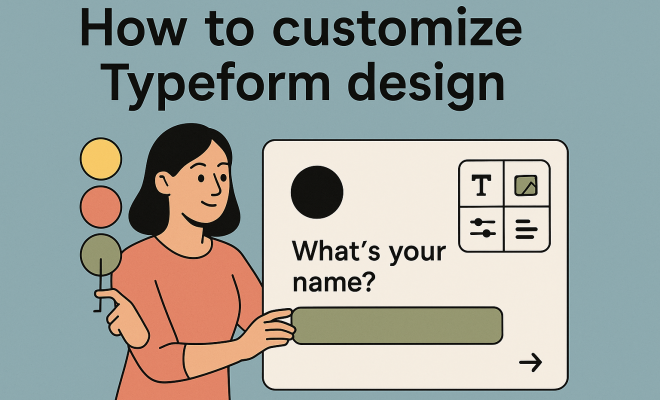
How to customize Typeform design
“`html
You’ve probably encountered a Typeform survey or quiz before, perhaps without even realizing it. They’re those sleek, engaging forms that feel less like a chore and more like a conversation. Unlike traditional, often clunky online forms, Typeform excels at creating an interactive experience. But here’s the thing: merely using Typeform isn’t enough to stand out. To truly leverage its power, you need to go beyond the defaults and truly customize Typeform design elements to reflect your brand, engage your audience, and achieve your specific goals.
Think about it: in a world saturated with digital interactions, a generic form is easily ignored. A well-designed, on-brand Typeform, however, can significantly boost completion rates, gather higher-quality data, and even enhance your brand’s perception. It’s not just about aesthetics; it’s about creating a seamless, intuitive journey for your users. From choosing the right font to integrating custom CSS, there are myriad ways to make your Typeform not just functional, but genuinely memorable. Let’s dive into the essential strategies you’ll need to master to customize Typeform design effectively.
1. Mastering Themes and Layouts: The Foundation of Your Form’s Look
When you first create a Typeform, you’re presented with a choice of themes. These aren’t just superficial skins; they set the fundamental tone and structure for your form. Typeform offers a range of pre-built themes, each with its own visual style – from minimalist and modern to bold and vibrant. Don’t just pick the first one that looks okay. Spend some time browsing them, as they dictate the initial color palettes, typography, and even the spacing of elements. This is your starting point, and a thoughtful selection here can save you a lot of tweaking down the line. (top colleges for multimedia design)
Beyond the pre-designed themes, Typeform also allows you to create and save your own custom themes. This is where the real power to customize Typeform design begins. Imagine you have specific brand guidelines – a primary color, a secondary accent, a preferred font family. You can create a theme that encapsulates all of these, ensuring every Typeform you build aligns perfectly with your brand identity. This consistency is crucial for building trust and recognition, especially if your forms are customer-facing.
A smart approach to themes involves understanding their hierarchical impact. When you choose a theme, it applies global styles. Any individual question or element customization you make afterward will override that theme’s default for that specific element. This gives you flexibility: start broad with a theme, then refine with granular adjustments. For instance, if your brand uses a particular shade of blue and a specific font pairing, creating a custom theme with these defaults means you won’t have to manually apply them to every new Typeform. This efficiency is a huge time-saver for teams or individuals creating multiple forms.
2. Strategic Color Palette Selection: Setting the Mood and Brand Tone
Colors are incredibly powerful. They evoke emotions, guide the eye, and are a fundamental part of your brand’s visual identity. When you customize Typeform design, your color choices are paramount. Typeform allows you to adjust colors for various elements: the background, the text, buttons, and even the progress bar. Don’t just throw colors together; think strategically. Your brand’s primary color should feature prominently, perhaps as an accent or for interactive elements like buttons, drawing the user’s attention to key actions.
Consider the psychology of color. Blues often convey trust and professionalism, greens suggest nature or growth, while reds can signify urgency or passion. While your brand’s existing palette should be your guide, think about the specific purpose of your Typeform. Is it a quick feedback survey? A detailed application? A fun quiz? The colors you choose can subtly influence how users perceive and interact with your form. Ensure there’s enough contrast between text and background for readability – accessibility is key, after all. Typeform’s interface makes it easy to experiment and see the changes in real-time, so don’t be afraid to play around until it feels just right.
To really nail your color strategy, think about a primary, secondary, and accent color. Your primary color might dominate the background or large blocks of text, while a secondary color could be used for descriptions or subheadings. The accent color is where you draw attention: buttons, progress bars, or key action prompts. This creates visual interest and guides the user’s eye without being overwhelming. Always run your color choices through an accessibility checker to ensure sufficient contrast ratios, especially for text. Tools like WebAIM’s Contrast Checker can help you meet WCAG standards, making your Typeform usable for everyone.
3. Typography Choices: Enhancing Readability and Personality
Typography is another critical component in how you customize Typeform design. The fonts you choose don’t just convey information; they also communicate personality. Typeform offers a decent selection of web-safe fonts, and you can also integrate custom fonts if you’re on a higher-tier plan, which we’ll discuss later. For your questions and answers, readability is paramount. Opt for clean, legible fonts that are easy on the eyes, especially for longer questions or multiple-choice options.
Beyond readability, think about how the font aligns with your brand. A playful, rounded font might be perfect for a creative agency’s feedback form, while a more traditional serif font could suit a financial institution. Typeform allows you to set different fonts for headings (your questions) and body text (your descriptions or choices). Use this to create visual hierarchy, making the questions stand out clearly. Remember, consistency with your brand’s overall typography helps reinforce your identity, so if you have a specific brand font, try to find the closest match within Typeform’s library or consider custom font integration.
When selecting fonts, consider the pairing. A common design principle is to pair a sans-serif font for headings with a serif font for body text, or vice-versa, to create visual interest and clear distinction. However, ensure the two fonts complement each other and don’t clash. Typeform’s interface lets you preview these pairings instantly, so you can test how different combinations impact the overall feel. Pay attention to font size and line height too; these often overlooked details can dramatically affect readability and the visual spaciousness of your form. A slightly larger font size or increased line height can make a form feel less dense and more inviting. (See: User experience principles.)
4. Integrating Images and Videos: Visual Engagement and Context
Humans are visual creatures. A wall of text can be daunting, but a well-placed image or video can break up the monotony, provide context, and significantly boost engagement. When you customize Typeform design, don’t overlook the power of multimedia. You can add background images to your entire form, which can set a powerful mood or reinforce your brand’s aesthetic. Ensure these images are high-resolution but optimized for the web so they don’t slow down load times.
More specifically, you can embed images or videos directly into individual questions. This is incredibly useful for product surveys (show the product!), quizzes (visual questions!), or even onboarding flows (a quick explanatory video). Imagine you’re asking for feedback on a new website feature – a screenshot of that feature embedded in the question makes it immediately clear what you’re referring to. For videos, you can link to YouTube or Vimeo, and Typeform will seamlessly integrate them. This visual storytelling can make your Typeform far more dynamic and enjoyable for the user, moving it beyond a mere data collection tool.
Beyond static images, consider animated GIFs for quick, engaging bursts of information or personality. A short GIF illustrating a process or reacting to an answer can be incredibly effective. For videos, keep them concise. Users are unlikely to watch a five-minute explainer in the middle of a survey. Aim for 30-60 second clips that provide essential context or a clear demonstration. Remember to include alt text for all images for accessibility, and consider providing transcriptions or captions for videos. This ensures your multimedia content is accessible to all users and also helps with SEO if the Typeform is publicly discoverable.
5. Crafting Custom Welcome and Thank You Screens: First and Lasting Impressions
The welcome screen is your user’s first impression of your Typeform, and the thank you screen is their last. These are prime opportunities to customize Typeform design and make a strong impact. A generic “Welcome!” or “Thanks for completing!” simply won’t cut it if you’re serious about engagement and brand building. Your welcome screen should clearly state the purpose of the form, set expectations for its length, and ideally, include a compelling call to action or a friendly greeting that aligns with your brand voice.
Similarly, the thank you screen isn’t just a formality. It’s a chance to reinforce your brand, offer a next step, or provide additional value. You could link to your website, social media, a relevant blog post, or even offer a discount code. Use engaging language, reiterate your appreciation, and ensure the visual design (colors, fonts, imagery) is consistent with the rest of your Typeform and your overall brand. These two screens are often overlooked but are critical touchpoints for user experience and brand recall.
For your welcome screen, consider a captivating hero image or a short, impactful video that immediately sets the tone. Use clear, concise language to explain the form’s purpose and how long it will take. For example, “Help us improve in 3 minutes!” is far more inviting than “Customer Feedback Survey.” The call-to-action button should be prominent and encouraging, e.g., “Start your journey” or “Let’s begin.” On the thank you screen, don’t just say “Thanks.” Offer a meaningful next step. If it was a lead generation form, link to a demo booking page. If it was a customer satisfaction survey, link to your help center or a special offer. This transforms a transactional interaction into a relationship-building opportunity.
6. Leveraging Logic Jumps and Branching: Personalized User Paths
While not strictly a visual design element, logic jumps profoundly impact the user’s experience and, by extension, how they perceive your Typeform. When you customize Typeform design, you’re also customizing the journey. Logic jumps allow you to create dynamic, personalized paths based on a user’s previous answers. Instead of a linear, one-size-fits-all form, you can skip irrelevant questions or present follow-up questions tailored to their input. This makes the form feel more intelligent, respectful of the user’s time, and less like a generic questionnaire.
For example, if a user indicates they’re interested in ‘Product A,’ you can use a logic jump to immediately show them questions related to ‘Product A’ and skip all questions about ‘Product B’ or ‘Product C.’ This not only streamlines the process for the user but also ensures you’re collecting more relevant and higher-quality data. From a design perspective, a well-implemented logic jump creates a feeling of smooth, intuitive progression, making the form feel less cumbersome and more like a natural conversation, which is Typeform’s core strength.
The strategic use of logic jumps extends beyond simple question skipping. You can use them to display different thank you screens based on responses (e.g., “Thanks for your positive feedback!” vs. “We’re sorry you had a negative experience, here’s how we can help.”). You can also calculate scores in quizzes and show custom results. This level of dynamic interaction makes the Typeform feel truly responsive and intelligent, dramatically improving user satisfaction. Visually, while the user doesn’t see the ‘logic’ itself, the smooth flow and relevance of the questions create an impression of a thoughtfully designed and highly personalized experience, directly contributing to how you customize Typeform design for maximum impact.
7. Incorporating Custom Icons and Buttons: Micro-Interactions with Macro Impact
Small details often make the biggest difference. While Typeform provides standard buttons and icons, the ability to customize Typeform design extends to these micro-interactions. Depending on your plan, you might be able to upload custom icons for specific question types or even modify the appearance of your ‘Next’ or ‘Submit’ buttons. This allows for a deeper level of brand integration and a more unique visual experience.
Think about your brand’s iconography. Do you have a specific style for arrows, checkmarks, or other interactive elements? Matching these within your Typeform can create a more cohesive and professional look. Even subtle changes, like adjusting button colors on hover or adding a slight shadow, can make the interactive elements feel more responsive and engaging. These seemingly minor adjustments contribute significantly to the overall polish and user experience, reinforcing your brand’s attention to detail.
When customizing buttons, consider their state changes. A button that subtly changes color or has a slight animation on hover or click feels more interactive and provides immediate feedback to the user. This isn’t just about aesthetics; it improves usability by clearly indicating that an element is clickable. For icons, ensure they are simple, universally understood, and consistent with your brand’s visual language. Using SVG icons where possible ensures scalability and crispness across all devices. These micro-interactions, when meticulously designed, elevate the entire user experience from merely functional to genuinely delightful.
8. Harnessing Custom CSS: Unleashing Advanced Design Capabilities
For those with a bit of coding savvy (or access to a developer), custom CSS is where you truly unleash the full potential to customize Typeform design. While Typeform’s built-in options are robust, CSS allows you to override or extend virtually any visual aspect of your form. Want to change the line height of your questions? Adjust the padding around images? Add a specific border style to answer choices? CSS makes it possible. (See: Creating effective surveys.)
This feature is usually available on higher-tier plans and gives you granular control. You could, for instance, implement specific brand fonts that aren’t available in Typeform’s standard library, create unique button animations, or even adjust the responsiveness of your form on different screen sizes beyond Typeform’s defaults. Custom CSS transforms your Typeform from a template-based solution into a truly unique, bespoke digital experience, perfectly aligned with even the most stringent brand guidelines. Just be careful: a little CSS can go a long way, but poorly written CSS can break your form’s appearance, so always test thoroughly!
Before diving into custom CSS, it’s wise to inspect Typeform’s existing CSS using your browser’s developer tools. This lets you identify the specific classes and IDs you need to target for your customizations. Common CSS applications include fine-tuning spacing (margins and padding), adjusting font weights or letter-spacing, adding custom background patterns, or even creating unique hover effects for answer choices. Remember that custom CSS can sometimes conflict with Typeform’s updates, so always re-test your forms after Typeform releases significant platform changes. For those less comfortable with coding, consider hiring a freelance web designer for this specific task; the investment can pay off significantly in brand consistency and user experience.
9. Utilizing Hidden Fields: Personalizing Without Overwhelm
Hidden fields are another powerful feature that, while not directly visual, significantly enhances the personalization and perceived design of your Typeform. They allow you to pass information into your Typeform from the URL or other integrations without the user ever seeing or interacting with those fields. Why is this a design consideration? Because it enables a more streamlined and personalized experience without cluttering the form with unnecessary questions.
Imagine you’re sending a survey link to existing customers. You can use hidden fields to pre-populate their name, customer ID, or even their last purchase date. When they open the form, they might see a welcome message like, “Hello [Customer Name], we’d love your feedback on your recent [Product] purchase!” This level of personalization makes the form feel incredibly tailored and thoughtful, rather than generic. It respects the user’s time by not asking for information you already have, and this thoughtful approach is a key aspect of good design, even if the mechanism itself is ‘hidden.’
The power of hidden fields extends to analytics and segmentation. By capturing data like UTM parameters, referral sources, or user segments through hidden fields, you can gain much deeper insights into your respondents without burdening them with extra questions. This means your Typeform is not only visually designed to engage but also intelligently designed to collect richer, more actionable data. When combined with logic jumps, hidden fields can create incredibly sophisticated, personalized user flows, guiding different segments of your audience through uniquely relevant parts of your form, all while maintaining a clean, minimalist visual interface.
10. Embedding and Sharing Options: Seamless Integration into Your Digital Ecosystem
Finally, how you share and embed your Typeform plays a huge role in its overall ‘design’ within your broader digital presence. Typeform isn’t just a standalone tool; it’s designed to integrate seamlessly. You can embed your Typeform directly into a webpage as an iframe, a pop-up, or even an unobtrusive ‘widget’ that floats on the side of your site. Each embedding option offers different visual and interactive experiences, and choosing the right one is part of customizing Typeform design for your specific context.
For example, a full-page embed might be perfect for a dedicated landing page, while a small pop-up could be ideal for gathering quick feedback without disrupting the user’s browsing experience. Typeform also offers options to customize the embed’s appearance, such as background color or the button text for pop-ups. Beyond embedding, consider the social sharing options. A well-crafted social sharing image and description (often called an Open Graph image/description) ensures that when your Typeform link is shared on platforms like Facebook or LinkedIn, it looks professional and inviting. This holistic approach to presentation, from the form itself to how it appears in various digital channels, is essential for maximizing its impact.
When choosing an embedding option, think about the user’s journey on your site. A chatbot-style embed might be great for capturing leads on a product page, engaging visitors directly. A full-page embed ensures maximum focus for a registration form, eliminating distractions. For pop-ups, carefully consider the trigger: on exit intent, after a certain scroll percentage, or after a delay. An intrusive pop-up, no matter how beautifully designed, can annoy users. Additionally, always test your embedded Typeform across different browsers and devices to ensure it renders correctly and provides a consistent experience for all users.
11. Accessibility Considerations: Design for Everyone
When you customize Typeform design, it’s not just about aesthetics; it’s about inclusivity. Designing for accessibility means ensuring your forms are usable by people with disabilities, including those with visual, auditory, motor, or cognitive impairments. This isn’t just good practice; in many regions, it’s a legal requirement. Thinkcerca's new planning tool offers useful background here.
Start with color contrast. As mentioned earlier, ensure there’s enough contrast between text and background colors. Typeform’s built-in themes often have good contrast, but if you’re using custom colors, double-check them with an online contrast checker. Beyond colors, consider typography: is the font size legible? Is the line height adequate? Avoid overly decorative fonts that are hard to read. For images, always include descriptive alt text so screen readers can convey the image’s content to visually impaired users. If you embed videos, provide captions or transcripts. Think about keyboard navigation: can users complete your Typeform entirely using only their keyboard (tab, enter, arrow keys)? Typeform generally handles this well, but custom CSS or complex logic jumps could inadvertently break it. A truly well-designed Typeform is one that everyone can use and enjoy.
12. A/B Testing Your Designs: Data-Driven Optimization
You’ve put a lot of effort into customizing your Typeform design. But how do you know if your choices are actually effective? This is where A/B testing comes in. A/B testing involves creating two (or more) versions of your Typeform with a single design variation and then showing each version to a segment of your audience to see which performs better. (See: The rise of online surveys.)
What could you A/B test? Perhaps two different welcome screen images, two distinct color palettes, different font choices, or even variations in button text (“Start” vs. “Let’s Go!”). You could also test the impact of adding a video to a question versus just text. The key performance indicators (KPIs) you’d track include completion rates, time to complete, and the quality of responses (if measurable). Many marketing automation and analytics platforms integrate with Typeform and allow for A/B testing. Without testing, your design choices are based on assumptions. With A/B testing, you’re making data-driven decisions that lead to tangible improvements in engagement and conversion.
Frequently Asked Questions about Customizing Typeform Design
Q1: Can I use my brand’s exact custom fonts in Typeform?
A1: Yes, if you’re on a higher-tier Typeform plan (typically the Business or Enterprise plans), you can integrate custom fonts. This usually involves uploading your font files or linking to a font hosting service and then applying them via custom CSS. For lower-tier plans, you’ll need to choose the closest available font from Typeform’s extensive library.
Q2: Is it possible to remove Typeform branding from my forms?
A2: Absolutely. Removing Typeform branding (like the “Powered by Typeform” badge) is a standard feature available on paid plans. This is crucial for maintaining a professional, on-brand appearance and ensures your Typeform feels like a seamless extension of your own website or application.
Q3: How can I ensure my customized Typeform is mobile-friendly?
A3: Typeform forms are inherently responsive, meaning they automatically adapt to different screen sizes (desktops, tablets, mobile phones). When you customize Typeform design, most of your changes (colors, fonts, images) will scale appropriately. However, if you’re using extensive custom CSS, you’ll need to ensure your CSS includes media queries to maintain responsiveness across devices. Always preview and test your form on various devices before publishing.
Q4: What’s the best way to choose a background image for my Typeform?
A4: Choose a high-resolution image that is relevant to your brand or the form’s purpose. Ensure it’s not too busy or distracting, as it shouldn’t overshadow the text or questions. Think about how text will appear over it – often, a subtle pattern, a blurred image, or an image with a color overlay works best to maintain readability. Always optimize the image file size to prevent slow loading times.
Q5: Can I integrate my Typeform with other marketing tools after customizing its design?
A5: Yes, Typeform offers robust integrations with hundreds of popular marketing, CRM, and analytics tools like Mailchimp, Salesforce, Google Analytics, Zapier, and more. Customizing the design of your Typeform doesn’t affect its integration capabilities. In fact, a well-designed Typeform is more likely to gather the high-quality data that powers these integrations effectively.
Q6: How often should I update or refresh my Typeform designs?
A6: It depends on the form’s purpose and your brand’s evolution. For evergreen forms (like contact forms or general feedback), a refresh every 1-2 years might be sufficient, or whenever your brand undergoes a visual update. For campaign-specific forms, you might customize the design for each new campaign to match its unique branding. The key is to keep your forms feeling fresh, relevant, and consistent with your current brand identity.
Ultimately, customizing your Typeform isn’t just about making it look pretty; it’s about optimizing every touchpoint to create a more effective, engaging, and on-brand experience. By paying attention to these twelve crucial areas, you’ll transform your forms from mere data collection tools into powerful extensions of your brand, driving better results and happier users.
“`
Trending Now
Frequently Asked Questions
How can I customize my Typeform design?
You can customize your Typeform design by selecting from various pre-built themes or creating your own custom themes. This includes choosing color palettes, typography, and layouts that reflect your brand's identity and enhance user engagement.
What are the benefits of customizing Typeform?
Customizing Typeform can significantly boost completion rates and gather higher-quality data. A well-designed form enhances user experience and can improve your brand's perception, making the interaction feel more engaging and less like a chore.
Can I use custom CSS in Typeform?
Yes, Typeform allows the integration of custom CSS, giving you the flexibility to further personalize your forms beyond the default options. This feature enables you to tailor the design to align closely with your brand's aesthetics.
What themes are available in Typeform?
Typeform offers a range of pre-built themes that vary in style, from minimalist to bold. These themes set the initial tone and structure of your form, which you can further customize to fit your specific needs.
Why is design important for Typeform surveys?
Design is crucial for Typeform surveys because a well-crafted, on-brand form can create a more engaging user experience. This not only captures attention but also encourages users to complete the survey, leading to better data quality.
Agree or disagree? Drop a comment and tell us what you think.