Create Stunning Flyers in Canva: 8 Easy Steps
“`html
Creating eye-catching flyers can be a game changer for businesses, events, or personal projects. In today’s digital world, having access to user-friendly design tools is essential. One of the most popular platforms for designing such materials is Canva. This article will guide you through eight easy steps to create a flyer in Canva, while also highlighting tips, features, and best practices that will help you make the most of this powerful tool.
1. Understanding Canva
Before diving into how to create a flyer in Canva, it’s crucial to understand what Canva is and why it’s a preferred choice for many. Launched in 2013, Canva is an online design platform that offers a plethora of templates, graphics, and design elements to create stunning visuals without needing extensive graphic design skills. With its drag-and-drop interface, it appeals to both novices and seasoned designers alike.
Canva’s extensive library includes thousands of templates, allowing users to create everything from flyers to presentations, social media posts, and more. The platform operates on a freemium model, meaning that while many features are free, there are premium elements available for a fee. This flexibility makes it accessible for individuals and businesses of all sizes.
2. Setting Up Your Canva Account
To start creating your flyer, you’ll need a Canva account. Signing up is simple and can be done through your email, Google account, or Facebook. Once registered, you’ll be taken to the Canva dashboard, where all your design projects are stored. Familiarizing yourself with the dashboard can save you time in the long run.
Canva also offers team features, enabling collaboration if you’re working on a flyer with others. You can invite team members to edit or comment, streamlining the design process. This collaborative feature is particularly useful for businesses or groups planning events together.
3. Choosing the Right Template
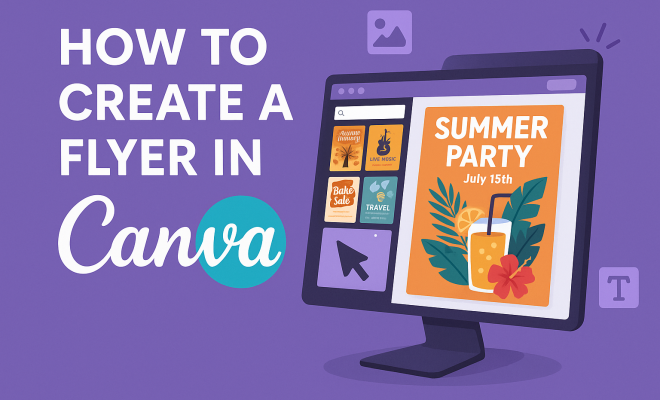
One of the best features of Canva is its vast selection of templates. Start by searching for “flyer” in the template search bar. You’ll find numerous categories such as events, promotions, or sales. Selecting the right template is crucial as it sets the tone for your flyer and ensures you communicate your message effectively.
When choosing a template, consider your target audience and the purpose of your flyer. For example, a colorful, vibrant design might work well for a children’s event, while a more minimalist aesthetic could suit a professional conference. Canva allows you to filter templates by style, color, or theme, making it easier to find a layout that resonates with your objectives.
4. Customizing Your Flyer’s Layout
Once you’ve chosen a template, it’s time to customize it. Canva’s user-friendly interface lets you easily modify text, images, colors, and more. Click on any element of the template to edit. For text, you can change the font style, size, color, and alignment. This level of customization allows you to tailor your flyer to fit your brand’s identity.
Don’t forget to check the alignment and spacing of your elements. A well-organized flyer is visually appealing and makes it easy for readers to extract key information. Canva provides guidelines and grids to help you maintain balance in your design.
5. Incorporating High-Quality Images
No flyer is complete without visuals, and Canva offers extensive resources. You can upload your images or choose from Canva’s library of free and premium images. High-quality visuals are essential, as they capture attention and convey professionalism. Ensure that the images you choose are relevant to your message and enhance the overall design. (See: Learn more about Canva on Wikipedia.)
Additionally, using graphics, icons, and illustrations can help break up text and make your flyer more engaging. Canva allows you to search for graphics within its platform, giving you access to a wide array of resources. Remember to maintain a consistent style in your visuals to uphold your brand identity.
6. Choosing Colors Wisely
Color plays a significant role in design. When you create a flyer in Canva, consider using colors that align with your brand and evoke the right emotions. Canva’s color palette tool allows you to explore combinations that match your theme. Using contrasting colors can help important information stand out, while complementary colors can create a harmonious look.
It’s also wise to limit your color palette to two or three main colors. Too many colors can confuse the viewer and distract from the key message. Canva offers pre-made color palettes or the option to create your own, giving you flexibility in your design.
7. Incorporating Text Effectively
Text is critical in conveying your message clearly and effectively. When adding text to your flyer, keep it concise. Focus on headlines and essential details, like dates, locations, and contact information. Canva includes a variety of text boxes that you can resize and move around, allowing you to find the best layout for readability.
Consider using different font styles for headings, subheadings, and body text to create a visual hierarchy. For instance, a bold font can draw attention to the title, while a simpler font can be used for details. Canva offers a diverse range of fonts — just ensure they are legible and consistent throughout your design.
8. Exporting and Sharing Your Flyer
After finalizing your design, it’s time to export and share it. Canva allows you to download your flyer in various formats, including PDF, PNG, or JPEG. If you’re printing your flyer, consider downloading it as a PDF for the best quality. You can also choose the dimensions that suit your needs, whether it’s standard letter size or a custom size. We covered design apps you'll enjoy in more detail.
Additionally, Canva provides options for sharing your flyer directly via email or social media, making it easy to promote your event or business. You can also get a shareable link to send to colleagues or friends for feedback. This final step ensures your well-crafted flyer reaches its intended audience.
9. Tips for Flyer Success
Creating a flyer in Canva is just the beginning; ensuring its effectiveness is the next step. Here are some tips to maximize your flyer’s impact:
- Know Your Audience: Tailor your message and design to resonate with your target demographic.
- Call to Action: Include a clear call to action, such as “Join us!” or “Visit our website!” to encourage engagement.
- Proofread: Always double-check for spelling or grammar errors. A polished flyer reflects professionalism.
- Distribute Strategically: Think about where and how you will share your flyer. Place them in locations frequented by your target audience or share online in relevant groups.
By following these guidelines, you’ll be well-equipped to create an effective flyer in Canva that not only looks great but also delivers your message loud and clear.
10. Advanced Features of Canva You Should Explore
Once you’re comfortable with the basics of creating a flyer in Canva, there are several advanced features you may want to explore to enhance your design: (See: Technology in education and design.)
10.1 Using Canva’s Brand Kit
If you’re a business owner or managing multiple projects, the Brand Kit feature is indispensable. You can upload your brand’s logo, fonts, and color palette, ensuring consistency across all your designs. This not only saves time but also helps in maintaining brand recognition.
10.2 Animations and Video Flyers
Canva allows you to add animations to your text and images, creating dynamic flyers that can be shared digitally. This is particularly useful for social media promotions, as animated elements can capture more attention than static images. You can also explore creating video flyers, which are gaining popularity, especially for events or product launches.
10.3 Collaborating in Real-Time
Canva’s collaboration tools enable multiple users to work on the same design simultaneously. This is perfect for teams that are developing marketing materials together. You can leave comments and suggestions in real-time, making the editing process more efficient and creative.
11. Case Studies: Successful Flyers Created with Canva
Examining successful flyer campaigns can provide valuable insights and inspiration. Here are a few examples where businesses effectively used flyers designed in Canva:
11.1 Local Coffee Shop Promotion
A small coffee shop used Canva to create vibrant flyers for a special promotion featuring local artists. The flyers included bright colors, engaging visuals, and a clear call to action inviting customers to join the event. The result was a significant increase in foot traffic and social media engagement, demonstrating how effective flyer design can lead to tangible business results.
11.2 Non-Profit Fundraising Event
A non-profit organization created an informative flyer in Canva to promote their annual fundraising event. They incorporated statistics about their cause, testimonials, and a compelling call-to-action. By distributing these flyers in community centers and online platforms, they exceeded their fundraising goal, highlighting the power of clear messaging and impactful design.
12. Statistics and Trends in Flyer Marketing
Understanding the current trends and statistics can help you leverage flyers more effectively. Here are some noteworthy insights:
- A study by the Direct Marketing Association found that 79% of consumers can recall the brand on a flyer they received within the last 2 months.
- Flyers distributed in high-traffic areas yield a response rate of 1-3%, significantly higher than email marketing’s average response rate of 0.12%.
- Designing flyers for specific events can lead to a 20% increase in attendance, especially when they are visually appealing and well-targeted.
13. FAQs About Creating Flyers in Canva
13.1 How much does it cost to use Canva for creating flyers?
Canva offers a free version that provides access to a wide range of templates and features. However, premium templates, images, and elements require a subscription to Canva Pro, which costs approximately $12.99 per month, or you can pay annually for savings.
13.2 Can I print my flyers directly from Canva?
Yes, Canva provides a printing service where you can order high-quality prints of your designs directly from the platform. Alternatively, you can download your flyer in a printable format and take it to a local printer. (See: Canva's impact on design accessibility.)
13.3 Is it possible to customize my flyer for different audiences?
Absolutely! One of the best features of Canva is the ability to create multiple versions of your flyer. You can easily duplicate your design and modify elements like text and images to cater to different audiences without starting from scratch.
13.4 What if I need help with my design?
Canva offers a wealth of resources, including tutorials and design tips, to help you create effective flyers. Additionally, you can find freelance designers on platforms like Fiverr or Upwork if you need professional assistance. See also understanding freemium models.
13.5 Can I use my own images in Canva?
Yes, Canva allows users to upload their own images, which you can use in your flyer designs. This feature is beneficial for brands that want to maintain a specific visual identity or include proprietary content.
14. Common Mistakes to Avoid When Creating Flyers
Even with the best tools at your disposal, creating a flyer can go awry if you’re not careful. Here are some common mistakes to avoid:
- Overloading with Information: Avoid cramming too much text on your flyer. This can overwhelm your audience and dilute your message. Stick to essential points and let visuals do some of the talking.
- Ignoring the Target Audience: Not considering who will view your flyer can lead to misaligned messaging. Tailor your design and copy to resonate with your specific audience.
- Neglecting Print Quality: If you plan to print your flyer, ensure that your images and graphics are high resolution. Low-quality images can make your design look unprofessional.
- Forgetting to Include Contact Information: This basic yet crucial detail is often overlooked. Make sure to provide clear contact information and links to social media or websites.
15. Getting Inspired: Resources for Flyer Design
If you’re looking for inspiration, there are countless resources available online. Consider exploring design galleries and social media platforms like Pinterest or Instagram. Searching for “flyer design inspiration” will yield a variety of examples that can spark creativity for your own projects. You can also look at successful marketing campaigns and analyze what makes their flyers appealing.
16. Future Trends in Flyer Design
As design trends evolve, staying updated can give you a competitive edge. Some trends to watch out for include:
- Sustainability: Eco-friendly materials and digital distribution are becoming more popular as businesses aim for greener practices.
- Minimalist Design: Clean layouts with ample whitespace are gaining traction, making content more digestible and visually appealing.
- Interactive Elements: QR codes and augmented reality features can engage audiences in unique ways, linking them to online content directly from a flyer.
17. Conclusion
Creating a flyer in Canva is an accessible and effective way to promote your business, event, or personal project. With its array of templates, tools, and features, anyone can design flyers that are both visually appealing and effective. By following the steps, tips, and suggestions offered in this article, you’ll be well on your way to crafting eye-catching flyers that resonate with your audience and achieve your goals.
“`
Trending Now
Frequently Asked Questions
How do I create a flyer in Canva?
To create a flyer in Canva, first sign up for an account. Then, choose a template from Canva's extensive library, customize it using the drag-and-drop interface, add your text and images, and finally, download or share your design.
What features does Canva offer for designing flyers?
Canva offers a variety of features for designing flyers, including thousands of customizable templates, a vast library of graphics and photos, drag-and-drop functionality, collaboration tools for team projects, and options to download in multiple formats.
Is Canva free to use for creating flyers?
Canva operates on a freemium model, meaning it offers many free features for creating flyers. However, some premium templates and elements require payment. Users can access a wide range of free resources to create professional-looking flyers.
Can I collaborate with others on a flyer in Canva?
Yes, Canva allows for collaboration with others on flyer designs. You can invite team members to edit or comment on your project, making it easier to work together, especially for businesses or event planning groups.
What should I consider when choosing a flyer template in Canva?
When choosing a flyer template in Canva, consider your target audience, the purpose of the flyer, and the overall aesthetic you want to achieve. Look for templates that align with your message and brand identity for the best results.
Agree or disagree? Drop a comment and tell us what you think.