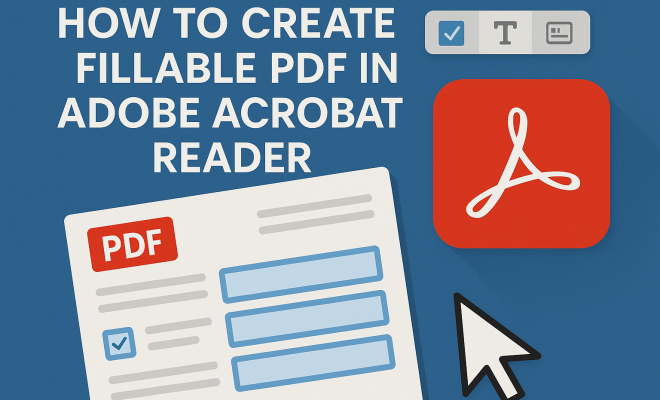
How to create fillable PDF in Adobe Acrobat Reader
“`html
Creating fillable PDFs in Adobe Acrobat Reader can be an indispensable skill in today’s digital landscape. Whether you’re a small business owner, a freelancer, or just someone who frequently handles forms, learning how to create these interactive documents can streamline your processes immensely. In this article, we’ll guide you through the steps to create fillable PDFs, discussing important features, practical tips, and even troubleshooting common issues.
1. The Importance of Fillable PDFs
Fillable PDFs have become a standard for many organizations, as they offer a systematic way to collect information without the hassle of paper forms. Unlike traditional documents, fillable PDFs allow users to enter data directly into designated fields, which can then be easily saved and shared. This method enhances efficiency, reduces errors, and is environmentally friendly.
Moreover, the accessibility of fillable PDFs makes them an excellent choice for various applications — from job applications to surveys and contracts. By utilizing Adobe Acrobat Reader, you can create documents that not only look professional but also function seamlessly, making them a preferred choice for many professionals.
2. Getting Started with Adobe Acrobat Reader
Before diving into the creation of a fillable PDF, you’ll need to ensure that you have Adobe Acrobat Reader installed on your computer. While Adobe Reader is primarily a tool for viewing PDFs, the “Pro” version allows for the creation and editing of fillable forms. If you only have the free version, you may need to consider upgrading to access all the necessary features.
Once you have the appropriate version, open Adobe Acrobat Reader. Familiarize yourself with its user interface, including the menu options, toolbar, and available tools. Having a good grasp of the software will not only save you time but also enhance your productivity as you create your fillable PDFs.
3. Creating Your Fillable PDF: Step-by-Step
To create a fillable PDF, start by opening a document in Adobe Acrobat Reader. This document could be an existing PDF or a new one that you’ve created. If you’re starting from scratch, consider designing your PDF in Word or another text editor and then saving it as a PDF.
Once your document is ready, follow these steps:
- Navigate to the “Tools” option in the upper left corner.
- Click on “Prepare Form.”
- Select the file you want to convert into a fillable form. Adobe will automatically detect potential fields for data entry, such as text boxes, checkboxes, and dropdowns.
- Review the automatically generated fields and make adjustments as necessary. You can add, remove, or modify fields as per your requirements.
This step-by-step process sets the foundation for creating a highly functional fillable PDF.
4. Customizing Fields in Your Fillable PDF
Customization is key when it comes to fillable PDFs. After Adobe Acrobat Reader generates fields, you can tailor them to meet specific needs. Click on any field to access its properties. Here, you can change the field type, set a default value, or make it mandatory.
Consider the following field types that you can customize:
- Text Fields: Ideal for collecting written responses, such as names or addresses.
- Checkboxes: Perfect for yes/no questions or multiple-choice selections.
- Radio Buttons: Useful when only one option from a set can be selected.
- Dropdowns: Allow users to select from a list of predefined choices.
By effectively customizing your fields, you can enhance user experience and ensure that the data collected is precise and useful.
5. Adding Interactive Elements
To make your fillable PDF more engaging, consider adding interactive elements. Adobe Acrobat Reader allows you to insert buttons for submissions, clear forms, or even navigate to different pages within the document. For instance, a submit button can be linked to an email address, enabling users to send their completed forms directly from the document.
Additionally, you can implement JavaScript for more advanced functionality, like calculations or conditional logic. This could be particularly useful in scenarios where specific fields should only be visible based on previous answers. Since this may require some programming knowledge, don’t hesitate to seek online tutorials or forums for assistance.
6. Testing Your Fillable PDF
Once you’ve completed the creation of your fillable PDF, it’s vital to test it thoroughly. Open the PDF, fill in the fields, and ensure that all functionalities work as intended. Check if the data is being saved correctly, buttons function properly, and if the layout is visually appealing.
Consider sending the PDF to a few colleagues or friends for feedback. They might identify issues or propose improvements that you hadn’t considered. Testing is a crucial step that can save you from potential headaches once your document is shared with a wider audience. (See: Standards for PDF forms by NIST.)
7. Sharing Your Fillable PDF
After testing and finalizing your fillable PDF, it’s time to share it. You can send it via email, upload it to your website, or share it through cloud storage services like Google Drive or Dropbox. Make sure to provide clear instructions on how to fill out the form, especially if your audience may not be familiar with fillable PDFs.
Remember to consider the file size as well. Large PDFs can be cumbersome to send via email. If necessary, optimize the file size without compromising quality. Adobe Acrobat Reader offers options to reduce file size, making it easier for your audience to access your document.
8. Troubleshooting Common Issues
Even with a clear process, you might encounter common issues while creating fillable PDFs in Adobe Acrobat Reader. Some users report difficulties with fields not appearing correctly or data not saving as intended. If you face such challenges, consider the following troubleshooting tips:
- Ensure you’re using the latest version of Adobe Acrobat Reader. Updates often include bug fixes.
- Check if all fields are set correctly in the properties section.
- Verify that your PDF settings allow for data saving and that the file is not set to read-only.
Moreover, online forums can be a great resource for finding solutions. The Adobe community is vast, and you’re likely to find others who have faced similar issues and resolved them.
9. The Future of Fillable PDFs
As technology advances, the use of fillable PDFs is expected to evolve. With increasing emphasis on digital documentation, businesses and individuals alike will likely continue to rely on PDFs for their versatility and user-friendliness. Future updates to Adobe Acrobat Reader may include more sophisticated features, such as enhanced data analytics or better integration with other applications.
Preparing yourself for these changes will ensure you remain at the forefront of digital documentation. Consider staying updated on new features from Adobe, and explore online resources to continuously improve your skills in creating fillable forms. As the way we handle data gathering shifts, mastering fillable PDFs could prove to be an invaluable asset.
10. Benefits of Using Fillable PDFs
Fillable PDFs not only streamline data collection but also offer several other advantages that might not be immediately apparent. For starters, they provide a professional appearance, making them suitable for both business and personal use. A well-designed fillable PDF can convey a sense of trust and credibility to users.
Additionally, fillable PDFs can integrate multimedia elements. You can include images, logos, or even videos that can enhance the user’s understanding of the information they’re being asked to provide. This multimedia incorporation is particularly useful in educational settings, where visual aids can improve learning outcomes.
Statistics show that businesses that switch to digital forms, including fillable PDFs, see a reduction in processing time by as much as 80%. This efficiency is crucial for organizations that deal with a high volume of forms, such as healthcare, education, and finance.
11. Security Features in Fillable PDFs
In an era where data breaches are increasingly common, security is a paramount concern. Fillable PDFs offer various security features to protect sensitive information. Adobe Acrobat Reader allows you to set password protection for your PDF files, ensuring that only authorized individuals can access or edit the form. Additionally, you can also set permissions that restrict users from printing or modifying the document.
Another noteworthy security feature is digital signatures. You can integrate digital signature fields into your fillable PDF, allowing users to sign documents electronically. This function not only speeds up the signing process but also provides a layer of authenticity and integrity, as digital signatures often come with encrypted validation.
12. Comparing Fillable PDFs with Other Digital Form Formats
When it comes to digital forms, various formats exist, each with its advantages and disadvantages. While fillable PDFs are widely used, it’s worth comparing them to alternatives such as online forms, Word documents, and Google Forms.
Online Forms: Online forms (like those created with Google Forms or Typeform) are excellent for real-time data collection. They allow for immediate submission and often provide integrated analytics. However, they may lack the professional appearance associated with PDFs and require internet access, which could limit usability in certain scenarios.
Word Documents: While Word documents can serve as fillable forms, they often require users to download the file, which can create barriers. Additionally, the formatting can change depending on the device or application used to view the document, leading to inconsistencies.
Google Forms: Similar to online forms, Google Forms allows for easy sharing and real-time data collection. However, the customization options can be limited compared to fillable PDFs. The look and feel of a Google Form are less formal, which may not be suitable for all business contexts.
Ultimately, the choice between these formats depends on your specific needs. For formal applications, legal documents, or contracts, fillable PDFs remain the gold standard.
13. Frequently Asked Questions (FAQ)
What is the difference between Adobe Acrobat Reader and Adobe Acrobat Pro?
Adobe Acrobat Reader is primarily a PDF viewer with limited features, while Adobe Acrobat Pro allows for comprehensive editing, including creating fillable forms, converting files, and advanced security options.
Can I create fillable PDFs on mobile devices?
Yes, Adobe Acrobat Reader has mobile versions that allow users to create fillable PDFs. However, the functionality might be more limited compared to the desktop version.
How do I save responses from a fillable PDF?
Responses can be saved by clicking the “Save” button after filling out the form. Ensure that the form allows saving and that the PDF isn’t set to read-only.
Are there any free alternatives to Adobe Acrobat Reader for creating fillable PDFs?
Yes, several other tools like JotForm, PDFescape, and DocHub offer free options for creating fillable PDFs. However, they might lack some advanced features found in Adobe Acrobat Pro.
What file formats can I convert to fillable PDFs?
You can convert various formats, including Word documents, Excel spreadsheets, and images, into fillable PDFs using Adobe Acrobat Pro.
Can I edit my fillable PDF after it’s been shared?
Yes, you can edit your fillable PDF even after sharing it, as long as you have access to the original document in Adobe Acrobat. Any changes made will need to be re-shared with users.
How do I ensure my fillable PDF is accessible to people with disabilities?
When creating fillable PDFs, use descriptive labels for fields and ensure that the document structure is in compliance with accessibility standards (such as WCAG). Adobe Acrobat Pro offers accessibility tools to help with this process.
What are the limitations of using fillable PDFs?
Some limitations include potential compatibility issues with certain devices, the requirement for users to have PDF reading software, and sometimes limited data validation capabilities compared to web-based forms.
14. Advanced Tips for Creating Fillable PDFs
If you want to take your fillable PDFs to the next level, here are some advanced tips that can enhance both functionality and user experience:
1. Use Dynamic Fields
Dynamic fields are a powerful feature that allows you to create forms that change based on user input. For instance, if a user selects “Yes” for a question, additional fields can appear for them to provide more information. This kind of conditional logic can make your forms more intuitive and user-friendly.
2. Include Help Text or Instructions
Adding tooltips or help text can guide users on how to fill out specific fields. For example, if a field requires a specific format, you can include a short message specifying that, such as “Please enter your phone number in the format (XXX) XXX-XXXX.” This can significantly reduce user error and ensure that you receive the correct information.
3. Keep Aesthetic Design in Mind
Aesthetics matter! A fillable PDF that is visually appealing can enhance user engagement. Use colors and fonts that align with your brand while ensuring that the text is legible. White space is also essential; avoid cluttering your form with too much information at once.
4. Utilize Auto-fill Features
If your fillable PDF is going to be reused by the same users, consider implementing auto-fill features. This can save users time by pre-populating fields with previously entered information. This feature is especially useful for forms that require repetitive information, like contact details.
5. Gather Analytics
To understand how users interact with your fillable PDF, consider incorporating analytics. Track which fields are often left blank or where users may be dropping off. This data can provide insights into how to improve your form design and functionality in future iterations.
15. Real-World Applications of Fillable PDFs
Fillable PDFs have numerous practical applications across various industries. Here are a few examples:
1. Legal Documentation
In the legal field, professionals frequently use fillable PDFs for contracts, agreements, or legal forms. The clarity and structured format of fillable PDFs ensure that all necessary information is collected, while also providing a professional appearance.
2. Healthcare Forms
Healthcare providers can use fillable PDFs to streamline patient intake forms, insurance documents, and medical history questionnaires. This not only saves time but also enhances the accuracy of data collection.
3. Event Registration
For events, fillable PDFs can serve as registration forms, allowing attendees to enter their information easily. Organizers can then collect data efficiently and even set up automatic confirmations.
4. Feedback and Surveys
Businesses can create fillable PDFs for customer feedback or surveys. These forms can capture valuable insights into customer satisfaction and areas for improvement without overwhelming recipients.
16. Best Practices for Maintaining Fillable PDFs
Once your fillable PDF is created, keeping it up-to-date and efficient is essential. Here are some best practices to follow:
1. Regular Updates
As your business or requirements change, so too should your fillable PDFs. Regularly assess the fields and questions to ensure they are still relevant and necessary.
2. Solicit User Feedback
Encouraging users to provide feedback on their experience with your fillable PDF can reveal areas for improvement. This process can help you make informed changes that enhance usability.
3. Monitor Compatibility
Ensure that your fillable PDF remains compatible with various devices and software versions. Regular testing on different platforms can help you identify potential issues.
4. Maintain Security Protocols
Staying vigilant about security measures is critical. Regularly update passwords and ensure that sensitive information is always protected.
5. Backup Your Forms
Keep backups of all your fillable PDFs to ensure that you don’t lose critical data or design elements. Version control can also help you track changes over time.
By understanding the nuances of creating and using fillable PDFs in Adobe Acrobat Reader, you can effectively streamline your document management processes. Embracing this technology not only enhances productivity but also positions you as a savvy professional in the digital age.
“`
Trending Now
Frequently Asked Questions
How do I create a fillable PDF in Adobe Acrobat Reader?
To create a fillable PDF in Adobe Acrobat Reader, ensure you have the Pro version installed. Open the program, navigate to 'Prepare Form,' and select an existing document or create a new one. Use the tools to add text fields, checkboxes, and other interactive elements, then save your document.
What features do I need for creating fillable PDFs?
To create fillable PDFs, you need Adobe Acrobat Pro, which offers features like form field recognition, the ability to add text fields, checkboxes, and dropdown menus. Additionally, it allows you to customize the layout and design to enhance usability and visual appeal.
Can I create a fillable PDF for free?
While Adobe Acrobat Reader is free for viewing PDFs, creating fillable PDFs requires Adobe Acrobat Pro. If you're looking for free alternatives, you might consider online tools that allow basic form creation, but they may lack advanced features and security.
What are the benefits of using fillable PDFs?
Fillable PDFs streamline data collection by allowing users to enter information directly into the document. This reduces errors, saves time, and is environmentally friendly. They are versatile for various applications, including job applications, contracts, and surveys.
How can I troubleshoot issues with fillable PDFs?
If you encounter issues with fillable PDFs, check for compatibility with the PDF viewer, ensure all form fields are properly configured, and test the document on different devices. If problems persist, consult Adobe's support resources or community forums for specific solutions.
Have you experienced this yourself? We'd love to hear your story in the comments.