The Tech Edvocate

Top Menu

  • Advertisement
  • Apps
  • Home Page
  • Home Page Five (No Sidebar)
  • Home Page Four
  • Home Page Three
  • Home Page Two
  • Home Tech2
  • Icons [No Sidebar]
  • Left Sidbear Page
  • Lynch Educational Consulting
  • My Account
  • My Speaking Page
  • Newsletter Sign Up Confirmation
  • Newsletter Unsubscription
  • Our Brands
  • Page Example
  • Privacy Policy
  • Protected Content
  • Register
  • Request a Product Review
  • Shop
  • Shortcodes Examples
  • Signup
  • Start Here
    • Governance
    • Careers
    • Contact Us
  • Terms and Conditions
  • The Edvocate
  • The Tech Edvocate Product Guide
  • Topics
  • Write For Us
  • Advertise

Main Menu

  • Start Here
    • Our Brands
    • Governance
      • Lynch Educational Consulting, LLC.
      • Dr. Lynch’s Personal Website
      • Careers
    • Write For Us
    • The Tech Edvocate Product Guide
    • Contact Us
    • Books
    • Edupedia
    • Post a Job
    • The Edvocate Podcast
    • Terms and Conditions
    • Privacy Policy
  • Topics
    • Assistive Technology
    • Child Development Tech
    • Early Childhood & K-12 EdTech
    • EdTech Futures
    • EdTech News
    • EdTech Policy & Reform
    • EdTech Startups & Businesses
    • Higher Education EdTech
    • Online Learning & eLearning
    • Parent & Family Tech
    • Personalized Learning
    • Product Reviews
  • Advertise
  • Tech Edvocate Awards
  • The Edvocate
  • Pedagogue
  • School Ratings

logo

The Tech Edvocate

  • Start Here
    • Our Brands
    • Governance
      • Lynch Educational Consulting, LLC.
      • Dr. Lynch’s Personal Website
        • My Speaking Page
      • Careers
    • Write For Us
    • The Tech Edvocate Product Guide
    • Contact Us
    • Books
    • Edupedia
    • Post a Job
    • The Edvocate Podcast
    • Terms and Conditions
    • Privacy Policy
  • Topics
    • Assistive Technology
    • Child Development Tech
    • Early Childhood & K-12 EdTech
    • EdTech Futures
    • EdTech News
    • EdTech Policy & Reform
    • EdTech Startups & Businesses
    • Higher Education EdTech
    • Online Learning & eLearning
    • Parent & Family Tech
    • Personalized Learning
    • Product Reviews
  • Advertise
  • Tech Edvocate Awards
  • The Edvocate
  • Pedagogue
  • School Ratings
  • The AI Education Revolution: 10 Urgent Questions Universities Must Answer Now

  • Explosive Zero-Day Vulnerability: 15 Million Websites Under Siege – Is Yours Next?

  • The Ultimate Kuru Footwear Trio: A Comfort Revolution for Every Adventure

  • Why Your Mortgage Could Be Denied by Biased AI – And What the Fed Is Doing About It

  • Unprecedented: Lawsuit Demands Total AI Shutdown Amid Rising Global Panic

  • The Astonishing Truth: Microcredentials Now Trump MBAs for Data Science Jobs

  • The Astonishing Twist: AI Cuts Your Job, Then Helps You Sue Your Boss

  • The Staggering Truth About Palo Alto’s $4.5 Billion AI Bet

  • Mind-Blowing: Satellite Metals Now Outweigh Meteoroids, Sparking Urgent Insurance Crisis

  • The Silent Threat From Above: Your Sky Is Changing, And Here’s Why

Assistive Technology
Home›Assistive Technology›How to Convert Legacy BIOS to UEFI in Windows 10 and 11

How to Convert Legacy BIOS to UEFI in Windows 10 and 11
By Matthew Lynch
June 12, 2023
0
Spread the love

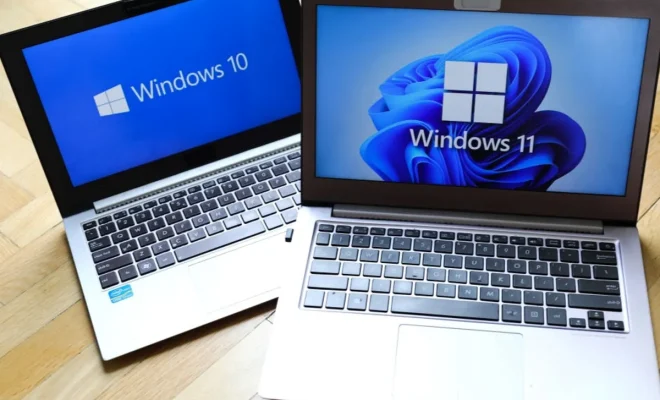
If you have an older computer running on Windows 7 or earlier, it may still use BIOS (Basic Input/Output System) for startup. However, modern computers use UEFI (Unified Extensible Firmware Interface), which offers better security features and faster boot times. In this article, we’ll show you how to convert legacy BIOS to UEFI in Windows 10 and 11.

Before we start, it is important to know that this process can be risky and should only be done if you have a good understanding of the manual process. A wrong step or mistake during the conversion can lead to a bricked computer. Therefore, we highly recommend backing up your important files and have a Windows installation media or recovery drive in case something goes wrong.

Step 1: Check Compatibility

The first thing you need to do is check whether your computer is compatible with UEFI. In order to do this, you need to check for a few things:

– Your computer should have a 64-bit processor
– The motherboard should be a UEFI-compatible one
– Windows version should be 64-bit

If your computer doesn’t meet these requirements, then unfortunately you won’t be able to convert to UEFI.

Step 2: Create a Bootable USB Drive

To convert your system to UEFI, you need to boot your computer from a UEFI-compatible bootable USB drive. You can use the Windows Media Creation tool to create a bootable USB drive from the official Windows site.

Step 3: Boot from the USB Drive

Once you have created a bootable USB drive, connect it to your computer and restart your computer. During the boot process, you need to press the key (it could be F2, F8, F10, or Delete, depending on your computer). This will take you to the boot menu. From the boot menu, select the USB drive with UEFI support, and press Enter.

Step 4: Convert Legacy BIOS to UEFI

Once you have booted your computer from the USB drive, you will see the Windows setup screen. Press Shift and F10 simultaneously to open the Command Prompt.

Type “diskpart” in the Command Prompt window and press Enter. Next, type “list disk” and press Enter. This will show you a list of connected disks. Make a note of the disk number you want to convert to UEFI.

Type “select disk X” (X is the number of the disk you want to convert) and press Enter. Next, type “clean” and press Enter. This will clean the selected disk, including all the data on it. Afterwards, type “convert gpt” and press Enter. This will convert your disk to a GPT partition, which is necessary for UEFI boot.

Exit the Command Prompt window and continue with the installation process. You can now install Windows in UEFI mode.

In conclusion, converting a legacy BIOS to UEFI can significantly boost your computer’s performance and security features. However, it is a risky process, and should only be attempted if you are confident in your technical abilities. Be sure to backup your important files and have a Windows installation media or recovery drive in case something goes wrong. By following these steps outlined above, you can successfully convert your legacy BIOS to UEFI in Windows 10 and 11.


Previous Article

Dark Windows Themes & Skins to Reduce ...

Next Article

How to Turn Find My iPad On ...

Matthew Lynch

Related articles More from author

  • Assistive Technology

    How to Create a Follow Button on Facebook

    June 8, 2023
    By Matthew Lynch
  • Assistive Technology

    How to Fix the “accountsd wants to use the login keychain” Mac Message

    June 15, 2023
    By Matthew Lynch
  • Assistive Technology

    How to Clear Cache on a Samsung S9

    June 10, 2023
    By Matthew Lynch
  • Assistive Technology

    How to Connect a PS3 Controller to Your Android Phone or Tablet

    June 6, 2023
    By Matthew Lynch
  • Assistive Technology

    How to Connect Your Wii U to Your Television

    June 10, 2023
    By Matthew Lynch
  • Assistive Technology

    What to Do When Your USB Ports Aren’t Working

    June 8, 2023
    By Matthew Lynch

Search

Login & Registration

  • Log in
  • Entries feed
  • Comments feed
  • WordPress.org

Newsletter

Signup for The Tech Edvocate Newsletter and have the latest in EdTech news and opinion delivered to your email address!

About Us

Since technology is not going anywhere and does more good than harm, adapting is the best course of action. That is where The Tech Edvocate comes in. We plan to cover the PreK-12 and Higher Education EdTech sectors and provide our readers with the latest news and opinion on the subject. From time to time, I will invite other voices to weigh in on important issues in EdTech. We hope to provide a well-rounded, multi-faceted look at the past, present, the future of EdTech in the US and internationally.

We started this journey back in June 2016, and we plan to continue it for many more years to come. I hope that you will join us in this discussion of the past, present and future of EdTech and lend your own insight to the issues that are discussed.

Newsletter

Signup for The Tech Edvocate Newsletter and have the latest in EdTech news and opinion delivered to your email address!

Contact Us

The Tech Edvocate
910 Goddin Street
Richmond, VA 23231
(601) 630-5238
[email protected]

Copyright © 2026 Matthew Lynch. All rights reserved.