The Tech Edvocate

Top Menu

  • Advertisement
  • Apps
  • Home Page
  • Home Page Five (No Sidebar)
  • Home Page Four
  • Home Page Three
  • Home Page Two
  • Home Tech2
  • Icons [No Sidebar]
  • Left Sidbear Page
  • Lynch Educational Consulting
  • My Account
  • My Speaking Page
  • Newsletter Sign Up Confirmation
  • Newsletter Unsubscription
  • Our Brands
  • Page Example
  • Privacy Policy
  • Protected Content
  • Register
  • Request a Product Review
  • Shop
  • Shortcodes Examples
  • Signup
  • Start Here
    • Governance
    • Careers
    • Contact Us
  • Terms and Conditions
  • The Edvocate
  • The Tech Edvocate Product Guide
  • Topics
  • Write For Us
  • Advertise

Main Menu

  • Start Here
    • Our Brands
    • Governance
      • Lynch Educational Consulting, LLC.
      • Dr. Lynch’s Personal Website
      • Careers
    • Write For Us
    • The Tech Edvocate Product Guide
    • Contact Us
    • Books
    • Edupedia
    • Post a Job
    • The Edvocate Podcast
    • Terms and Conditions
    • Privacy Policy
  • Topics
    • Assistive Technology
    • Child Development Tech
    • Early Childhood & K-12 EdTech
    • EdTech Futures
    • EdTech News
    • EdTech Policy & Reform
    • EdTech Startups & Businesses
    • Higher Education EdTech
    • Online Learning & eLearning
    • Parent & Family Tech
    • Personalized Learning
    • Product Reviews
  • Advertise
  • Tech Edvocate Awards
  • The Edvocate
  • Pedagogue
  • School Ratings

logo

The Tech Edvocate

  • Start Here
    • Our Brands
    • Governance
      • Lynch Educational Consulting, LLC.
      • Dr. Lynch’s Personal Website
        • My Speaking Page
      • Careers
    • Write For Us
    • The Tech Edvocate Product Guide
    • Contact Us
    • Books
    • Edupedia
    • Post a Job
    • The Edvocate Podcast
    • Terms and Conditions
    • Privacy Policy
  • Topics
    • Assistive Technology
    • Child Development Tech
    • Early Childhood & K-12 EdTech
    • EdTech Futures
    • EdTech News
    • EdTech Policy & Reform
    • EdTech Startups & Businesses
    • Higher Education EdTech
    • Online Learning & eLearning
    • Parent & Family Tech
    • Personalized Learning
    • Product Reviews
  • Advertise
  • Tech Edvocate Awards
  • The Edvocate
  • Pedagogue
  • School Ratings
  • Navigating the Fine Line Between Gentle Parenting and People-Pleasing

  • LAUSD Strike Threat: Parents Face Daycare Dilemmas and Learning Loss Concerns

  • Navigating the Storm: Northwestern Students Tackle Test Anxiety Head-On

  • Nisichawayasihk Cree Nation Faces Mental Health Crisis: A Community in Mourning

  • The Dangers of Viral Mental Health Advice: New Research Exposes Misinformation on Social Media

  • Global Landscape Transformations: Key Developments Reshaping Our Future on April 10, 2026

  • April 10, 2026: A Day of Surprising Headlines from Entertainment to Economics

  • April 10th, 2026: Key Developments in Europe and Beyond

  • Historic Meeting: Taiwan’s Opposition Leader and Xi Jinping Discuss Peaceful Relations

  • Gaza’s Ceasefire: A Six-Month Reflection and Its Implications for Regional Tensions

Digital & Mobile Technology
Home›Digital & Mobile Technology›How to Connect an Android Phone to a TV: Methods That Work

How to Connect an Android Phone to a TV: Methods That Work
By Matthew Lynch
June 6, 2023
0
Spread the love

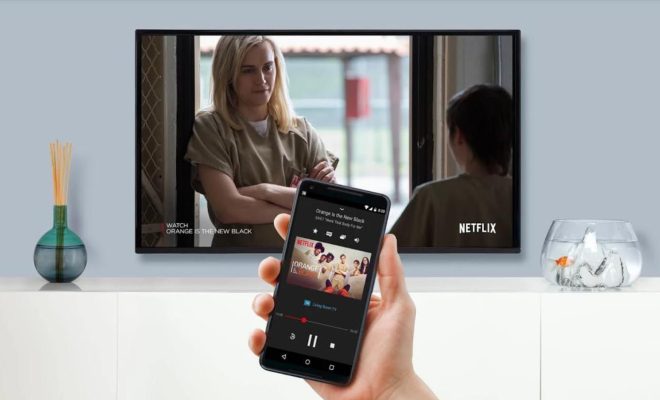
As more and more people use their mobile devices as their primary source for entertainment, the ability to connect an Android phone to a TV has become increasingly important. Doing so can allow users to enjoy their favorite shows, movies, and games on a larger screen without having to squint at their phone or tablet.

Fortunately, there are several methods available for connecting an Android phone to a TV, each of which comes with its own advantages and disadvantages. In this article, we’ll look at some of the most popular options and explore how to set up each one.

Method 1: HDMI Cable

One of the most straightforward ways to connect an Android phone to a TV is by using an HDMI cable. Most modern TVs have at least one HDMI port, which allows you to quickly and easily connect your phone and mirror the display on the big screen.

To connect your Android phone to a TV using an HDMI cable, simply follow these steps:

1. Purchase an HDMI cable that is compatible with your phone.

2. Connect one end of the HDMI cable to your TV and the other end to your phone’s charging port (usually a USB-C or micro-USB port).

3. Switch your TV to the correct HDMI input.

4. Your phone’s display should now be mirrored on your TV.

There are some downsides to this method, however. For example, you’ll need to be close enough to the TV to physically connect the cable, and you won’t be able to use your phone while it’s connected to the TV.

Method 2: Chromecast

Another popular method for connecting an Android phone to a TV is by using a Chromecast device. This small dongle plugs into your TV’s HDMI port and allows you to stream content from your phone or other devices.

To connect your Android phone to a TV using a Chromecast, follow these steps:

1. Plug your Chromecast into your TV’s HDMI port and connect it to your Wi-Fi network.

2. Download and install the Google Home app on your Android phone.

3. Open the Google Home app and follow the prompts to set up your Chromecast.

4. Once your Chromecast is set up, you can use it to stream content from your phone to your TV.

The benefit of using a Chromecast is that it allows you to use your phone while content is streaming to the TV. However, you’ll need a Wi-Fi connection and a Chromecast device.

Method 3: Screen Mirroring

Some Android phones allow you to mirror your device’s screen on your TV wirelessly. This method typically requires that both your phone and your TV are connected to the same Wi-Fi network.

To screen mirror your Android phone to your TV, follow these steps:

1. Make sure your phone and TV are connected to the same Wi-Fi network.

2. On your TV, open the Screen Mirroring or Miracast function.

3. On your Android phone, go to Settings > Connected devices > Connection preferences > Cast.

4. Select your TV from the list of available devices.

5. Your phone’s screen should now be mirrored on your TV.

This method can be convenient, as it doesn’t require any additional equipment besides a Wi-Fi network. However, not all Android phones support screen mirroring, so this may not be an option for everyone.

Previous Article

How to Use Midjourney to Create AI ...

Next Article

Best Free Word Game Apps to Play ...

Matthew Lynch

Related articles More from author

  • Digital & Mobile Technology

    Ultimate Guide to Sega Genesis Emulation on Retroarch

    April 25, 2023
    By Matthew Lynch
  • Digital & Mobile Technology

    The Best Samsung Galaxy Fold 4 Cases

    July 15, 2023
    By Matthew Lynch
  • Digital & Mobile Technology

    Ways to Open Task Manager on Windows 11

    April 10, 2023
    By Matthew Lynch
  • Digital & Mobile Technology

    How to Make and Use an Email Template in Outlook

    June 22, 2023
    By Matthew Lynch
  • Digital & Mobile Technology

    Send Free Faxes From Your Android Phone or Tablet

    June 23, 2023
    By Matthew Lynch
  • Digital & Mobile Technology

    How to Use Apple Music on iPhone and iPad

    June 26, 2023
    By Matthew Lynch

Search

Login & Registration

  • Register
  • Log in
  • Entries feed
  • Comments feed
  • WordPress.org

Newsletter

Signup for The Tech Edvocate Newsletter and have the latest in EdTech news and opinion delivered to your email address!

About Us

Since technology is not going anywhere and does more good than harm, adapting is the best course of action. That is where The Tech Edvocate comes in. We plan to cover the PreK-12 and Higher Education EdTech sectors and provide our readers with the latest news and opinion on the subject. From time to time, I will invite other voices to weigh in on important issues in EdTech. We hope to provide a well-rounded, multi-faceted look at the past, present, the future of EdTech in the US and internationally.

We started this journey back in June 2016, and we plan to continue it for many more years to come. I hope that you will join us in this discussion of the past, present and future of EdTech and lend your own insight to the issues that are discussed.

Newsletter

Signup for The Tech Edvocate Newsletter and have the latest in EdTech news and opinion delivered to your email address!

Contact Us

The Tech Edvocate
910 Goddin Street
Richmond, VA 23231
(601) 630-5238
[email protected]

Copyright © 2025 Matthew Lynch. All rights reserved.