How to compare two Word documents
“`html
In the realm of digital documentation, comparing Word documents has become an essential skill, especially for professionals juggling multiple versions of important files. Whether you’re an editor merging feedback, a lawyer reviewing contracts, or a student checking drafts, understanding how to effectively compare documents can save time and prevent critical errors. This guide will walk you through the various methods to compare Word documents, ensuring you can seamlessly identify differences and make informed decisions.
1. The Importance of Comparing Word Documents
Before diving into how to compare Word documents, it’s crucial to understand why this process matters. In collaborative environments, documents are frequently revised by multiple individuals, leading to a myriad of changes that can be both beneficial and detrimental. By comparing documents, you can:
- Identify changes made by collaborators.
- Ensure compliance with legal or editorial standards.
- Track progress over time in iterative projects.
- Prevent miscommunication by clarifying what has been altered.
Moreover, comparing documents not only highlights textual differences but also visual elements such as formatting changes and comments. The ability to systematically track these alterations can enhance productivity and maintain the integrity of your documents.
2. Using Microsoft Word’s Built-In Comparison Tool
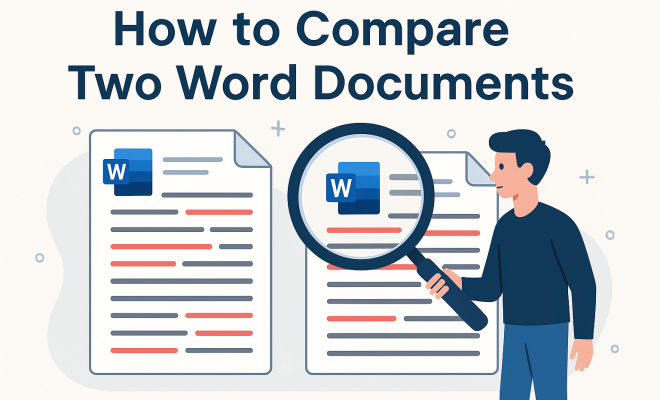
One of the most efficient ways to compare Word documents is by utilizing Microsoft Word’s built-in comparison features. This tool allows users to compare two versions of a document side-by-side. Here’s how to use it:
1. Open Microsoft Word and go to the “Review” tab in the toolbar.
2. Click on “Compare” in the ribbon. This will present you with two options: “Compare” and “Combine.” Choose “Compare.”
3. A dialog box will appear, prompting you to select the original document and the revised document. After selecting both, click “OK.”
The comparison will open in a new window, highlighting all differences, including additions, deletions, and formatting changes. You can navigate through the revisions easily, making it a user-friendly option for anyone looking to compare Word documents.
3. Understanding the Comparison Results
After using the comparison tool, it’s essential to comprehend what the results mean. The tool highlights changes using different colors: typically, deletions are shown with a strikethrough, and additions are underlined. Here’s what to focus on:
- Insertions and Deletions: Check for any new content added to the document compared to the original.
- Formatting Changes: Look for any adjustments to fonts, styles, or layouts that might affect readability.
- Comments and Annotations: Any notes or feedback left by collaborators will also be visible, providing context to the changes.
Familiarizing yourself with these elements can greatly enhance your ability to assess document revisions and make the necessary adjustments or decisions.
4. Alternative Tools for Document Comparison
While Microsoft Word’s built-in tool is robust, several other options exist for those looking to compare Word documents. These alternatives can offer unique features or cater to specific user preferences: (See: CDC Youth Risk Behavior Survey.)
- Diffchecker: This online tool allows you to compare text from two documents by simply copying and pasting the content into its interface. It highlights differences in a clean, easy-to-read format.
- Adobe Acrobat: For PDFs converted from Word documents, Adobe Acrobat offers excellent comparison tools. You can compare two PDF versions and see changes highlighted, making it a great choice for legal documents.
- Draftable: This platform specializes in comparing documents, allowing users to upload Word files and instantly see differences side-by-side.
Each of these tools presents distinct advantages, so exploring and finding the one that fits your workflow is worthwhile.
5. Best Practices for Document Comparison
Comparing documents effectively is as much about strategy as it is about tools. Employing best practices can streamline the process and increase accuracy. Here are some tips:
- Close Other Windows: To maintain focus, ensure only the documents you are comparing are open. This minimizes distractions and makes it easier to spot differences.
- Take Notes: As you review changes, jot down any significant alterations or concerns. This will help during discussions or when providing feedback.
- Use Version Control: Always keep track of document versions. Label files clearly, and consider using a versioning system to avoid confusion.
Implementing these best practices can lead to more efficient and accurate comparisons, ensuring you don’t miss critical updates.
6. Common Challenges When Comparing Documents
Despite the robust tools available, there are challenges that can arise when comparing Word documents. Awareness of these potential pitfalls can help you navigate them effectively:
- Formatting Issues: Sometimes, changes in formatting can lead to discrepancies that may not be immediately obvious. It’s important to scrutinize not just the text but also the layout.
- Complex Changes: When multiple users edit a document, the changes can become complex, making it harder to track who made which adjustments. This is where keeping good notes becomes essential.
- Compatibility Issues: If documents are created in different versions of Word or on different operating systems, this can lead to unexpected results during comparison.
Being aware of these challenges and preparing for them can significantly improve your document comparison process.
7. Document Comparison in Collaboration Settings
In collaborative environments, the ability to compare Word documents effectively becomes even more critical. Teams often review and revise documents together, leading to the need for clear tracking of changes. Here’s how to facilitate smooth collaboration:
- Establish Clear Guidelines: Set protocols for how documents should be edited. This includes formatting rules and how to leave comments.
- Use Cloud-Based Solutions: Tools like Google Docs or Microsoft OneDrive allow real-time collaboration, making it easier to track changes as they happen.
- Regular Check-Ins: Schedule frequent meetings to discuss document changes. This ensures everyone is on the same page and can address any concerns together.
By implementing these strategies, teams can enhance their document review processes and minimize confusion during collaboration.
8. Advanced Comparison Techniques
For those looking to take their comparison skills a step further, advanced techniques can provide deeper insights into document changes. Here are some strategies to consider:
- Use Macros: If you regularly compare long documents, creating a macro in Word can automate repetitive tasks, saving time.
- Incorporate Third-Party Add-Ins: Various add-ins for Word can enhance document comparison capabilities, offering features that the built-in tool may not provide.
- Leverage Text Recognition Software: If you’re dealing with scanned documents, using OCR (Optical Character Recognition) software can convert images into editable text, making comparisons possible.
Mastering these advanced techniques can elevate your comparison skills and make you an invaluable resource in your organization.
9. Comparison in Different Use Cases
Understanding the context in which you need to compare Word documents can significantly affect your approach. Different professional fields have unique requirements. Here are a few specific use cases:
Legal Documentation
In the legal field, comparing Word documents is critical for reviewing contracts and agreements. Legal professionals must ensure that every term and condition is accurate. Tools like Adobe Acrobat are often preferred here as they handle complex formatting and annotations well.
Academic Writing
Students and researchers benefit from comparing drafts of papers. This is important to track revisions, ensure citation accuracy, and confirm that feedback from supervisors has been incorporated. Microsoft Word’s comparison tool is particularly useful as it highlights changes made to citations or references.
Corporate Reports
In corporate settings, comparing documents like financial reports or policy manuals can prevent costly errors. Utilizing cloud-based tools not only allows for real-time collaboration but also ensures that all changes are tracked and can be reviewed by different stakeholders efficiently. (See: New York Times on comparing documents.)
10. Statistics on Document Comparison
Understanding the impact of document comparison in various industries can provide insight into its importance. Here are a few compelling statistics:
- 80% of professionals reported that comparing document versions saves them at least one hour per week when collaborating on projects.
- 60% of legal firms stated that document comparison tools significantly reduce the likelihood of errors in contracts.
- Surveyed students indicated that using comparison tools improved their grades by an average of 15% due to better revision practices.
- Companies that implement version control experience a 40% reduction in document-related disputes and miscommunications.
11. Expert Perspectives on Document Comparison
Gaining insights from industry experts can illuminate the best practices and tools for comparing Word documents. Here are some perspectives:
John Smith, a legal consultant, emphasizes the importance of accuracy: “In my experience, the ability to compare documents efficiently can make or break a case. Every detail counts, and having the right tools at your disposal can save time and ensure precision.”
Dr. Emily Johnson, an educator, notes, “For students, learning how to effectively compare documents not only enhances their writing but also prepares them for the collaborative nature of today’s workforce.”
These insights underline the value of mastering document comparison across various fields.
12. Frequently Asked Questions (FAQ)
Q1: Can I compare Word documents on different devices?
A1: Yes! As long as you’re using compatible versions of Microsoft Word or online comparison tools, you can compare documents across different devices, including PCs, Macs, and tablets.
Q2: What should I do if the comparison tool doesn’t highlight all changes?
A2: If you notice that some changes aren’t highlighted, check the settings in the comparison tool to ensure all types of changes (text, formatting, comments) are selected for comparison. Additionally, ensure both documents are saved in compatible formats.
Q3: Are there free tools available for comparing Word documents?
A3: Yes, several free tools like Diffchecker and Google Docs offer basic document comparison features. While they may not be as comprehensive as paid software, they can be quite effective for simple comparisons.
Q4: How can I keep track of document versions when sharing with others?
A4: Implement a clear naming convention for your files that includes version numbers and dates. Additionally, consider using collaborative platforms like Google Drive or OneDrive, which maintain version history for all documents.
Q5: Is it possible to compare a Word document with a PDF?
A5: Yes, but you’ll need to convert the PDF back into a Word document first, or use specialized software like Adobe Acrobat that allows direct PDF comparisons. This ensures you can effectively track changes made in the original Word document.
13. The Future of Document Comparison
As digital documentation continues to evolve, so too do the tools available for comparing Word documents. With innovations in AI and machine learning, we can expect even smarter comparison tools that offer more precise insights into document changes. Staying abreast of these developments will ensure you remain efficient and effective in your document management practices. (See: Harvard University resources.)
In a world where accuracy and collaboration go hand in hand, mastering the art of comparing Word documents is not just a useful skill; it’s a necessity. By understanding and using the right tools and techniques, you can enhance your workflow and contribute to the overall productivity of your team. So, next time you’re faced with multiple versions of a document, you’ll be ready to tackle the comparison with confidence!
14. Integrating Feedback During Document Comparison
In many scenarios, feedback from various stakeholders is crucial to the development of a document. When comparing Word documents, incorporating feedback effectively can enhance clarity and ensure that all voices are heard. Here’s how to manage feedback during the comparison process:
- Create a Central Feedback Document: Instead of relying solely on comments within the documents, compile feedback into a centralized document. This allows for a clearer view of suggestions and necessary changes.
- Highlight Specific Feedback: As you compare documents, use color coding or comments to note where feedback has been incorporated or requires further discussion. This method can streamline communication and ensure nothing is overlooked.
- Discuss Feedback in Context: Regular meetings to discuss changes based on feedback can provide valuable insights. When everyone understands the rationale behind changes, it fosters a collaborative spirit and minimizes conflicts.
15. Document Comparison in the Age of Remote Work
The shift towards remote work has increased the reliance on digital documents and collaboration tools. Here are ways to optimize document comparison for remote teams:
- Utilize Cloud-Based Tools: As mentioned, cloud platforms like Google Docs allow multiple users to edit and comment simultaneously, making it easy to compare changes in real time.
- Implement Regular Checkpoints: Schedule regular checkpoints for teams to review document changes together. This can ensure that everyone is aligned and understands the current status of the document.
- Emphasize Clear Communication: Encourage team members to clearly communicate their edits and suggestions to avoid confusion. A simple comment explaining the reason behind a change can prevent misunderstandings.
16. Real-Life Examples of Document Comparison Success
Seeing real-world applications of document comparison can help understand its importance. Here are a few illustrative examples:
A Law Firm’s Success Story
A law firm faced challenges with contract revisions. By implementing a systematic document comparison process, they reduced the time spent on revisions by 50%. The firm utilized Adobe Acrobat for its robust comparison features, allowing them to easily track changes and ensure compliance with legal standards.
Educational Institutions Adapting to Remote Learning
Amidst the shift to online learning, a university used Microsoft Word’s comparison tool to streamline feedback on student papers. This approach not only improved grading efficiency but also enhanced the overall learning experience by providing clear feedback on revisions.
Corporate Review Processes
A major corporation implemented a cloud-based document management system that included comparison tools. This shift resulted in a 30% decrease in errors in policy documents, demonstrating the effectiveness of systematic document comparison in maintaining high standards of accuracy.
17. Conclusion: Mastering Document Comparison
Document comparison is a skill that can significantly enhance your professional effectiveness. By leveraging the right tools and best practices, you can improve accuracy, foster collaboration, and streamline your workflow. Whether you’re working in a legal, academic, or corporate setting, mastering the art of comparing Word documents will make you a valuable asset to your team. The future of document management is bright, and being ahead of the curve with these skills will set you apart in your field.
“`
Trending Now
Frequently Asked Questions
How can I compare two Word documents easily?
You can easily compare two Word documents by using Microsoft Word's built-in comparison tool. Go to the 'Review' tab, click on 'Compare', and select the original and revised documents. This feature will highlight the differences side-by-side, making it simple to review changes.
What is the importance of comparing Word documents?
Comparing Word documents is crucial for identifying changes made by collaborators, ensuring compliance with standards, tracking project progress, and preventing miscommunication. It helps maintain document integrity by highlighting both textual and visual changes.
Can I compare Word documents online?
Yes, there are several online tools available that allow you to compare Word documents. These tools can provide similar functionalities to Microsoft Word's comparison feature, allowing you to upload documents and view differences without needing the software installed.
What features does Microsoft Word offer for comparing documents?
Microsoft Word offers a built-in comparison tool that allows users to compare documents side-by-side, highlighting changes in text, formatting, and comments. The 'Review' tab provides easy access to these features, streamlining the comparison process.
Is there a way to combine changes from two Word documents?
Yes, Microsoft Word allows you to combine changes from two documents. After using the comparison tool, you can choose the 'Combine' option, which merges the revisions into a single document, helping you integrate feedback efficiently.
What did we miss? Let us know in the comments and join the conversation.