The Tech Edvocate

Top Menu

  • Advertisement
  • Apps
  • Home Page
  • Home Page Five (No Sidebar)
  • Home Page Four
  • Home Page Three
  • Home Page Two
  • Home Tech2
  • Icons [No Sidebar]
  • Left Sidbear Page
  • Lynch Educational Consulting
  • My Account
  • My Speaking Page
  • Newsletter Sign Up Confirmation
  • Newsletter Unsubscription
  • Our Brands
  • Page Example
  • Privacy Policy
  • Protected Content
  • Register
  • Request a Product Review
  • Shop
  • Shortcodes Examples
  • Signup
  • Start Here
    • Governance
    • Careers
    • Contact Us
  • Terms and Conditions
  • The Edvocate
  • The Tech Edvocate Product Guide
  • Topics
  • Write For Us
  • Advertise

Main Menu

  • Start Here
    • Our Brands
    • Governance
      • Lynch Educational Consulting, LLC.
      • Dr. Lynch’s Personal Website
      • Careers
    • Write For Us
    • The Tech Edvocate Product Guide
    • Contact Us
    • Books
    • Edupedia
    • Post a Job
    • The Edvocate Podcast
    • Terms and Conditions
    • Privacy Policy
  • Topics
    • Assistive Technology
    • Child Development Tech
    • Early Childhood & K-12 EdTech
    • EdTech Futures
    • EdTech News
    • EdTech Policy & Reform
    • EdTech Startups & Businesses
    • Higher Education EdTech
    • Online Learning & eLearning
    • Parent & Family Tech
    • Personalized Learning
    • Product Reviews
  • Advertise
  • Tech Edvocate Awards
  • The Edvocate
  • Pedagogue
  • School Ratings

logo

The Tech Edvocate

  • Start Here
    • Our Brands
    • Governance
      • Lynch Educational Consulting, LLC.
      • Dr. Lynch’s Personal Website
        • My Speaking Page
      • Careers
    • Write For Us
    • The Tech Edvocate Product Guide
    • Contact Us
    • Books
    • Edupedia
    • Post a Job
    • The Edvocate Podcast
    • Terms and Conditions
    • Privacy Policy
  • Topics
    • Assistive Technology
    • Child Development Tech
    • Early Childhood & K-12 EdTech
    • EdTech Futures
    • EdTech News
    • EdTech Policy & Reform
    • EdTech Startups & Businesses
    • Higher Education EdTech
    • Online Learning & eLearning
    • Parent & Family Tech
    • Personalized Learning
    • Product Reviews
  • Advertise
  • Tech Edvocate Awards
  • The Edvocate
  • Pedagogue
  • School Ratings
  • JisuLife Ultra2 Portable Fan: A Powerful Multi-Function Cooling Solution

  • A Visitors Guide to Viña del Mar, Chile

  • A Visitors Guide to Århus, Denmark

  • A Visitors Guide to Bakersfield (CA), United States

  • A Visitors Guide to Aurora (CO), United States

  • A Visitor’s Guide to Toledo (OH), United States

  • A Visitors Guide to Cincinnati (OH), United States

  • The MagicEagle Cam 5: Revolutionizing Wildlife Monitoring with Smart 4G Technology

  • A Visitors Guide to Pittsburgh (PA), United States

  • A Visitors Guide to Colorado Springs (CO), United States

Digital & Mobile Technology
Home›Digital & Mobile Technology›How to Block Pop-Ups in Microsoft Edge on Desktop and Mobile

How to Block Pop-Ups in Microsoft Edge on Desktop and Mobile
By Matthew Lynch
June 12, 2023
0
Spread the love

Pop-ups are those annoying windows that suddenly appear on your screen when you’re browsing the internet. They can be advertisements, notifications, or even malicious malware trying to steal your information. Fortunately, Microsoft Edge offers built-in tools to block pop-ups on both desktop and mobile devices. In this article, we’ll walk you through how to block pop-ups in Microsoft Edge on both platforms.

How to Block Pop-Ups in Microsoft Edge on Desktop

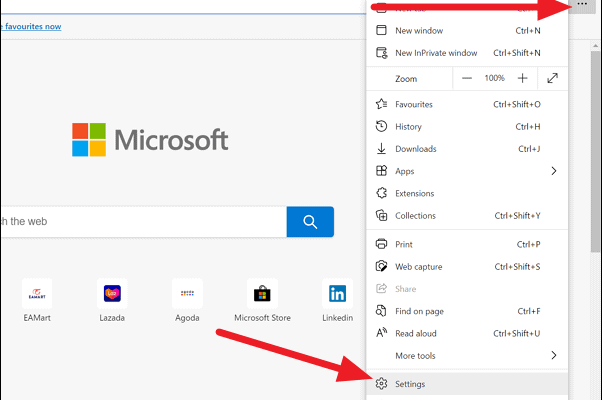
Step 1: Click the three-dot menu in the upper-right corner of Microsoft Edge window.

Step 2: Select “Settings” from the drop-down menu.

Step 3: Scroll down and click on “Privacy, search, and services.”

Step 4: Under the “Security” section, click “Cookies and site permissions.”

Step 5: Scroll down to the “Pop-ups and redirects” option.

Step 6: Toggle off the switch next to “Block” to enable pop-ups.

If you want to allow pop-ups on certain websites, you can click “Add” next to the “Allow” option and enter the website’s URL.

How to Block Pop-Ups in Microsoft Edge on Mobile

Step 1: Open the Microsoft Edge app on your mobile device.

Step 2: Tap the three-dot menu in the lower-right corner of the screen.

Step 3: Select “Settings” from the drop-down menu.

Step 4: Tap on “Cookies and site permissions.”

Step 5: Tap on “Pop-ups and redirects.”

Step 6: Toggle off the switch next to “Block” to enable pop-ups.

If you want to allow pop-ups on certain websites, you can tap “Add” next to the “Allow” option and enter the website’s URL.

By following these simple steps, you can block pop-ups on both desktop and mobile versions of Microsoft Edge. This will not only help you avoid the annoyance of pop-ups but also protect your device from malware that could potentially harm it. So, start blocking those pop-ups today and enjoy a smoother browsing experience.


Previous Article

Alternatives to Amazon for Your Online Shopping

Next Article

How Do You Draw on Google Slides?

Matthew Lynch

Related articles More from author

  • Digital & Mobile Technology

    How to Find a Landline Number

    May 28, 2023
    By Matthew Lynch
  • Digital & Mobile Technology

    Microphone Not Working on Your Android Phone? How to Fix It

    June 8, 2023
    By Matthew Lynch
  • Digital & Mobile Technology

    No Permission to Enable Voice Typing on Android? Here’s How to Fix It

    August 5, 2023
    By Matthew Lynch
  • Digital & Mobile Technology

    What Is Portrait Orientation in Photography?

    June 21, 2023
    By Matthew Lynch
  • Digital & Mobile Technology

    The Best Privacy Screen Protectors for Phones in 2023

    June 23, 2023
    By Matthew Lynch
  • Digital & Mobile Technology

    How to Delete Photos on a Mac

    August 5, 2023
    By Matthew Lynch

Search

Login & Registration

  • Register
  • Log in
  • Entries feed
  • Comments feed
  • WordPress.org

Newsletter

Signup for The Tech Edvocate Newsletter and have the latest in EdTech news and opinion delivered to your email address!

About Us

Since technology is not going anywhere and does more good than harm, adapting is the best course of action. That is where The Tech Edvocate comes in. We plan to cover the PreK-12 and Higher Education EdTech sectors and provide our readers with the latest news and opinion on the subject. From time to time, I will invite other voices to weigh in on important issues in EdTech. We hope to provide a well-rounded, multi-faceted look at the past, present, the future of EdTech in the US and internationally.

We started this journey back in June 2016, and we plan to continue it for many more years to come. I hope that you will join us in this discussion of the past, present and future of EdTech and lend your own insight to the issues that are discussed.

Newsletter

Signup for The Tech Edvocate Newsletter and have the latest in EdTech news and opinion delivered to your email address!

Contact Us

The Tech Edvocate
910 Goddin Street
Richmond, VA 23231
(601) 630-5238
[email protected]

Copyright © 2025 Matthew Lynch. All rights reserved.