The Tech Edvocate

Top Menu

  • Advertisement
  • Apps
  • Home Page
  • Home Page Five (No Sidebar)
  • Home Page Four
  • Home Page Three
  • Home Page Two
  • Home Tech2
  • Icons [No Sidebar]
  • Left Sidbear Page
  • Lynch Educational Consulting
  • My Account
  • My Speaking Page
  • Newsletter Sign Up Confirmation
  • Newsletter Unsubscription
  • Our Brands
  • Page Example
  • Privacy Policy
  • Protected Content
  • Register
  • Request a Product Review
  • Shop
  • Shortcodes Examples
  • Signup
  • Start Here
    • Governance
    • Careers
    • Contact Us
  • Terms and Conditions
  • The Edvocate
  • The Tech Edvocate Product Guide
  • Topics
  • Write For Us
  • Advertise

Main Menu

  • Start Here
    • Our Brands
    • Governance
      • Lynch Educational Consulting, LLC.
      • Dr. Lynch’s Personal Website
      • Careers
    • Write For Us
    • The Tech Edvocate Product Guide
    • Contact Us
    • Books
    • Edupedia
    • Post a Job
    • The Edvocate Podcast
    • Terms and Conditions
    • Privacy Policy
  • Topics
    • Assistive Technology
    • Child Development Tech
    • Early Childhood & K-12 EdTech
    • EdTech Futures
    • EdTech News
    • EdTech Policy & Reform
    • EdTech Startups & Businesses
    • Higher Education EdTech
    • Online Learning & eLearning
    • Parent & Family Tech
    • Personalized Learning
    • Product Reviews
  • Advertise
  • Tech Edvocate Awards
  • The Edvocate
  • Pedagogue
  • School Ratings

logo

The Tech Edvocate

  • Start Here
    • Our Brands
    • Governance
      • Lynch Educational Consulting, LLC.
      • Dr. Lynch’s Personal Website
        • My Speaking Page
      • Careers
    • Write For Us
    • The Tech Edvocate Product Guide
    • Contact Us
    • Books
    • Edupedia
    • Post a Job
    • The Edvocate Podcast
    • Terms and Conditions
    • Privacy Policy
  • Topics
    • Assistive Technology
    • Child Development Tech
    • Early Childhood & K-12 EdTech
    • EdTech Futures
    • EdTech News
    • EdTech Policy & Reform
    • EdTech Startups & Businesses
    • Higher Education EdTech
    • Online Learning & eLearning
    • Parent & Family Tech
    • Personalized Learning
    • Product Reviews
  • Advertise
  • Tech Edvocate Awards
  • The Edvocate
  • Pedagogue
  • School Ratings
  • Nostalgija kot oblikovalski jezik sodobnih spletnih igralniških iger

  • Piedzīvojuma naratīvs spēļu automātu bonusu ainās

  • Kā bingo elementi parādās mūsdienu kazino spēļu bibliotēkās

  • Luksusa tēli kazino spēļu vizuālajā valodā

  • Les studios de casino en direct rapprochent le jeu en ligne de l’expérience audiovisuelle

  • Wie Spieletitel Thema und Genre vor dem Start vermitteln

  • Wie Vorschaubilder die Orientierung in digitalen Casino Lobbys prägen

  • This One Privacy Camera Feature Could Change Smart Homes Forever

  • Unprecedented: White House Mandates AI Security Incident Reporting After Troubling Breaches

  • The AI Storm Tracker Predicting Viral Narratives Just Landed $7 Million – Here’s Why It Matters

Digital & Mobile Technology
Home›Digital & Mobile Technology›How to Add Command Line Parameters to PC Game Shortcuts

How to Add Command Line Parameters to PC Game Shortcuts
By Matthew Lynch
June 11, 2023
0
Spread the love

When you launch a PC game, it often comes with a shortcut on your desktop or in the Start menu. This shortcut launches the game with default settings, but sometimes you may want to modify those settings to suit your preferences. This is where command line parameters come in handy.

Command line parameters are additional instructions you can give to a program at launch time. These instructions can adjust the game’s graphics settings, enable or disable certain features, or even unlock cheats. Here’s how you can add command line parameters to PC game shortcuts.

Step 1: Find the game’s executable file

Before you can add command line parameters to a game shortcut, you need to know where the game’s executable file is located. This file is what the shortcut launches when you click on it. Usually, the executable file is in the game’s installation folder, which might be in the Program Files folder or in your Steam library.

Step 2: Create a shortcut to the executable file

Once you’ve found the game’s executable file, the next step is to create a shortcut to it. This shortcut will be what you use to launch the game with the command line parameters. Right-click on the executable file and select “Create shortcut” from the context menu.

Step 3: Modify the shortcut’s properties

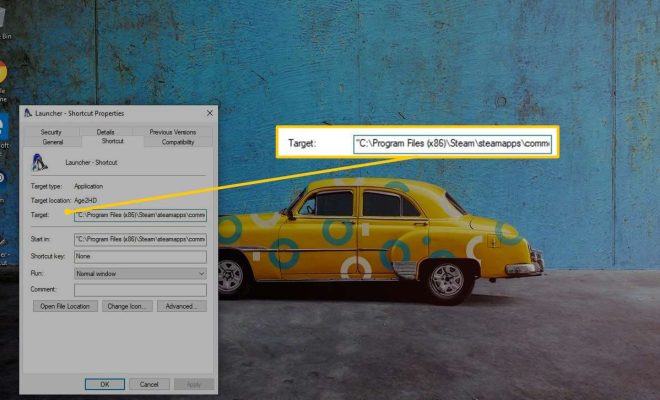
Right-click on the shortcut you just created and select “Properties” from the context menu. This will open a window with all the properties of the shortcut.

Step 4: Add the command line parameters

In the “Target” field of the shortcut’s properties, you’ll see the path to the game’s executable file. You need to add the command line parameters to the end of this path, separated by a space. For example, if you want to launch the game in windowed mode, you would add “-windowed” to the end of the path.

Step 5: Save the changes

Once you’ve added the command line parameters, click “Apply” and “OK” to save the changes. Now, whenever you launch the game using this shortcut, it will use the command line parameters you specified.

Some popular command line parameters for PC games include:

• -windowed: launches the game in windowed mode
• -fullscreen: launches the game in fullscreen mode
• -noborder: removes the border around the game window in windowed mode
• -dxlevel : sets the DirectX level for the game (replace with a number from 80 to 97)
• -novsync: disables vertical synchronization
• -console: enables the in-game console
• -novid: skips the game’s intro video

Adding command line parameters to PC game shortcuts can help you customize your gaming experience and optimize the game’s performance. With these simple steps, you can quickly and easily configure your game to suit your preferences.


Previous Article

How to Rotate an Image in Google ...

Next Article

8 Alternatives to iGoogle Homepage

Matthew Lynch

Related articles More from author

  • Digital & Mobile Technology

    What Is the Neighbors by Ring App?

    June 11, 2023
    By Matthew Lynch
  • Digital & Mobile Technology

    Is the Email From “[email protected]” Legitimate?

    August 3, 2023
    By Matthew Lynch
  • Digital & Mobile Technology

    What Is The Ribbon In Excel?

    June 8, 2023
    By Matthew Lynch
  • Digital & Mobile Technology

    How to Request a Refund on a Discord Purchase

    July 31, 2023
    By Matthew Lynch
  • Digital & Mobile Technology

    Gory Sites to Get Your Dose of Cheesy Horror

    June 15, 2023
    By Matthew Lynch
  • Digital & Mobile Technology

    Google Pixel Slate Review

    June 4, 2023
    By Matthew Lynch

Search

Login & Registration

  • Log in
  • Entries feed
  • Comments feed
  • WordPress.org

Newsletter

Signup for The Tech Edvocate Newsletter and have the latest in EdTech news and opinion delivered to your email address!

About Us

Since technology is not going anywhere and does more good than harm, adapting is the best course of action. That is where The Tech Edvocate comes in. We plan to cover the PreK-12 and Higher Education EdTech sectors and provide our readers with the latest news and opinion on the subject. From time to time, I will invite other voices to weigh in on important issues in EdTech. We hope to provide a well-rounded, multi-faceted look at the past, present, the future of EdTech in the US and internationally.

We started this journey back in June 2016, and we plan to continue it for many more years to come. I hope that you will join us in this discussion of the past, present and future of EdTech and lend your own insight to the issues that are discussed.

Newsletter

Signup for The Tech Edvocate Newsletter and have the latest in EdTech news and opinion delivered to your email address!

Contact Us

The Tech Edvocate
910 Goddin Street
Richmond, VA 23231
(601) 630-5238
[email protected]

Copyright © 2026 Matthew Lynch. All rights reserved.