The Tech Edvocate

Top Menu

  • Advertisement
  • Apps
  • Home Page
  • Home Page Five (No Sidebar)
  • Home Page Four
  • Home Page Three
  • Home Page Two
  • Home Tech2
  • Icons [No Sidebar]
  • Left Sidbear Page
  • Lynch Educational Consulting
  • My Account
  • My Speaking Page
  • Newsletter Sign Up Confirmation
  • Newsletter Unsubscription
  • Our Brands
  • Page Example
  • Privacy Policy
  • Protected Content
  • Register
  • Request a Product Review
  • Shop
  • Shortcodes Examples
  • Signup
  • Start Here
    • Governance
    • Careers
    • Contact Us
  • Terms and Conditions
  • The Edvocate
  • The Tech Edvocate Product Guide
  • Topics
  • Write For Us
  • Advertise

Main Menu

  • Start Here
    • Our Brands
    • Governance
      • Lynch Educational Consulting, LLC.
      • Dr. Lynch’s Personal Website
      • Careers
    • Write For Us
    • The Tech Edvocate Product Guide
    • Contact Us
    • Books
    • Edupedia
    • Post a Job
    • The Edvocate Podcast
    • Terms and Conditions
    • Privacy Policy
  • Topics
    • Assistive Technology
    • Child Development Tech
    • Early Childhood & K-12 EdTech
    • EdTech Futures
    • EdTech News
    • EdTech Policy & Reform
    • EdTech Startups & Businesses
    • Higher Education EdTech
    • Online Learning & eLearning
    • Parent & Family Tech
    • Personalized Learning
    • Product Reviews
  • Advertise
  • Tech Edvocate Awards
  • The Edvocate
  • Pedagogue
  • School Ratings

logo

The Tech Edvocate

  • Start Here
    • Our Brands
    • Governance
      • Lynch Educational Consulting, LLC.
      • Dr. Lynch’s Personal Website
        • My Speaking Page
      • Careers
    • Write For Us
    • The Tech Edvocate Product Guide
    • Contact Us
    • Books
    • Edupedia
    • Post a Job
    • The Edvocate Podcast
    • Terms and Conditions
    • Privacy Policy
  • Topics
    • Assistive Technology
    • Child Development Tech
    • Early Childhood & K-12 EdTech
    • EdTech Futures
    • EdTech News
    • EdTech Policy & Reform
    • EdTech Startups & Businesses
    • Higher Education EdTech
    • Online Learning & eLearning
    • Parent & Family Tech
    • Personalized Learning
    • Product Reviews
  • Advertise
  • Tech Edvocate Awards
  • The Edvocate
  • Pedagogue
  • School Ratings
  • JisuLife Ultra2 Portable Fan: A Powerful Multi-Function Cooling Solution

  • A Visitors Guide to Viña del Mar, Chile

  • A Visitors Guide to Århus, Denmark

  • A Visitors Guide to Bakersfield (CA), United States

  • A Visitors Guide to Aurora (CO), United States

  • A Visitor’s Guide to Toledo (OH), United States

  • A Visitors Guide to Cincinnati (OH), United States

  • The MagicEagle Cam 5: Revolutionizing Wildlife Monitoring with Smart 4G Technology

  • A Visitors Guide to Pittsburgh (PA), United States

  • A Visitors Guide to Colorado Springs (CO), United States

Digital & Mobile Technology
Home›Digital & Mobile Technology›How Do I Reset My Windows Password?

How Do I Reset My Windows Password?
By Matthew Lynch
July 15, 2023
0
Spread the love

As technology continues to make life easier for us, it has also made it easier for hackers to access our personal data. One of the ways they do this is by cracking our passwords. If you forget your Windows password or someone maliciously changes it, it can be a frustrating experience. But, fret not! Here’s how to reset your Windows password.

Method 1: Use the Windows Password Reset Disk

A Windows password reset disk is a simple tool that helps you reset your password if you forget it. Follow these steps to create a reset disk:

1. Insert a removable media such as a USB flash drive or a CD/DVD into your computer.

2. Click on “Start,” then “Control Panel,” “User Accounts and Family Safety,” “User Accounts,” then “Create a password reset disk.”

3. Follow the step-by-step instructions to create the password reset disk.

Now, if you ever forget your password or someone maliciously changes it, follow these steps:

1. Restart your computer and click on the “Reset password” link in the login screen of Windows.

2. Insert the password reset disk and follow the on-screen instructions.

3. Set a new password and confirm it.

Method 2: Use the Administrator Account

Most Windows systems have an administrator account by default. This account can be used to reset any user’s password on the computer. Here’s how:

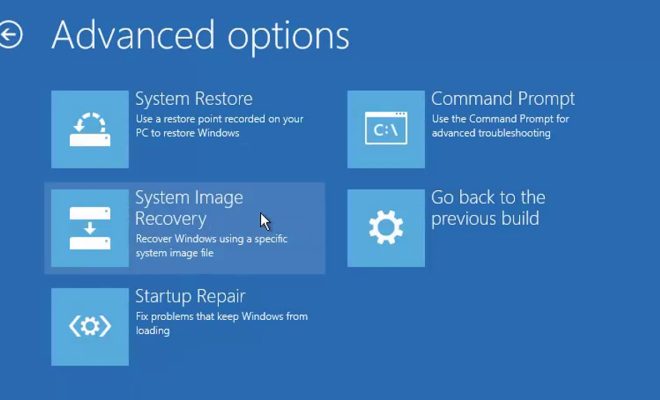
1. Restart your computer and press F8 before the Windows logo appears.

2. Select “Safe Mode with Command Prompt” and press Enter.

3. Log in to the administrator account.

4. Type “net user [username] *,” where [username] is the username of the account whose password you want to reset.

5. Follow the on-screen prompts to set a new password.

Method 3: Use Third-Party Software

There are several third-party password recovery tools available that can help reset your Windows password. Some of the most effective tools include Ophcrack, PCUnlocker, and Windows Password Recovery Tool. These tools work by creating a bootable CD/DVD or USB drive, which you can use to reset your password.

Conclusion

Losing access to your Windows computer can be frustrating, but it’s not the end of the world. With the above methods, you can easily reset your password and regain access to your system. If you’reconcerned about the security of your account, consider using a more secure password or enabling two-factor authentication. Make sure you keep your password reset disk or USB drive in a safe place, where only you can access it.


Previous Article

What Is Social Networking?

Next Article

What Was Game Center and What Happened ...

Matthew Lynch

Related articles More from author

  • Digital & Mobile Technology

    What is Remote Desktop Protocol (RDP)?

    May 11, 2023
    By Matthew Lynch
  • Digital & Mobile Technology

    7 New Roku OS 11.5 Features Worth Checking Out

    June 6, 2023
    By Matthew Lynch
  • Digital & Mobile Technology

    How to Change Size of Icons on Android

    July 14, 2023
    By Matthew Lynch
  • Digital & Mobile Technology

    Free and Cheap VoIP Services for iPhone

    July 31, 2023
    By Matthew Lynch
  • Digital & Mobile Technology

    How Long Does It Take for PayPal to Transfer Money?

    June 2, 2023
    By Matthew Lynch
  • Digital & Mobile Technology

    How to Delete a File in Use by Another Program in Windows 10

    August 5, 2023
    By Matthew Lynch

Search

Login & Registration

  • Register
  • Log in
  • Entries feed
  • Comments feed
  • WordPress.org

Newsletter

Signup for The Tech Edvocate Newsletter and have the latest in EdTech news and opinion delivered to your email address!

About Us

Since technology is not going anywhere and does more good than harm, adapting is the best course of action. That is where The Tech Edvocate comes in. We plan to cover the PreK-12 and Higher Education EdTech sectors and provide our readers with the latest news and opinion on the subject. From time to time, I will invite other voices to weigh in on important issues in EdTech. We hope to provide a well-rounded, multi-faceted look at the past, present, the future of EdTech in the US and internationally.

We started this journey back in June 2016, and we plan to continue it for many more years to come. I hope that you will join us in this discussion of the past, present and future of EdTech and lend your own insight to the issues that are discussed.

Newsletter

Signup for The Tech Edvocate Newsletter and have the latest in EdTech news and opinion delivered to your email address!

Contact Us

The Tech Edvocate
910 Goddin Street
Richmond, VA 23231
(601) 630-5238
[email protected]

Copyright © 2025 Matthew Lynch. All rights reserved.