The Tech Edvocate

Top Menu

  • Advertisement
  • Apps
  • Home Page
  • Home Page Five (No Sidebar)
  • Home Page Four
  • Home Page Three
  • Home Page Two
  • Home Tech2
  • Icons [No Sidebar]
  • Left Sidbear Page
  • Lynch Educational Consulting
  • My Account
  • My Speaking Page
  • Newsletter Sign Up Confirmation
  • Newsletter Unsubscription
  • Our Brands
  • Page Example
  • Privacy Policy
  • Protected Content
  • Register
  • Request a Product Review
  • Shop
  • Shortcodes Examples
  • Signup
  • Start Here
    • Governance
    • Careers
    • Contact Us
  • Terms and Conditions
  • The Edvocate
  • The Tech Edvocate Product Guide
  • Topics
  • Write For Us
  • Advertise

Main Menu

  • Start Here
    • Our Brands
    • Governance
      • Lynch Educational Consulting, LLC.
      • Dr. Lynch’s Personal Website
      • Careers
    • Write For Us
    • The Tech Edvocate Product Guide
    • Contact Us
    • Books
    • Edupedia
    • Post a Job
    • The Edvocate Podcast
    • Terms and Conditions
    • Privacy Policy
  • Topics
    • Assistive Technology
    • Child Development Tech
    • Early Childhood & K-12 EdTech
    • EdTech Futures
    • EdTech News
    • EdTech Policy & Reform
    • EdTech Startups & Businesses
    • Higher Education EdTech
    • Online Learning & eLearning
    • Parent & Family Tech
    • Personalized Learning
    • Product Reviews
  • Advertise
  • Tech Edvocate Awards
  • The Edvocate
  • Pedagogue
  • School Ratings

logo

The Tech Edvocate

  • Start Here
    • Our Brands
    • Governance
      • Lynch Educational Consulting, LLC.
      • Dr. Lynch’s Personal Website
        • My Speaking Page
      • Careers
    • Write For Us
    • The Tech Edvocate Product Guide
    • Contact Us
    • Books
    • Edupedia
    • Post a Job
    • The Edvocate Podcast
    • Terms and Conditions
    • Privacy Policy
  • Topics
    • Assistive Technology
    • Child Development Tech
    • Early Childhood & K-12 EdTech
    • EdTech Futures
    • EdTech News
    • EdTech Policy & Reform
    • EdTech Startups & Businesses
    • Higher Education EdTech
    • Online Learning & eLearning
    • Parent & Family Tech
    • Personalized Learning
    • Product Reviews
  • Advertise
  • Tech Edvocate Awards
  • The Edvocate
  • Pedagogue
  • School Ratings
  • A Visitor’s Guide to Nashville-Davidson (TN), United States

  • A Visitors Guide to Portland (OR), United States

  • 7 Men’s Bruno Marc Shoes That Are the Perfect Christmas Gift

  • A Visitors Guide to Oklahoma City (OK), United States

  • A Visitor’s Guide to Tucson, Arizona, United States

  • A Visitor’s Guide to Hamilton, Canada

  • Beware of Fiverr: You Might Get Scammed

  • The Future of Artificial Intelligence: Navigating the Next Frontier

  • Best Home Backup Generators for 2026

  • Online Learning Platforms: Transforming Education in the Digital Age

Digital & Mobile Technology
Home›Digital & Mobile Technology›Fixes to Try If the C: Drive Keeps Filling Up For No Reason on Windows

Fixes to Try If the C: Drive Keeps Filling Up For No Reason on Windows
By Matthew Lynch
June 21, 2023
0
Spread the love

If you are a Windows user, you may have encountered a situation where your C: drive suddenly starts filling up for no apparent reason. This can be frustrating as it can cause your system to slow down or even crash. Fortunately, there are a few fixes that you can try to resolve this issue.

1. Check for Large Files and Delete Them

Often, large files can accumulate on your system and take up a lot of space on your C: drive. You can identify these large files by using the Windows Explorer search function to sort files by size. Once you have identified large files, you can either delete them or move them to an external drive or another location with more space.

2. Remove Unnecessary Programs and Files

Another reason why your C: drive may be filling up is that you have accumulated a lot of unnecessary programs or files over time. You can uninstall unused programs to free up space on your hard drive. Additionally, you can delete temporary files and clear your system’s cache to gain more space.

3. Run a Malware Scan

Sometimes, malware can be the culprit behind a filled-up C: drive. It is important to run a malware scan on your system to ensure that there are no malicious programs or files occupying space that they shouldn’t be. Using a reputable antivirus program can help identify and remove these files from your system.

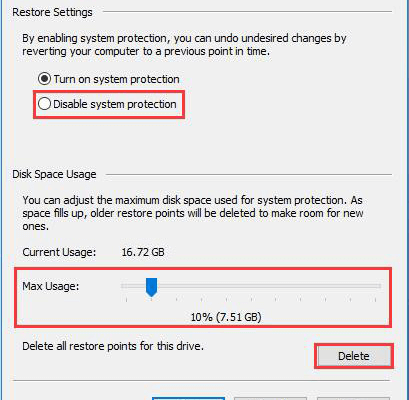
4. Disable System Restore

System Restore can be helpful in recovering your system if any errors occur, but it can also take up a significant amount of space on your C: drive. If you have enabled System Restore, it is recommended to disable it temporarily to free up space on your drive. However, it’s important to note that disabling System Restore may leave your system more vulnerable to errors or crashes.

5. Increase Disk Space

If none of the above fixes work and you are still encountering a filled-up C: drive, you may need to increase the size of your disk space. This can be done by purchasing an external hard drive or installing a larger internal drive. Before doing so, make sure you back up all your data and system files.

In conclusion, a filled-up C: drive can be a frustrating problem, but there are several fixes that you can try to resolve the issue. By checking for large files, removing unnecessary programs, running a malware scan, disabling system restore, or increasing your disk space, you can free up space on your C: drive and optimize your system’s performance.

Previous Article

How to Cancel a Stuck Print Job ...

Next Article

The Best Ad-Free Health and Fitness Apps ...

Matthew Lynch

Related articles More from author

  • Digital & Mobile Technology

    Exception Access Violation: What It Is and How to Fix It on Windows

    June 21, 2023
    By Matthew Lynch
  • Digital & Mobile Technology

    How to Fix Drag and Drop Not Working on Mac

    March 1, 2024
    By Matthew Lynch
  • Digital & Mobile Technology

    The 5 Best Crypto Exchanges for Staking Polygon (MATIC)

    July 31, 2023
    By Matthew Lynch
  • Digital & Mobile Technology

    Ways to Set Location-Based Reminders on Your Android Phone

    August 5, 2023
    By Matthew Lynch
  • Digital & Mobile Technology

    VLC Media Player: Every Windows Keyboard Shortcut You Must Know

    June 12, 2023
    By Matthew Lynch
  • Digital & Mobile Technology

    How to Access an External Hard Drive on Windows 10

    June 6, 2023
    By Matthew Lynch

Search

Login & Registration

  • Register
  • Log in
  • Entries feed
  • Comments feed
  • WordPress.org

Newsletter

Signup for The Tech Edvocate Newsletter and have the latest in EdTech news and opinion delivered to your email address!

About Us

Since technology is not going anywhere and does more good than harm, adapting is the best course of action. That is where The Tech Edvocate comes in. We plan to cover the PreK-12 and Higher Education EdTech sectors and provide our readers with the latest news and opinion on the subject. From time to time, I will invite other voices to weigh in on important issues in EdTech. We hope to provide a well-rounded, multi-faceted look at the past, present, the future of EdTech in the US and internationally.

We started this journey back in June 2016, and we plan to continue it for many more years to come. I hope that you will join us in this discussion of the past, present and future of EdTech and lend your own insight to the issues that are discussed.

Newsletter

Signup for The Tech Edvocate Newsletter and have the latest in EdTech news and opinion delivered to your email address!

Contact Us

The Tech Edvocate
910 Goddin Street
Richmond, VA 23231
(601) 630-5238
[email protected]

Copyright © 2025 Matthew Lynch. All rights reserved.