The Tech Edvocate

Top Menu

  • Advertisement
  • Apps
  • Home Page
  • Home Page Five (No Sidebar)
  • Home Page Four
  • Home Page Three
  • Home Page Two
  • Home Tech2
  • Icons [No Sidebar]
  • Left Sidbear Page
  • Lynch Educational Consulting
  • My Account
  • My Speaking Page
  • Newsletter Sign Up Confirmation
  • Newsletter Unsubscription
  • Our Brands
  • Page Example
  • Privacy Policy
  • Protected Content
  • Register
  • Request a Product Review
  • Shop
  • Shortcodes Examples
  • Signup
  • Start Here
    • Governance
    • Careers
    • Contact Us
  • Terms and Conditions
  • The Edvocate
  • The Tech Edvocate Product Guide
  • Topics
  • Write For Us
  • Advertise

Main Menu

  • Start Here
    • Our Brands
    • Governance
      • Lynch Educational Consulting, LLC.
      • Dr. Lynch’s Personal Website
      • Careers
    • Write For Us
    • The Tech Edvocate Product Guide
    • Contact Us
    • Books
    • Edupedia
    • Post a Job
    • The Edvocate Podcast
    • Terms and Conditions
    • Privacy Policy
  • Topics
    • Assistive Technology
    • Child Development Tech
    • Early Childhood & K-12 EdTech
    • EdTech Futures
    • EdTech News
    • EdTech Policy & Reform
    • EdTech Startups & Businesses
    • Higher Education EdTech
    • Online Learning & eLearning
    • Parent & Family Tech
    • Personalized Learning
    • Product Reviews
  • Advertise
  • Tech Edvocate Awards
  • The Edvocate
  • Pedagogue
  • School Ratings

logo

The Tech Edvocate

  • Start Here
    • Our Brands
    • Governance
      • Lynch Educational Consulting, LLC.
      • Dr. Lynch’s Personal Website
        • My Speaking Page
      • Careers
    • Write For Us
    • The Tech Edvocate Product Guide
    • Contact Us
    • Books
    • Edupedia
    • Post a Job
    • The Edvocate Podcast
    • Terms and Conditions
    • Privacy Policy
  • Topics
    • Assistive Technology
    • Child Development Tech
    • Early Childhood & K-12 EdTech
    • EdTech Futures
    • EdTech News
    • EdTech Policy & Reform
    • EdTech Startups & Businesses
    • Higher Education EdTech
    • Online Learning & eLearning
    • Parent & Family Tech
    • Personalized Learning
    • Product Reviews
  • Advertise
  • Tech Edvocate Awards
  • The Edvocate
  • Pedagogue
  • School Ratings
  • 100 Best Social Media Apps

  • 100 Best Email Marketing Apps

  • 100 Best Analytics Apps

  • 100 Best Business Intelligence Apps

  • The Wild West of Weight Loss: Why Millions Are Choosing Semaglutide Oral Alternatives

  • Why Millions Are Racing to Adopt These Game-Changing AI Productivity Tools in 2026

  • GTA 5 Switch Port Killed Days Before Oct. 3 Launch [2026]

  • Explosive: Virtual Land Dreams Turn to Dust as Metaverse Property Collapse Hits Investors Hard

  • The AI Revolution in Legal Teams: Why Your Firm Could Be Losing Millions

  • Urgent Warning: Cybercriminals Are Weaponizing ChatGPT – Here’s How to Protect Yourself

Digital & Mobile Technology
Home›Digital & Mobile Technology›Audio Not Working in Windows 10? Ways to Fix Sound Problems

Audio Not Working in Windows 10? Ways to Fix Sound Problems
By Matthew Lynch
June 22, 2023
0
Spread the love

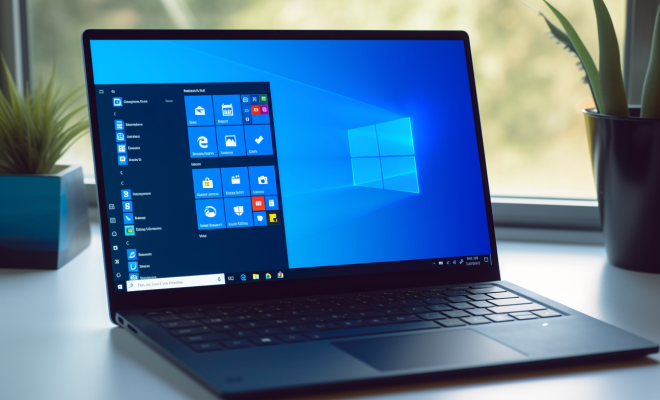
If you are experiencing audio problems in Windows 10, such as no sound or poor sound quality, there are a few simple solutions you can try to fix the issue.

1. Check the volume settings:

Sometimes the simplest of things can cause the most significant problems. Ensure that your system’s volume is turned up and not muted. Check your speaker’s volume, cable connections, and power supply.

2. Reinstall or update audio drivers:

Incompatible or outdated audio drivers can also cause sound issues on your device. To update or reinstall the audio drivers, go to the Device Manager and select the “Sound, Video, and game controllers” option to find the audio device. From there, click on “Update Driver” and select the option to “Browse my computer for driver software.”

3. Run Troubleshooter:

Windows 10 provides an integrated troubleshooter utility for fixing the audio issues automatically. To run the troubleshooter, open the Control panel and select “Troubleshooting.” After that, select the “Playing Audio” option and let the utility fix the problem.

4. Check your Playback Device:

Ensure that the speaker/headphone you are using is selected as the default playback device. To do that, right-click on the speaker icon from the system tray, choose “Sounds” from the context menu, and then click on the “Playback” tab. From there, select the correct playback device and click on “Set as default.”

5. Disable Audio Enhancements:

Some sound cards come with different software enhancements that affect how the audio is played. These enhancements can sometimes cause conflicts and sound issues. To disable the enhancements, go to the Sound settings and click on the “Properties” option for your playback device. From there, select the “Enhancements” tab and then choose the “Disable all enhancements” option.

6. Restart the Windows Audio Service:

Finally, if none of the above solutions worked, restart the Windows Audio Service. To do that, open the Run dialogue box by pressing the Windows key + R shortcut and type “services.msc.” Locate “Windows Audio” from the list of services, right-click on it, and select “Restart” option. It should resolve the issue.


 

Previous Article

Should You Delete the Hiberfil.sys File in ...

Next Article

How to Add Text to TikTok Videos: ...

Matthew Lynch

Related articles More from author

  • Digital & Mobile TechnologyDigital Age TeachersDigital Leadership

    Providing Effective Management and Security For The Digital Classroom

    October 19, 2020
    By Matthew Lynch
  • Digital & Mobile Technology

    What is a Superkey?

    April 23, 2023
    By Matthew Lynch
  • Digital & Mobile Technology

    How to Use Headphones on an OnePlus 9

    July 31, 2023
    By Matthew Lynch
  • Digital & Mobile Technology

    Is Win32:Bogent Safe? How Do I Remove It?

    July 31, 2023
    By Matthew Lynch
  • Digital & Mobile Technology

    The Best Tools for Microsoft Outlook

    June 12, 2023
    By Matthew Lynch
  • Digital & Mobile Technology

    How to Automatically Shut Down a Windows 10 and 11 PC When It’s Idle

    September 8, 2023
    By Matthew Lynch

Search

Login & Registration

  • Log in
  • Entries feed
  • Comments feed
  • WordPress.org

Newsletter

Signup for The Tech Edvocate Newsletter and have the latest in EdTech news and opinion delivered to your email address!

About Us

Since technology is not going anywhere and does more good than harm, adapting is the best course of action. That is where The Tech Edvocate comes in. We plan to cover the PreK-12 and Higher Education EdTech sectors and provide our readers with the latest news and opinion on the subject. From time to time, I will invite other voices to weigh in on important issues in EdTech. We hope to provide a well-rounded, multi-faceted look at the past, present, the future of EdTech in the US and internationally.

We started this journey back in June 2016, and we plan to continue it for many more years to come. I hope that you will join us in this discussion of the past, present and future of EdTech and lend your own insight to the issues that are discussed.

Newsletter

Signup for The Tech Edvocate Newsletter and have the latest in EdTech news and opinion delivered to your email address!

Contact Us

The Tech Edvocate
910 Goddin Street
Richmond, VA 23231
(601) 630-5238
[email protected]

Copyright © 2026 Matthew Lynch. All rights reserved.