Apple TV gaming controller compatibility
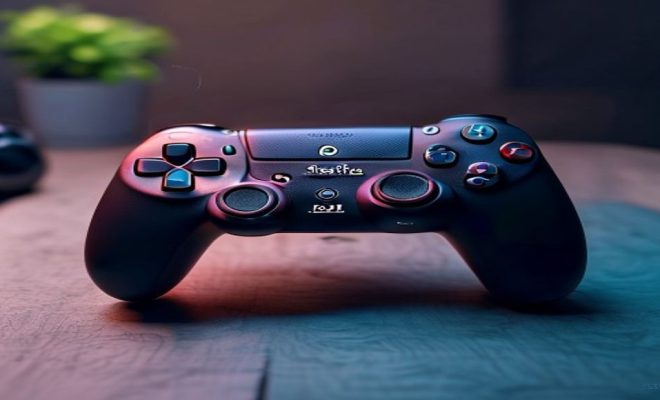
When you think about gaming, your mind probably jumps to a PlayStation, an Xbox, or maybe a high-end PC. But what about that sleek black box sitting under your TV, the one you use to stream Netflix and Disney+? That’s right, your Apple TV has quietly evolved into a surprisingly capable gaming console, and a huge part of that transformation comes down to its robust Apple TV gaming controller compatibility. For years, Apple has been steadily improving its support for external gamepads, turning what was once a niche feature into a central pillar of the Apple Arcade experience and beyond.
It wasn’t always this way. Early iterations of the Apple TV, particularly before the fourth generation, offered a rather restrictive gaming experience. You were largely confined to using the Siri Remote, which, while innovative for navigation, was hardly a gamer’s dream. Imagine trying to play a fast-paced action game with a touchpad and two buttons – it was a valiant effort by developers, but ultimately limiting. Then came the Apple TV HD (4th generation) in 2015, which introduced support for MFi (Made for iPhone/iPad/iPod) controllers. This was a significant step, opening the door to a more traditional console-like experience. But the real game-changer arrived with tvOS 13 in 2019, bringing official support for some of the most popular controllers in the world: the Sony PlayStation DualShock 4 and the Microsoft Xbox Wireless Controller. This wasn’t just an incremental update; it was a declaration that Apple was serious about gaming on the big screen.
Today, the landscape for Apple TV gaming controller compatibility is incredibly diverse and user-friendly. Whether you’re a casual player looking to enjoy some Apple Arcade titles or a more dedicated gamer hoping to stream PC games via a service like Steam Link, having a proper controller makes all the difference. The convenience of pairing a controller you already own, like a DualSense from your PS5 or an Xbox Series X|S controller, instantly elevates the experience, making your Apple TV a surprisingly versatile entertainment hub. We’re going to dive deep into exactly which controllers work, how to connect them, and why this often-overlooked feature might just make your Apple TV your next favorite gaming device.
The Evolution of Apple TV Gaming Controller Compatibility
To truly appreciate where we are today, it’s worth a quick look back at how Apple TV’s gaming capabilities have matured. Initially, Apple’s approach to gaming on its set-top box was, to put it mildly, experimental. The first few generations of Apple TV were primarily media streamers, designed for iTunes content and eventually, third-party apps. Gaming, if it existed at all, was a secondary thought, almost an afterthought.
The Apple TV HD, released in 2015, marked a pivotal moment. It introduced the App Store to the Apple TV, suddenly making hundreds, then thousands, of games available. Crucially, it also brought MFi controller support. MFi controllers were a standard Apple developed to ensure third-party accessories worked seamlessly with its devices. These controllers, like the SteelSeries Nimbus or the Hori HORIPAD, offered a more traditional button layout and gave developers the tools they needed to create more complex games than what the Siri Remote could handle. While a vast improvement, MFi controllers often came with a premium price tag and weren’t as ubiquitous as their console counterparts.
The real turning point, as mentioned, was tvOS 13. This software update didn’t just add support for the DualShock 4 and Xbox Wireless Controller; it fundamentally changed the perception of gaming on Apple TV. Suddenly, millions of people who already owned these popular controllers could instantly transform their Apple TV into a gaming machine without buying new hardware. This move significantly broadened the appeal of Apple TV gaming, making it accessible to a much wider audience and laying the groundwork for the eventual launch of Apple Arcade.
The Big Players: PlayStation and Xbox Controllers
Let’s talk about the stars of the show when it comes to Apple TV gaming controller compatibility: the PlayStation and Xbox controllers. These aren’t just any gamepads; they are industry standards, known for their ergonomic design, precise controls, and widespread adoption. Apple’s decision to support them natively was a masterstroke, immediately making Apple TV a more attractive platform for gamers.
For PlayStation fans, you’re in luck. The DualShock 4 (from the PS4) and the newer DualSense (from the PS5) are both fully supported. Connecting them is a breeze. You just put the controller into pairing mode (holding the PlayStation button and Share button simultaneously on the DualShock 4, or the PlayStation button and Create button on the DualSense until the light bar flashes), then navigate to your Apple TV’s Bluetooth settings (Settings > Remotes and Devices > Bluetooth) and select the controller from the list. It’s that simple. (See: Apple TV on Wikipedia.)
Xbox users also have excellent options. The Xbox Wireless Controller, including the versions that come with the Xbox Series X|S, Xbox One, and even the Elite Wireless Controllers, are all compatible. The pairing process is equally straightforward: press the Xbox button to turn on the controller, then hold the pairing button on the top edge until the Xbox logo starts flashing rapidly. Again, head to your Apple TV’s Bluetooth settings and select the controller. This broad support means that if you’re already an Xbox or PlayStation gamer, you likely already own a controller that works perfectly with your Apple TV.
Beyond the Consoles: MFi and Other Bluetooth Gamepads
While the PlayStation and Xbox controllers get a lot of attention, they’re not the only game in town for Apple TV gaming controller compatibility. The MFi standard, though perhaps overshadowed by the console controllers, still offers a fantastic range of options, and many generic Bluetooth gamepads can also get in on the action.
MFi controllers, like those from SteelSeries (e.g., Nimbus+, Stratus Duo), Rotor Riot, or Backbone One, are specifically designed to work with Apple products. This often means they offer excellent integration, sometimes even with dedicated features or charging capabilities tailored for Apple devices. For instance, some MFi controllers might have a dedicated button to access the Apple TV’s home screen or offer a more seamless charging experience. While they might not be as common as a DualSense, they are often a solid choice, especially if you prioritize a controller specifically optimized for the Apple ecosystem.
What about generic Bluetooth controllers? This is where things can get a little more hit-or-miss. Many standard Bluetooth gamepads that adhere to common HID (Human Interface Device) profiles will often work with the Apple TV. However, compatibility isn’t guaranteed, and you might find that some buttons don’t map correctly or certain features are unavailable. For example, a budget Bluetooth controller from an unknown brand might connect, but its rumble features or specific analog stick calibrations might not be recognized. If you’re considering a non-MFi or non-console controller, it’s always best to check reviews or the manufacturer’s compatibility list to save yourself some frustration. Generally, sticking to PlayStation, Xbox, or well-known MFi controllers provides the most reliable experience.
The Apple Arcade Advantage
Perhaps the biggest beneficiary of robust Apple TV gaming controller compatibility is Apple Arcade. Launched in 2019, Apple Arcade is Apple’s subscription gaming service, offering a curated library of ad-free, in-app-purchase-free games across iPhone, iPad, Mac, and Apple TV. The service’s success on the big screen is heavily reliant on having proper controller support.
Almost every game on Apple Arcade is designed with controller input in mind, and many are simply unplayable or significantly diminished without one. Think about titles like Sayonara Wild Hearts, a rhythm-action game that thrives on precise timing, or Fantasian, a sprawling RPG that feels much more natural with a traditional gamepad. Even casual games like What the Golf? benefit from the tactile feedback and direct control a physical controller provides over the Siri Remote’s touchpad.
The seamless integration between Apple Arcade and compatible controllers makes the Apple TV a surprisingly compelling casual gaming console. For a monthly fee, you get access to a constantly growing library of high-quality games that feel right at home with an Xbox or PlayStation controller. This synergy is a powerful argument for anyone considering an Apple TV as a supplementary gaming device, especially for families or individuals who enjoy a wide variety of genres without the commitment of full-price console games.
Connecting Your Controller: A Step-by-Step Guide
Getting your favorite controller hooked up to your Apple TV is usually a straightforward process. You don’t need to be a tech wizard, and it generally takes just a minute or two. Here’s a general guide that covers most common scenarios: (See: CDC on gaming and health.)
-
Ensure Your Apple TV is Updated:
Before you do anything, make sure your Apple TV is running the latest version of tvOS. Apple frequently releases updates that improve Bluetooth connectivity and controller compatibility. Go to Settings > System > Software Updates and check for any available updates.
-
Put Your Controller in Pairing Mode:
- PlayStation DualShock 4: Press and hold the PlayStation button and the Share button simultaneously until the light bar begins to flash rapidly.
- PlayStation DualSense: Press and hold the PlayStation button and the Create (three-line) button simultaneously until the light bar begins to flash rapidly.
- Xbox Wireless Controller: Turn on the controller by pressing the Xbox button. Then, press and hold the small pairing button on the top edge of the controller (next to the USB-C port) until the Xbox logo starts flashing rapidly.
- MFi Controllers: Consult your controller’s manual, but typically there’s a dedicated Bluetooth pairing button you’ll press and hold.
-
Navigate to Bluetooth Settings on Apple TV:
Using your Siri Remote, go to Settings > Remotes and Devices > Bluetooth.
-
Select Your Controller:
Your Apple TV will start scanning for nearby Bluetooth devices. When your controller appears in the ‘Other Devices’ list (it might show up as ‘Wireless Controller,’ ‘DUALSHOCK 4 Wireless Controller,’ ‘Xbox Wireless Controller,’ or its specific MFi name), select it. The Apple TV will then attempt to pair.
-
Confirm Connection:
Once successfully paired, the controller’s light will usually turn solid, and it will move from ‘Other Devices’ to ‘My Devices’ on your Apple TV’s Bluetooth screen. You can now use the controller to navigate the Apple TV interface and play games.
It’s genuinely that simple. If you encounter issues, try restarting both your Apple TV and the controller, or ensure no other devices are trying to connect to the controller simultaneously. Remember, your controller will usually remember its last pairing, so you’ll typically only need to do this once.
Beyond Apple Arcade: Steam Link and Cloud Gaming
While Apple Arcade provides a fantastic native gaming experience, the utility of robust Apple TV gaming controller compatibility extends far beyond it. Thanks to apps like Steam Link and various cloud gaming services, your Apple TV can become a portal to a much wider universe of games, including many AAA titles.
Steam Link is a prime example. This app allows you to stream games from your PC directly to your Apple TV over your home network. Imagine playing your extensive PC game library – from Cyberpunk 2077 to Elden Ring – on your living room TV, all controlled with your familiar Xbox or PlayStation gamepad. The experience is surprisingly good, especially on a fast Wi-Fi 6 network or a wired Ethernet connection. The Apple TV acts as a receiver, while your PC does all the heavy lifting, rendering the game and streaming the video and audio. The controller input is sent back to the PC, creating a remarkably low-latency experience that feels almost native. (See: New York Times on Apple Arcade.)
Cloud gaming services like NVIDIA GeForce NOW and Xbox Cloud Gaming (via web browsers or dedicated apps on other Apple devices, which can then be AirPlayed, though native app support on tvOS is still a hope for many) also benefit immensely from Apple TV’s controller support. While these services might not have native tvOS apps for direct play yet, the principle is the same: the game runs on powerful remote servers, and your Apple TV serves as the display. Having a compatible controller is non-negotiable for these services, as they primarily host console-quality games. As cloud gaming continues to evolve and more services potentially land on tvOS, the importance of reliable Apple TV gaming controller compatibility will only grow.
Optimizing Your Gaming Experience: Tips and Tricks
Just connecting your controller is the first step. To truly optimize your Apple TV gaming experience, consider a few additional tips:
- Wired vs. Wireless: While most modern controllers are wireless, if you’re experiencing input lag, especially with Steam Link or cloud gaming, consider a wired connection if your controller supports it (e.g., some MFi controllers). This can reduce latency. However, for most native Apple Arcade games, Bluetooth latency is negligible.
- Keep Controllers Charged: This might seem obvious, but there’s nothing worse than a controller dying mid-boss fight. Most modern controllers have excellent battery life, but make it a habit to charge them regularly.
- Reduce Wi-Fi Congestion: For streaming games (Steam Link, cloud gaming), a strong and uncongested Wi-Fi network is crucial. If possible, use an Ethernet cable for your Apple TV, especially if your router is far away or your Wi-Fi is heavily used by other devices.
- Close Background Apps: While Apple TV is generally efficient, closing unnecessary background apps can free up resources, potentially leading to smoother performance in demanding games.
- Experiment with Controller Settings: Some games within Apple Arcade or even the Apple TV system settings might offer controller remapping or sensitivity adjustments. Take a moment to explore these to tailor the experience to your preferences.
- Consider the Apple TV 4K: If gaming is a serious consideration, invest in an Apple TV 4K (either the 2nd or 3rd generation). The more powerful A12 Bionic or A15 Bionic chip provides significantly better performance, smoother frame rates, and faster loading times compared to the older Apple TV HD, making a noticeable difference in graphically intensive titles.
Future-Proofing Your Apple TV Gaming Setup
Apple’s commitment to gaming on the Apple TV seems to be growing, not diminishing. With each tvOS update, we often see enhancements to controller support, stability, and performance. The inclusion of the powerful A15 Bionic chip in the latest Apple TV 4K models clearly indicates that Apple sees its set-top box as more than just a streaming device; it’s a legitimate contender for casual and even some mid-tier gaming experiences.
As gaming technology continues to advance, particularly in areas like cloud streaming and augmented reality, the Apple TV’s role as a central hub in the living room only becomes more significant. Its robust Apple TV gaming controller compatibility ensures that it’s ready to adapt to these changes. We might see even more advanced haptic feedback support for DualSense controllers, or perhaps broader integration with new types of gaming peripherals. The foundation is already incredibly strong, and it’s exciting to imagine what future updates might bring.
Ultimately, the Apple TV, particularly the 4K model, offers a surprisingly compelling gaming proposition. It’s not aiming to replace your dedicated gaming console, nor should it. Instead, it carves out its own niche: a powerful, user-friendly device that delivers a fantastic casual gaming experience, excellent Apple Arcade integration, and the capability to stream a vast library of PC games, all controlled by the gamepads you already know and love. If you haven’t explored the gaming potential of your Apple TV with a proper controller, you’re truly missing out on a significant part of what this versatile little box can do.
Trending Now
Frequently Asked Questions
What controllers are compatible with Apple TV?
Apple TV supports a variety of gaming controllers, including the Sony PlayStation DualShock 4, DualSense, and Microsoft Xbox Wireless Controllers. Additionally, it is compatible with MFi (Made for iPhone/iPad/iPod) controllers, allowing for a more traditional gaming experience.
Can I use my Xbox controller with Apple TV?
Yes, you can use your Xbox Wireless Controller with Apple TV. This compatibility was introduced with tvOS 13, making it easier for gamers to enjoy a console-like experience when playing games on their Apple TV.
How do I connect a controller to Apple TV?
To connect a controller to your Apple TV, go to Settings > Remotes and Devices > Bluetooth. Put your controller in pairing mode, and it should appear on the screen. Select the controller to complete the pairing process.
Is Apple TV good for gaming?
Yes, Apple TV has evolved into a capable gaming platform, especially with the introduction of Apple Arcade and support for external controllers. This allows for a more immersive gaming experience, comparable to traditional consoles.
What is Apple Arcade?
Apple Arcade is a subscription-based gaming service that offers access to a wide variety of games on Apple devices, including Apple TV. It enhances the gaming experience by providing exclusive titles and seamless gameplay with supported controllers.
Agree or disagree? Drop a comment and tell us what you think.