The Tech Edvocate

Top Menu

  • Advertisement
  • Apps
  • Home Page
  • Home Page Five (No Sidebar)
  • Home Page Four
  • Home Page Three
  • Home Page Two
  • Home Tech2
  • Icons [No Sidebar]
  • Left Sidbear Page
  • Lynch Educational Consulting
  • My Account
  • My Speaking Page
  • Newsletter Sign Up Confirmation
  • Newsletter Unsubscription
  • Our Brands
  • Page Example
  • Privacy Policy
  • Protected Content
  • Register
  • Request a Product Review
  • Shop
  • Shortcodes Examples
  • Signup
  • Start Here
    • Governance
    • Careers
    • Contact Us
  • Terms and Conditions
  • The Edvocate
  • The Tech Edvocate Product Guide
  • Topics
  • Write For Us
  • Advertise

Main Menu

  • Start Here
    • Our Brands
    • Governance
      • Lynch Educational Consulting, LLC.
      • Dr. Lynch’s Personal Website
      • Careers
    • Write For Us
    • The Tech Edvocate Product Guide
    • Contact Us
    • Books
    • Edupedia
    • Post a Job
    • The Edvocate Podcast
    • Terms and Conditions
    • Privacy Policy
  • Topics
    • Assistive Technology
    • Child Development Tech
    • Early Childhood & K-12 EdTech
    • EdTech Futures
    • EdTech News
    • EdTech Policy & Reform
    • EdTech Startups & Businesses
    • Higher Education EdTech
    • Online Learning & eLearning
    • Parent & Family Tech
    • Personalized Learning
    • Product Reviews
  • Advertise
  • Tech Edvocate Awards
  • The Edvocate
  • Pedagogue
  • School Ratings

logo

The Tech Edvocate

  • Start Here
    • Our Brands
    • Governance
      • Lynch Educational Consulting, LLC.
      • Dr. Lynch’s Personal Website
        • My Speaking Page
      • Careers
    • Write For Us
    • The Tech Edvocate Product Guide
    • Contact Us
    • Books
    • Edupedia
    • Post a Job
    • The Edvocate Podcast
    • Terms and Conditions
    • Privacy Policy
  • Topics
    • Assistive Technology
    • Child Development Tech
    • Early Childhood & K-12 EdTech
    • EdTech Futures
    • EdTech News
    • EdTech Policy & Reform
    • EdTech Startups & Businesses
    • Higher Education EdTech
    • Online Learning & eLearning
    • Parent & Family Tech
    • Personalized Learning
    • Product Reviews
  • Advertise
  • Tech Edvocate Awards
  • The Edvocate
  • Pedagogue
  • School Ratings
  • A Visitors Guide to Colorado Springs (CO), United States

  • 5 Pairs of Shoes That Will Instantly Step Your Shoe Game Up

  • Radiant Youthful Skin is the Perfect Christmas Gift

  • Give Your Loved One the Gift of Youthful, Radiant Skin this Christmas

  • Give Your Loved One the Gift of a Restful Night Sleep this Christmas

  • Nex Playground’s Holiday Sales Bring Active Play Indoors This Seaso

  • A Visitors Guide to Louisville (KY), United States

  • A Visitor’s Guide to Nashville-Davidson (TN), United States

  • A Visitors Guide to Portland (OR), United States

  • 7 Men’s Bruno Marc Shoes That Are the Perfect Christmas Gift

Digital & Mobile Technology
Home›Digital & Mobile Technology›Android 101: How to Use Your Android Smartphone or Tablet

Android 101: How to Use Your Android Smartphone or Tablet
By Matthew Lynch
June 4, 2023
0
Spread the love

If you’re a new Android user, you might be feeling a little overwhelmed with all the features and settings on your smartphone or tablet. But with a little bit of practice, you’ll be navigating your device like a pro in no time. Here’s a beginner’s guide to help you get started with your Android device.

1. Set up your device

When you first turn on your Android device, you’ll need to go through a few steps to set it up. Choose your language, connect to Wi-Fi, and log in to your Google account. This will give you access to the Google Play Store, where you can download apps and games.

2. Customize your home screen

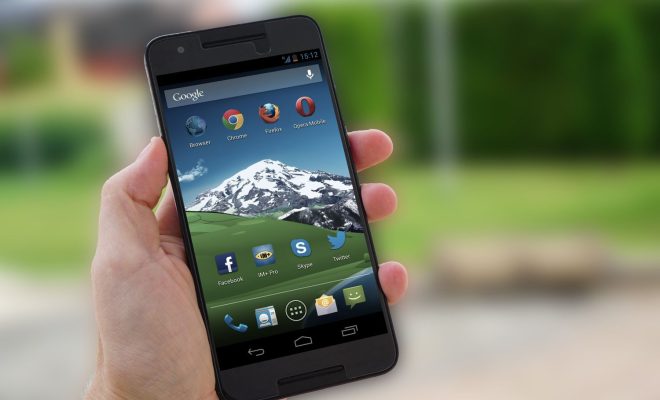
Your home screen is the first thing you see when you unlock your device. You can customize it by adding widgets, changing the wallpaper, and rearranging the icons. To add a widget, long-press on the home screen and select Widgets. To change the wallpaper, long-press on the home screen and select Wallpapers.

3. Download apps

The Google Play Store is where you can download apps and games for your Android device. To browse the store, open the Play Store app and search for apps or games. Once you find something you want to download, tap Install. You can also check out the Featured, Top Charts, and Categories sections for popular apps and games.

4. Use the camera

Your Android device likely has a camera that you can use to take photos and videos. To open the camera app, find the camera icon on your home screen or in the app drawer. Once you’re in the camera app, you can take a photo by tapping the shutter button. You can also switch between the front and back cameras by tapping the camera icon.

5. Change settings

Your Android device has a lot of settings that you can customize. To access them, swipe down from the top of the screen and tap the gear icon. From here, you can change your Wi-Fi and Bluetooth settings, adjust the volume and brightness, and more.

6. Use Google Assistant

Google Assistant is a voice-activated assistant that can help you with tasks like creating reminders, setting alarms, and searching the web. To activate Google Assistant, say “Hey Google” or “OK Google” and ask a question or give a command. You can also access Google Assistant by long-pressing the home button.

7. Synchronize your data

Your Android device can synchronize with your Google account to keep your contacts, calendars, and other data up to date. To sync your data, go to Settings > Accounts > Google and make sure the switch next to the items you want to sync is turned on.

With these tips, you should be able to start using your Android device with confidence. Remember that there are many more features and settings to explore, so don’t be afraid to experiment and discover what your device can do. Happy exploring!


Previous Article

How to Upload Music to the Amazon ...

Next Article

Five Headlight Upgrades for Better Brightness and ...

Matthew Lynch

Related articles More from author

  • Digital & Mobile Technology

    How to Install APK on Android

    June 1, 2023
    By Matthew Lynch
  • Digital & Mobile TechnologyElementary SchoolK-12Online Learning & eLearning

    Focus on 21st-Century Skills: 3 Digital Trends in K-12 Education

    September 21, 2020
    By Matthew Lynch
  • Digital & Mobile Technology

    How to Search for Filters on Instagram and Add to Your Story

    May 7, 2023
    By Matthew Lynch
  • Digital & Mobile Technology

    The Ultimate Pokémon Game Timeline: From Red and Blue to Scarlet and Violet

    October 21, 2025
    By Matthew Lynch
  • Digital & Mobile Technology

    What Is Google Home and How Does It Work?

    August 5, 2023
    By Matthew Lynch
  • Digital & Mobile Technology

    How to Unlock an iPhone Without a Passcode or Face ID

    June 8, 2023
    By Matthew Lynch

Search

Login & Registration

  • Register
  • Log in
  • Entries feed
  • Comments feed
  • WordPress.org

Newsletter

Signup for The Tech Edvocate Newsletter and have the latest in EdTech news and opinion delivered to your email address!

About Us

Since technology is not going anywhere and does more good than harm, adapting is the best course of action. That is where The Tech Edvocate comes in. We plan to cover the PreK-12 and Higher Education EdTech sectors and provide our readers with the latest news and opinion on the subject. From time to time, I will invite other voices to weigh in on important issues in EdTech. We hope to provide a well-rounded, multi-faceted look at the past, present, the future of EdTech in the US and internationally.

We started this journey back in June 2016, and we plan to continue it for many more years to come. I hope that you will join us in this discussion of the past, present and future of EdTech and lend your own insight to the issues that are discussed.

Newsletter

Signup for The Tech Edvocate Newsletter and have the latest in EdTech news and opinion delivered to your email address!

Contact Us

The Tech Edvocate
910 Goddin Street
Richmond, VA 23231
(601) 630-5238
[email protected]

Copyright © 2025 Matthew Lynch. All rights reserved.