The Tech Edvocate

Top Menu

  • Advertisement
  • Apps
  • Home Page
  • Home Page Five (No Sidebar)
  • Home Page Four
  • Home Page Three
  • Home Page Two
  • Home Tech2
  • Icons [No Sidebar]
  • Left Sidbear Page
  • Lynch Educational Consulting
  • My Account
  • My Speaking Page
  • Newsletter Sign Up Confirmation
  • Newsletter Unsubscription
  • Our Brands
  • Page Example
  • Privacy Policy
  • Protected Content
  • Register
  • Request a Product Review
  • Shop
  • Shortcodes Examples
  • Signup
  • Start Here
    • Governance
    • Careers
    • Contact Us
  • Terms and Conditions
  • The Edvocate
  • The Tech Edvocate Product Guide
  • Topics
  • Write For Us
  • Advertise

Main Menu

  • Start Here
    • Our Brands
    • Governance
      • Lynch Educational Consulting, LLC.
      • Dr. Lynch’s Personal Website
      • Careers
    • Write For Us
    • The Tech Edvocate Product Guide
    • Contact Us
    • Books
    • Edupedia
    • Post a Job
    • The Edvocate Podcast
    • Terms and Conditions
    • Privacy Policy
  • Topics
    • Assistive Technology
    • Child Development Tech
    • Early Childhood & K-12 EdTech
    • EdTech Futures
    • EdTech News
    • EdTech Policy & Reform
    • EdTech Startups & Businesses
    • Higher Education EdTech
    • Online Learning & eLearning
    • Parent & Family Tech
    • Personalized Learning
    • Product Reviews
  • Advertise
  • Tech Edvocate Awards
  • The Edvocate
  • Pedagogue
  • School Ratings

logo

The Tech Edvocate

  • Start Here
    • Our Brands
    • Governance
      • Lynch Educational Consulting, LLC.
      • Dr. Lynch’s Personal Website
        • My Speaking Page
      • Careers
    • Write For Us
    • The Tech Edvocate Product Guide
    • Contact Us
    • Books
    • Edupedia
    • Post a Job
    • The Edvocate Podcast
    • Terms and Conditions
    • Privacy Policy
  • Topics
    • Assistive Technology
    • Child Development Tech
    • Early Childhood & K-12 EdTech
    • EdTech Futures
    • EdTech News
    • EdTech Policy & Reform
    • EdTech Startups & Businesses
    • Higher Education EdTech
    • Online Learning & eLearning
    • Parent & Family Tech
    • Personalized Learning
    • Product Reviews
  • Advertise
  • Tech Edvocate Awards
  • The Edvocate
  • Pedagogue
  • School Ratings
  • Rotirile gratuite fără depunere: activarea rundelor și creditarea câștigurilor

  • The Astonishing Reason Millions Are Ditching Old Finance Education for This New Method

  • Why Your Bank Account Needs These 7 Gamified Money Apps Right Now

  • Why Millions Are Finally Beating Debt Thanks to Gamification in Personal Finance Apps

  • 5.7 Million Students Exposed: Why This Breach Demands Immediate Legal Action

  • The Brutal Truth About EdTech Breaches: 8 Defenses Schools Need NOW

  • Millions of Student Records Exposed: The Scandalous ETS Data Breach

  • Amazon’s Secret Weapon: Why Its Workforce Strategy Crushes eBay’s Layoff Cycle

  • Devastating: eBay Layoffs Hit 1,000 — 8 Critical Moves to Land Your Next Role

  • eBay’s Second Wave: Is Your Tech Job Safe From These Brutal Cuts?

Assistive Technology
Home›Assistive Technology›How to Use Ryzen Master to Overclock and Monitor Your Windows PC

How to Use Ryzen Master to Overclock and Monitor Your Windows PC
By Matthew Lynch
June 15, 2023
0
Spread the love

If you are looking to get the most out of your Windows PC, then you might want to consider overclocking your system. This process involves increasing the clock speed of your CPU, which can boost its performance significantly. However, overclocking can also be a bit risky and is not recommended for beginners. If you’re not careful, you could damage your hardware or cause stability issues. Fortunately, there are tools like Ryzen Master that can help you safely overclock your system. In this article, we’ll show you how to use Ryzen Master to overclock and monitor your Windows PC.

What is Ryzen Master?

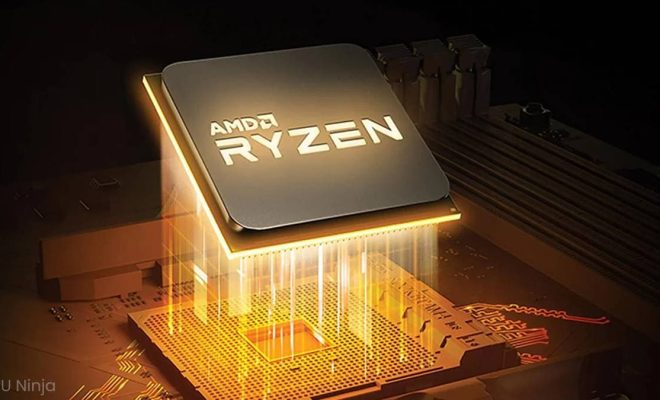
Ryzen Master is an overclocking utility that is designed specifically for AMD Ryzen processors. This software allows users to adjust the CPU’s clock speed and voltage settings in real-time, which can help improve system performance. Ryzen Master is a powerful utility, but it should only be used by experienced users who have a good understanding of how to overclock their system.

How to use Ryzen Master to Overclock Your PC

Before you start overclocking your PC, it’s important to note that doing so can void your warranty or damage your hardware. Therefore, it’s important to ensure that you have adequate cooling and that you proceed with caution. Here’s how you can use Ryzen Master to overclock your Windows PC:

Step 1: Download and Install Ryzen Master

The first step is to download Ryzen Master from the AMD website. Once you have installed the software, launch it and allow it to detect your system.

Step 2: Enter Game Mode

Ryzen Master comes with a built-in game mode that can be used to optimize your system’s performance while gaming. You can activate game mode by clicking on the “Game Mode” button at the bottom of Ryzen Master.

Step 3: Adjust Your Clock Speed

Once you have entered game mode, you can start adjusting your clock speeds. Click on the “CPU” tab at the top of Ryzen Master and then click on “Manual” to enable manual overclocking. From here, you can adjust your clock speed by moving the slider to the right.

Step 4: Adjust Your Voltage

In addition to adjusting your clock speed, you can also adjust your voltage settings. This can be done by clicking on the “Voltage Control” tab and moving the slider to the right. Make sure to keep an eye on your system’s temperature as you overclock your system.

Step 5: Monitor Your System

Once you have adjusted your clock speed and voltage settings, it’s important to monitor your system to ensure that it is stable. Ryzen Master comes with a built-in system monitor that can be used to track your system’s performance. You can view your CPU usage, clock speed, temperature, and voltage settings in real-time.


Previous Article

New iPad mini Pro: News and Expected ...

Next Article

How to Show Disk Usage in Linux ...

Matthew Lynch

Related articles More from author

  • Assistive Technology

    How to Install Windows on Steam Deck

    June 10, 2023
    By Matthew Lynch
  • Assistive Technology

    How to Turn VSCode Into the Ultimate Markdown Editor

    June 10, 2023
    By Matthew Lynch
  • Assistive Technology

    How to Activate Your Webcam

    June 6, 2023
    By Matthew Lynch
  • Assistive Technology

    How to Modify Decimal Places in Excel: 3 Ways

    June 6, 2023
    By Matthew Lynch
  • Assistive Technology

    How to Fix It When You’re Locked Out of Your Gmail Account

    June 8, 2023
    By Matthew Lynch
  • Assistive Technology

    Best Christmas Instagram Captions This Holiday Season (2023)

    June 8, 2023
    By Matthew Lynch

Search

Login & Registration

  • Log in
  • Entries feed
  • Comments feed
  • WordPress.org

Newsletter

Signup for The Tech Edvocate Newsletter and have the latest in EdTech news and opinion delivered to your email address!

About Us

Since technology is not going anywhere and does more good than harm, adapting is the best course of action. That is where The Tech Edvocate comes in. We plan to cover the PreK-12 and Higher Education EdTech sectors and provide our readers with the latest news and opinion on the subject. From time to time, I will invite other voices to weigh in on important issues in EdTech. We hope to provide a well-rounded, multi-faceted look at the past, present, the future of EdTech in the US and internationally.

We started this journey back in June 2016, and we plan to continue it for many more years to come. I hope that you will join us in this discussion of the past, present and future of EdTech and lend your own insight to the issues that are discussed.

Newsletter

Signup for The Tech Edvocate Newsletter and have the latest in EdTech news and opinion delivered to your email address!

Contact Us

The Tech Edvocate
910 Goddin Street
Richmond, VA 23231
(601) 630-5238
[email protected]

Copyright © 2026 Matthew Lynch. All rights reserved.